
1. Производ је готовview
The Sitecom CN-019 is a 4-port USB 2.0 hub designed to expand the USB connectivity of your computer or notebook. It provides four additional USB ports, allowing you to connect multiple USB devices simultaneously. This hub is self-powered, meaning it includes its own power adapter to ensure stable power delivery to connected devices, especially those with higher power requirements like external hard drives.
It supports USB 2.0 for high-speed data transfer up to 480 Mbps and is backward compatible with USB 1.1 devices. The hub is compatible with various operating systems, including Windows 98/ME/2000/XP and Mac OS.
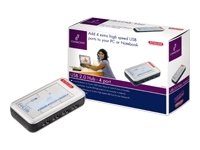
Image 1.1: The Sitecom CN-019 4-Port USB 2.0 Powered Hub, showing its compact design and multiple USB ports.
2. Садржај пакета
Please check the package contents. If any items are missing or damaged, contact your retailer.
- Sitecom CN-019 4-Port USB 2.0 Hub
- 110/220 V AC Power Adapter
- USB Cable (for connecting the hub to your computer)
- Кориснички приручник (овај документ)
3. Подешавање
Follow these steps to set up your Sitecom CN-019 USB hub:
- Повежите адаптер за напајање: Plug the included 110/220 V AC power adapter into the power input port on the Sitecom CN-019 hub. Then, plug the power adapter into a standard electrical outlet. This provides external power to the hub and connected devices.
- Повежите се са рачунаром: Use the provided USB cable to connect the upstream USB port on the Sitecom CN-019 hub to an available USB port on your computer or notebook.
- Инсталирајте драјвере (ако је потребно): The Sitecom CN-019 is typically plug-and-play. Your operating system (Windows 98/ME/2000/XP, Mac OS) should automatically detect and install the necessary drivers. If prompted, follow the on-screen instructions.
- Повежите УСБ уређаје: Once the hub is recognized, you can connect your USB devices (e.g., mouse, keyboard, printer, external hard drive) to the four available downstream USB ports on the hub.
The hub's status indicator (if present) should illuminate, indicating it is powered and ready for use.
4. Упутство за употребу
The Sitecom CN-019 USB hub operates as a standard USB 2.0 hub, extending your computer's USB capabilities.
- Пренос података: The hub supports USB 2.0 specifications, allowing data transfer speeds of up to 480 Mbps. This is suitable for most peripherals and data storage devices.
- Повратна компатибилност: It is fully backward compatible with USB 1.1 devices, though data transfer speeds will be limited to USB 1.1 rates (up to 12 Mbps) when such devices are connected.
- Powered Ports: The external power adapter ensures that each of the four ports can provide sufficient power to connected devices, which is crucial for devices like external hard drives that require more power than a bus-powered hub can typically supply.
- Замена током рада: USB devices can be connected and disconnected from the hub while your computer is running, without needing to restart.
5. Одржавање
To ensure the longevity and optimal performance of your Sitecom CN-019 USB hub, follow these simple maintenance guidelines:
- Чишћење: Use a soft, dry cloth to clean the exterior of the hub. Do not use liquid cleaners or aerosols, as they may damage the device.
- Складиштење: Када се не користи дуже време, чувајте чвориште на хладном и сувом месту, даље од директне сунчеве светлости и екстремних температура.
- Руковање: Avoid dropping the hub or subjecting it to strong impacts. Do not attempt to open the casing, as this will void the warranty.
- вентилација: Ensure the hub is placed in an area with adequate ventilation to prevent overheating.
КСНУМКС. Решавање проблема
If you encounter issues with your Sitecom CN-019 USB hub, refer to the following common problems and solutions:
| Проблем | Могући узрок / решење |
|---|---|
| Hub or connected device is not recognized by the computer. |
|
| Connected device is not receiving enough power or is unstable. |
|
| Споре брзине преноса података. |
|
7. Спецификације
| Феатуре | Детаљ |
|---|---|
| Број модела | ЦН-КСНУМКС |
| Бранд | Ситецом |
| Број портова | 4 x USB 2.0 Downstream Ports |
| Хардверски интерфејс | USB 2.0, USB 1.1 (backward compatible) |
| Брзина преноса података | До 480 Mbps (USB 2.0) |
| Извор напајања | 110/220 V AC Adapter (included) |
| Компатибилност оперативног система | Windows 98/ME/2000/XP, Mac OS |
| Посебне карактеристике | Multi-platform compatible, Powered Hub |
| Материјал | Пластика |
| Димензије (пакет) | 21.2 x 15 x 7.2 cm; 300 g (approx.) |
8. Гаранција и подршка
Sitecom products are designed for reliability and performance. For information regarding warranty terms and conditions, please refer to the warranty card included with your product or visit the official Sitecom website. For technical support or further assistance, please contact Sitecom customer service through their official channels.
Сачувајте рачун као доказ о куповини за потребе гаранције.