
1. Готовоview
The Canon PowerShot SD450 Digital ELPH camera is a compact digital camera designed for ease of use and high-quality imaging. It features a 5.0-megapixel sensor, a 3x optical zoom lens, and a 2.5-inch LCD display. The camera incorporates Canon's DIGIC II processor for efficient image processing and offers various shooting modes to suit different photographic situations.

Слика 1.1: Предња страна view of the Canon PowerShot SD450 Digital ELPH camera with its lens retracted.
2. Шта је у кутији
Проверите да ли су све следеће ставке укључене у ваш пакет:
- Тело PowerShot SD450
- Литијумска батерија NB-4L
- Battery charger CB-2LV
- 16 MB SD memory card SDC-16M
- Наруквица WS-600
- ЦД-РОМ са решењем за дигиталну камеру
- USB интерфејс кабл IFC-400PCU
- Аудио-видео кабл AVC-DC300
3. Подешавање
3.1. Пуњење батерије
- Insert the Lithium battery pack NB-4L into the battery charger CB-2LV.
- Укључите пуњач у утичницу. Индикаторска лампица пуњења ће се упалити.
- Once charging is complete, the indicator light will change or turn off. Remove the battery.
3.2. Уметање батерије и SD картице
- Отворите поклопац одељка за батерију/картицу који се налази на дну фотоапарата.
- Insert the charged battery pack into the compartment, ensuring correct orientation.
- Insert the SD memory card into the card slot until it clicks into place.
- Добро затворите поклопац одељка.
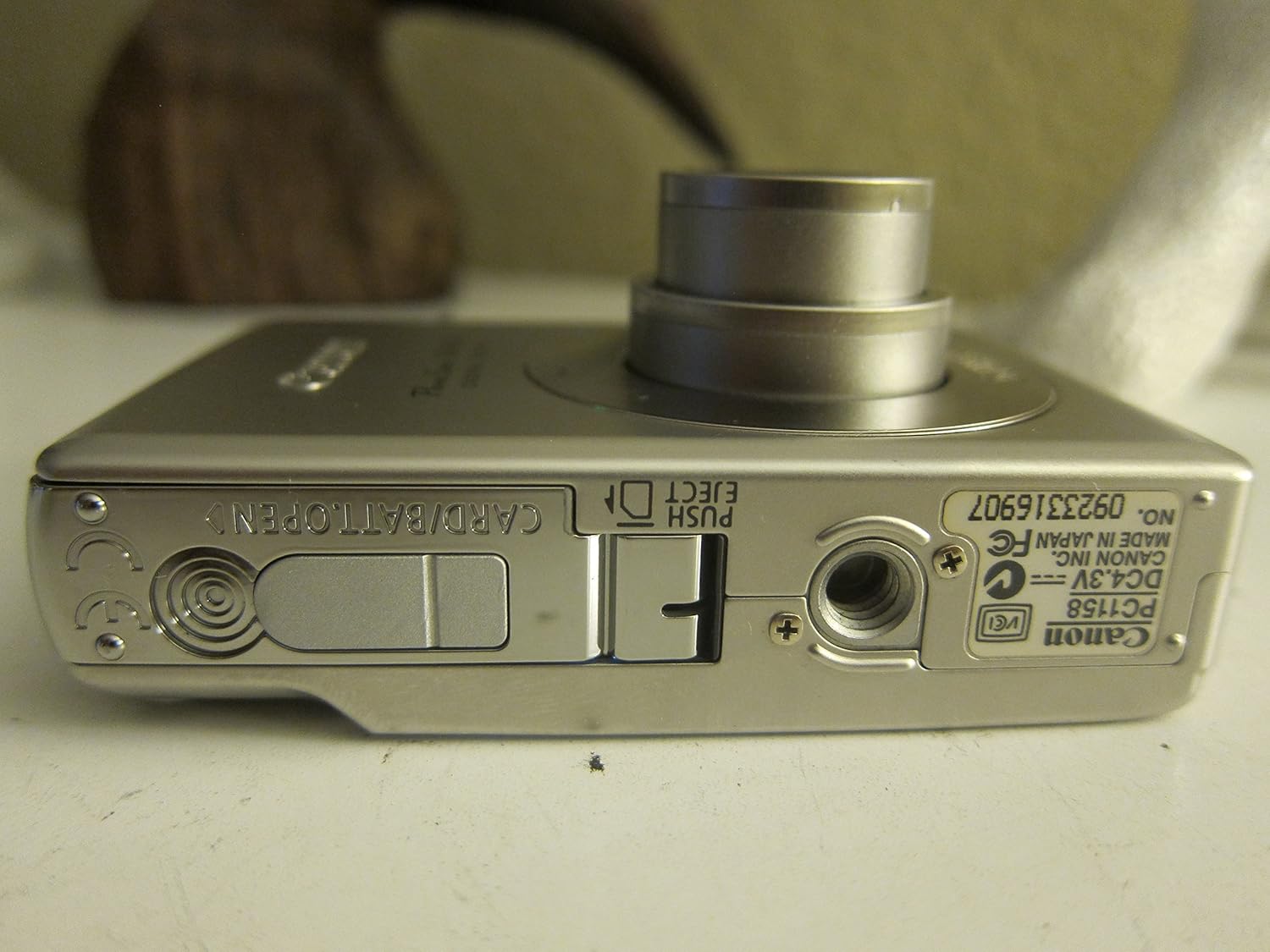
Слика 3.1: Дно view of the camera, illustrating the battery and SD card compartment.
3.3. Почетно укључивање и основна подешавања
- Притисните тастер ОН/ОФФ дугме за укључивање камере.
- Пратите упутства на екрану да бисте подесили датум, време и језик.

Слика 3.2: Врх view of the camera, highlighting the power button and shutter release.
4. Руковање камером
4.1. Основна фотографија
- Укључивање/искључивање: Притисните тастер ОН/ОФФ дугме.
- Снимање слике: Притисните дугме затварача до пола да бисте фокусирали, а затим притисните до краја да бисте снимили слику.
- Зумирање: Користите ручицу за зумирање око дугмета затварача да бисте подесили оптички зум од 3x.

Слика 4.1: Предња страна view of the camera with the optical zoom lens extended.
4.2. Режими снимања
The PowerShot SD450 offers various shooting modes to optimize settings for different scenes. Rotate the mode dial to select:
- Ауто: Camera automatically sets optimal exposure and focus.
- Упутство: Allows for more control over settings like white balance and color tones (black and white, sepia, vivid, neutral).
- портрет: Замућује позадину како би нагласио објекат.
- Пејзаж: Ensures sharp focus on distant subjects.
- Ноћни снимак: For shooting in low light conditions.
- Режими сцене: Includes specific settings for Kids & Pets, Foliage, Fireworks, Snow, Underwater, Beach, and Indoor.
- Моје боје: Apply special effects like Color Swap or Custom Color directly in-camera.
4.3. Фокусирање и експозиција
- AiAF: The 9-point Artificial Intelligence Auto Focus system automatically focuses on subjects, even if off-center.
- Контрола експозиције: Select from Evaluative, Center-weighted, or Spot metering.
- ИСО осетљивост: Adjustable to Auto, 50, 100, 200, or 400 to control light sensitivity.
4.4. Видео снимање
The camera can record high-quality movies:
- Резолуције: VGA (640x480) or QVGA (320x240) at 30 or 15 frames per second.
- Fast Frame Rate Movie Mode: Records at 60 frames per second for slow-motion playback.
- Compact Movie Mode (QQVGA): 160x120 at 15 frames per second, suitable for email sharing.
- Continuous filming is available until the file size reaches 1 GB or 60 minutes.
4.5. Репродукција и поновноview
То реview ваше фотографије и видео снимци:
- Притисните тастер Репродукција дугме.
- Use the directional pad to navigate through images and videos.
- Intelligent Orientation Sensor: Automatically rotates stored images for correct playback when the camera is rotated.
- Slideshow Functions: Create impressive slideshows with transition effects directly on the camera.

Слика 4.2: Задња страна view of the camera, showing the LCD display during image playback.
4.6. Штампање слика
The PowerShot SD450 supports direct printing:
- ПиктБриџ: Connect directly to PictBridge-compatible printers (e.g., Canon PIXMA printers) for printing without a PC.
- Дугме за штампање/дељење: Simplifies direct printing and image uploading to Windows XP or Mac OS X.
5. Одржавање
5.1. Чишћење камере
- Користите меку, суву крпу за чишћење кућишта фотоапарата.
- For the lens and LCD screen, use a lens cleaning cloth and specialized cleaning solution if necessary. Avoid harsh chemicals.
5.2. Брига о батерији
- Чувајте батерије на хладном и сувом месту када нису у употреби.
- Избегавајте често потпуно пражњење батерије како бисте продужили њен век трајања.
- Recharge the battery using only the provided Canon charger.
5.3. Складиштење
- Када складиштите камеру дуже време, извадите батерију.
- Store the camera in a protective case to prevent dust and scratches.
КСНУМКС. Решавање проблема
| Проблем | Решење |
|---|---|
| "Memory Error" message appears. |
|
| Слике су мутне. |
|
| Flash is too strong or washes out subjects. |
|
| Батерија се брзо празни. |
|
| Камера се не укључује. |
|
7. Спецификације
| Бранд | Цанон |
| Назив модела | Цанон ПоверСхот СД450 |
| Ефективна резолуција мировања | 5 мегапиксела |
| Оптицал Зоом | 3x |
| Величина екрана | 2.5 инча |
| Стабилизација слике | Дигитални, оптички |
| ИСО опсег | Ауто, 50, 100, 200, 400 |
| Мин. брзина затварача | 15 секунди |
| Максимална брзина затварача | 1/1500 секунди |
| Резолуција снимања видео записа | SD VGA 480p |
| Формат видео снимања | АВИ |
| File Формат | ЈПЕГ, РАВ |
| Димензије (Д к Ш к В) | 3.39 к 0.87 к 2.13 инча |
| Тежина артикла | 5.44 унци |
| Боја | Сребро |
| Има самоокидач | Да |
| Ниво отпорности на воду | Није водоотпоран |
8. Гаранција и подршка
За детаљне информације о гаранцији, погледајте гарантни лист који је приложен уз ваш производ или посетите званичну веб-локацију компаније Canon. website. The camera comes bundled with Canon software (ZoomBrowser EX 5.5, PhotoRecord 2.2, ImageBrowser 5.5, PhotoStitch 3.1, Movie Edit Task) for image management and editing. Purchasers are also eligible for membership to Canon iMAGE Gateway for additional support and services.
For technical support, driver downloads, or service inquiries, please visit the official Canon support webсајт или контактирајте корисничку службу компаније Canon.