
ECS Elitegroup P4M800-M7
ECS P4M800-M7 Motherboard User Manual
Model: P4M800-M7
Увод
This manual provides detailed instructions for the installation, operation, and maintenance of the ECS P4M800-M7 motherboard. The P4M800-M7 is designed to support Socket LGA775 Intel Pentium 4 / Pentium D / Celeron D Processors with FSB 800/533 MHz and Hyper-Threading Technology.
Key features include 64-bit support, FSB 800MHz, RAID0, RAID1, and Serial ATA capabilities.
Производ је завршенview

Figure 1: ECS P4M800-M7 Motherboard Layout. This image displays the main components of the motherboard, including the CPU socket (LGA 775), two DDR RAM slots, PCI and AGP expansion slots, and various I/O ports.
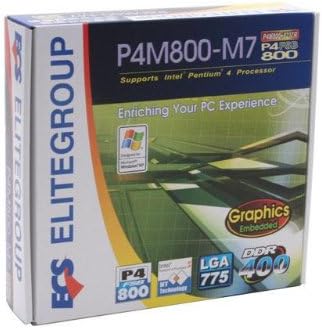
Figure 2: ECS P4M800-M7 Retail Box. The product packaging indicates support for Intel Pentium 4 processors, embedded graphics, and DDR400 memory, along with the LGA 775 socket type.
Подешавање и инсталација
Follow these steps for proper installation of the ECS P4M800-M7 motherboard into your computer system.
1. Припремите свој систем
- Уверите се да је напајање искључено из зидне утичнице.
- Испразните статички електрицитет додиривањем уземљеног металног предмета.
2. Инсталирајте процесор
- Отворите полугу за процесорски утичницу.
- Carefully align the CPU (Intel Pentium 4 / Pentium D / Celeron D) with the socket, ensuring the notches match.
- Пажљиво спустите процесор у подножје. Немојте га силом уметнути.
- Затворите полугу утичнице да бисте осигурали процесор.
- Apply a thin layer of thermal paste to the CPU surface.
- Инсталирајте хладњак процесора према упутствима произвођача.
3. Install Memory Modules
The motherboard supports DDR memory. Insert DDR modules into the available memory slots (2 slots).
- Отворите копче на оба краја DIMM слота.
- Поравнајте меморијски модул са слотом, водећи рачуна да се зарез на модулу поклапа са кључем у слоту.
- Чврсто притисните оба краја модула док се клипови не уклопе на своје место.
4. Монтирајте матичну плочу
- Install standoffs in your PC case that align with the motherboard's mounting holes.
- Carefully place the motherboard onto the standoffs, aligning the I/O shield with the case opening.
- Причврстите матичну плочу вијцима.
5. Повежите напајање и периферне уређаје
Connect the 20-pin ATX main power connector and the 4-pin ATX 12V power connector from your power supply to the motherboard. Connect SATA and IDE devices, front panel connectors, and expansion cards as needed.
Упутство за употребу
Once the motherboard is installed and all components are connected, you can proceed with system operation.
1. Почетно покретање система
After connecting the power supply and monitor, power on your system. The system should display the BIOS POST screen. Press the designated key (usually ДЕЛ or F2) to enter the BIOS setup utility.
2. Конфигурација BIOS-а
In the BIOS, you can configure various system settings, including boot order, date/time, and hardware parameters. Refer to the BIOS section of the full manual for detailed settings. Save changes and exit the BIOS to continue.
3. Инсталација оперативног система
Insert your operating system installation media (e.g., Windows CD/DVD) and follow the on-screen prompts to install the OS. Ensure all necessary drivers (chipset, audio, network, graphics) are installed after the OS installation for optimal performance. Drivers are typically provided on a CD with the motherboard or can be downloaded from the ECS Elitegroup webсајту.
Одржавање
Правилно одржавање осигурава дуготрајност и стабилан рад ваше матичне плоче.
- Уклањање прашине: Regularly clean dust from inside your computer case, especially from heatsinks and fans, using compressed air. Ensure the system is powered off and unplugged before cleaning.
- Управљање кабловима: Ensure internal cables are neatly routed to allow for proper airflow.
- Ажурирања BIOS-а: Periodically check the ECS Elitegroup website for BIOS updates. Only update the BIOS if necessary and follow the instructions precisely to avoid system instability.
- Ажурирања драјвера: Keep your device drivers updated to ensure compatibility and performance.
Решавање проблема
This section addresses common issues you might encounter with the ECS P4M800-M7 motherboard.
| Проблем | Могући узрок | Решење |
|---|---|---|
| Систем се не укључује. | Power cables not connected, faulty power supply, or short circuit. | Check all power connections (20-pin ATX, 4-pin 12V). Test power supply. Ensure no metal objects are touching the motherboard. |
| Нема приказа на монитору. | Monitor cable loose, faulty graphics card (if external), or RAM not seated correctly. | Verify monitor cable connection. Reseat RAM modules. If using an external graphics card, ensure it is properly seated and powered. |
| System freezes or crashes. | Overheating, unstable drivers, or faulty RAM. | Check CPU and chipset temperatures. Update drivers. Test RAM modules individually. |
| Оперативни систем није пронађен. | Incorrect boot order in BIOS, or hard drive not detected. | Enter BIOS and set the correct boot order. Check SATA/IDE cable connections to the hard drive. |
Спецификације
| Феатуре | Детаљ |
|---|---|
| Произвођач | ЕЦС |
| Број модела | P4M800-M7 |
| ЦПУ Соцкет | ЛГА 775 |
| Компатибилни процесори | Intel Celeron D, Intel Pentium 4, Intel Pentium |
| Тип чипсета | Интел |
| Доступни меморијски слотови | 2 |
| Подржан стандард системске магистрале | САТА 3 |
| FSB Support | 800/533 МХз |
| Хипер-Тхреадинг технологија | Подржано |
| Подршка за РАИД | РАИД0, РАИД1 |
| УПЦ | 881038001678 |
| Датум првог доступног | 5. априла 2006. године |
Гаранција и подршка
For warranty information and technical support, please refer to the documentation included with your purchase or visit the official ECS Elitegroup webсајт. Услови гаранције могу се разликовати у зависности од региона и продавца.
Official ECS Elitegroup Webсајт: ECS Elitegroup Store on Amazon (Note: This link directs to the brand's store page on Amazon, where further support information might be available.)
Ask a question about this manual
Ask about setup, troubleshooting, compatibility, parts, safety, or missing instructions. Manuals+ will review the question and use this page’s manual context to help answer it.