
1. Увод
This manual provides instructions for the installation, operation, and maintenance of your StarTech.com SLIMDVDRW8U2 External Slim USB 2.0 DVD+/-RW Dual Layer Drive. This device allows you to read and write data to DVD and CD media using a standard USB 2.0 connection, offering portability and convenience for laptops and desktop PCs without an internal optical drive.
2. Садржај пакета
Проверите да ли ваш пакет садржи следеће ставке:
- 1x StarTech.com SLIMDVDRW8U2 External Slim USB 2.0 DVD+/-RW Drive
- 1x USB 2.0 A to B Cable
- 1к Упутство за употребу
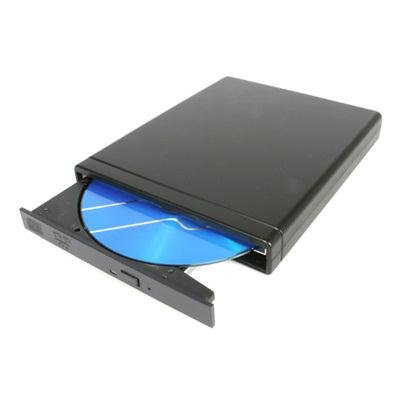
Image: The StarTech.com SLIMDVDRW8U2 external slim DVD+/-RW drive, shown with its sleek black casing and USB port.
3. Системски захтеви
Before installing the drive, ensure your system meets the following requirements:
- Available USB 2.0 port (or higher, compatible with USB 2.0)
- Operating System: Windows XP/Vista/7/8/10/11, macOS, or Linux (with USB mass storage device support)
- For DVD/CD burning, compatible burning software may be required (not included).
4. Подешавање
Follow these steps to connect and prepare your external DVD drive for use:
- Повежите УСБ кабл: Plug the USB Type-B connector of the provided USB cable into the corresponding port on the external DVD drive.
- Повежите се са рачунаром: Plug the USB Type-A connector of the cable into an available USB 2.0 port on your computer (laptop or desktop PC).
- Инсталација драјвера: The drive is plug-and-play. Your operating system should automatically detect and install the necessary drivers. This process may take a few moments.
- Верификација: Once drivers are installed, the drive will appear as an optical drive in "My Computer" (Windows) or "Finder" (macOS).
5. Упутство за употребу
This section details how to use your external DVD drive for reading and writing optical media.
5.1. Inserting a Disc
- Ensure the drive is connected to your computer and powered on (indicated by an LED, if present).
- Press the eject button on the front of the drive. The disc tray will open.
- Carefully place a CD or DVD onto the tray, ensuring it is centered with the label side facing up.
- Gently push the tray back into the drive until it clicks shut. The drive will begin to read the disc.
5.2. Ejecting a Disc
- Software Eject (Recommended): Right-click on the optical drive icon in "My Computer" (Windows) or drag the disc icon to the Trash (macOS) and select "Eject".
- Hardware Eject: Press the eject button on the front of the drive. If the disc is in use, the tray may not open. Ensure no applications are accessing the disc before using the hardware eject button.
5.3. Reading Data from a Disc
Once a disc is inserted and recognized by your operating system, you can access its contents. Double-click the drive icon to browse files, or use media player software to play audio CDs or video DVDs.
5.4. Writing Data to a Disc (Burning)
To write data to a blank CD-R/RW or DVD-R/RW disc, you will need compatible burning software. Many operating systems include basic burning capabilities, or you can use third-party software. Follow the instructions provided with your chosen burning software.
- Insert a blank, recordable disc (CD-R/RW, DVD-R/RW, DVD+R/RW, DVD+R DL).
- Open your burning software and select the type of project (data disc, audio CD, video DVD, etc.).
- Додајте files or media you wish to burn to the disc.
- Initiate the burning process. Do not disconnect the drive or interrupt the process until completion.
6. Одржавање
Proper care ensures the longevity and optimal performance of your drive.
- Чишћење екстеријера: Use a soft, dry, lint-free cloth to wipe the exterior of the drive. Avoid abrasive cleaners or solvents.
- Чишћење сочива: Do not attempt to clean the internal optical lens manually. Use a specialized CD/DVD lens cleaning disc if necessary.
- Руковање диском: Always handle discs by their edges. Avoid touching the data surface. Store discs in protective cases when not in use.
- Складиштење: Чувајте диск на хладном и сувом месту, даље од директне сунчеве светлости и екстремних температура.
- Избегавајте прашину: Keep the drive in a clean environment to prevent dust accumulation, which can affect performance.
КСНУМКС. Решавање проблема
If you encounter issues with your external DVD drive, refer to the following common problems and solutions:
7.1. Drive Not Recognized by Computer
- Проверите везе: Уверите се да је USB кабл безбедно повезан и са диском и са USB портом рачунара.
- Пробајте други УСБ порт: Connect the drive to a different USB port on your computer.
- Поново покрените рачунар: Понекад једноставно поновно покретање може решити проблеме са детекцијом.
- Проверите Управитељ уређаја (Windows): Open Device Manager and look for "DVD/CD-ROM drives." If there's an exclamation mark, try updating or reinstalling the driver.
- Check System Information (macOS): Go to Apple Menu > About This Mac > System Report > USB. Check if the drive is listed.
7.2. Disc Read Errors or Slow Performance
- Чист диск: Inspect the disc for scratches, smudges, or dirt. Gently clean it with a soft, lint-free cloth from the center outwards.
- Пробајте други диск: Test with a different, known-good disc to determine if the issue is with the drive or the disc itself.
- Чишћење сочива: Use a specialized CD/DVD lens cleaning disc.
- Resource Usage: Close other demanding applications that might be consuming system resources.
7.3. Disc Tray Does Not Open/Close
- Провера напајања: Ensure the drive is properly connected and receiving power.
- Избацивање софтвера: Attempt to eject the disc through your operating system's software interface first.
- Ручно избацивање: If the tray is stuck, locate the small emergency eject hole (often near the eject button). Insert a straightened paperclip into the hole and push gently to manually open the tray.
8. Спецификације
| Феатуре | Спецификација |
|---|---|
| Број модела | SLIMDVDRW8U2 |
| Хардверски интерфејс | УСБ 2.0 |
| Брзина писања оптичке меморије | 8x (DVD), 24x (CD) |
| Брзина читања оптичке меморије | 8x (DVD), 24x (CD) |
| Хардверска платформа | Лаптоп, ПЦ |
| Компатибилни уређаји | Most personal computers and laptops with a USB 2.0 port |
| Технологија повезивања | УСБ |
| Форм Фацтор | Slim External |
| Тежина артикла | 1.92 фунти (приближно 0.87 кг) |
| Извор напајања | УСБ Поверед |
9. Гаранција и техничка подршка
StarTech.com provides a comprehensive warranty for its products. For specific warranty details, please refer to the warranty information included with your product or visit the official StarTech.com webсајту.
For technical support, troubleshooting assistance, or to download the latest drivers and manuals, please visit the StarTech.com support webсајт или контактирајте њихову службу за кориснике. Контакт информације се обично могу наћи на паковању производа или на званичном webсајту.
Webсајт: ввв.стартецх.цом/суппорт