
VUPOINT PDS-ST410-VP
VuPoint Solutions Magic Wand Portable Scanner
Упутство за употребу
1. Увод
The VuPoint Solutions Magic Wand Portable Scanner is a compact and versatile device designed for scanning documents, photos, and other materials on the go. It allows you to convert physical documents and images into digital files (JPEG or PDF) quickly and efficiently, storing them on a Micro SD card for easy transfer to your computer.

Image: The VuPoint Solutions Magic Wand Portable Scanner, a sleek black handheld device.
2. Садржај пакета
Молимо вас да проверите пакет за следеће ставке:
- VuPoint Solutions Magic Wand Portable Scanner
- УСБ кабл
- 2 к АА алкалне батерије
- Заштитна торбица
- Цлотх Цлотх
- Упутство за употребу (овај документ)
- Bonus OCR Software CD (for Windows OS only)

Image: A flat lay of the scanner's accessories including a black pouch, USB cable, two AA batteries, and a cleaning cloth.
3. Производ је готовview
Familiarize yourself with the various parts and controls of your Magic Wand Scanner:
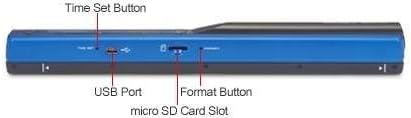
Слика: Крупни план view of the scanner's side, highlighting the Time Set Button, USB Port, Micro SD Card Slot, and Format Button.
- ЛЦД екран: Shows scanning status, resolution, and file формату.
- Power/Scan Button: Turns the device on/off and initiates scanning.
- Дугме ДПИ: Toggles between 300, 600, and 900 DPI resolutions.
- JPG/PDF Button: Switches between JPEG and PDF file формати.
- Дугме за подешавање времена: Used to set the internal clock.
- УСБ порт: For connecting to a computer to transfer files.
- Утор за микро СД картицу: Insert your Micro SD card (up to 32GB, not included) here.
- Format Button: Formats the inserted Micro SD card.
4. Подешавање
4.1 Инсталација батерије
- Locate the battery compartment on the scanner.
- Insert two (2) AA alkaline batteries, ensuring correct polarity (+/-).
- Добро затворите поклопац одељка за батерије.
4.2 Инсталација микро СД картице
A Micro SD card (up to 32GB) is required for storing scanned images and is not included with the scanner.
- Locate the Micro SD card slot on the side of the scanner.
- Insert the Micro SD card into the slot with the metal contacts facing down, until it clicks into place.
- Да бисте је уклонили, нежно гурните картицу унутра док не искочи.
4.3 Почетно укључивање
Press and hold the Power/Scan button for a few seconds until the LCD display illuminates. The scanner is now ready for use.
5. Упутство за употребу
5.1 Основно скенирање
- Ensure the scanner is powered on and a Micro SD card is inserted.
- Place the document or image you wish to scan on a flat, stable surface.
- Hold the scanner firmly with both hands. Position the scanner at the top edge of the document, ensuring the scanning area is aligned with the content.
- Press the Power/Scan button once to begin scanning. The 'SCAN' indicator will appear on the LCD.
- Slowly and steadily glide the scanner downwards across the document. Maintain even pressure and a straight path for best results.
- Once you reach the end of the document, press the Power/Scan button again to stop scanning. The 'SCAN' indicator will disappear.

Image: A hand holding the Magic Wand Scanner and gliding it over a document to perform a scan.
5.2 Resolution Settings (DPI)
The scanner supports three resolution settings:
- 300 DPI (Standard): Good for general documents, faster scanning.
- 600 DPI (High): Suitable for documents with smaller text or images requiring more detail.
- 900 DPI (Fine): Best for high-detail images and photos.
To change the resolution, press the ДПИ button repeatedly until the desired setting (300, 600, or 900) is displayed on the LCD.
5.3 File Избор формата
You can choose to save your scans as either JPEG or PDF files.
- ЈПЕГ: Ideal for photos and images.
- ПДФ: Best for multi-page documents.
Да бисте променили file format, press the ЈПГ / ПДФ button. The current format will be shown on the LCD.
5.4 Scanning Tips for Best Results
- Ensure the scanning surface is completely flat and smooth.
- Keep the scanner straight and move it at a consistent speed. Uneven movement can result in distorted images.
- Make sure the image or document fits within the scanning guides of the scanner.
- For optimal clarity, clean the scanner's lens regularly with the provided cleaning cloth.

Слика: Визуелни ексamples demonstrating the importance of a flat scanning surface and keeping the image within the scanner's guides for optimal results.
5.5 Преношење Fileс на рачунар
- Connect the scanner to your computer using the included USB cable.
- The scanner will be recognized as a removable storage device (similar to a USB drive).
- Navigate to the scanner's drive to access your scanned files, which are stored on the Micro SD card.
- Копирајте и налепите files to your computer's hard drive.
- Safely eject the scanner from your computer before disconnecting the USB cable.
5.6 Using OCR Software
The included Optical Character Recognition (OCR) software allows you to convert scanned documents into editable text files. This software is compatible with Windows operating systems only and is not supported on Mac OS.
- Install the OCR software from the provided CD onto your Windows computer.
- Follow the software's instructions to import your scanned PDF or JPEG documents.
- Use the software to convert the images into searchable and editable text formats, compatible with word processing and spreadsheet applications.
6. Одржавање
6.1 Чишћење скенера
Regular cleaning ensures optimal scan quality:
- Use the provided cleaning cloth to gently wipe the scanning lens and the exterior of the scanner.
- Do not use liquid cleaners or abrasive materials, as they may damage the device.
6.2 Замена батерије
When the battery indicator on the LCD display shows low power, replace the AA batteries promptly to ensure continuous operation.
6.3 Складиштење
When not in use, store the scanner in its protective pouch in a cool, dry place away from direct sunlight and extreme temperatures.
КСНУМКС. Решавање проблема
| Проблем | Могући узрок | Решење |
|---|---|---|
| Скенер се не укључује. | Батерије су празне или су неправилно уметнуте. | Замените батерије или осигурајте исправан поларитет. |
| Poor scan quality (blurry, distorted). | Uneven scanning speed, dirty lens, or non-flat surface. | Scan slowly and steadily. Clean the scanning lens. Ensure the document is on a flat surface. |
| Није могуће пренети fileс на рачунар. | USB cable not connected properly, Micro SD card not inserted correctly, or driver issue. | Ensure USB cable is securely connected. Re-insert Micro SD card (metal contacts facing down). Try a different USB port. |
| Микро СД картица није препозната. | Card inserted incorrectly or needs formatting. | Ensure Micro SD card is inserted with metal contacts facing down. Use the Format button on the scanner to format the card (this will erase all data). |
| OCR software not working. | Software is for Windows only, or installation issue. | Ensure you are using a Windows OS. Reinstall the OCR software. |
8. Спецификације
| Назив модела | Магиц Ванд |
| Број модела | PDS-ST410-VP |
| Тип скенера | Скенер докумената |
| Сензор | A4 Color Contact Image Sensor (CIS) |
| Резолуција | 300 DPI (Standard), 600 DPI (High), 900 DPI (Fine) |
| Scanning Speed (A4) | High resolution color: ≤ 28 Sec High resolution mono: ≤ 14 Sec Standard resolution color: ≤ 8 Sec Standard resolution mono: ≤ 4 Sec |
| Max Scan Width | 8.27 inches (A4) |
| Max Scan Length | До 98 инча |
| File Формат | JPEG, PDF |
| Екстерна меморија | Подржава Micro SD картицу до 32GB (није укључена) |
| Величина ЛЦД екрана | 0.787" к 0.59" |
| Повезивање | УСБ 2.0 велике брзине |
| Извор напајања | 2 к АА батерије |
| Трајање батерије | ≥ 200 minutes (scanning) |
| Аутоматско искључивање | Off / 3 minutes / 5 minutes |
| Димензије (Д к В к Ш) | 10 ”к 1.2” к 1.1 ”(25.4 цм к 3.05 цм к 2.79 цм) |
| Тежина | 0.47 фунти (0.21 кг) |
| Минимални системски захтеви | Windows 7 or later (for OCR software) |
9. Гаранција и подршка
For warranty information and technical support, please refer to the documentation included with your product or visit the official VuPoint Solutions webсајт. Сачувајте рачун као доказ о куповини за потребе гаранције.