
1. Увод
This manual provides comprehensive instructions for the installation, operation, and maintenance of the Fingertec TA100C Multimedia Fingerprint Time Attendance System. The TA100C is a biometric terminal designed to accurately record employee time and attendance using fingerprint verification. This system offers an efficient alternative to traditional punch card or other card-based time tracking methods, significantly reducing instances of "buddy-punching" and enhancing human resource management accuracy.
The Fingertec TA100C is equipped with a color multimedia display and advanced algorithms to improve speed and accuracy in fingerprint recognition. It supports a combination of fingerprint and password verification for user convenience.
2. Безбедносне информације
Please read and understand all safety instructions before operating the device. Failure to follow these instructions may result in damage to the device or personal injury.
- Не излажите уређај води, влази или екстремним температурама.
- Ensure the power supply used is compatible with the device's specifications.
- Избегавајте постављање уређаја на директну сунчеву светлост или близу извора топлоте.
- Не покушавајте сами да отворите или поправите уређај. Све сервисирање препустите квалификованом особљу.
- Keep the fingerprint sensor clean and free from dust or debris.
3. Садржај пакета
Пре него што наставите са инсталацијом, проверите да ли су све ставке присутне у пакету:
- Fingertec TA100C Time Attendance Terminal
- Повер Адаптер
- Прибор за монтажу (шрафови, зидни типлови)
- TCMS V2 Software CD
- User Manual (this document or similar printed guide)
- Connectivity Cables (e.g., Ethernet cable, RS232/RS485 cable - may vary by package)
4. Девице Оверview
The Fingertec TA100C features a user-friendly interface with a color display, a numeric keypad, and a dedicated fingerprint sensor.

Слика 4.1: Предња страна view of the Fingertec TA100C device, showing the color screen, keypad, and fingerprint sensor.
Кључне компоненте:
- Color Multimedia Display: Provides a graphical user interface for navigation and status updates.
- Нумеричка тастатура: Used for entering user IDs, passwords, and navigating menus. Includes M/OK (Menu/OK) and ESC (Escape) buttons.
- Сензор отиска прста: The primary biometric input for user identification and verification.
- Комуникациони портови: Located on the back or side, these ports facilitate connectivity via TCP/IP, RS232, and RS485.
- УСБ порт: For data transfer using a USB flash drive (PenDrive option on screen).
5. Подешавање
5.1 Физичка инсталација
- Изаберите локацију: Select a secure, indoor location away from direct sunlight, extreme temperatures, and moisture. Ensure sufficient space for users to comfortably access the device.
- Монтажа: Use the provided mounting hardware to securely attach the device to a wall at an appropriate height. The device dimensions are approximately 9 x 8 x 3 inches and it weighs 3 pounds.
- Прикључак за напајање: Connect the power adapter to the device's power input and then plug it into a standard electrical outlet.
5.2 Почетна конфигурација
- Укључено: Once connected to power, the device will automatically power on.
- Подешавања датума и времена: Navigate through the on-screen menu (using the keypad and M/OK button) to set the correct date and time. This is crucial for accurate attendance records.
- Network Configuration (TCP/IP): If connecting via network, access the 'Comm' menu to configure IP address, subnet mask, and gateway settings. Refer to your network administrator for specific details.
- Administrator Enrollment: Enroll at least one administrator fingerprint and password. This administrator will have access to all device settings and user management functions.
6. Операција
6.1 Упис корисника
Да бисте регистровали новог корисника:
- Access the 'User' menu as an administrator.
- Select 'New User' or 'Enroll User'.
- Enter a unique User ID.
- Follow the on-screen prompts to place the user's finger on the sensor multiple times for accurate fingerprint registration.
- Optionally, set a password for the user.
- Save the user's information. The device supports up to 2800 fingerprint templates.
6.2 Recording Attendance
For daily attendance recording:
- Users approach the device.
- Поставите регистровани прст на сензор отиска прста.
- The device will verify the fingerprint and record the time. A confirmation message will appear on the screen.
- Alternatively, users can enter their User ID and password using the keypad.
The device can store up to 120,000 transactions.
7. Software Integration (TCMS V2)
The Fingertec TA100C integrates with the TCMS V2 (Time Control Management System) software for efficient data management, reporting, and payroll integration.

Figure 7.1: TCMS V2 Software User Manual, providing detailed instructions for software usage.
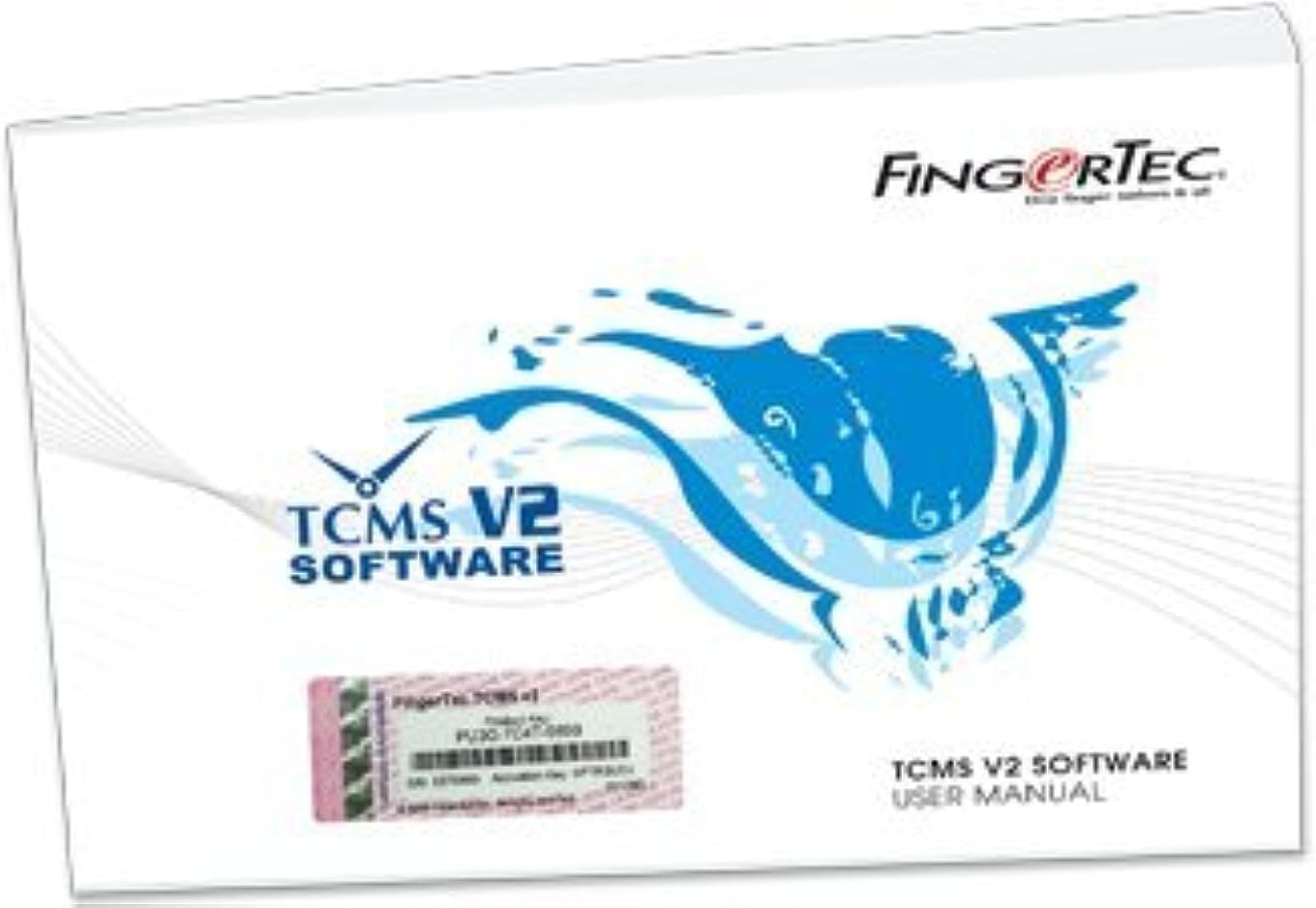
Figure 7.2: Fingertec Made Easy DVD, which typically includes the TCMS V2 software and video guides for installation and operation.
7.1 Installing TCMS V2 Software
- Insert the TCMS V2 Software CD into your computer's optical drive.
- Follow the on-screen instructions to install the software. Refer to the TCMS V2 Software User Manual for detailed installation steps.
7.2 Пренос података
Data can be transferred from the TA100C to the TCMS V2 software via:
- Network (TCP/IP): If the device is connected to your network, the software can directly communicate with the terminal to download attendance logs and upload user data.
- Serial Port (RS232/RS485): For direct connection to a PC using serial cables.
- USB Flash Drive (PenDrive): Data can be exported from the device to a USB drive and then imported into the TCMS V2 software.
7.3 Reporting and Management
The TCMS V2 software allows you to:
- Управљајте проfiles, including fingerprint templates and access rights.
- Generate various attendance reports (e.g., daily, weekly, monthly, tardiness, overtime).
- Export data for payroll processing.
- Configure work shifts and schedules.
8. Одржавање
8.1 Чишћење уређаја
- Екстеријер: Wipe the device's exterior with a soft, dry cloth. Do not use abrasive cleaners or solvents.
- Сензор отиска прста: Gently clean the fingerprint sensor surface with a lint-free cloth. If necessary, slightly dampen the cloth with isopropyl alcohol, then wipe dry immediately. Ensure no liquid enters the device.
8.2 Резервна копија података
Regularly back up attendance data and user information from the TA100C to the TCMS V2 software and then back up the software's database. This prevents data loss in case of device malfunction or power outagес.
КСНУМКС. Решавање проблема
This section addresses common issues you might encounter with the Fingertec TA100C.
| Проблем | Могући узрок | Решење |
|---|---|---|
| Уређај се не укључује. | No power supply, faulty adapter, or power outlet issue. | Check power cable connection. Ensure the power adapter is working and the outlet has power. |
| Отисак прста није препознат. | Finger not placed correctly, sensor is dirty, or fingerprint not properly enrolled. | Ensure finger is clean and dry, and placed flat on the sensor. Clean the sensor. Re-enroll the fingerprint if issues persist. |
| Cannot connect to PC/Software. | Network configuration error, incorrect cable, or software settings. | Verify network settings (IP address, subnet). Check cable connections. Ensure TCMS V2 software communication settings match the device. |
| Data transfer fails via USB. | Faulty USB drive, incorrect file format, or insufficient storage. | Try a different USB drive. Ensure the USB drive is formatted correctly (FAT32). Check device for available storage. |
10. Спецификације
| Феатуре | Детаљ |
|---|---|
| Модел | ТА100Ц |
| Fingerprint Templates Capacity | 2800 |
| Капацитет дневника трансакција | 120,000 |
| Verification Modes | Fingerprint, Password, Fingerprint + Password |
| Повезивање | TCP/IP, RS232, RS485, USB Host |
| Дисплаи | Color Multimedia Display |
| Димензије производа | 9 к 8 к 3 инча (приближно) |
| Тежина артикла | 3 фунте (приближно) |
| Произвођач | Fingertec |
| Датум првог доступног | 3. јуна 2010. године |
11. Гаранција и подршка
For warranty information, technical support, or service inquiries, please contact your authorized Fingertec dealer or visit the official Fingertec webсајт. Сачувајте рачун као доказ о куповини за потребе гаранције.