
1. Увод
The SteelSeries Kana Optical Gaming Mouse is engineered for precision and versatility, designed to accommodate all three primary grip styles: palm, claw, and fingertip. This ambidextrous mouse features an ergonomic button layout and size, developed in collaboration with professional gaming teams to ensure consistent performance and accuracy in competitive environments. This manual provides comprehensive instructions for setup, operation, maintenance, and troubleshooting to help you maximize your gaming experience.
2. Садржај пакета
- SteelSeries Kana Optical Gaming Mouse (White)
- Quick Start Guide (integrated into this manual)
3. Производ је готовview
Familiarize yourself with the key components of your SteelSeries Kana mouse:
- Леви клик: Примарно дугме за акцију.
- Десни клик: Secondary action button.
- Точак за померање: For scrolling and a clickable middle button. The scroll wheel is illuminated.
- CPI Toggle Button: Located centrally, allows quick switching between sensitivity settings.
- Side Buttons (x2): One on each side, large and easily accessible for rapid-fire actions. These can be customized or disabled via software.
- Оптички сензор: Налази се на доњој страни, омогућава прецизно праћење.
- УСБ конектор: For connecting the mouse to your computer.
- Плетени кабл: Durable, tangle-free nylon cord.
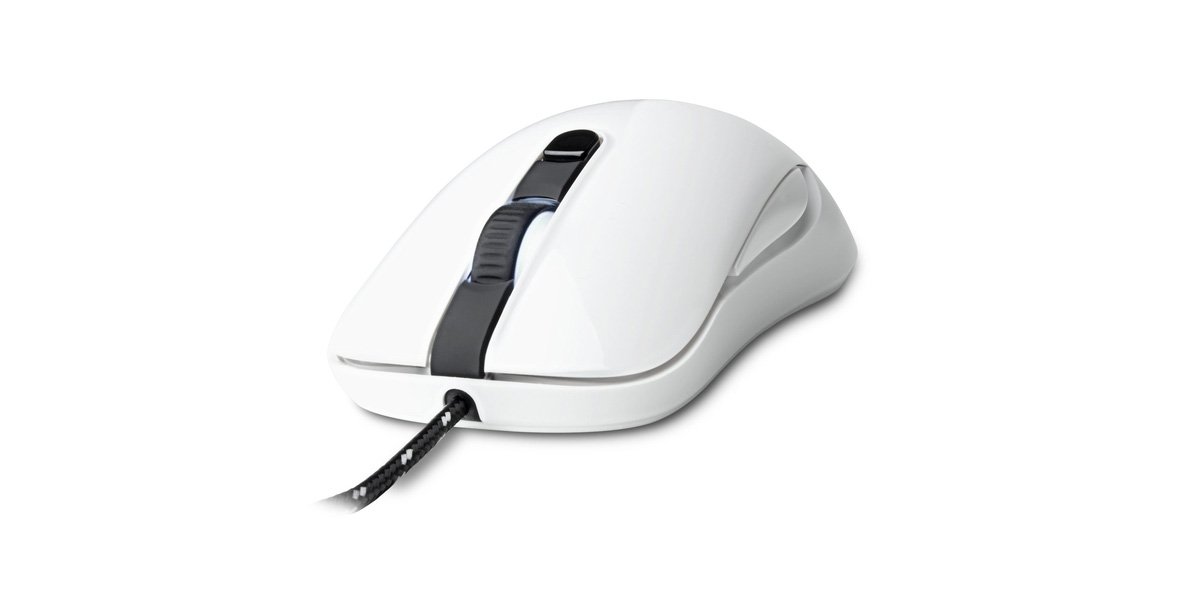
Image of the SteelSeries Kana Optical Gaming Mouse in white, showcasing its ambidextrous design, illuminated scroll wheel, and side buttons.
4. Подешавање
4.1 Повезивање хардвера
- Пронађите слободан УСБ порт на рачунару.
- Plug the USB connector of the SteelSeries Kana mouse into the USB port.
- Your operating system should automatically detect and install basic drivers for the mouse.
4.2 Software Installation (SteelSeries Engine)
To unlock the full customization potential of your SteelSeries Kana mouse, including CPI settings, button programming, macros, and LED intensity, install the SteelSeries Engine software.
- Visit the official SteelSeries webсајт: стеелсериес.цом/енгине
- Download the SteelSeries Engine software compatible with your operating system (Windows or macOS).
- Пратите упутства на екрану да бисте довршили инсталацију.
- Once installed, launch the SteelSeries Engine to configure your mouse settings.
Напомена за кориснике Mac-а: Compatibility with macOS versions 10.9 and later for SteelSeries Engine 2.0 (required for Kana) has historically been inconsistent. Please check the official SteelSeries website for the latest software updates and compatibility information before installation.
5. Упутство за употребу
5.1 Основна функционалност
- Кретање: Move the mouse across a surface to control the cursor on your screen.
- Кликом на: Use the left and right buttons for primary and secondary actions.
- Померање: Rotate the scroll wheel to navigate documents and web pages. Press the scroll wheel for its assigned middle-click function.
5.2 Adjusting CPI (Counts Per Inch)
The centrally located CPI toggle button allows you to switch between two pre-defined sensitivity settings instantly. The default CPI settings are optimized for gaming, but can be customized using the SteelSeries Engine software. The maximum CPI supported is 3200.
- Press the CPI toggle button once to switch to the alternate CPI setting.
- Press it again to revert to the previous setting.
5.3 Customizing with SteelSeries Engine
The SteelSeries Engine software provides extensive customization options:
- CPI Settings: Fine-tune or set custom CPI values beyond the pre-defined options.
- Програмирање дугмади: Assign custom functions, keyboard shortcuts, or macros to any of the 6 programmable buttons (including side buttons and scroll wheel click).
- Макрои: Create and assign complex sequences of commands with precise timing control.
- LED Intensity: Adjust the brightness of the illuminated scroll wheel.
- Проfiles: Креирајте и сачувајте више професионалацаfiles for different games or applications, with automatic switching based on game triggers.
6. Одржавање
6.1 Чишћење миша
To ensure optimal performance and longevity, keep your mouse clean.
- Екстеријер: Користите меку крпу која не оставља длачицеampОпрати површину миша водом или благим средством за чишћење. Избегавајте јаке хемикалије или абразивне материјале.
- Оптички сензор: Gently clean the optical sensor lens on the underside of the mouse with a dry cotton swab or compressed air to remove dust or debris.
- Мишове ноге: Ensure the mouse feet are clean and free of obstructions for smooth gliding.
Опрез: Do not immerse the mouse in water or any cleaning solution. Avoid spraying liquids directly onto the mouse.
КСНУМКС. Решавање проблема
| Проблем | Могуће решење |
|---|---|
| Mouse not detected / Not responding |
|
| Inaccurate or erratic tracking |
|
| Buttons not responding or performing incorrectly |
|
| SteelSeries Engine software not recognizing mouse (Mac OS) |
|
8. Спецификације
| Бранд | СтеелСериес |
| Број модела | 62029 |
| Боја | Бела |
| Технологија детекције покрета | Оптицал |
| Број дугмади | 6 (Програмабилно) |
| Оријентација руке | Ambidextrous (Left, Right) |
| Хардверска платформа | PC |
| Цабле Типе | Плетени најлон |
| Тежина артикла | 0.16 килограма |
| Посебна карактеристика | Ergonomic Design, Illuminated Scroll Wheel |
9. Гаранција и подршка
9.1 Информације о гаранцији
The SteelSeries Kana Optical Gaming Mouse comes with a 1-годишња ограничена гаранција од датума куповине. Ова гаранција покрива производне недостатке и недостатке у изради при нормалној употреби. Не покрива штету насталу услед злоупотребе, несрећа, неовлашћених модификација или нормалног хабања. Молимо вас да сачувате доказ о куповини за потребе подношења захтева за гаранцију.
9.2 Корисничка подршка
For technical assistance, warranty claims, or further information, please visit the official SteelSeries support webсајт:
You can find FAQs, driver downloads, and contact information for customer service on their webсајту.