
1. Увод
This manual provides instructions for the installation, operation, and maintenance of your DIGITUS DN-70542 Wireless LAN USB 2.0 Adapter. This device allows your computer to connect to a wireless network using the 802.11n standard, offering data transfer rates of up to 300 Mbps.
The adapter is backward compatible with IEEE 802.11g and 802.11b standards and operates within the 2.4-2.4835GHz frequency range. It also features a Wireless Protected Setup (WPS) function for easy and secure network connection.

Слика 1.1: Врх view of the DIGITUS DN-70542 Wireless LAN USB 2.0 Adapter.

Слика 1.2: Под углом view of the DIGITUS DN-70542 adapter, highlighting its compact design.

Слика 1.3: Детаљно view of the USB 2.0 connector of the DIGITUS DN-70542 adapter.
2. Садржај пакета
Молимо вас да проверите да ли су све ставке присутне у пакету:
- 1 x DIGITUS DN-70542 Mini USB WiFi Adapter
- 1 x Product Support CD-ROM (containing drivers and utilities)
- 1 x Упутство за употребу (овај документ)
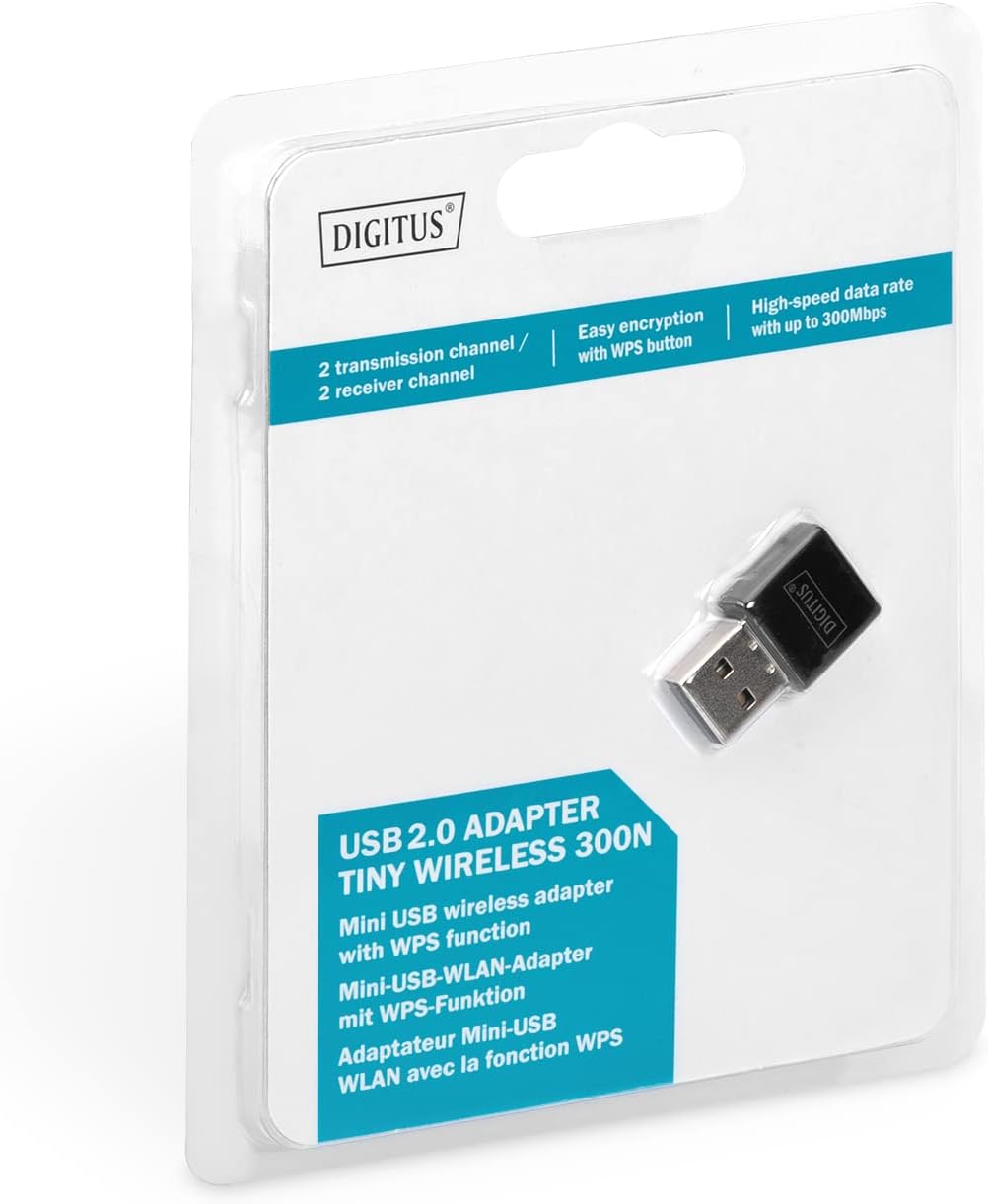
Figure 2.1: Retail packaging of the DIGITUS DN-70542 adapter, showing the adapter and its key features.
3. Водич за подешавање
Follow these steps to install your Wireless LAN USB Adapter:
- Инсталирајте драјвере: Before connecting the adapter, insert the included Product Support CD-ROM into your computer's optical drive. Follow the on-screen instructions to install the necessary drivers. If your computer does not have an optical drive, or if you encounter issues, please visit the official DIGITUS website to download the latest drivers for your operating system (Windows).
Note: Some operating systems, particularly older versions of Windows, may require driver installation prior to connecting the device. Refer to the Troubleshooting section if you encounter issues during this step.
- Повежите адаптер: Locate an available USB 2.0 port on your computer. Carefully insert the DIGITUS DN-70542 Wireless LAN USB 2.0 Adapter into the USB port.
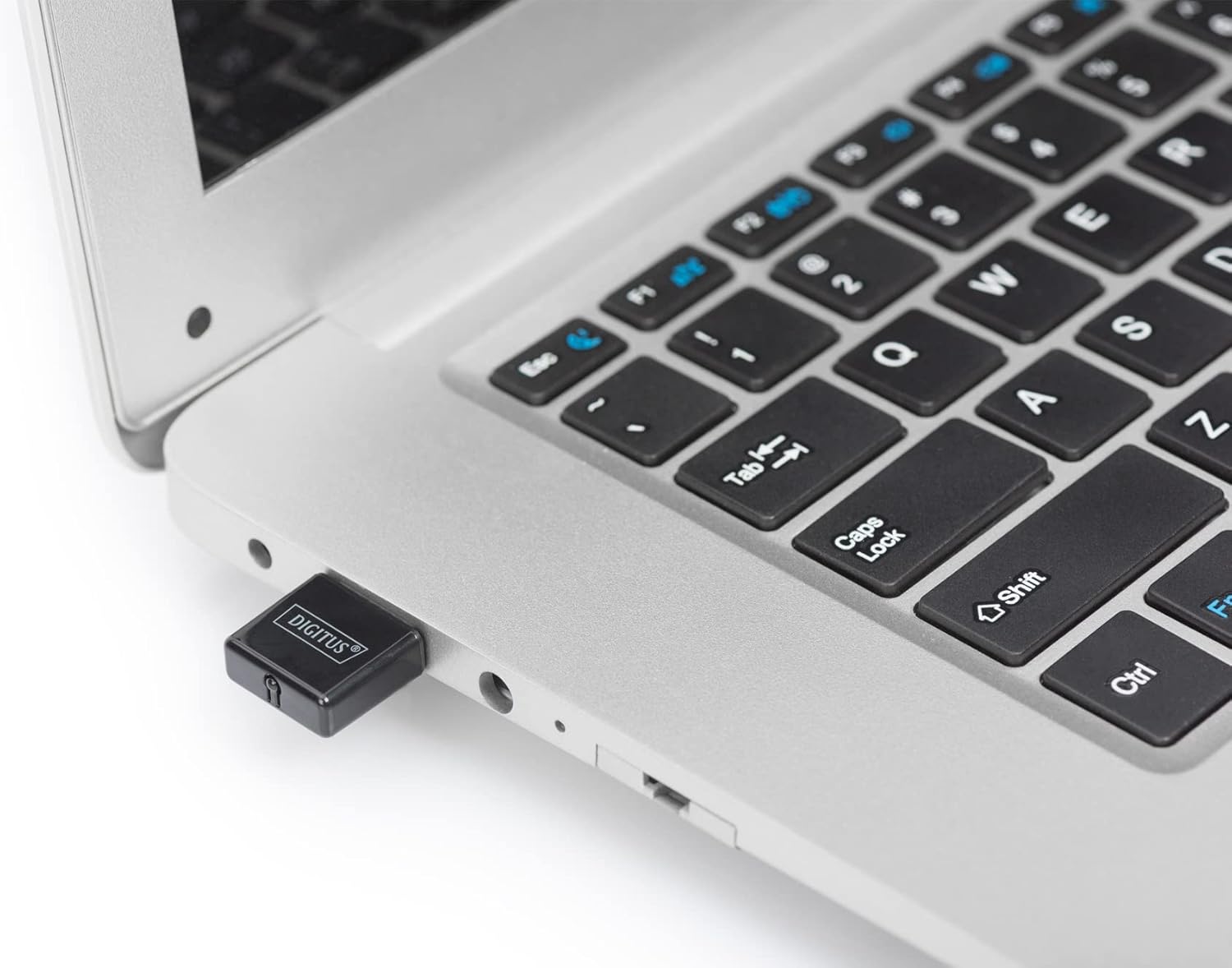
Figure 3.1: The DIGITUS DN-70542 adapter inserted into a laptop's USB port.

Слика 3.2: Затварач view of the adapter connected to a laptop, showing its compact size.
- Проверите инсталацију: After connecting, your operating system should detect the new hardware and complete the installation. You can verify the installation by checking your computer's Device Manager (for Windows) to ensure the wireless adapter is listed and functioning correctly.
4. Упутство за употребу
Once the adapter is successfully installed, you can connect to a wireless network.
- Повезивање на бежичну мрежу:
- Отворите подешавања бежичне мреже на рачунару.
- Скенирајте доступне бежичне мреже.
- Select your desired network (SSID) from the list.
- Унесите безбедносни кључ мреже (лозинку) ако се то од вас затражи.
- Click "Connect" to establish the wireless connection.
- Using WPS (Wi-Fi Protected Setup):
The adapter supports WPS for a simplified and secure connection to compatible routers.
- Притисните дугме ВПС на свом бежичном рутеру.
- Within two minutes, press the WPS button on the DIGITUS DN-70542 adapter. The WPS button is a small, recessed button on the side of the adapter.
- Адаптер и рутер ће аутоматски успоставити безбедну везу.

Figure 4.1: The WPS button located on the side of the adapter.
5. Одржавање
To ensure optimal performance and longevity of your DIGITUS DN-70542 adapter, follow these guidelines:
- Адаптер одржавајте чистим и без прашине. За чишћење користите меку, суву крпу.
- Избегавајте излагање адаптера екстремним температурама, влажности или директној сунчевој светлости.
- Не покушавајте сами да растављате или поправљате адаптер. То ће поништити гаранцију.
- Чувајте адаптер на безбедном месту када га не користите како бисте спречили физичка оштећења.
КСНУМКС. Решавање проблема
If you encounter issues with your DIGITUS DN-70542 Wireless LAN USB 2.0 Adapter, refer to the following common problems and solutions:
- Adapter Not Detected / Driver Installation Issues:
- Уверите се да је адаптер потпуно уметнут у функционални УСБ порт.
- Pokušajte sa drugim USB portom.
- Reinstall the drivers from the provided CD-ROM.
- Download the latest drivers from the official DIGITUS webсајту.
- If using Windows 8.1 or newer and encountering issues like "Bluescreen" or "infected file" warnings during driver installation, temporarily disable antivirus software (like Windows Defender) during driver installation, then re-enable it immediately after. Ensure you are downloading drivers from a trusted source (DIGITUS official webсајт).
- Check Device Manager to see if the adapter is listed with any error symbols.
- Cannot Connect to Wireless Network:
- Проверите да ли је ваш бежични рутер укључен и да ли емитује сигнал.
- Ensure you are entering the correct network security key (password).
- Move closer to the wireless router to improve signal strength.
- Поново покрените рачунар и бежични рутер.
- Check if other devices can connect to the same wireless network.
- Мала брзина везе:
- Ensure your router supports 802.11n for optimal speeds.
- Минимизирајте сметње од других електронских уређаја (нпр. микроталасне пећнице, бежични телефони).
- Ажурирајте фирмвер вашег рутера.
- Проверите да ли други уређаји троше пропусни опсег на вашој мрежи.
7. Спецификације
| Феатуре | Опис |
|---|---|
| Модел | ДН-КСНУМКС |
| Хардверски интерфејс | УСБ 2.0 |
| Вирелесс Стандардс | ИЕЕЕ 802.11н, ИЕЕЕ 802.11г, ИЕЕЕ 802.11б |
| Брзина преноса података | До 300 Мбпс |
| Фреквенцијски опсег | 2.4 - 2.4835 GHz |
| Сигурносне карактеристике | WPS (Wireless Protected Setup) function |
| Подршка за оперативни систем | Виндовс |
| Димензије производа | 24 x 15 x 2 mm (approximate); 15 g |
| Произвођач | ASSMANN Electronic GmbH PES - BO DE |
8. Гаранција и подршка
For warranty information and technical support, please refer to the documentation included with your product or visit the official DIGITUS website. Contact details for customer support can typically be found on the manufacturer's webсајту.
Молимо вас да сачувате доказ о куповини за евентуалне рекламације у вези са гаранцијом.