
1. Производ је готовview
The Sitecom WLA-5100 N600 Wi-Fi Dual Band USB Adapter provides wireless connectivity for your computer. It supports Wi-Fi 4 (802.11n) standards and operates on dual bands (2.4 GHz and 5 GHz) for optimal performance. This adapter connects via a USB interface, offering a convenient solution for adding or upgrading Wi-Fi capabilities to desktop or laptop computers.

Image 1: The Sitecom WLA-5100 N600 Wi-Fi Dual Band USB Adapter. This image shows the compact black USB adapter with the Sitecom logo, featuring a removable cap for the USB connector.
2. Садржај пакета
- 1 x Sitecom WLA-5100 N600 Wi-Fi Dual Band USB Adapter
- 1 x Quick Installation Guide (may vary by region)
- 1 x Driver CD (drivers may also be available for download online)
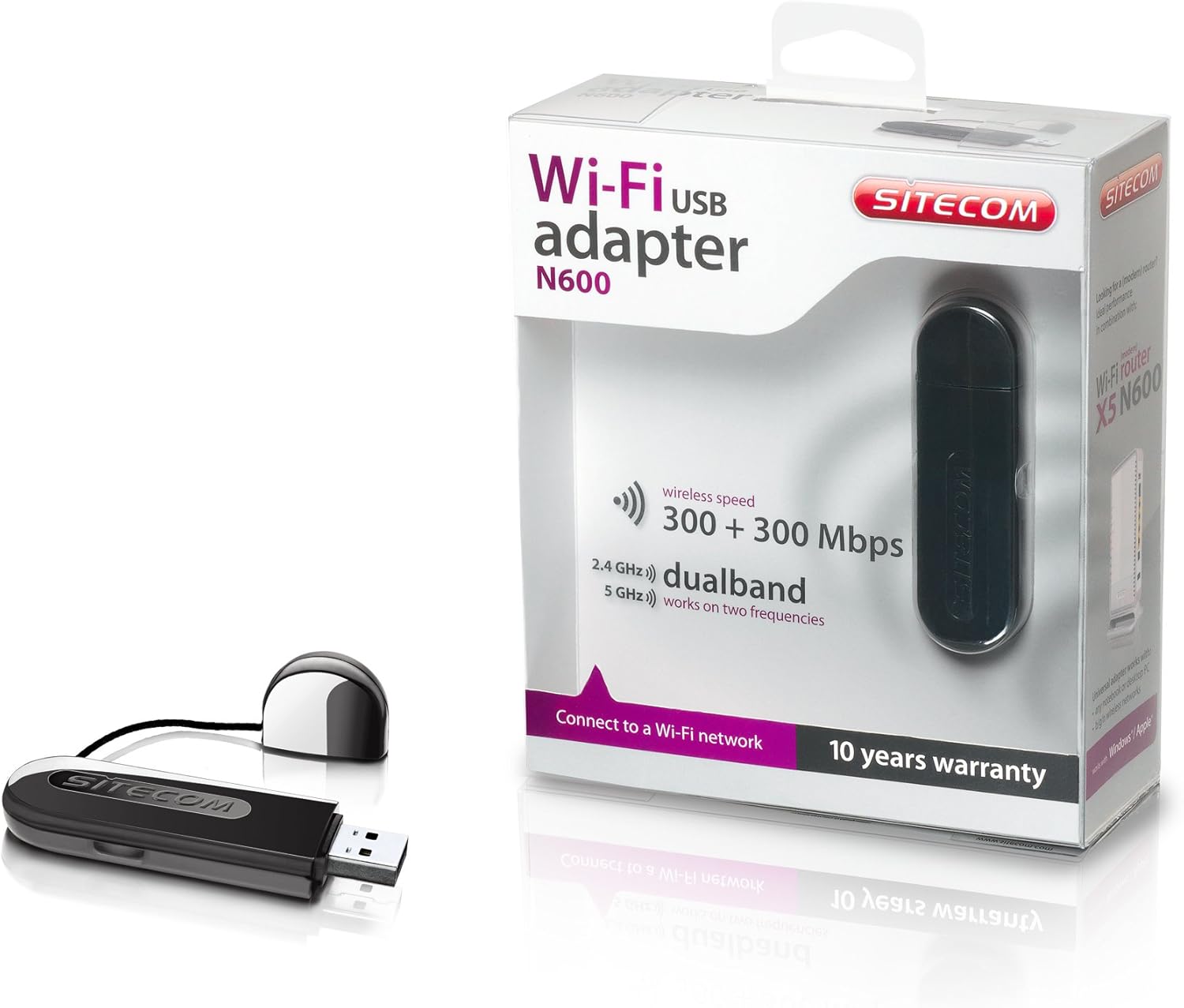
Image 2: The Sitecom WLA-5100 N600 Wi-Fi Dual Band USB Adapter shown alongside its retail packaging. The packaging highlights features such as wireless speed (300 + 300 Mbps) and dual-band functionality (2.4 GHz and 5 GHz).
3. Системски захтеви
- Available USB port (USB 2.0 or higher recommended)
- Operating System: Compatible with Windows and Mac OS X (e.g., Mac OS X 10.8 Mountain Lion and later versions).
- Internet connection for driver download (if not using the included CD).
4. Подешавање
4.1 Инсталација драјвера
- Before inserting the adapter, it is recommended to install the necessary drivers.
- Insert the included Driver CD into your computer's optical drive, or download the latest drivers from the official Sitecom support webсајту.
- Пратите упутства на екрану да бисте довршили процес инсталације драјвера.
4.2 Инсталација хардвера
- Carefully insert the Sitecom WLA-5100 USB adapter into an available USB port on your desktop or laptop computer.
- Ensure the adapter is fully seated in the USB port. The operating system should detect the new hardware.
4.3 Повезивање на Ви-Фи мрежу
- Once the drivers are installed and the adapter is connected, your computer should detect available wireless networks.
- Access your operating system's network settings (e.g., Wi-Fi icon in the system tray for Windows, Wi-Fi menu bar item for macOS).
- Select your desired Wi-Fi network (SSID) from the list of available networks.
- Enter the network security key (password) if prompted, then click 'Connect'.
- Your computer should now be connected to the Wi-Fi network.
5. Оперативни
The WLA-5100 adapter supports dual-band operation, allowing connection to both 2.4 GHz and 5 GHz Wi-Fi networks. The 2.4 GHz band offers wider coverage and better penetration through obstacles, while the 5 GHz band provides faster speeds and less interference, making it ideal for activities like online gaming and high-definition video streaming.
Your computer's operating system will automatically detect and display available networks on both bands. You can choose which band to connect to based on your proximity to the router and your performance needs. For optimal performance, connect to a 5 GHz network if available and you are in close range to your router.
6. Одржавање
- Адаптер одржавајте чистим и без прашине. За чишћење користите меку, суву крпу.
- Избегавајте излагање адаптера екстремним температурама, директној сунчевој светлости или влази.
- Не покушавајте да растављате или модификујете уређај, јер ће то поништити гаранцију и може проузроковати оштећења.
- When not in use, store the adapter in a safe place to prevent physical damage.
КСНУМКС. Решавање проблема
7.1 Нема Wi-Fi везе
- Проверите везу адаптера: Ensure the adapter is securely plugged into a functional USB port. Try a different USB port.
- Проверите инсталацију драјвера: Confirm that the drivers are correctly installed. Check your computer's Device Manager (Windows) or System Information (macOS) to see if the adapter is listed without errors. Reinstall drivers if necessary.
- Статус рутера: Уверите се да је ваш Wi-Fi рутер укључен и да емитује сигнал.
- Мрежни опсег: Make sure your computer is within range of your Wi-Fi network.
- Поново покрените рачунар: Понекад једноставно поновно покретање може решити проблеме са повезивањем.
7.2 Мала брзина везе
- Избор опсега: If available, connect to the 5 GHz network for faster speeds, especially if you are close to the router.
- сметње: Move the adapter or computer away from potential sources of interference (e.g., microwaves, cordless phones, Bluetooth devices).
- Ажурирање драјвера: Ensure you have the latest drivers installed for the adapter.
- Перформансе рутера: Check your router's settings and ensure it is operating optimally.
7.3 Адаптер није препознат
- УСБ порт: Покушајте да прикључите адаптер на други УСБ порт на рачунару.
- Поново инсталирајте драјвере: Uninstall existing drivers and perform a clean reinstallation.
- Ажурирања оперативног система: Уверите се да је ваш оперативни систем ажуриран.
8. Спецификације
| Феатуре | Детаљ |
|---|---|
| Бранд | Ситецом |
| Модел | ВЛА-5100 |
| Технологија повезивања | Бежични |
| Хост Интерфаце | УСБ |
| вирелесс стандард | IEEE 802.11a, 802.11b, 802.11g, 802.11n (Wi-Fi 4) |
| Бежична брзина | До 300 Mbps (2.4 GHz) + 300 Mbps (5 GHz) |
| Фрекуенци Банд | Двопојасни опсег (2.4 GHz и 5 GHz) |
| Боја | Црно |
| Димензије (Д к Ш к В) | 7.5 x 2.5 x 1 цм (приближно) |
| Тежина | 10 г |
| Извор напајања | УСБ Поверед |
| Компатибилни уређаји | Desktop computer, Laptop computer |
| Глобални број трговинске јединице (ГТИН) | 08716502026821 |
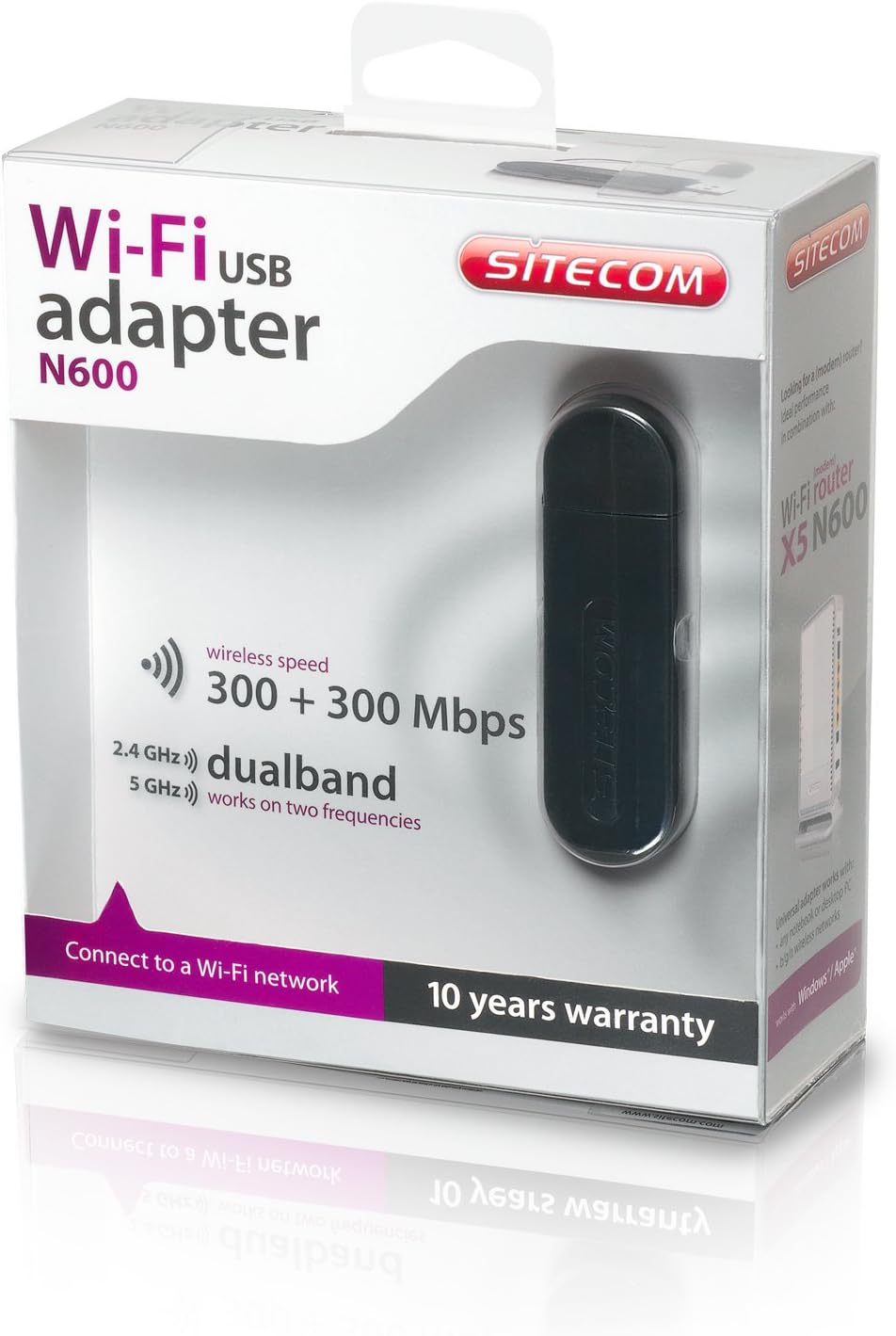
Image 3: The retail packaging for the Sitecom WLA-5100 N600 Wi-Fi Dual Band USB Adapter. The box prominently displays the product name, N600 rating, wireless speed, and dual-band capabilities.
9. Гаранција и подршка
The Sitecom WLA-5100 N600 Wi-Fi Dual Band USB Adapter typically comes with a 10 година гаранције, као што је назначено на паковању производа. Молимо вас да сачувате доказ о куповини за потребе гаранције.
For technical support, driver downloads, frequently asked questions, or further assistance, please visit the official Sitecom website or contact their customer support. Refer to the packaging or the Sitecom webсајт за најновије контакт информације за подршку.