
1. Увод
This manual provides essential instructions for the proper setup, operation, and maintenance of your AmazonBasics 10-Port USB 3.0 Hub. Please read this manual thoroughly before using the product to ensure optimal performance and safety. Keep this manual for future reference.
2. Безбедносна упутства
- Не излажите уређај влази, екстремним температурама или директној сунчевој светлости.
- Do not attempt to disassemble or modify the device. This may void the warranty and pose a safety risk.
- Use only the provided power adapter. Using an incompatible power adapter may damage the device or connected peripherals.
- Држите уређај ван домашаја деце.
- Ensure proper ventilation around the hub during operation.
3. Садржај пакета
Проверите да ли се у вашем пакету налазе све ставке наведене у наставку:
- AmazonBasics 10-Port USB 3.0 Hub
- Адаптер за напајање (ДЦ 15В)
- УСБ 3.0 кабл за пренос података
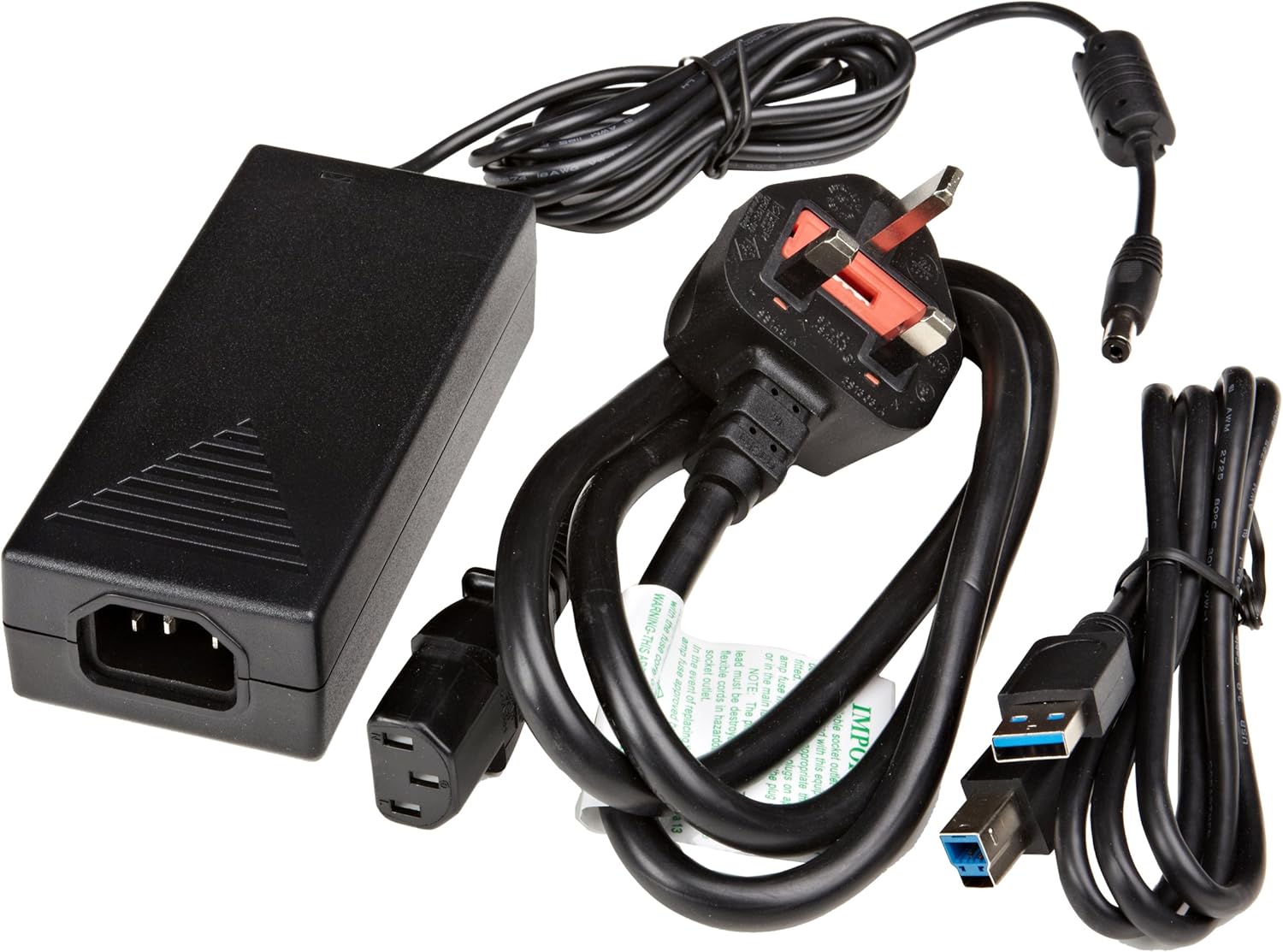
Слика 3.1: The image displays the AmazonBasics 10-Port USB 3.0 Hub, its power adapter, and a USB 3.0 data cable, which are the typical contents found in the product packaging.
4. Производ је готовview
The AmazonBasics 10-Port USB 3.0 Hub expands your computer's connectivity, offering ten USB 3.0 ports for various peripherals. It supports high-speed data transfer and is backward compatible with USB 2.0 devices.
4.1 Предња и бочна страна View

Слика 4.1: This image shows the front and left side of the USB hub. On the front, three USB 3.0 ports are visible, two of which are labeled 'Fast'. The left side features the upstream USB 3.0 port for connecting to a computer and the DC 15V power input.
4.2 Top and Rear View

Слика 4.2: Ова слика пружа поглед одозго надоле view of the USB hub, highlighting five additional USB 3.0 ports located on the rear panel. An 'ON/OFF' switch is also visible on the side, allowing users to power the hub on or off.
4.3 Дно View

Слика 4.3: Дно view of the hub shows four rubber feet for stability and a product label containing regulatory information and the model number.
5. Водич за подешавање
Follow these steps to set up your USB 3.0 hub:
- Повежите адаптер за напајање: Plug the provided power adapter into the DC 15V input port on the side of the USB hub. Then, plug the power adapter into a standard electrical outlet.
- Повежите се са рачунаром: Use the supplied USB 3.0 data cable to connect the upstream USB 3.0 port on the hub (located on the side) to an available USB 3.0 port on your computer.
- Укључено: If the hub has an ON/OFF switch (refer to Figure 4.2), ensure it is in the 'ON' position.
- Повежите периферне уређаје: You can now connect your USB devices (e.g., external hard drives, keyboards, mice, flash drives) to any of the ten available USB 3.0 ports on the hub.
The hub supports automatic switching between self-power and bus-power mode. For optimal performance with multiple high-power devices, ensure the power adapter is connected.
6. Операција
Once connected, the AmazonBasics 10-Port USB 3.0 Hub operates automatically. Your computer should recognize connected devices without requiring additional drivers for most operating systems.
- Брзина USB 3.0: The hub supports SuperSpeed (5 Gbps), High Speed (480 Mbps), Full Speed (12 Mbps), and Low Speed (1.5 Mbps) data transfer rates, depending on the connected device and your computer's USB port capabilities.
- Компатибилност уређаја: The hub is compatible with both USB 3.0 and USB 2.0 specifications, allowing you to connect a wide range of USB devices.
- Управљање струјом: The hub intelligently manages power distribution to connected devices. For devices requiring more power, ensure the external power adapter is connected.
КСНУМКС. Решавање проблема
If you encounter issues with your USB hub, refer to the following common problems and solutions:
| Проблем | Могуће решење |
|---|---|
| Devices are not recognized. |
|
| Споре брзине преноса података. |
|
| Hub is not powering on. |
|
| Повремена веза уређаја. |
|
8. Спецификације
- Број модела: HU37A0V1-UK
- Портови: 10 к УСБ 3.0
- Брзина преноса података: До 5 Gbps (USB 3.0 SuperSpeed)
- Повратна компатибилност: УСБ 2.0, УСБ 1.1
- Улазна снага: DC 15V (преко приложеног адаптера за напајање)
- Димензије (ДкШкВ): Приближно 5.71 к 2.96 к 1.06 инча (14.5 к 7.5 к 2.7 цм)
- Тежина: Приближно 1.29 фунте (0.58 кг)
- Компатибилност са оперативним системом: Windows, macOS, Linux (driver-free for most systems)
9. Нега и одржавање
- Clean the hub with a soft, dry cloth. Do not use liquid cleaners or aerosols.
- Избегавајте блокирање вентилационих отвора.
- Чувајте главчину на хладном и сувом месту када се не користи.
10. Информације о рециклирању
Dispose of this product according to local regulations. Do not dispose of it with general household waste. For more information on recycling electronic waste, contact your local authorities or the retailer where you purchased the product.
11. Гаранција и подршка
For warranty information or technical support, please refer to the AmazonBasics support page or contact Amazon customer service directly. Details can typically be found on the Amazon webсајт у одељцима „Помоћ“ или „Кориснички сервис“.