
Увод
This manual provides essential information for setting up, operating, maintaining, and troubleshooting your CyberpowerPC Gamer Ultra GUA950A Desktop. Please read these instructions carefully before using your new computer to ensure proper functionality and longevity.

Image: The CyberpowerPC Gamer Ultra GUA950A desktop computer shown with its accessories and original packaging.
Сетуп
- Распакивање: Carefully remove the desktop computer and all accessories from the packaging. Retain the packaging for future transport or service.
- Повезивање периферних уређаја: Connect your monitor, keyboard, and mouse to the appropriate ports on the back of the desktop. Ensure all connections are secure. The desktop supports various connectivity options including USB, HDMI, and Wi-Fi.
- Прикључак за напајање: Connect the power cable to the desktop's power supply unit and then to a grounded electrical outlet.
- Почетно укључивање: Press the power button located on the front of the desktop. The system will begin the boot process. Follow any on-screen instructions for initial operating system setup.
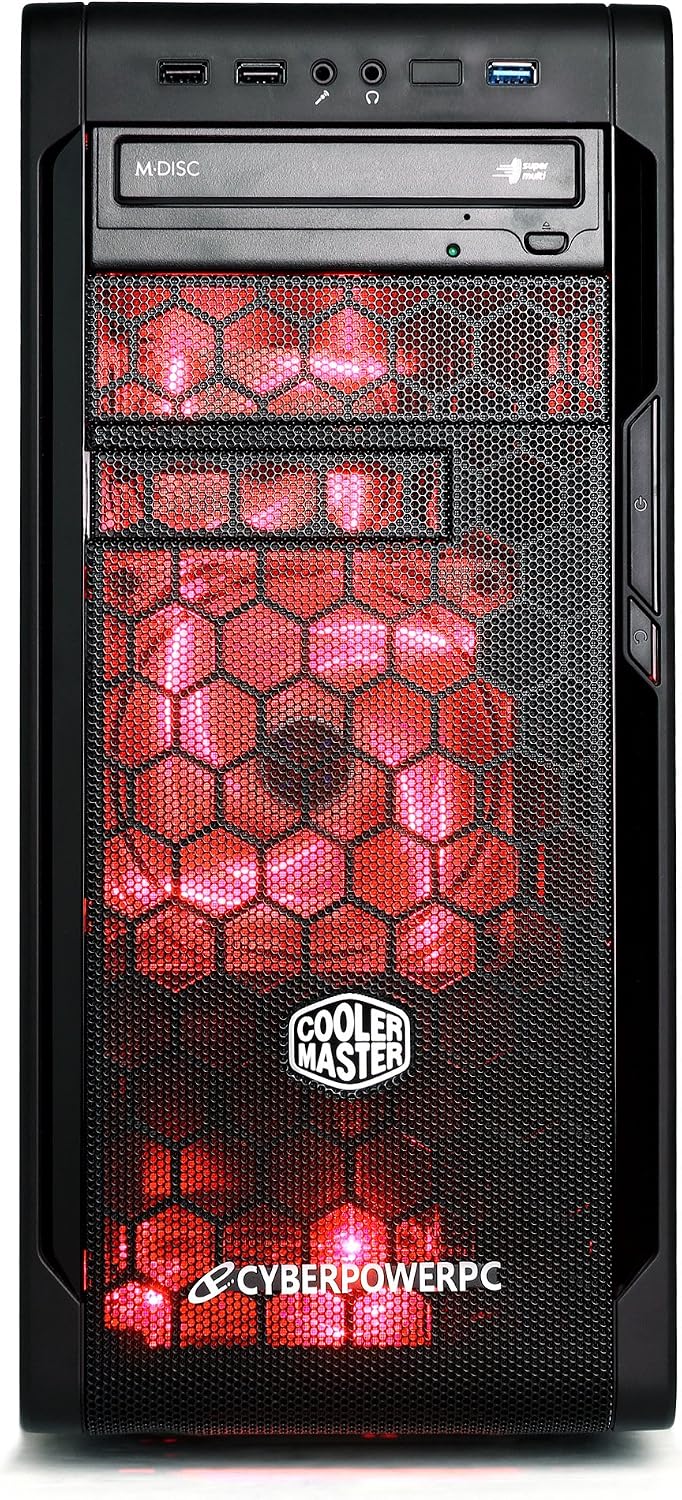
Слика: Фронт view of the desktop, highlighting accessible ports.

Слика: Под углом view of the desktop, showing front and side details.
Оперативни
Your CyberpowerPC Gamer Ultra GUA950A Desktop comes pre-installed with either Windows 7 Home Premium or Windows 8. Familiarize yourself with the operating system interface and its basic functions.
- Укључивање/искључивање: To power on, press the power button. To shut down, always use the operating system's shutdown function (Start Menu > Power > Shut down) to prevent data corruption. Avoid powering off directly by holding the power button unless absolutely necessary.
- Повезивање: Utilize the available USB ports for connecting external devices. HDMI is available for display output. Integrated Wi-Fi and Bluetooth provide wireless connectivity.
- Оптички диск: The system includes a 24X DVD+-RW drive for reading and writing optical media.
Одржавање
Правилно одржавање осигурава дуготрајност и оптималне перформансе вашег десктоп рачунара.
- Чишћење: Regularly clean the exterior of the desktop with a soft, dry cloth. Use compressed air to clear dust from vents and fans to ensure proper airflow and prevent overheating. Do not use liquid cleaners directly on components.
- Ажурирања софтвера: Keep your operating system and drivers updated to ensure optimal performance, security, and compatibility. Check for updates regularly through the operating system settings.
- Резервна копија података: Regularly back up important data to an external drive or cloud storage to prevent data loss in case of hardware failure or other unforeseen issues.

Слика: Са стране view of the desktop, illustrating internal components that may require dust cleaning.
Решавање проблема
If you encounter issues with your desktop, refer to the following common troubleshooting steps:
- Нема напајања: Ensure the power cable is securely connected to both the desktop's power supply unit and a functional electrical outlet. Verify the power outlet is working by plugging in another device.
- Без приказа: Check that the monitor is properly connected to the graphics card port (usually at the back, lower section of the desktop) and that the monitor itself is powered on. Try a different display cable or monitor if available.
- Успоравање система: Close unnecessary applications running in the background. Check for malware or viruses using reputable antivirus software. Ensure there is sufficient free space on your hard drive. Consider updating drivers for your components.
- Проблеми са периферним уређајима: If a keyboard, mouse, or other USB device is not working, try connecting it to a different USB port. Ensure drivers for the peripheral are installed if required.
If these steps do not resolve the issue, please contact CyberpowerPC technical support for further assistance.
Спецификације
| Феатуре | Детаљ |
|---|---|
| Број модела | GUA950A |
| Процесор | AMD FX-6300 (6-Core) |
| Оперативни систем | Windows 7 Home Premium, Windows 8 |
| РАМ меморија | 8 ГБ ДДР3 СДРАМ |
| Складиштење | 1000 ГБ ХДД |
| графичка картица | AMD R7 250 2GB |
| Оптицал Дриве | 24X DVD+-RW |
| Повезивање | Блутут, HDMI, УСБ, Ви-Фи |
| Димензије производа | 49.02 к 19.05 к 42.42 цм; 13.18 кг |
| Боја | Црно/црвено |
| УПЦ | 811842022897 |
Гаранција и подршка
Your CyberpowerPC Gamer Ultra GUA950A Desktop is covered by a 1 Year Limited Warranty. Additionally, Lifetime Toll Free Technical Support Services are available.
- Хотлине за техничку подршку: (888) 937-5582
- Е-маил за техничку подршку: techteamatcyberpowerpc.com
- Контакт информације произвођача: CITY OF INDUSTRY, CA, 91746 US
Please have your model number (GUA950A) and proof of purchase ready when contacting support.