
1. Увод
This manual provides detailed instructions for the installation, setup, and operation of your Intel Wireless-N 7260 Half Mini PCI-E Wi-Fi and Bluetooth Card. This internal component is designed to enhance your laptop's wireless capabilities, offering 802.11b/g/n Wi-Fi and Bluetooth connectivity.
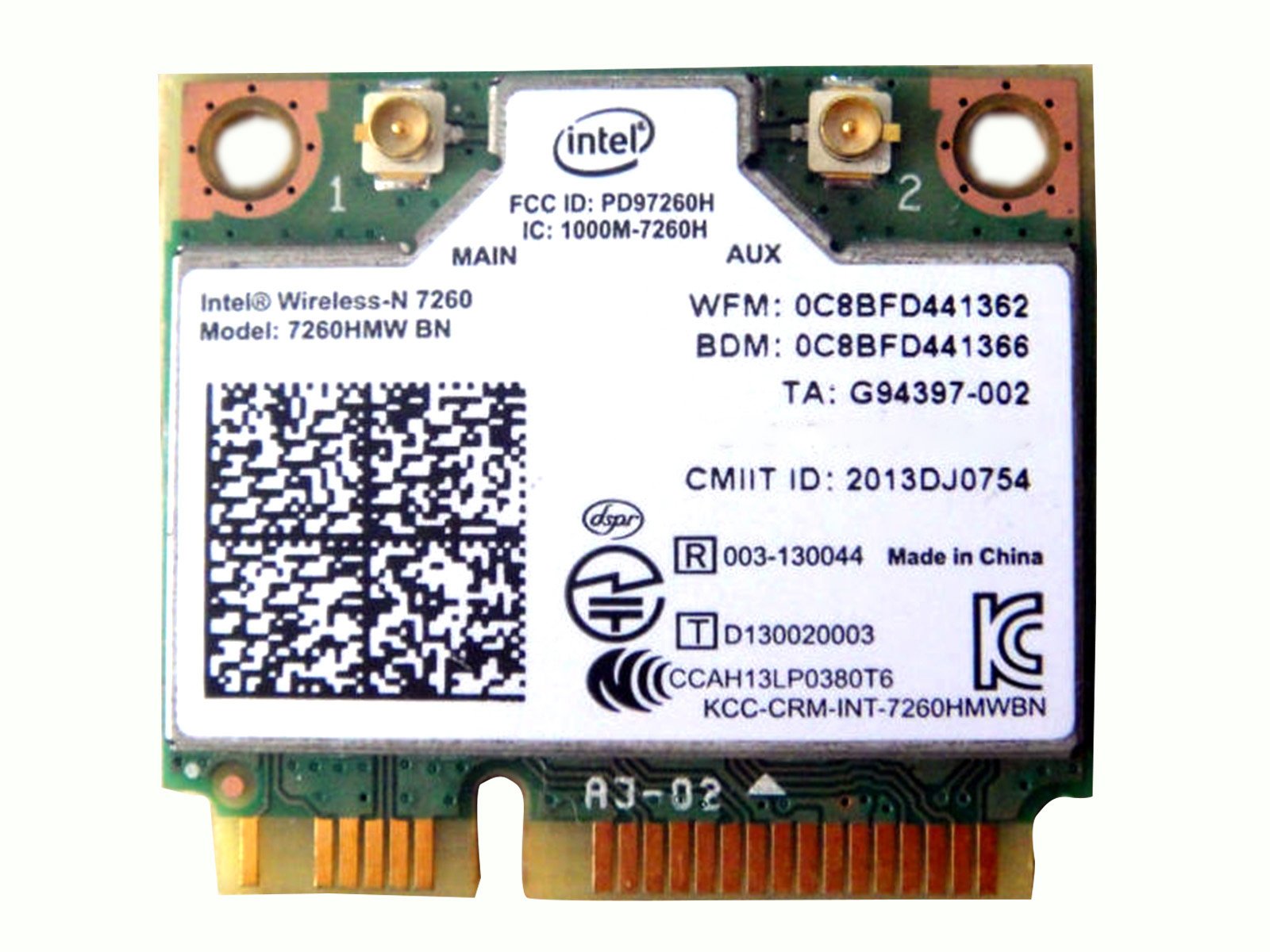
Image 1: Intel Wireless-N 7260 Half Mini PCI-E Wi-Fi and Bluetooth Card. This image displays the compact form factor of the wireless card, highlighting its connectors and labeling.
2. Напомене о компатибилности
Важно: This Wireless Card is generally compatible with most PC/laptops that support a Half Mini PCI-E slot. However, it is crucial to note that this card may not work on IBM/Lenovo/Thinkpad and HP Version Laptops due to specific BIOS whitelisting or hardware restrictions. Please verify your laptop's compatibility before installation.
3. Спецификације
| Феатуре | Детаљ |
|---|---|
| Бранд | Интел |
| Број модела | 7260 |
| Тип | 802.11 b/g/n + BT (Bluetooth) |
| Интерфејс | Халф Мини ПЦИ-е |
| Димензије производа | 1.18 к 1.06 к 0.04 инча |
| Тежина артикла | 0.352 унци (0.01 килограма) |
| Протокол везе података | Блуетоотх |
| Хардверски интерфејс | Bluetooth, PCI |
| Компатибилни уређаји | Лаптоп |
| БИОС | Standard / Public Version |
| УПЦ | 722851200599 |
4. Инсталација и подешавање
Installing the Intel Wireless-N 7260 card requires opening your laptop. If you are not comfortable with hardware installation, it is recommended to seek professional assistance.
4.1. Физичка инсталација
- Искључите и искључите: Уверите се да је лаптоп потпуно искључен из напајања и да је искључен из свих извора напајања. Извадите батерију ако је могуће.
- Access the Internal Components: Carefully open your laptop's back panel to access the internal components. This usually involves unscrewing several screws. Refer to your laptop's specific service manual for precise instructions.
- Locate the Existing Wireless Card: Identify the current wireless card, typically a small module connected to a Half Mini PCI-E slot. It will have antenna cables attached.
- Disconnect Antennas: Gently disconnect the antenna cables from the existing wireless card. Note their positions (Main/Aux) for reattachment.
- Уклоните стару картицу: Unscrew the retaining screw(s) holding the old wireless card in place. The card should pop up slightly, allowing you to slide it out of the slot.
- Insert New Card: Carefully insert the Intel Wireless-N 7260 card into the Half Mini PCI-E slot at an angle. Press it down until it clicks into place, then secure it with the retaining screw(s).
- Reattach Antennas: Connect the antenna cables to the corresponding connectors on the new Intel Wireless-N 7260 card. Ensure a snug fit.
- Поново саставите лаптоп: Carefully close the laptop's back panel and secure all screws. Reinsert the battery if removed.
4.2. Инсталација драјвера
Upon booting your laptop, the operating system (e.g., Windows) may automatically detect and install the necessary drivers for the Intel Wireless-N 7260 card. If not, you may need to download the latest drivers from the official Intel website or your laptop manufacturer's support page. Тражи "Intel Wireless-N 7260 drivers" to find the appropriate software.
5. Операција
5.1. Повезивање на Ви-Фи
- Омогући Ви-Фи: Ensure Wi-Fi is enabled on your laptop. This can usually be done through the operating system's network settings or a physical switch/function key combination on some laptops.
- Изаберите мрежу: Click on the Wi-Fi icon in your system tray (Windows) or menu bar (macOS) to view доступне мреже.
- Повежите се: Select your desired Wi-Fi network (SSID) and click "Connect." Enter the network password if prompted.
- Потврдите везу: Once connected, the Wi-Fi icon will indicate a successful connection, and you should be able to browse the internet.
5.2. Коришћење Блуетоотх-а
- Омогући Блуетоотх: Ensure Bluetooth is enabled on your laptop. This is typically found in your operating system's settings.
- Упарите уређај: Put your Bluetooth device (e.g., headphones, mouse, keyboard) into pairing mode.
- Додај уређај: On your laptop, go to Bluetooth settings and select "Add Bluetooth or other device." Choose "Bluetooth" and select your device from the list.
- Потврдите упаривање: Пратите сва упутства на екрану да бисте довршили процес упаривања.
6. Performance Considerations
The Intel Wireless-N 7260 card supports 802.11b/g/n standards, offering reliable wireless performance. Actual speeds may vary based on your network environment, router capabilities, distance from the access point, and interference. For optimal performance, ensure your router supports 802.11n and operates on both 2.4GHz and 5GHz bands (though this card primarily uses 2.4GHz for N-standard, it's good practice for overall network health). Keeping your drivers updated is also essential for maintaining peak performance.
7. Одржавање
- Ажурирања драјвера: Regularly check the Intel support website for the latest drivers for your Wireless-N 7260 card. Updated drivers can improve performance, stability, and security.
- Ажурирања система: Keep your operating system updated to ensure compatibility and optimal performance with your wireless card.
- Физичка чистоћа: If you experience issues, ensure your laptop's internal components, especially the wireless card and its slot, are free from dust and debris.
КСНУМКС. Решавање проблема
- No Wi-Fi/Bluetooth Connection:
- Verify physical installation: Ensure the card is seated correctly and antenna cables are securely attached.
- Check Device Manager: Look for the device under "Network adapters" and "Bluetooth." If there's a yellow exclamation mark, reinstall or update drivers.
- Ensure Wi-Fi/Bluetooth is enabled in your operating system settings.
- Мала брзина Wi-Fi-ја:
- Приближите се свом Wi-Fi рутеру.
- Ensure your router is configured for 802.11n speeds.
- Проверите да ли постоје сметње од других уређаја (нпр. микроталасне пећнице, бежични телефони).
- Update your Wi-Fi drivers.
- Интермитентна веза:
- Проверите да ли постоје конфликти драјвера или застарели драјвери.
- Уверите се да је фирмвер вашег рутера ажуриран.
- Consider changing your Wi-Fi channel on your router to avoid interference.
9. Информације о гаранцији
This Intel Wireless-N 7260 card is covered by a standard manufacturer's warranty. Please refer to the warranty documentation included with your purchase or visit the official Intel webсајт за конкретне услове и одредбе. Сачувајте доказ о куповини за потребе гаранције.
10. Корисничка подршка
For technical assistance, driver downloads, or further information, please visit the official Intel support website. You may also contact your product reseller for support related to your purchase.