
Увод
This manual provides instructions for setting up, operating, and maintaining your Mercury MW3030R Dual Band Wireless Router. Please read this manual carefully before use to ensure proper installation and optimal performance.
Безбедносне информације
- Не излажите уређај води или прекомерној влажности.
- Не покушавајте сами да раставите или поправите уређај.
- Користите само адаптер за напајање који сте добили уз уређај.
- Обезбедите одговарајућу вентилацију око рутера како бисте спречили прегревање.
Садржај пакета
Проверите да ли ваш пакет садржи следеће ставке:
- Mercury MW3030R Wireless Router
- Повер Адаптер
- Етхернет Цабле
- Quick Installation Guide (this manual serves as a detailed guide)
Производ је завршенview
Упознајте се са компонентама и индикаторима рутера.
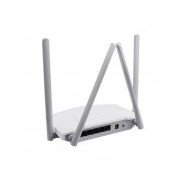
Слика 1: Позади view of the Mercury MW3030R router. This image displays the four external antennas, the WAN port (typically blue), multiple LAN ports (typically yellow), and the power input jack. The reset button and WPS button are also usually located on the rear panel.
Слика 2: Одозго надоле view of the Mercury MW3030R router with its antennas folded. This perspective highlights the router's sleek, white casing and its overall compact form factor, suitable for various placements.
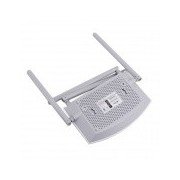
Слика 3: Дно view of the Mercury MW3030R router. This image shows the ventilation holes designed for heat dissipation and the product label, which typically contains important information such as the default Wi-Fi name (SSID), password, and web management address.
ЛЕД индикатори:
- ЛЕД за напајање: Показује статус напајања рутера.
- Интернет ЛЕД: Означава статус интернет везе.
- ВЛАН ЛЕД: Означава бежичну активност.
- ЛАН ЛЕД диоде: Indicate connection status for each LAN port.
Сетуп
1. Повезивање хардвера
- Укључено: Connect the power adapter to the router's power port and plug it into a wall outlet. Wait for the Power LED to become stable.
- Повежите се на интернет (WAN): Connect one end of an Ethernet cable to your modem's LAN port and the other end to the router's WAN port (usually distinctively colored, e.g., blue).
- Connect Devices (LAN): For wired connections, connect your computer or other devices to the router's LAN ports (usually yellow) using Ethernet cables.
- Антене: Adjust the four antennas for optimal signal coverage.
2. Почетна конфигурација (Web Интерфејс)
- Повежите се са рутером: Connect your computer to the router either via an Ethernet cable to a LAN port or wirelessly using the default Wi-Fi SSID and password printed on the router's label (refer to Figure 3).
- Приступ Web Прегледач: Отвори а web browser (e.g., Chrome, Firefox) and type the default access address (e.g., http://192.168.1.1 or http://tplinkwifi.net) у адресну траку и притисните Ентер.
- Пријава: Унесите подразумевано корисничко име и лозинку (обично админ за оба, или како је наведено на етикети рутера).
- Покрените брзо подешавање: Follow the on-screen instructions of the Quick Setup Wizard to configure your internet connection type (e.g., PPPoE, Dynamic IP, Static IP) and wireless settings (SSID, password).
- Промена подразумеване лозинке: For security, it is highly recommended to change the default login password for the router's web интерфејс за управљање.
Упутство за употребу
Повезивање на Ви-Фи
- On your wireless device (smartphone, laptop), search for available Wi-Fi networks.
- Select your router's Wi-Fi network name (SSID) that you configured during setup.
- Enter the Wi-Fi password you set.
- Ваш уређај би сада требало да буде повезан на интернет.
Дуал Банд Оператион
The MW3030R supports both 2.4GHz and 5.0GHz wireless bands. The 2.4GHz band offers wider coverage, while the 5.0GHz band provides faster speeds with less interference over shorter distances. You can connect your devices to either band based on your needs.
Мрежа за госте
Приступите рутеру web interface to enable and configure a separate guest network. This allows guests to access the internet without accessing your main network resources.
Одржавање
- Ажурирања фирмвера: Редовно проверавајте произвођачеве website for firmware updates. Updating firmware can improve performance, add new features, and fix security vulnerabilities.
- Поновно покретање рутера: If you experience network issues, try restarting the router by unplugging the power adapter, waiting 10 seconds, and then plugging it back in.
- Чишћење: Одржавајте рутер чистим и без прашине. Користите меку, суву крпу. Не користите течна средства за чишћење.
- Пласман: Поставите рутер на централну локацију, даље од препрека и уређаја који могу изазвати сметње (нпр. микроталасне пећнице, бежични телефони).
Решавање проблема
Нема приступа Интернету
- Check if the Internet LED on the router is lit or blinking correctly.
- Уверите се да је Етернет кабл из вашег модема безбедно повезан са ВАН портом рутера.
- Поново покрените модем и рутер.
- Проверите подешавања интернет конекције у рутеру web интерфејс.
Slow Wireless Speed
- Ensure your device is connected to the 5.0GHz band if it supports it, for faster speeds.
- Move closer to the router or adjust antenna positions.
- Проверите да ли има сметњи од других електронских уређаја.
- Reduce the number of devices connected to the network or bandwidth-intensive activities.
Не могу приступити рутерима Web Интерфејс
- Уверите се да је ваш уређај повезан са рутером (жичано или бежично).
- Verify the IP address you are typing in the browser is correct (e.g., http://192.168.1.1).
- Покушајте да обришете кеш меморију прегледача или да користите други прегледач.
- If you forgot the login password, you may need to perform a factory reset (Warning: This will erase all your settings).
Спецификације
| Феатуре | Опис |
|---|---|
| Модел | МВ3030Р |
| Вирелесс Стандардс | IEEE 802.11ac/n/g/b/a |
| Фреквенција | 2.4 GHz и 5.0 GHz (двопојасни) |
| Бежична брзина | Up to 600Mbps (combined) |
| Антене | 4 спољне антене |
| Интерфејси | 1x WAN Port, Multiple LAN Ports (typically 3 or 4) |
| Повер Суппли | External Power Adapter (provided) |
Гаранција и подршка
The Mercury MW3030R router comes with a standard manufacturer's warranty. For detailed warranty information, technical support, or service inquiries, please refer to the official Mercury webсајт или контактирајте њихову корисничку подршку. Сачувајте рачун за куповину за потребе гаранције.