Увод
This manual provides essential information for setting up, operating, maintaining, and troubleshooting your Microsoft Surface Pro 3. The Surface Pro 3 is a versatile device designed to function as both a tablet and a laptop, powered by the Windows 10 operating system.
It features a 12-inch high-resolution screen, ample internal storage, dual HD cameras, and robust connectivity options, including a full-size USB 3.0 port. Its integrated kickstand allows for comfortable viewing in various positions, and the magnesium frame ensures a lightweight and durable design.
Безбедносне информације
- Не излажите уређај екстремним температурама, директној сунчевој светлости или високој влажности.
- Избегавајте испуштање или излагање уређаја јаким ударцима.
- Користите само адаптере за напајање и додатну опрему одобрене од стране компаније Microsoft.
- Држите уређај даље од течности. У случају контакта са течношћу, одмах га искључите и потражите стручну помоћ.
- Do not attempt to disassemble or repair the device yourself. This may void the warranty and cause damage.
- Ensure proper ventilation when using the device to prevent overheating.
Сетуп
1. Распакивање и први преглед
Carefully remove the Surface Pro 3 and all accessories from the packaging. Inspect the device for any visible damage. Retain the packaging for future transport or service needs.
2. Укључивање и почетно подешавање
- Повежите напајање са Surface Pro 3 и електричном утичницом.
- Притисните дугме за напајање које се налази на горњој ивици уређаја.
- Follow the on-screen prompts to complete the Windows 10 initial setup, including language selection, network connection, and user account creation.
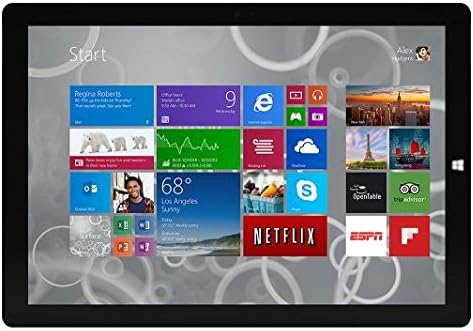
Figure 1: Windows 10 Start Screen during initial setup.
This image shows the Microsoft Surface Pro 3 screen displaying the Windows 10 Start menu, characterized by a grid of live tiles representing various applications and services. This is typically seen during the initial setup or when navigating the operating system.
3. Attaching Accessories (Sold Separately)
The Surface Pro 3 is compatible with various accessories, such as the Surface Type Cover keyboard and the Surface Pen, which are sold separately.
- Површински тип поклопца: Align the magnetic connector of the Type Cover with the bottom edge of the Surface Pro 3 until it clicks into place.
- Површинска оловка: The Surface Pen can be magnetically attached to the side of the Surface Pro 3 for storage. For initial pairing, follow the instructions provided with the pen.
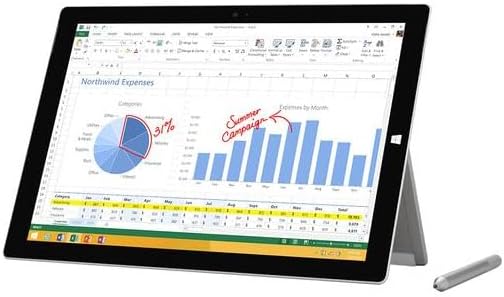
Figure 2: Surface Pro 3 with optional Surface Pen.
This image illustrates the Microsoft Surface Pro 3 in use, displaying an Excel spreadsheet on its screen. A Surface Pen is positioned next to the device, highlighting its compatibility for precise input and navigation.
4. Expanding Storage with a MicroSD Card
You can expand the internal storage of your Surface Pro 3 using a microSD card (sold separately).
- Locate the microSD card slot on the side of the Surface Pro 3, typically behind the kickstand.
- Insert the microSD card into the slot until it clicks into place.
- The device will automatically detect the card. You may need to format it if it's a new card or if prompted by the system.

Figure 3: MicroSD card slot.
This close-up image shows the microSD card slot on the side of the Microsoft Surface Pro 3, with a microSD card partially inserted, demonstrating how to expand the device's storage.
Упутство за употребу
1. Навигација кроз Windows 10
- Старт мени: Click the Windows icon in the bottom-left corner to access applications, settings, and power options.
- екран осетљив на додир: Користите гестове за навигацију, зумирање и скроловање.
- Edge Browser: Utilize the pre-installed Edge browser for web browsing, which includes features for marking up web странице.

Figure 4: Using the Surface Pro 3 for productivity.
This image depicts the Microsoft Surface Pro 3 in an active use scenario, showcasing a note-taking application open on its screen. The display features handwritten notes, diagrams, and sketches, illustrating the device's capability for creative and productive tasks.
2. Using the Integrated Kickstand
The multi-position kickstand allows you to adjust the viewing angle for optimal comfort, whether you are typing, watching videos, or drawing.
- Gently pull the kickstand out from the back of the device.
- Adjust it to your desired angle. The kickstand offers a wide range of positions for versatility.
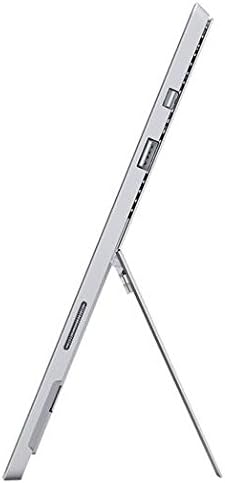
Figure 5: Adjustable kickstand.
Ова слика пружа страну view of the Microsoft Surface Pro 3, clearly showing its integrated kickstand extended to support the device at an angle, demonstrating its versatile viewинг способности.
3. Функционалност камере
The Surface Pro 3 is equipped with 5.0MP front and rear cameras.
- Open the Camera application from the Start Menu.
- Switch between front and rear cameras as needed for photos or video calls.

Figure 6: Front camera.
This close-up image focuses on the front-facing camera and associated sensors located at the top edge of the Microsoft Surface Pro 3 screen.
4. Повезивање
The full-size USB 3.0 port allows for connecting various peripherals and transferring data.
- Insert USB devices (e.g., flash drives, external hard drives, printers) into the USB 3.0 port.
- The device also supports Wi-Fi (802.11a/b/g/n/ac) for wireless internet connectivity.
Одржавање
1. Cleaning Your Surface Pro 3
- Користите меку крпу која не оставља длачице дampводом или средством за чишћење екрана посебно дизајнираним за електронику.
- Избегавајте употребу јаких хемикалија, абразивних средстава за чишћење или аеросолних спрејева.
- Нежно обришите екран и спољне површине.
2. Ажурирања софтвера
Редовно проверавајте и инсталирајте ажурирања за Windows како бисте били сигурни да ваш уређај има најновије безбедносне закрпе и побољшања перформанси.
- Иди на Подешавања > Ажурирање и безбедност > Виндовс Упдате.
- Кликните на „Провери ажурирања“ и инсталирајте сва доступна ажурирања.
3. Управљање складиштем
To maintain optimal performance, manage your device's storage space.
- Редовно бришите непотребне fileс и апликације.
- Utilize cloud storage services or external drives for large files.
- Consider using the Disk Cleanup tool in Windows to remove temporary files.
Решавање проблема
Овај одељак се бави уобичајеним проблемима на које можете наићи са својим Surface Pro 3 уређајем.
Уређај се не укључује
- Уверите се да је напајање безбедно повезано и са уређајем и са исправном утичницом.
- Покушајте са другом утичницом.
- Притисните и држите дугме за напајање 10-15 секунди да бисте извршили присилно искључивање, а затим га поново притисните да бисте поново покренули рачунар.
Проблеми са Wi-Fi повезивањем
- Проверите да ли је Wi-Fi омогућен у подешавањима система Windows.
- Рестартујте свој Wi-Fi рутер.
- Заборавите мрежу и поново се повежите, поново уносећи лозинку.
- Покрените програм за решавање проблема са мрежом у систему Windows.
Споро перформансе
- Затворите непотребне апликације које раде у позадини.
- Проверите и инсталирајте све чекајуће надоградње за Windows.
- Уверите се да имате довољно слободног простора за складиштење.
- Покрените скенирање вируса.
For more detailed troubleshooting or issues not covered here, please refer to the official Microsoft Support webсајту или контактирајте корисничку подршку.
Спецификације
| Феатуре | Детаљ |
|---|---|
| Модел | Microsoft Surface 1631 Pro 3 |
| Оперативни систем | Виндовс 10 |
| Величина екрана | 12 инча |
| Резолуција екрана | 2160 к 1440 |
| Процесор | Интел Цоре и3 1.5 ГХз |
| РАМ | 4 ГБ |
| Интерна меморија | 128 GB флеш меморије |
| Грапхицс Цопроцессор | Интел ХД графика |
| камере | 5.0MP Front and Rear |
| Вирелесс Типе | 802.11b, 802.11a, 802.11g |
| Портс | Full-size USB 3.0 |
| Тежина артикла | 1.8 фунти |
| Димензије производа | 11.5 к 0.36 к 7.93 инча |
| Боја | Сребро |
Гаранција и подршка
Your Microsoft Surface Pro 3 comes with a standard manufacturer's warranty. For detailed warranty terms and conditions, please refer to the documentation included with your purchase or visit the official Microsoft support webсајту.
For technical assistance, troubleshooting guides, driver downloads, and service requests, please visit the Подршка за Microsoft Surface страница.