Увод
This manual provides essential information for the safe and efficient use of your Acer KA240H 24-inch Full HD Monitor. Please read this manual thoroughly before operating your monitor and retain it for future reference. This monitor is designed for general computing tasks, offering a 1920x1080 resolution display.
Безбедносне информације
- Увек постављајте монитор на стабилну, равну површину како бисте спречили његов пад.
- Не блокирајте вентилационе отворе. Обезбедите довољно простора око монитора за правилан проток ваздуха.
- Use only the power adapter and cables supplied with the monitor or specified by Acer.
- Држите монитор даље од воде, влаге и екстремних температура.
- If smoke, strange noises, or unusual odors occur, immediately unplug the monitor and contact qualified service personnel.
- Не покушавајте сами да сервисирате монитор. Сво сервисирање препустите квалификованом сервисеру.
Садржај пакета
Проверите да ли су сви предмети присутни и у добром стању приликом распакивања. Ако неки предмети недостају или су оштећени, обратите се продавцу.
- Acer KA240H Monitor Display Panel
- База постоља за монитор
- Врат постоља за монитор
- Повер Цорд
- HDMI кабл (може да варира у зависности од региона)
- Кориснички приручник (овај документ)
Сетуп
1. Склапање постоља за монитор
- Carefully place the monitor display panel face down on a soft, clean cloth to prevent scratches.
- Attach the stand neck to the monitor display panel by aligning the tabs and pushing until it clicks into place.
- Причврстите основу постоља за врат постоља. Причврстите је завртњем који се налази на доњој страни основе.

2. Повезивање каблова
Уверите се да су монитор и рачунар искључени пре него што направите било какву везу.
- Прикључак за напајање: Прикључите кабл за напајање на улаз за напајање монитора, а затим на уземљену електричну утичницу.
- Видео веза:
- ДВИ: Повежите један крај HDMI кабла са HDMI портом на монитору, а други крај са HDMI портом на рачунару.
- ВГА: Connect one end of the VGA cable to the VGA port on your monitor and the other end to the VGA port on your computer. Tighten the screws on the VGA connector.
- ДВИ: Connect one end of the DVI cable to the DVI port on your monitor and the other end to the DVI port on your computer.
Note: The monitor supports HDMI, VGA, and DVI inputs. Use only one video connection at a time.
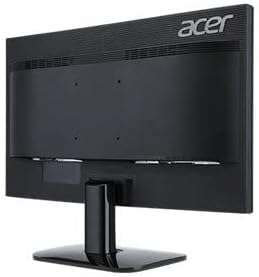
3. Прво укључивање
After connecting all cables, power on your computer, then press the power button on the monitor. The monitor should automatically detect the input signal. If no image appears, refer to the Troubleshooting section.
Руковање монитором
Power Button and OSD Controls
The power button and On-Screen Display (OSD) control buttons are typically located on the bottom right bezel of the monitor. Refer to the diagram below for button identification.
- Укључивање/искључивање: Притисните дугме за напајање да бисте укључили или искључили монитор.
- ОСД мени: Press any OSD button (usually indicated by icons) to bring up the On-Screen Display menu.
- Навигација: Use the arrow buttons to navigate through menu options.
- Избор: Press the 'Menu' or 'Enter' button to select an option or confirm a setting.
- Излаз: Притисните дугме „Излаз“ да бисте затворили OSD мени.
Common OSD Settings
- слика: Подесите осветљеност, контраст, оштрину и температуру боје.
- Боја: Fine-tune color settings, including gamma and color space.
- Улаз: Manually select the input source (HDMI, VGA, DVI) if auto-detection fails.
- ОСД: Подесите језик OSD-а, транспарентност и време чекања.
- Менаџмент: Access information about the monitor, reset settings to factory defaults.
Одржавање
Чишћење монитора
- Увек искључите монитор из утичнице пре чишћења.
- Екран: Лагано користите меку крпу која не оставља длачице дampводом или специјализованим средством за чишћење екрана. Не прскајте средство за чишћење директно на екран.
- Екстеријер: Користите меку, суву крпу да обришете монитор casinг. Избегавајте употребу абразивних средстава за чишћење или растварача.
Складиштење
If storing the monitor for an extended period, unplug it, disconnect all cables, and store it in a cool, dry place, preferably in its original packaging.
Решавање проблема
| Проблем | Могуће решење |
|---|---|
| Нема слике на екрану |
|
| Слика је мутна или искривљена |
|
| Монитор трепери |
|
| Нема лампице индикатора напајања |
|
Спецификације
| Феатуре | Детаљ |
|---|---|
| Број модела | UM.FX0EE.005 |
| Величина екрана | 24 инча (61 цм) |
| Резолуција | FHD 1080p (1920 x 1080 пиксела) |
| Аспецт Ратио | 16:9 |
| Рефресх Рате | 60 Хз |
| Време одговора | 5 милисекунди |
| Дисплаи Типе | ЛЕД |
| Технологија повезивања | HDMI, VGA, DVI |
| Тип монтаже | Зидни носач (компатибилан са VESA стандардом) |
| Боја | Црно |
| Димензије артикла (Д к Ш к В) | 18"D x 0.78"W x 12"H (approximate, without stand) |
| Тежина артикла | 3.74 килограма |
| Произвођач | Ацер |
Информације о гаранцији
Your Acer KA240H monitor comes with a standard warranty. The warranty covers 1 година Делови и рад from the date of purchase. Please retain your proof of purchase for warranty claims. For detailed terms and conditions, refer to the warranty card included with your product or visit the official Acer support webсајту.
This warranty does not cover damage caused by accident, misuse, abuse, improper installation or operation, natural disaster, or unauthorized modifications or repairs.
Подршка
If you encounter issues that cannot be resolved using the troubleshooting guide, or if you require further assistance, please contact Acer customer support. You can typically find support contact information, FAQs, and driver downloads on the official Acer webсајту.
За најновије ресурсе за подршку, посетите: www.acer.com/support