
1. Увод
This manual provides detailed instructions for the installation, operation, and maintenance of your SMONET Wireless Security Camera System. This system is designed to provide reliable surveillance with easy setup and remote access capabilities.
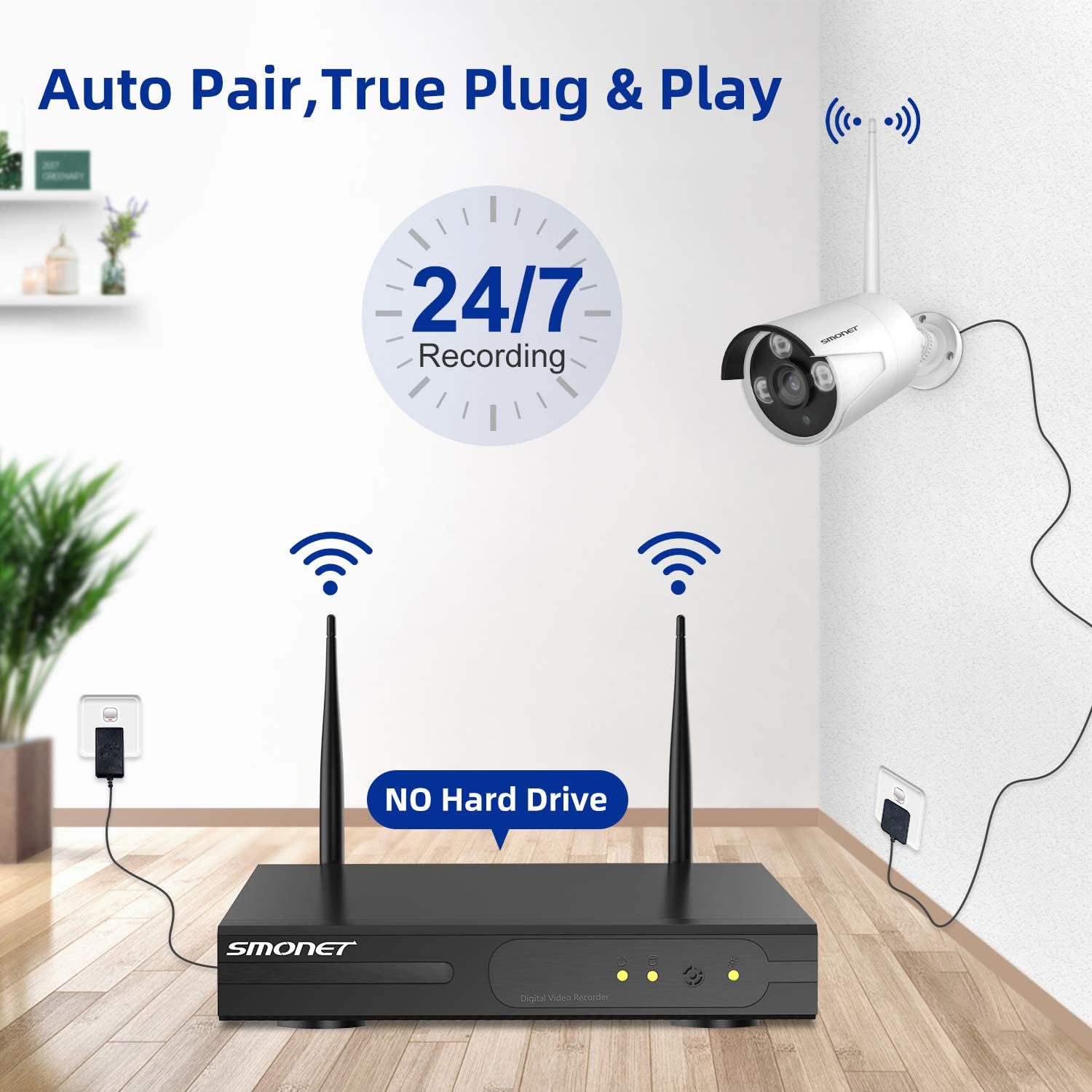
Слика 1: Готовоview of the SMONET Wireless Security Camera System, showing the NVR unit and four bullet-style cameras with antennas, indicating wireless connectivity and 24/7 recording capability.
2. Садржај пакета
Проверите да ли су све ставке наведене у наставку укључене у ваш пакет:
- 1 x 4CH 1080p WiFi NVR (Network Video Recorder)
- 4 x Wireless IP Cameras
- 1 x DC 12V/2A Power Adapter (for NVR)
- 4 x DC 12V/1A Power Adapters (for Cameras)
- 1 к УСБ миш
- 1 x 3.3ft Network Cable
- Монтажни вијци и зидни типлови
- 1 к Упутство за употребу
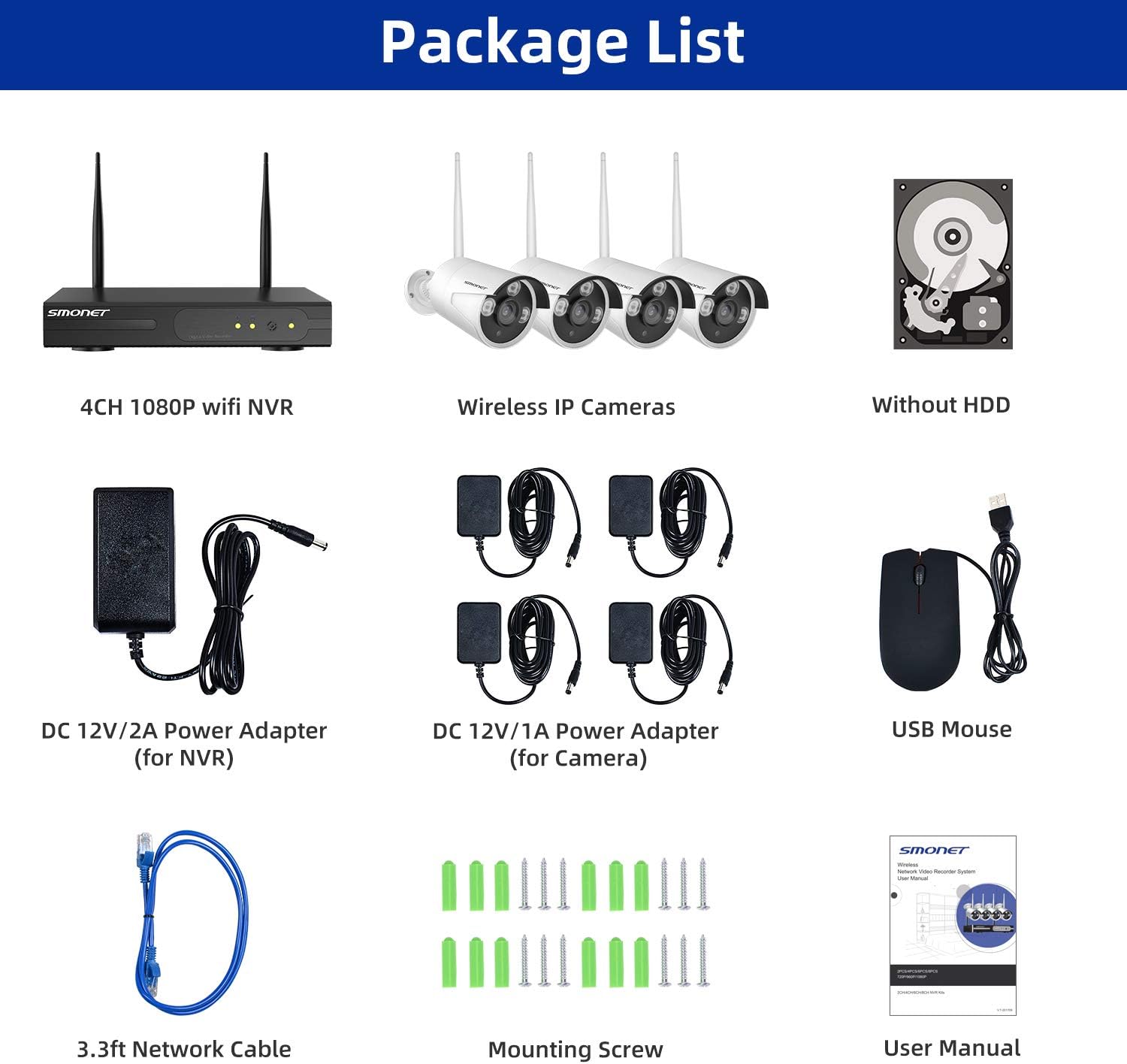
Image 2: Visual representation of the package contents, including the NVR, four cameras, power adapters, USB mouse, network cable, mounting hardware, and user manual.
3. Производ је готовview
3.1 Карактеристике камере
- 5DB Wi-Fi Antenna: For enhanced wireless signal reception.
- IP66 Metal Housing: Provides weather resistance for outdoor use.
- 3 pcs LEDs: For night vision illumination.
- Светлосни сензор: Automatically adjusts between day and night modes.
- 3.6 мм објектив: Нуди широку област view.
3.2 NVR Ports
- ВГА порт: Connect to a monitor.
- ХДМИ порт: Connect to a TV or monitor for high-definition output.
- ВАН порт: Connect to your router for internet access.
- УСБ порт: For mouse and external storage.
- Адаптер за напајање: For NVR power supply.
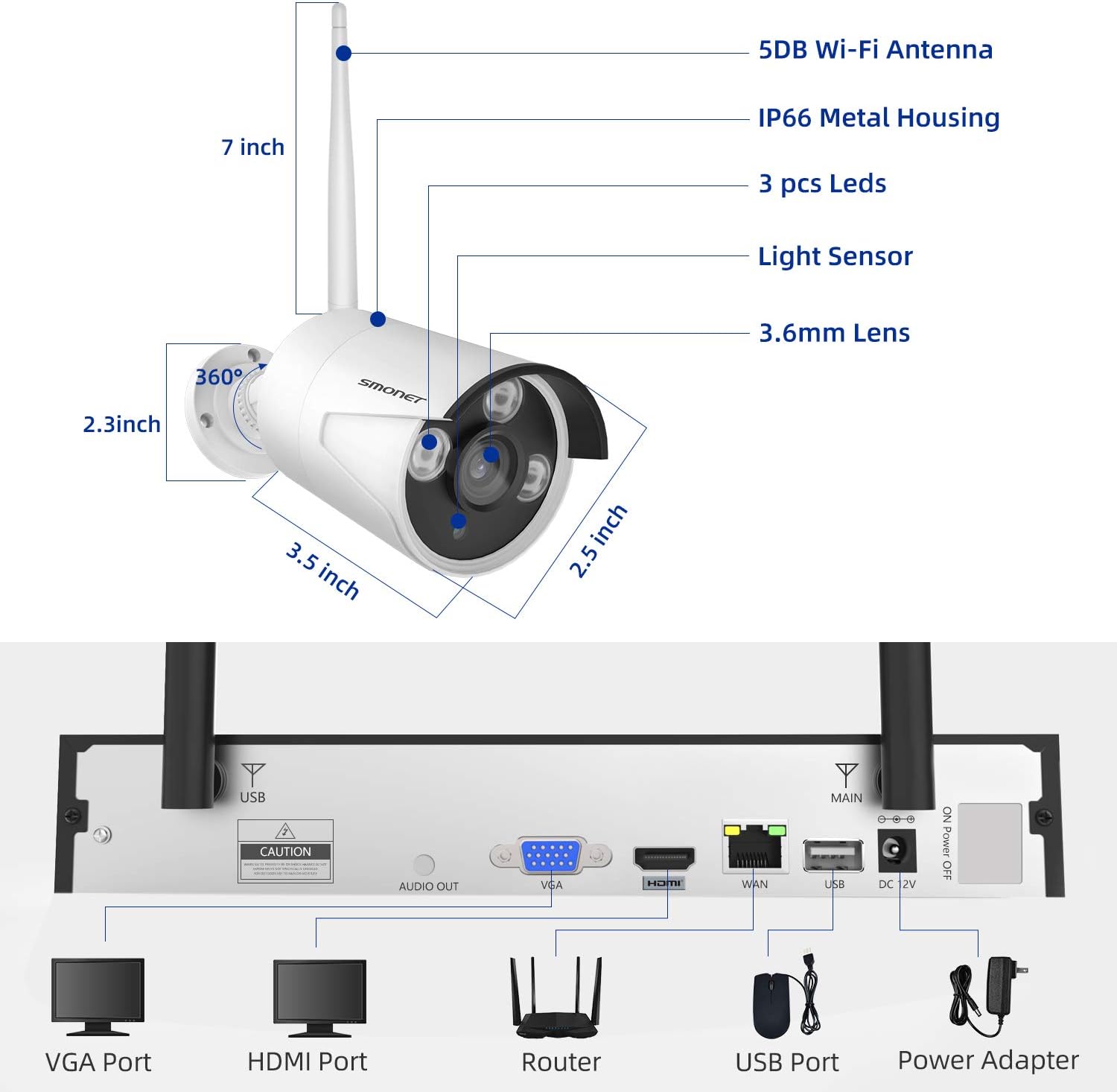
Image 3: Detailed diagram showing the dimensions of a SMONET camera and the various input/output ports on the back of the NVR unit.
4. Подешавање
4.1 Инсталација камере
- Choose desired locations for your cameras. Ensure they are within range of the NVR's wireless signal.
- Mount the cameras using the provided screws and wall plugs.
- Connect each camera to its dedicated DC 12V/1A power adapter and plug it into a power outlet.
Image 4: Illustration depicting the simple setup process for the SMONET cameras, highlighting the 'Auto Pair, True Plug & Play' feature.
4.2 Повезивање са НВР-ом
- Connect the NVR to a monitor or TV using either the VGA or HDMI port.
- Connect the NVR to your home router using the provided network cable (WAN port).
- Plug in the NVR's DC 12V/2A power adapter and power on the system.
- The cameras should automatically pair with the NVR. If not, refer to the troubleshooting section.
Video 1: A brief introduction to the SMONET Wireless Camera System, demonstrating the ease of setup and key features.
4.3 Инсталација чврстог диска (опционо)
This system does not include a hard drive. For continuous recording and video storage, a surveillance-grade hard drive (up to 4TB) must be installed. Refer to the detailed instructions in the full user manual for hard drive installation steps.
5. Руковање системом
5.1 Ремоте Viewпутем мобилне апликације
The SMONET system supports remote viewing via a dedicated mobile application. This allows you to monitor your cameras from anywhere using your smartphone or tablet.
- Download the 'IP PRO' app from your device's app store (iOS or Android).
- Register a new account within the app.
- Add your NVR device by inputting its Cloud ID and the admin password. The Cloud ID can be found in the NVR's system settings (Main Menu > Advanced > Version > Serial Number).
- Када се повежете, можете view преноси уживо са свих повезаних камера.
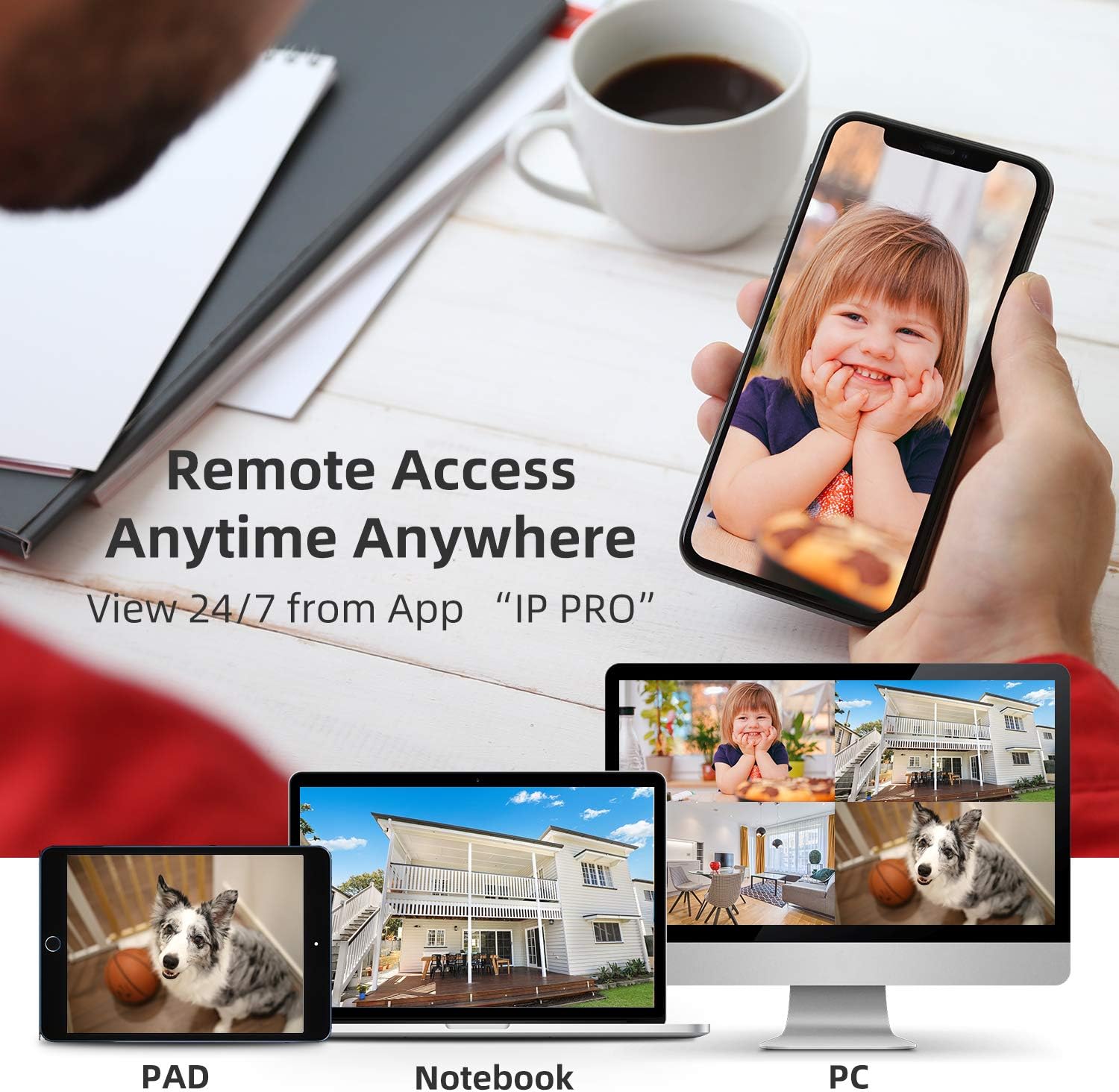
Image 5: Demonstrates remote access capabilities, showing live camera feeds on a smartphone, tablet, and laptop, accessible anytime, anywhere via the 'IP PRO' app.
5.2 Ремоте Viewing via PC Software
Такође можете view your camera feeds on a computer using the VMS software.
- Download the VMS software to your computer.
- Log in using the default username 'admin' and password (leave blank if not set).
- In 'Device Manager', click 'Cloud Add' and enter your NVR's Cloud ID and password.
- Once connected, navigate to 'Live View' to see your camera feeds.
Video 2: A tutorial demonstrating how to view video from the SMONET system on a PC using the VMS software.
5.3 Детекција покрета
The system features real-time motion detection. When motion is detected, cameras can send email alerts or mobile notifications to you, enhancing your property's security.

Image 6: Illustrates the real-time motion detection capability, showing an alert being sent to a smartphone when movement is detected in a monitored area.
5.4 Дневни и ноћни вид
The cameras provide clear vision both day and night. During the day, you get colorful images, and at night, the infrared LEDs enable clear black and white night vision.

Image 7: A side-by-side comparison demonstrating the system's ability to capture colorful images during the day and clear black-and-white images at night using infrared technology.
5.5 Проширивање система
The 4-channel NVR can support up to 8 cameras. You can add additional SMONET 1080P IP cameras (ASIN: B01IR4TXA8) to expand your surveillance coverage.

Image 8: Illustrates the wireless signal repeater function between cameras and the NVR, and shows how the system can be expanded to include up to 8 cameras.
6. Одржавање
- Редовно чишћење: Периодично чистите сочива камере меком крпомamp тканину како би се осигурао јасан квалитет слике.
- Ажурирања фирмвера: Проверите произвођача webсајт за ажурирања фирмвера како би се осигурале оптималне перформансе и безбедност.
- Провера напајања: Уверите се да су сви адаптери за напајање безбедно повезани и да нису оштећени.
- Здравље чврстог диска: If a hard drive is installed, regularly check its health status through the NVR interface to prevent data loss.
КСНУМКС. Решавање проблема
- Нема слике на монитору: Check VGA/HDMI cable connections. Ensure NVR and monitor are powered on and input source is correct.
- Cameras Not Connecting: Verify cameras are powered on. Ensure they are within wireless range of the NVR. If issues persist, try re-pairing cameras manually (refer to full manual for specific steps).
- Без даљинског управљача View: Check NVR's network status (should be 'Healthy Network'). Ensure your mobile device has internet access and the Cloud ID/password are correctly entered in the app.
- Проблеми са снимањем: Confirm a hard drive is installed and properly formatted. Check recording settings in the NVR menu.
8. Спецификације
| Феатуре | Спецификација |
|---|---|
| Бранд | СМОНЕТ |
| Технологија повезивања | Бежични |
| Број канала | 4 |
| Капацитет меморије | 4 TB (Max, HDD not included) |
| Извор напајања | Battery Powered (Cameras via adapter) |
| Оперативни систем | Android, iOS (for app) |
| Формат сигнала | Дигитал |
| Нигхт Висион | Night color (IR) |
| Фраме Рате | 30 фпс |
| Режим снимања | Детекција покрета |
| Технологија оптичког сензора | ЦМОС |
| Хардверски интерфејс | 802.11 ац/б/г/н |
| Ленс Типе | Фиксни (3.6 мм) |
| Видео улаз | RJ45 (NVR) |
| Број модела | SN-WNK 002 |
| Тежина артикла | 7 Pounds (System) |
| Димензије артикла | 12.5 x 10.5 x 6.5 инча (паковање) |
9. Гаранција и подршка
For warranty information and technical support, please refer to the official SMONET webсајт или директно контактирајте њихову корисничку службу. Сачувајте рачун за куповину за потребе гаранције.