
1. Увод
This manual provides detailed instructions for the setup, operation, and maintenance of your ELECROW 7 Inch 1024x600 IPS Capacitive Touchscreen Monitor. This display is designed for broad compatibility with devices such as Raspberry Pi (5/4/3B+/3B/2B+), BB Black, Banana Pi, Jetson Nano, and Windows 11/10/8/7 systems.
Кључне карактеристике:
- ХД визуелни прикази: 7-inch IPS screen with 1024x600 resolution and 170° wide viewing angle for consistent colors and clear viewинг.
- Капацитивни додир: Supports up to 5-point touch functionality without requiring driver installation for most compatible systems.
- Плуг анд Плаи: Simple connectivity via HD (HDMI) and Micro USB ports for immediate use.
- Разноврсна примена: Suitable for use as a Raspberry Pi display, mini PC monitor, gaming console screen, or a computer temperature monitor.
2. Шта је у кутији
Молимо вас да проверите да ли су све компоненте присутне пре него што наставите са инсталацијом.
- 7 Inch Capacitive Display x 1
- HD Cable x 1
- УСБ кабл к 1
- Micro HD Adapter x 1
- Copper Screws Pack (4pcs) x 1
- DVD x 1 (Contains drivers and documentation)
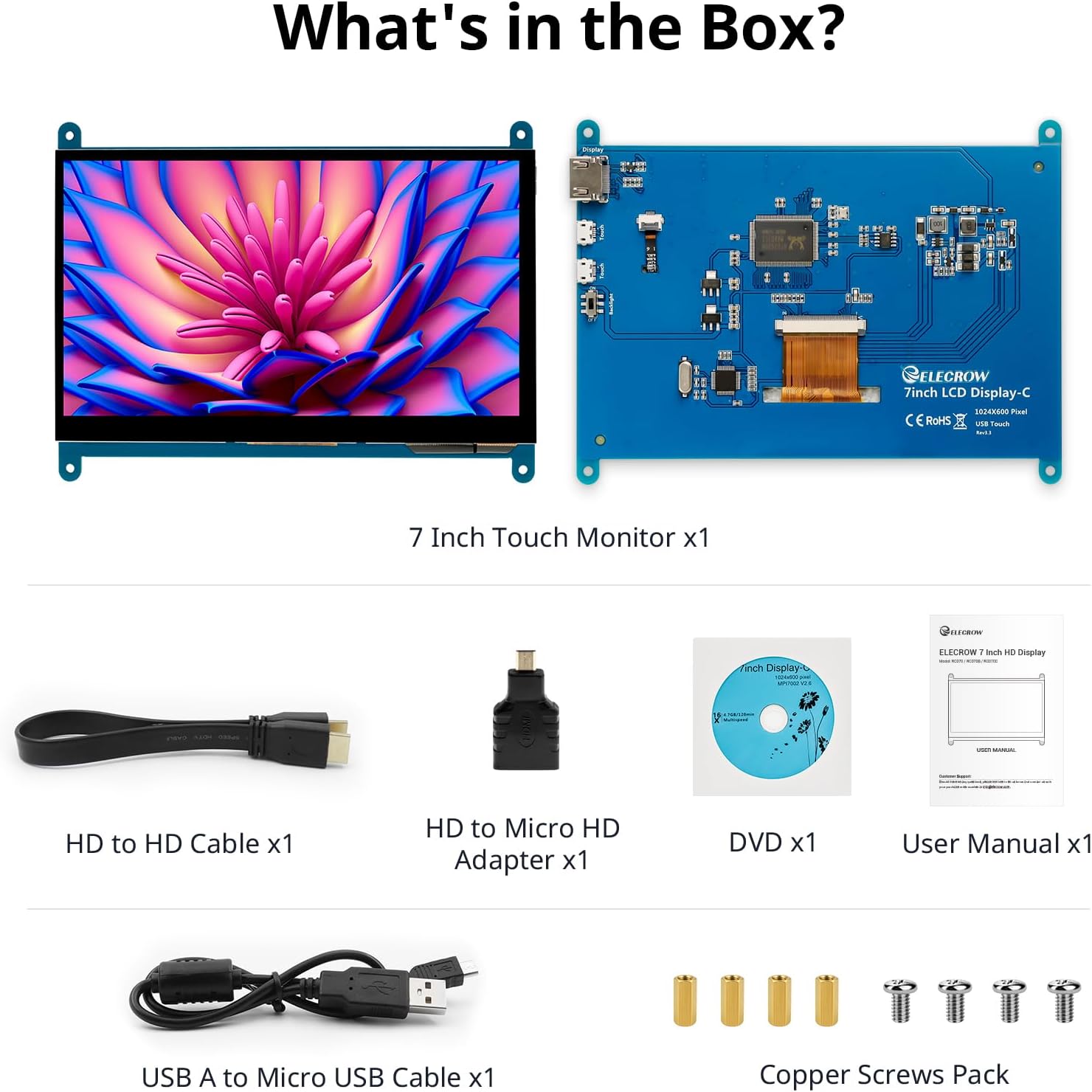
Слика: Све компоненте су укључене у паковање производа.
3. Подешавање и везе
Follow these steps to connect your ELECROW 7 Inch Touchscreen Monitor to your device.
3.1 Хардвер је завршенview

Слика: Позади view of the monitor highlighting the Standard HD Port, Micro USB Port for touch and power, and Backlight switch.
- Standard HD Port: For video data transfer.
- Микро УСБ порт: For touch functionality and power supply.
- Прекидач позадинског осветљења: To turn the display backlight on or off.
3.2 Connecting to Raspberry Pi
To connect the monitor to a Raspberry Pi, you will need both the HD cable for video and the USB cable for touch and power.
- Connect one end of the HD cable to the Standard HD Port on the monitor and the other end to the HDMI port on your Raspberry Pi. Use the Micro HD adapter if necessary for your Raspberry Pi model.
- Connect the Micro USB cable to the Micro USB Port on the monitor. Connect the other end of the USB cable to a USB port on your Raspberry Pi for power and touch data.
- Ensure the backlight switch on the monitor is in the 'On' position.
- Power on your Raspberry Pi. The display should automatically detect and show the output.
For touch functionality with Raspberry Pi, power can be supplied via the Raspberry Pi's USB port. If using an external power source for the Raspberry Pi, ensure it is sufficient. For optimal performance, especially with older Raspberry Pi models, an external power supply for the monitor might be beneficial if the Pi cannot provide enough current.
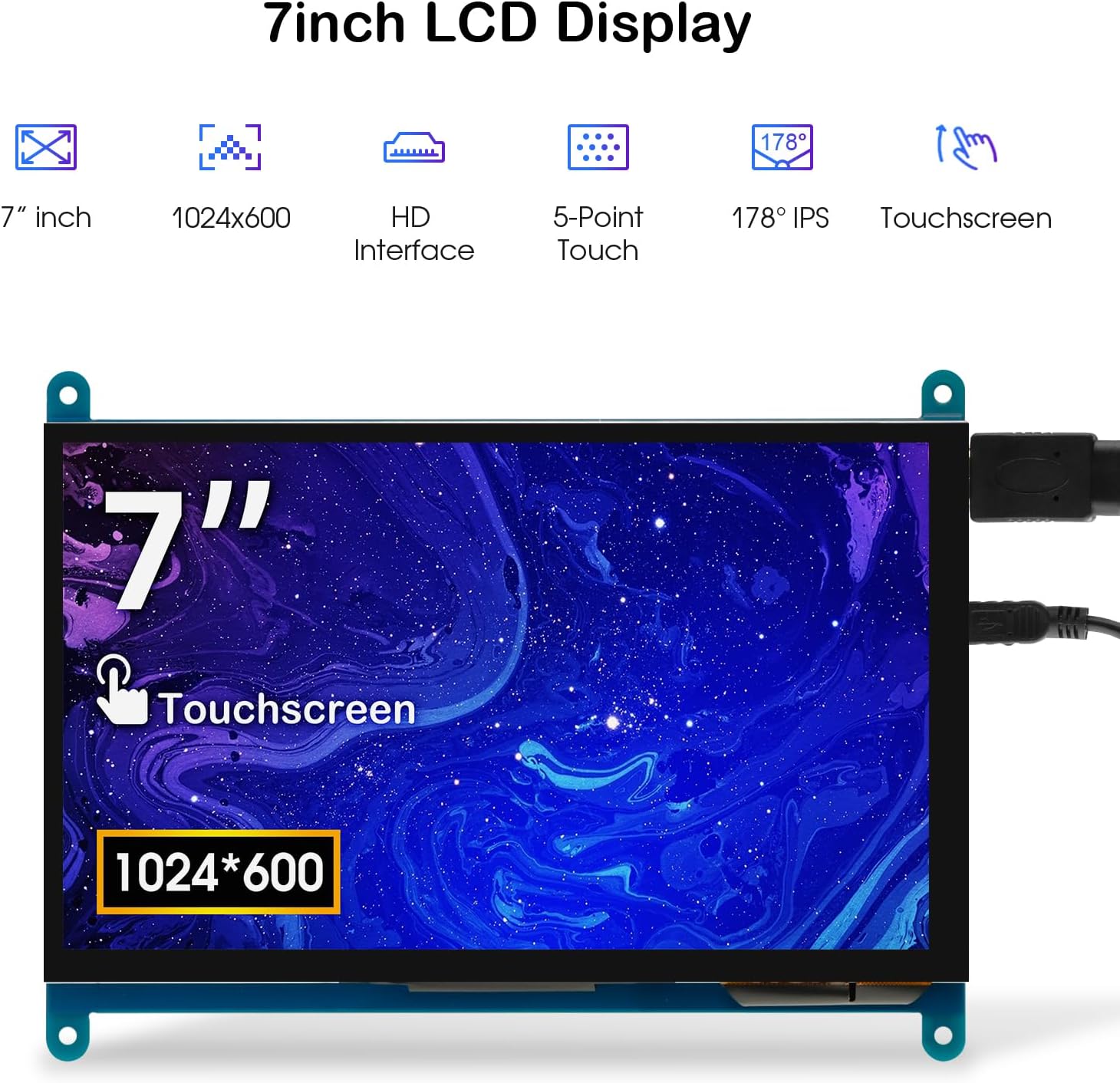
Image: The 7-inch touchscreen connected to a Raspberry Pi board, displaying a graphical user interface.
3.3 Connecting to Windows PC/Laptop
For Windows systems, the monitor functions as a plug-and-play display and touchscreen.
- Connect the HD cable from the monitor's Standard HD Port to an HDMI port on your PC or laptop.
- Connect the Micro USB cable from the monitor's Micro USB Port to a USB-A port on your PC or laptop. This provides power and enables touch functionality.
- Ensure the backlight switch is 'On'.
- Your Windows system should automatically detect the display and touchscreen. No additional drivers are typically required for Windows 7/8/10/11 for basic display and 5-point touch.

Image: The 7-inch touchscreen connected to a laptop, demonstrating seamless connectivity with various operating systems including Windows.
4. Упутство за употребу
4.1 Функционалност додира
The monitor supports 5-point capacitive touch, allowing for various gestures.
- Додирните: Single touch for selection or activation.
- Притисните: Sustained touch for context menus or drag operations.
- Увећавање/умањивање: Pinch gestures with two fingers.
- Mouse Click: A single tap typically registers as a left-click.
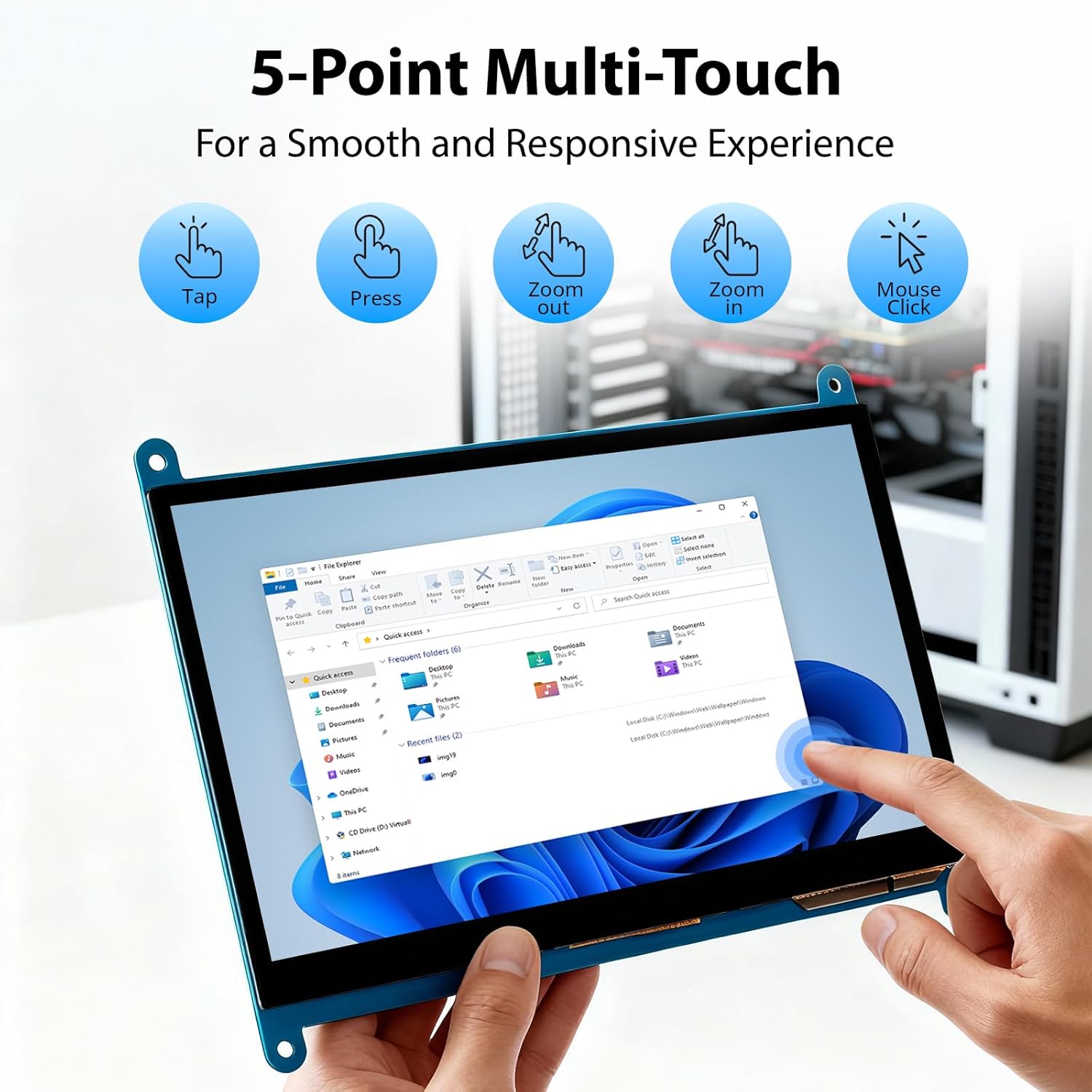
Image: Visual guide to the 5-point multi-touch capabilities of the screen, showing common gestures.
4.2 Режими приказа
When connected to a computer, the monitor can operate in several display modes:
- Режим дуплирања: Монитор приказује садржај вашег примарног екрана.
- Проширени режим: The monitor acts as an extension of your primary display, providing additional screen space.
- Режим другог екрана: The monitor functions as the sole display, with the primary display turned off.
These modes can typically be configured through your operating system's display settings.

Image: Illustrations demonstrating the three display modes: Duplicate, Extend, and Second Screen, showing how the monitor can be used with a laptop.
4.3 Контрола позадинског осветљења
The monitor features a physical switch to control the backlight. This allows you to turn the display illumination on or off without disconnecting power. Note that there is no granular brightness control; it is an on/off function only.
Video: This video demonstrates the backlight control switch on the ELECROW 7 Inch Touchscreen, showing how to turn the display illumination on and off.
5. Одржавање
Правилно одржавање осигурава дуготрајност и оптималне перформансе вашег монитора.
- Чишћење екрана: Користите меку крпу која не оставља длачицеampened with water or a screen-cleaning solution. Avoid harsh chemicals or abrasive materials that could damage the screen surface.
- Општа нега: Keep the monitor in a clean, dry environment. Avoid exposing it to extreme temperatures, direct sunlight, or high humidity.
- Руковање: Handle the monitor by its edges. Avoid applying excessive pressure to the screen.
КСНУМКС. Решавање проблема
Ако наиђете на проблеме са монитором, погледајте следеће уобичајене проблеме и решења.
| Проблем | Могући узрок | Решење |
|---|---|---|
| Нема дисплеја/црни екран |
|
|
| Екран осетљив на додир не реагује |
|
|
| Display resolution incorrect |
|
|
| Нема контроле осветљења | The monitor only has an on/off switch for the backlight, not adjustable brightness. | This is expected behavior. The monitor does not support adjustable brightness. |
7. Спецификације
Detailed technical specifications for the ELECROW 7 Inch Touchscreen Monitor.
| Феатуре | Детаљ |
|---|---|
| Бранд | ЕЛЕЦРОВ |
| Назив модела | РЦ070 |
| Величина екрана | 7 инча |
| Максимална резолуција екрана | 1024 к 600 |
| Нативе Ресолутион | 1024к600 |
| Дисплаи Типе | ЛЦД |
| Дисплаи Тецхнологи | ИПС |
| Аспецт Ратио | 1.71:1 |
| Рефресх Рате | 60 Хз |
| Време одговора | 8 милисекунди |
| Однос контраста | 800:1 |
| Осветљеност | 300 лм |
| Viewинг Англе | 170 степени |
| Опис површине екрана | Глосси |
| Технологија повезивања | ХДМИ |
| Повезивање хардвера | ХДМИ, УСБ |
| Total Number of HDMI Ports | 1 |
| Укупно УСБ портова | 2 (Micro USB for power/touch, USB-A for power/touch) |
| Потрошња енергије | 12.5 Ваттс |
| Волtage | 5 Волтс |
| Димензије артикла (Д к Ш к В) | 0.3"Д к 6.1"Ш к 4.8"В |
| Тежина артикла | 7.36 унци |
| Компатибилни уређаји | Raspberry Pi, BB Black, Banana Pi, Jetson Nano, Computers, Laptops, Gaming Consoles |
8. Гаранција и подршка
Your ELECROW 7 Inch Touchscreen Monitor comes with a manufacturer's warranty.
- Врста гаранције: 1 године гаранције произвођача
- Опис гаранције: 1 година произвођача
For technical support or warranty claims, please contact ELECROW customer service through their official webсајт или платформа где је производ купљен.