
HEWLETT PACKARD V0C69UA
HP T730 Thin Pro User Manual
Model: V0C69UA
1. Увод
Welcome to the user manual for your HP T730 Thin Pro. This document provides essential information for setting up, operating, maintaining, and troubleshooting your device. Please read this manual thoroughly to ensure optimal performance and longevity of your thin client.
2. Производ је готовview
The HP T730 Thin Pro is a powerful and compact thin client designed for demanding virtualized environments. It features an AMD R-Series Rx-427Bb processor, ample memory, and dedicated graphics, making it suitable for a wide range of business applications.
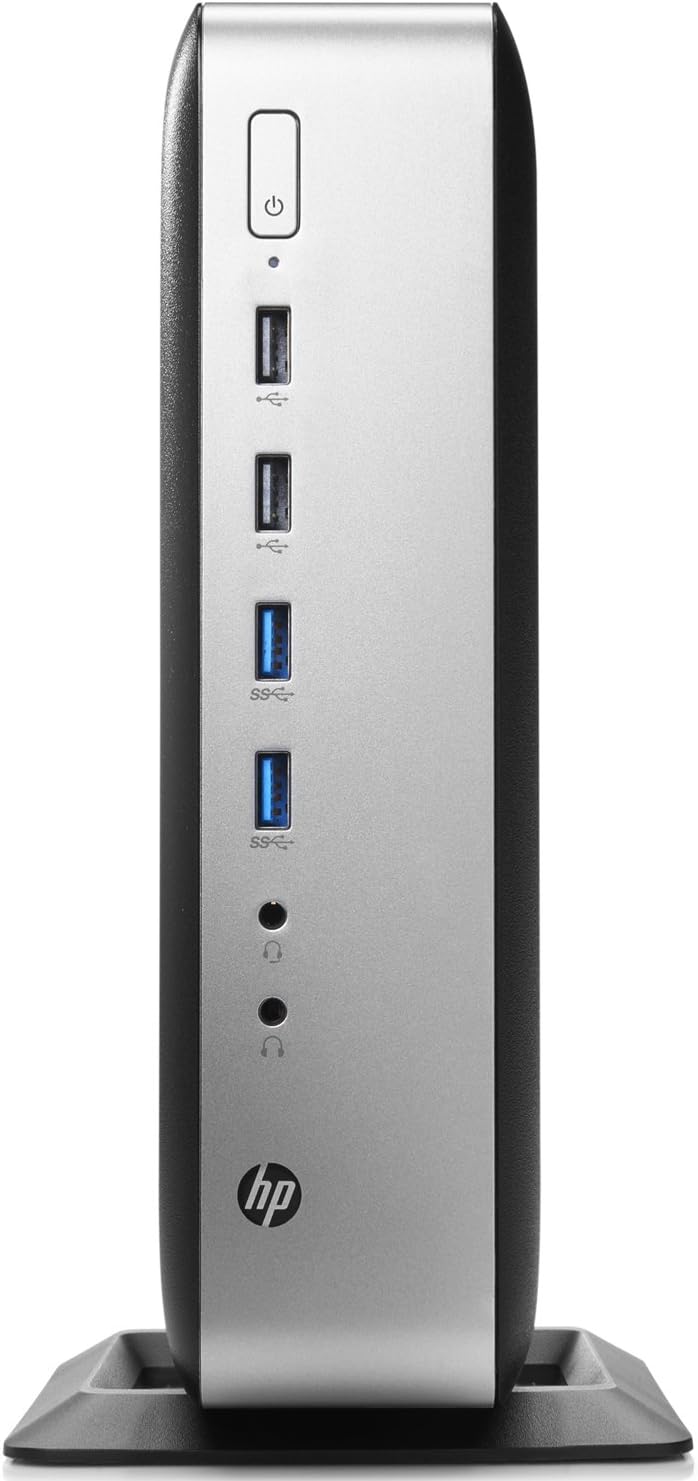
Figure 2.1: Front panel of the HP T730 Thin Pro, displaying the power button, multiple USB ports, and audio input/output jacks.

Figure 2.2: Rear panel of the HP T730 Thin Pro, featuring a comprehensive array of connectivity options including video outputs, USB ports, and network connections.
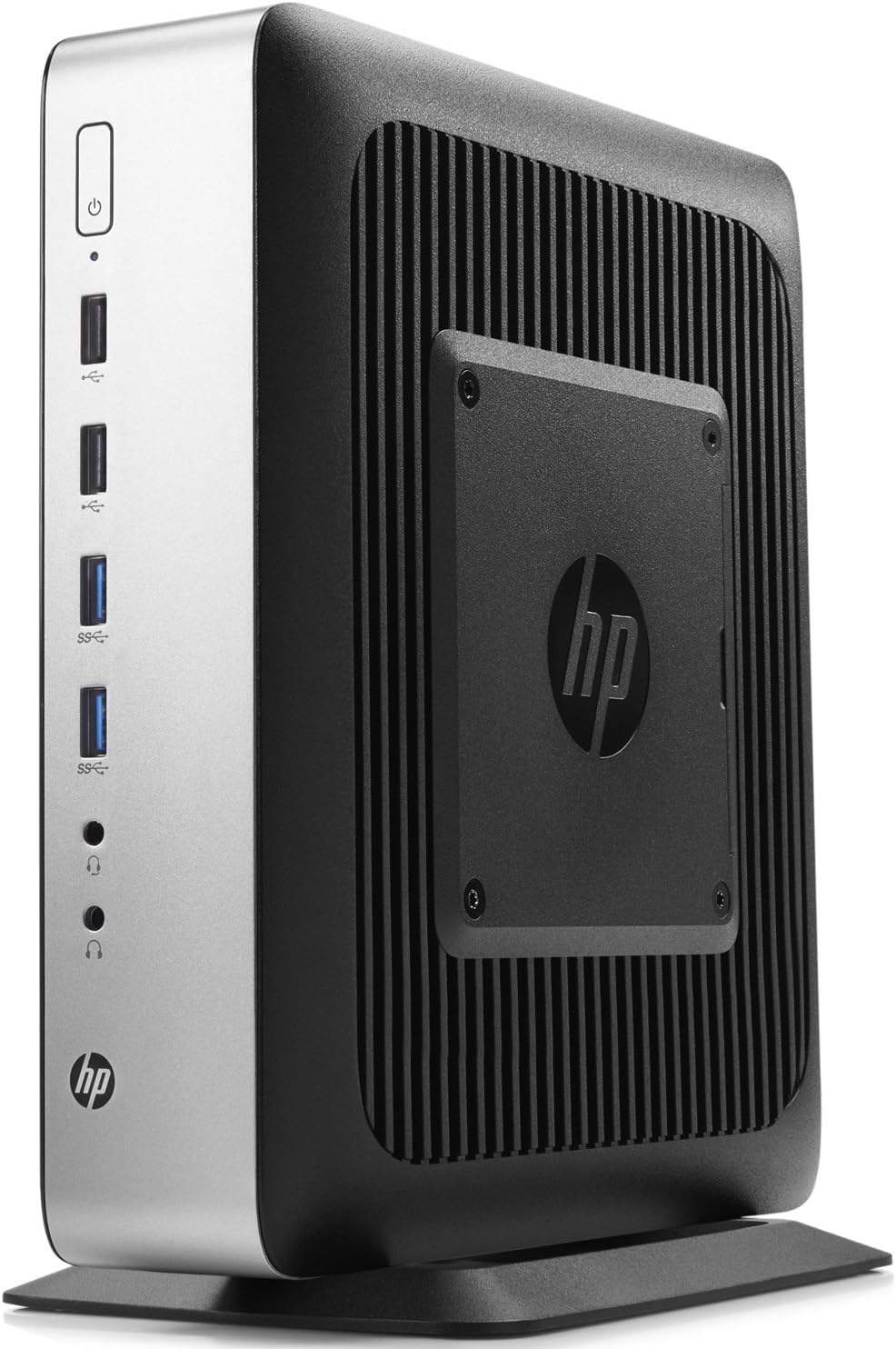
Слика 2.3: Под углом view of the HP T730 Thin Pro, highlighting its compact form factor and the integrated VESA mounting plate for flexible deployment.
3. Кључне карактеристике
- процесор: 2.7 GHz Quad Core AMD R-Series CPU
- Меморија: 16ГБ ДДР4 РАМ
- Складиштење: Солид Стате Дриве од 16 ГБ
- Приказ: 15.6" FHD IPS Anti-glare Display
- Графика: Dedicated AMD Radeon RX 427B graphics card
4. Водич за подешавање
4.1 Распакивање
Carefully remove the HP T730 Thin Pro and all accessories from the packaging. Verify that all components listed in the packing slip are present.
4.2 Повезивање периферних уређаја
Пре укључивања, повежите неопходне периферне уређаје:
- Монитор: Connect your display cable (DisplayPort, DVI, or VGA) to the corresponding port on the rear of the thin client.
- Тастатура и миш: Повежите УСБ тастатуру и миш на било који доступан УСБ порт.
- Мрежа: Connect an Ethernet cable from your network router or switch to the RJ-45 network port on the rear.
- Снага: Connect the power adapter to the thin client's power input, then plug the power cord into a wall outlet.
4.3 Укључивање
Press the power button located on the front panel of the thin client. The power indicator light will illuminate, and the system will begin to boot.
5. Operating Your Thin Client
5.1 Initial Boot and OS Setup
Upon the first boot, the Windows 10 operating system may require initial setup, including language selection, network configuration, and user account creation. Follow the on-screen prompts to complete this process.
5.2 Повезивање на мрежу
If you did not connect an Ethernet cable during setup, or if you need to configure Wi-Fi (if applicable), navigate to the network settings within the operating system to establish a connection.
5.3 Основни рад
Once the operating system is ready, you can begin using your thin client. Access your virtual desktop infrastructure (VDI) or cloud applications as configured by your IT administrator. The device functions similarly to a standard desktop computer for general tasks.
6. Одржавање и њега
- Чишћење: Use a soft, dry cloth to clean the exterior of the thin client. For stubborn marks, slightly dampкрпу водом. Избегавајте абразивна средства за чишћење или раствараче.
- вентилација: Ensure that the ventilation openings are not blocked to prevent overheating. Do not place the device in an enclosed space without adequate airflow.
- Ажурирања софтвера: Редовно проверавајте и инсталирајте ажурирања оперативног система и управљачких програма како бисте одржали безбедност и перформансе.
- Услови животне средине: Operate the thin client within recommended temperature and humidity ranges to prevent damage.
КСНУМКС. Решавање проблема
| Проблем | Могући узрок | Решење |
|---|---|---|
| Нема струје | Power cable not connected; power outlet issue | Проверите везе кабла за напајање; покушајте са другом утичницом. |
| Нема приказа | Monitor cable loose; monitor off; incorrect input selected on monitor | Ensure monitor cable is secure; turn on monitor; select correct input source. |
| Проблеми са мрежном повезивањем | Ethernet cable loose; network settings incorrect; router/switch issue | Check Ethernet cable; verify network settings; restart network equipment. |
| System slow or unresponsive | Too many applications open; outdated drivers; malware | Close unnecessary applications; update drivers; run a malware scan. |
8. Техничке спецификације
| Феатуре | Спецификација |
|---|---|
| Резолуција екрана | 1920 к 1080 |
| Процесор | 2.7 GHz AMD R-Series |
| РАМ | 16 ГБ |
| Хард Дриве | ССД |
| Марка чипса | АМД |
| Опис картице | Посвећено |
| Сериес | Hp T730 |
| Број модела артикла | V0C69UA |
| Оперативни систем | Виндовс 10 |
| Тежина артикла | 11 фунти |
| Димензије производа | 0.1 к 0.1 к 0.1 инча |
| Боја | Црно |
| Марка процесора | АМД |
| Број процесора | 4 |
| ЦПУ модел | AMD R Series |
| Брзина процесора | 2.7 ГХз |
| Опис графичке картице | Посвећено |
| Капацитет меморије | 100 ГБ |
| Тип дизајна персоналног рачунара | Цомпутер Товер |
| Величина инсталиране РАМ меморије | 4 ГБ |
9. Гаранција и подршка
For warranty information and technical support, please refer to the documentation provided with your purchase or visit the official HP support webсајт. Сачувајте доказ о куповини за потребе гаранције.
Ask a question about this manual
Ask about setup, troubleshooting, compatibility, parts, safety, or missing instructions. Manuals+ will review the question and use this page’s manual context to help answer it.