
SNBC BTP-M300
SNBC BTP-M300 Impact Receipt Printer User Manual
Model: BTP-M300 | Part Number: 132081
1. Производ је готовview
The SNBC BTP-M300 Impact Receipt Printer is a reliable and efficient solution for point-of-sale environments. Designed for durability and ease of use, it provides fast and clear receipt printing using a ribbon mechanism. Its versatile connectivity and robust features make it an ideal choice for various business applications.
Кључне карактеристике:
- Свестрано повезивање: Supports USB, Serial, and Ethernet interfaces for flexible integration.
- Велика брзина штампања: Achieves a fast 4.7 lines per second print speed.
- Једноставно учитавање папира: Features a "Drop and Print" paper loading mechanism.
- Logo Image Printing: Capable of storing and printing custom logo images.
- Built-in Wall Mount: Allows for flexible placement and space-saving installation.
- Издржљив дизајн: Engineered for dependable performance in demanding environments.
2. Водич за подешавање
2.1 Распакивање и садржај пакета
Carefully unpack the printer and verify all components are present. The standard package includes:
- SNBC BTP-M300 Impact Receipt Printer
- Повер Цорд
- Кориснички приручник (овај документ)
2.2 Повезивање штампача
The BTP-M300 offers multiple connectivity options. Choose the appropriate connection for your system.

Слика 2.2.1: Задња страна view of the SNBC BTP-M300 printer, highlighting the USB, Ethernet, and power ports for connectivity.
- Прикључак за напајање: Connect the supplied power cord to the printer's power input port and then to a standard electrical outlet. Ensure the power switch is in the OFF position before connecting.
- УСБ веза: For direct connection to a computer, plug one end of a USB cable (not included) into the printer's USB port and the other end into an available USB port on your computer.
- Серијска веза: For serial communication, connect a serial cable (not included) to the printer's serial port and to your host device.
- Етхернет веза: For network printing, connect an Ethernet cable (not included) from the printer's Ethernet port to your network router or switch.
2.3 Убацивање папира
The BTP-M300 features a "Drop and Print" paper loading system for quick and easy paper replacement.

Слика 2.3.1: Одозго надоле view of the SNBC BTP-M300 printer with the cover open, illustrating the paper roll compartment and the path for paper loading.
- Open the printer cover by lifting the latch.
- Insert a new paper roll into the compartment, ensuring the paper feeds from the bottom of the roll.
- Извуците малу количину папира поред резача.
- Close the printer cover firmly until it clicks into place. The printer will automatically feed the paper to the correct position.
2.4 Монтажа на зид
The printer includes built-in wall mount capability for flexible installation. Locate the mounting holes on the back of the unit and secure it to a sturdy surface using appropriate screws (not included).

Слика 2.4.1: Задња страна view of the SNBC BTP-M300 printer, highlighting the integrated mounting holes for wall installation.
3. Упутство за употребу
3.1 Укључивање/искључивање
Locate the power switch on the side of the printer. Flip the switch to the 'ON' position to power on the printer. The 'POWER' indicator light will illuminate. To power off, flip the switch to the 'OFF' position.
3.2 Driver Installation (Windows/macOS)
Before printing, you may need to install the appropriate printer drivers for your operating system. Drivers are typically available on the SNBC official website or included on a CD with the printer (if applicable). Follow the on-screen instructions during installation.
3.3 Основно штампање
Once connected and drivers are installed, you can print receipts from your POS software or application. Ensure the printer is selected as the default printer in your system settings or application.
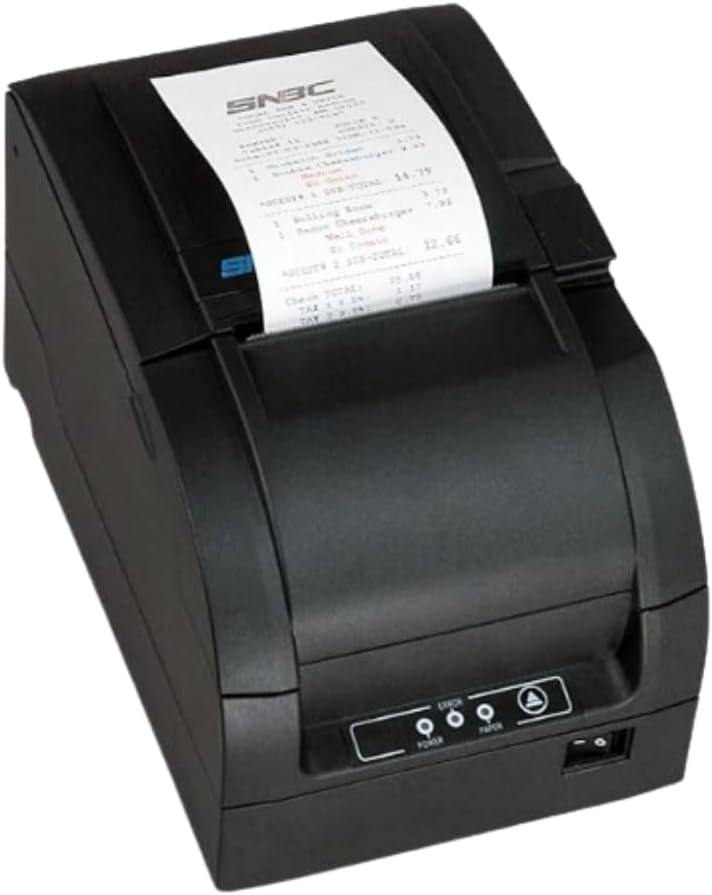
Figure 3.3.1: The SNBC BTP-M300 printer in operation, with a sample receipt being printed and emerging from the top slot.
3.4 Auto Paper Cutting
The BTP-M300 features an auto-cutter with selectable full or partial cut options. This function automatically cuts the receipt after printing. Refer to your printer's utility software or driver settings to configure the cutting mode.
3.5 Printing Logo Images
The printer supports storing and printing custom logo images. This feature typically requires specific software or utility tools provided by SNBC to upload and manage the logo data. Consult the software's documentation for detailed instructions on logo programming.
4. Одржавање
4.1 Чишћење штампача
Редовно чишћење помаже у одржавању квалитета штампе и продужава век трајања штампача.
- Екстеријер: Обришите спољашњост меком, дamp тканина. Немојте користити абразивна средства за чишћење или раствараче.
- Глава за штампање: The print head should be cleaned periodically, especially if print quality degrades. Use a cotton swab lightly dampened with isopropyl alcohol. Gently wipe the print head surface. Allow it to dry completely before use.
- Paper Path/Cutter: Remove any paper dust or debris from the paper path and around the auto-cutter using a soft brush or compressed air.
4.2 Замена ролне папира
Replace the paper roll as described in Section 2.3 when the 'PAPER' indicator light illuminates or when the paper is running low.
4.3 Ribbon Cartridge Replacement
As an impact printer, the BTP-M300 uses a ribbon cartridge. Replace the ribbon when print output becomes faint or illegible. Refer to the printer's internal diagrams or a dedicated ribbon replacement guide for specific instructions on accessing and replacing the cartridge.
КСНУМКС. Решавање проблема
This section addresses common issues you might encounter with your SNBC BTP-M300 printer.
| Проблем | Могући узрок | Решење |
|---|---|---|
| Штампач се не укључује. | Кабл за напајање није повезан; Прекидач за напајање је искључен; Нема струје из утичнице. | Ensure power cord is securely connected. Flip power switch to ON. Test outlet with another device. |
| No printing/Faint receipts. | Paper loaded incorrectly; Out of paper; Ribbon needs replacement; Incorrect driver/settings; Cable disconnected. | Reload paper correctly (refer to Section 2.3). Replace paper roll. Replace ribbon cartridge (refer to Section 4.3). Verify driver installation and printer selection. Check USB/Serial/Ethernet cable connections. |
| Лош квалитет штампе. | Dirty print head; Worn ribbon. | Clean the print head (refer to Section 4.1). Replace the ribbon cartridge (refer to Section 4.3). |
| Застој папира. | Paper loaded incorrectly; Foreign object in paper path. | Open cover, remove jammed paper carefully. Ensure paper is loaded straight. Remove any obstructions. |
| Рачунар не препознаје штампач. | Driver not installed; Incorrect cable; USB port issue. | Install/reinstall printer drivers. Use a different USB cable or port. Restart computer and printer. |
6. Спецификације
Detailed technical specifications for the SNBC BTP-M300 Impact Receipt Printer.
| Феатуре | Опис |
|---|---|
| Назив модела | BTP-M300 |
| Број модела ставке | 132081 |
| Технологија штампе | Impact (Dot Matrix) |
| Брзина штампања | 4.7 линија у секунди |
| Излаз штампача | Monochrome (Black/Red capable with appropriate ribbon) |
| Технологија повезивања | УСБ, серијски, Етхернет |
| Контролни метод | App (via drivers/SDK) |
| Димензије производа | 6 к 6 к 6 инча |
| Тежина артикла | 9.11 фунти |
| Повер Суппли | Included Power Cord |
| Посебне карактеристике | Network-Ready, Auto-Cutter, Wall Mount Capability, Logo Printing |
7. Гаранција и подршка
For warranty information and technical support, please refer to the official SNBC webсајт или контактирајте овлашћеног продавца. Сачувајте рачун као доказ о куповини.
За додатну помоћ, можете посетити SNBC Brand Store on Amazon.
Ask a question about this manual
Ask about setup, troubleshooting, compatibility, parts, safety, or missing instructions. Manuals+ will review the question and use this page’s manual context to help answer it.