
Увод
This manual provides essential instructions for setting up, operating, maintaining, and troubleshooting your Chuwi Hi13 Tablet PC. Please read this guide thoroughly to ensure proper use and to maximize the performance and longevity of your device.
The Chuwi Hi13 is a versatile 13.5-inch tablet PC running Windows 10, powered by an Intel Apollo Lake Celeron N3450 Quad Core processor, featuring 4GB RAM and 64GB eMMC storage. It is designed for both productivity and entertainment, offering a high-resolution display and various connectivity options.

Image: The Chuwi Hi13 Tablet PC showcasing its Windows 10 operating system interface.
Производ је завршенview
Physical Components and Ports
Familiarize yourself with the physical layout and available ports on your Chuwi Hi13 tablet.

Слика: Са стране view diagram of the Chuwi Hi13 tablet, highlighting its dimensions and port locations including earphone jack, Micro HDMI, Micro USB, Type-C, and TF Card slot.
- Порт за слушалице: 3.5 мм прикључак за аудио излаз.
- Утор за микро СД картицу: За проширење меморије до 128 ГБ.
- Micro HDMI Slot: За повезивање са екстерним екранима.
- Микро УСБ порт: За пренос података и пуњење.
- Порт типа Ц: Versatile port for charging, data, and display output.
- Дугме за напајање: Located on the side for turning the device on/off and sleep/wake.
- Дугмад за јачину звука: За подешавање нивоа звука.
Display and Cameras
The Chuwi Hi13 features a high-resolution display and dual cameras for various applications.

Image: Close-up of the Chuwi Hi13's 13.5-inch IPS capacitive screen, demonstrating its 3000x2000 resolution and vibrant color reproduction.
- Екран: 13.5-inch IPS Capacitive Touch Screen with 3000 x 2000 resolution, offering wide viewing angles and impressive clarity.
- Предња камера: 2.0MP, suitable for video calls and selfies.
- Задња камера: 5.0MP, for capturing photos and videos.

Image: Two Chuwi Hi13 tablets, one showing the front 2.0MP camera and the other highlighting the rear 5.0MP camera, indicating their use for photos and video calls.
Водич за подешавање
Initial Power On and Windows 10 Setup
- Напуните уређај: Before first use, connect the provided charger to the Type-C or Micro USB port and allow the tablet to charge fully. The battery indicator will show charging status.
- Укључено: Press and hold the Power button on the side of the tablet until the Chuwi logo appears.
- Windows 10 Configuration: Follow the on-screen prompts to complete the initial Windows 10 setup. This includes selecting your region, language, connecting to a Wi-Fi network, and creating a user account.
- Ажурирања: After setup, it is recommended to check for and install any available Windows updates to ensure optimal performance and security.

Image: The Chuwi Hi13 tablet connected to its docking keyboard, displaying the Windows 10 operating system, indicating its dual-mode functionality.
Повезивање додатне опреме
- Docking Keyboard: Align the tablet with the magnetic connector on the docking keyboard and gently press until it clicks into place. The keyboard will be automatically recognized by Windows 10.
- Оловка: If using a compatible active stylus (sold separately), follow its specific pairing instructions, typically involving Bluetooth pairing through Windows settings.
- Екстерна меморија: Insert a Micro SD card into the designated slot to expand storage capacity.
Упутство за употребу
Навигација кроз Windows 10
The Chuwi Hi13 runs Windows 10 Home 64-bit, offering a familiar desktop environment and tablet mode functionality.
- Старт мени: Access applications, settings, and power options via the Start Menu.
- Edge Browser: Utilize the pre-installed Microsoft Edge browser for web прегледавање.
- Режим таблета: Windows 10 can switch between desktop and tablet modes, optimizing the interface for touch input.
Touch Screen and Input
The 13.5-inch IPS 10-point touch screen supports multi-touch gestures for intuitive navigation.
- Додирните: Еквивалентно клику мишем.
- Додирните и задржите: Еквивалентно десном клику.
- Зумирање штипкањем прстију: Користите два прста да бисте увећали или умањили садржај.
- Превуците: Крећите се кроз меније или скролујте садржај.
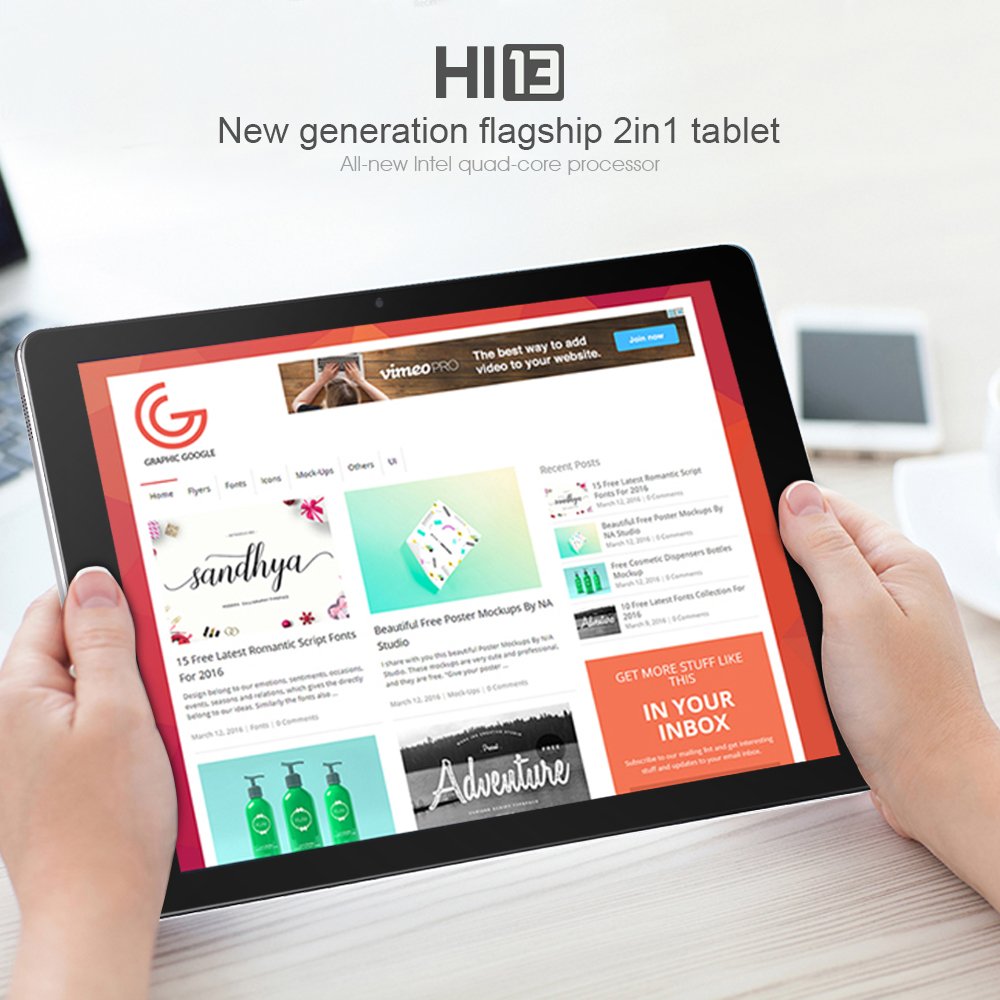
Image: A user holding the Chuwi Hi13 tablet in landscape orientation, browsing a website, demonstrating its use for media consumption and web приступ.
Повезивање
- Ви-Фи: Connect to wireless networks using the built-in 802.11a/ac/b/g/n dual-band Wi-Fi (2.4GHz / 5.0GHz).
- Блуетоотх: Pair with Bluetooth 4.0 devices such as headphones, speakers, or input devices.
- ДВИ: Use the Micro HDMI port to connect to an external monitor or TV for a larger display.
- ОТГ: The tablet supports On-The-Go (OTG) functionality, allowing you to connect USB peripherals via an adapter.
Одржавање
Чишћење уређаја
- Екран: Користите меку крпу која не оставља влакна, благо навлаженуampened with water or a screen cleaner, to gently wipe the display. Avoid harsh chemicals.
- Тело: Wipe the tablet's body with a soft, dry cloth.
- Портови: Keep ports free of dust and debris. Use a can of compressed air if necessary, but avoid inserting objects into the ports.
Баттери Царе
- Избегавајте екстремне температуре, јер могу скратити век трајања батерије.
- For optimal battery health, try to keep the charge level between 20% and 80% when possible.
- Користите само оригинални пуњач или сертификовани компатибилни пуњач.
Ажурирања софтвера
Regularly check for and install Windows updates to ensure your system has the latest features, security patches, and performance improvements. Go to Подешавања > Ажурирање и безбедност > Windows Update.
Решавање проблема
Уобичајени проблеми и решења
- Уређај се не укључује:
- Ensure the device is fully charged. Connect the charger and wait a few minutes before attempting to power on again.
- Try holding the power button for 10-15 seconds for a hard reset.
- Споре перформансе:
- Затворите непотребне апликације које раде у позадини.
- Проверите и инсталирајте све чекајуће надоградње за Windows.
- Ensure sufficient free storage space (at least 10-15% of total capacity).
- Run a disk cleanup and defragmentation (for HDD, though eMMC benefits less from defrag).
- Consider performing a factory reset if performance issues persist after other steps (back up data first).
- Проблеми са наплатом:
- Verify the charger and cable are securely connected to both the tablet and the power outlet.
- Try a different compatible charger and cable if available.
- Inspect the charging port for any visible damage or debris.
- Display Problems (No image, flickering):
- Поново покрените таблет.
- If connected to an external display, ensure the HDMI cable is properly connected and the correct input is selected on the external display.
- Check display settings in Windows.
- Проблеми са повезивањем путем Wi-Fi/Bluetooth-а:
- Toggle Wi-Fi/Bluetooth off and on in Windows settings.
- Restart the tablet and your router/modem.
- Ensure drivers are up to date via Device Manager.
Спецификације
Detailed technical specifications for the Chuwi Hi13 Tablet PC.
| Феатуре | Спецификација |
|---|---|
| Бранд | Цхуви |
| Модел | Здраво13 |
| Оперативни систем | Виндовс 10 Хоме 64-бит |
| Процесор | Intel Apollo Lake Celeron N3450 Quad Core (up to 2.2GHz) |
| Графика | Интел ХД Грапхицс 500 |
| РАМ | 4ГБ ДДР3Л |
| Складиштење | 64GB eMMC (Expandable up to 128GB via Micro SD) |
| Величина екрана | 13.5 инча |
| Резолуција екрана | 3000 x 2000 IPS Capacitive (10-Point) |
| Предња камера | 2.0МП |
| Задња камера | 5.0МП |
| Ви-Фи | 802.11a/ac/b/g/n Dual Band (2.4GHz / 5.0GHz) |
| Блуетоотх | Да (Блутут 4.0) |
| Портс | 1x 3.5mm Earphone, 1x Micro SD, 1x Micro HDMI, 1x Micro USB, 1x Type-C |
| Батерија | 10000мАх |
| Димензије | 334 к 222 к 8.9 мм |
| Тежина | 1080 г (1.08 кг) |
Гаранција и подршка
Информације о гаранцији
The Chuwi Hi13 Tablet PC comes with a Двогодишња гаранција произвођачаОва гаранција покрива недостатке у материјалу и изради при нормалној употреби. Молимо вас да сачувате доказ о куповини за потребе подношења захтева за гаранцију.
Гаранција не покрива оштећења настала услед злоупотребе, незгода, неовлашћених модификација или нормалног хабања.
Корисничка подршка
For technical assistance, warranty claims, or further inquiries, please refer to the official Chuwi support channels. You can typically find support contact information, FAQs, and driver downloads on the official Chuwi webсајту.
It is recommended to visit the Chuwi Store on Amazon or the official Chuwi global webсајт за најновије ресурсе за подршку.