
Xerox C505/X
Xerox VersaLink C505/X Упутство за употребу у боји ласерског мултифункционалног уређаја
Model: C505/X
1. Увод
This manual provides detailed instructions for the setup, operation, and maintenance of your Xerox VersaLink C505/X Color Laser Multifunction Printer. The C505/X is designed for efficient performance in fast-paced work environments, offering print, copy, scan, and fax functionalities.
Key features include a customizable 7-inch color touchscreen for intuitive control, mobile and cloud connectivity, and robust security measures.
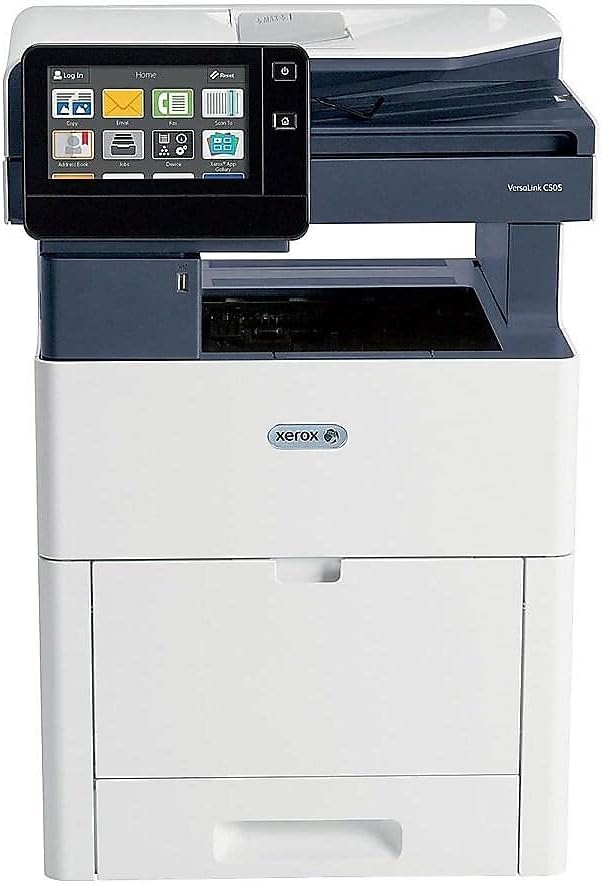
Слика 1: Предња страна view of the Xerox VersaLink C505/X Multifunction Printer.
2. Подешавање
2.1 Распакивање и почетни преглед
Carefully remove the printer from its packaging. Verify that all components listed below are present and undamaged:
- Xerox VersaLink C505 Color MFP
- Starter capacity toner cartridges (one each of cyan, magenta, yellow: 2,400 capacity; black: 5,000 capacity)
- ЦД са софтвером и документацијом
- Упутство за инсталацију
- Quick User Guides
- Повер Цорд
2.2 Прикључак за напајање
- Поставите штампач на стабилну, равну површину.
- Connect the provided power cord to the printer's power input and then to a grounded electrical outlet.
- Do not power on the device until all other connections are made.
2.3 Инсталација кертриџа са тонером
Install the starter toner cartridges into their respective slots. Refer to the Quick User Guides for specific instructions on opening the toner access panel and inserting cartridges.

Figure 2: Toner cartridge access panel open, showing toner installation.
2.4 Мрежна и УСБ веза
The printer supports both Ethernet and USB connectivity.
- Етхернет: Повежите Етернет кабл са Етернет порта штампача на мрежни рутер или прекидач.
- УСБ: Повежите USB кабл са USB порта штампача на рачунар.
2.5 Инсталација софтвера
Insert the provided software and documentation CD into your computer's CD/DVD drive. Follow the on-screen instructions to install the necessary drivers and utilities. Alternatively, visit the official Xerox support webсајт за најновије драјвере.
3. Руковање штампачем
3.1 Интерфејс екрана осетљивог на додир
The 7-inch color touchscreen provides access to all printer functions. Navigate through menus by tapping and swiping, similar to a smartphone. The home screen displays icons for various functions such as Print, Copy, Scan, and Fax.

Figure 3: Close-up of the 7-inch color touchscreen control panel.
3.2 Штампање
Да бисте одштампали документе:
- Уверите се да је штампач повезан са рачунаром или мрежом.
- Open the document on your computer and select the print option.
- Choose the Xerox VersaLink C505/X from the list of available printers.
- Adjust print settings (e.g., color/monochrome, duplex printing, paper size) as needed. The printer supports up to 43 ppm color and 45 ppm monochrome, with automatic duplexing.
- Confirm the print job.
3.3 Копирање
Да бисте направили копије:
- Place the original document on the scanner glass or in the automatic document feeder (ADF).
- On the touchscreen, tap the "Copy" icon.
- Select desired settings such as number of copies, color/black and white, and two-sided copying. The maximum copy speed is 45 ppm (black & white) with resolutions up to 1200 x 2400 dpi.
- Притисните дугме „Старт“.
3.4 Скенирање
To scan documents:
- Поставите документ на стакло скенера или у ADF.
- On the touchscreen, tap the "Scan" icon.
- Choose the scan destination (e.g., email, network folder, USB drive) and adjust scan settings.
- Притисните дугме „Старт“.
3.5 Факсирање
Да бисте послали факс:
- Поставите документ на стакло скенера или у ADF.
- On the touchscreen, tap the "Fax" icon.
- Унесите број факса примаоца.
- Прилагодите сва потребна подешавања факса.
- Притисните дугме „Старт“.
3.6 Мобилна и облачна повезаност
The VersaLink C505/X offers out-of-the-box connectivity to cloud services like Google Drive, Microsoft OneDrive, and DropBox. Additional options are available through the Xerox App Gallery, allowing for flexible workflow integration.
4. Одржавање
4.1 Замена кертриџа са тонером
When a toner cartridge is low or empty, the printer's display will indicate which cartridge needs replacement. Always use genuine Xerox toner cartridges for optimal performance and print quality.
- Open the front access panel of the printer.
- Carefully remove the empty toner cartridge by pulling it straight out.
- Распакујте нови кертриџ са тонером и нежно га протресите да бисте распоредили тонер.
- Уметните нови кертриџ у одговарајући слот док не кликне на своје место.
- Close the front access panel.
4.2 Чишћење
Редовно чишћење помаже у одржавању квалитета штампе и продужава век трајања вашег штампача.
- Екстеријер: Обришите спољашње површине меком, дamp, крпа без длачица.
- Стакло скенера: Use a soft cloth moistened with glass cleaner to clean the scanner glass. Ensure no residue remains.
- Унутрашње компоненте: Refer to the detailed user manual on the software and documentation CD for instructions on cleaning internal components, such as the print heads or rollers, if necessary.
КСНУМКС. Решавање проблема
This section addresses common issues you might encounter with your Xerox VersaLink C505/X. For more complex problems, consult the full user manual or contact support.
5.1 Заглављивање папира
If a paper jam occurs, the touchscreen will display an error message indicating the location of the jam. Follow the on-screen instructions to clear the jammed paper. Always pull paper in the direction of the paper path to avoid tearing.
5.2 Проблеми са квалитетом штампе
If printouts show streaks, faded areas, or incorrect colors:
- Проверите ниво тонера и замените све кертриџе са мало тонера.
- Уверите се да користите одговарајући папир за ваш задатак штампања.
- Извршите дијагностику квалитета штампе са контролне табле штампача.
- Clean the print heads or other internal components as instructed in the detailed manual.
5.3 Проблеми са повезивањем
If the printer is not communicating with your computer or network:
- Verify that all cables (power, USB, Ethernet) are securely connected.
- Поново покрените штампач и рачунар/рутер.
- Check network settings on the printer's touchscreen.
- Ensure the correct printer drivers are installed on your computer.
6. Спецификације
| Феатуре | Детаљ |
|---|---|
| Назив модела | Xerox C505/X VersaLink |
| Функције | Штампање, копирање, скенирање, факс |
| Технологија штампе | Цолор Ласер |
| Максимална брзина штампања (монохроматско) | 45 ппм |
| Максимална брзина штампања (у боји) | 43 ппм |
| Максимална резолуција штампања (црно-бело) | 2400 дпи |
| Максимална резолуција штампања (у боји) | 1200 к 2400 дпи |
| Дуплек Принтинг | Аутоматски |
| Тип скенера | Документ |
| Максимална брзина копирања (црно-бело) | 45 ппм |
| Максимална резолуција копирања (у боји) | До 1200 к 2400 дпи |
| Контролни метод | App, Touch (7-inch display) |
| Повезивање | УСБ, Етхернет |
| Максимални капацитет улазног листа | 3250 листова |
| Стандард Траис | 2 (550 Sheet Tray, 150 Sheet Multi Purpose Tray) |
| Подржане величине медија | Letter (8.5 x 11 inches), Legal (8.5 x 14 inches) |
| Тип мастила | Toner (Black, Cyan, Magenta, Yellow) |
| Капацитет меморије | 4096 МБ |
| Димензије производа | 26"Д к 23"Ш к 31"В |
| Тежина артикла | 77.2 фунти |
| Ватtage | 600 вати |
7. Гаранција и подршка
7.1 Гаранција на производ
The Xerox VersaLink C505/X Color Laser MFP comes with a standard one-year full warranty from the date of purchase. This warranty covers defects in materials and workmanship under normal use. For detailed terms and conditions, please refer to the warranty documentation included with your product or visit the official Xerox webсајту.
7.2 Корисничка подршка
For technical assistance, troubleshooting, or service requests, please contact Xerox customer support. Support contact information can be found on the Xerox webсајту или у документацији коју сте добили уз штампач.
Онлине ресурси: Visit the official Xerox support website for FAQs, driver downloads, and additional user guides.
Ask a question about this manual
Ask about setup, troubleshooting, compatibility, parts, safety, or missing instructions. Manuals+ will review the question and use this page’s manual context to help answer it.