
1. Увод
The Cambridge Audio DacMagic 100 is a high-performance Digital-to-Analogue Converter (DAC) designed to significantly enhance the audio quality from your digital devices. It processes digital audio signals from sources such as computers, TVs, and game consoles, delivering a clearer, more detailed, and deeper sound experience to your amplifier or active speakers. This manual provides essential information for setup, operation, and maintenance of your DacMagic 100.
2. Кључне карактеристике
- Разноврсна компатибилност: Works with Mac, PC, and virtually any device equipped with a digital audio output.
- Multiple Digital Inputs: Features 1 x USB, 2 x Coaxial Digital (S/P DIF), and 1 x Optical (Toslink) input for broad connectivity.
- Аудио високе резолуције: Supports audio playback up to 24-bit/192kHz via Coaxial and Optical inputs, and 24-bit/96kHz via USB.
- Premium DAC Chip: Utilizes a Wolfson WM8742 24-bit DAC for precise digital-to-analogue conversion.
- Широки фреквентни одзив: Delivers a frequency response of 20Hz to 20kHz (+/-0.1dB) for accurate sound reproduction.

This image displays the front panel of the DacMagic 100, illustrating its core features including 2x S/PDIF connections, Toslink connection, 24-bit/96kHz USB Audio capability, and the integrated Wolfson 24-bit DAC.

Унутрашњи view of the DacMagic 100's circuit board, showcasing the electronic components and the quality of internal design.
3. Везе
Familiarize yourself with the input and output connections on the rear panel of your DacMagic 100.
- Audio Output (RCA L/R): Connect these to the analogue input of your ampзвучнике или активне звучнике помоћу RCA каблова.
- Toslink Optical Input: For connecting digital audio sources via an optical cable.
- S/P DIF 1 & 2 Inputs (Coaxial): For connecting digital audio sources via coaxial cables.
- УСБ аудио улаз: For connecting to a computer (PC or Mac) to use the DacMagic 100 as an external sound card.
- Прекидач за подизање тла: Helps eliminate hum or ground loop noise. Set to 'Lift' if you experience hum, otherwise leave at 'Ground'.
- +12V DC 2A Power Input: Овде повежите испоручени адаптер за напајање.

The rear panel of the DacMagic 100 is shown, detailing the Audio Output (RCA L/R), Toslink Optical Input, S/P DIF 1 and 2 Inputs (Coaxial), USB Audio Input, Ground Lift Switch, and the +12V DC 2A power input.
4. Упутства за подешавање
- Позиционирање: Place the DacMagic 100 on a stable, flat surface away from heat sources and direct sunlight. Ensure adequate ventilation.
- Повежите се са Ampдизалица: Connect the RCA Audio Output (L/R) of the DacMagic 100 to an available analogue input on your amplifier or active speakers using high-quality RCA cables.
- Connect Digital Source(s):
- УСБ: Connect a USB cable from your computer to the USB Audio Input on the DacMagic 100.
- Оптички: Connect an optical cable from your digital source (e.g., TV, CD player) to the Toslink Optical Input.
- Коаксијални: Connect coaxial cables from your digital source(s) to the S/P DIF 1 or S/P DIF 2 Inputs.
- Прекидач за подизање тла: Set the Ground Lift switch to 'Ground' for normal operation. If you experience a persistent hum, switch it to 'Lift'.
- Прикључак за напајање: Connect the supplied +12V DC 2A power adapter to the power input on the DacMagic 100, then plug the adapter into a wall outlet.
- Укључено: Press the Standby/On button on the front panel to power on the unit. The selected source indicator will illuminate.
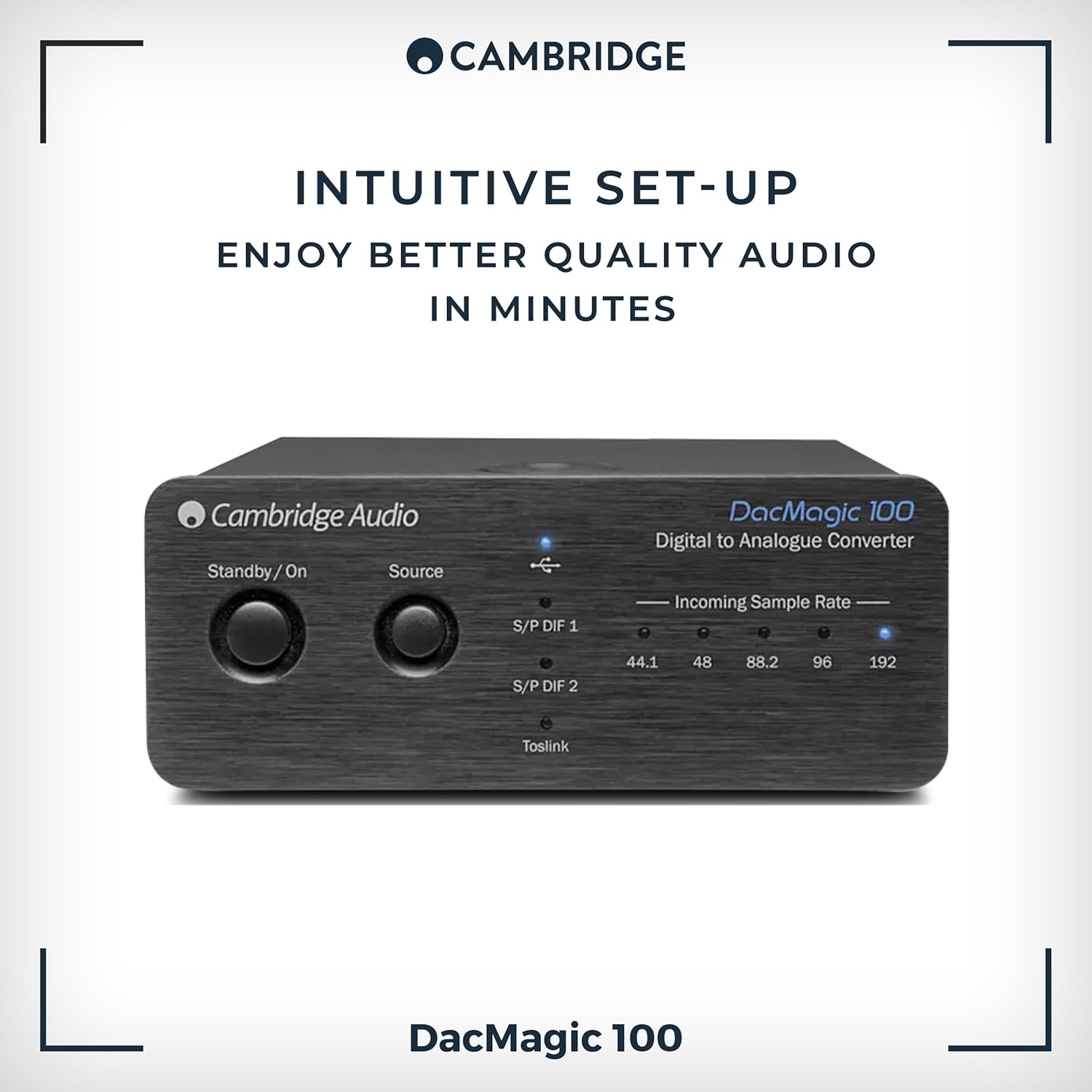
The front panel of the DacMagic 100, indicating its straightforward setup process.
5. Упутство за употребу
- Укључивање/искључивање: Press the Standby/On button on the front panel to toggle the unit between standby and operational modes.
- Избор извора: Press the 'Source' button on the front panel to cycle through the available digital inputs: S/P DIF 1, S/P DIF 2, Toslink, and USB. The active input will be indicated by an illuminated LED.
- Долазећи СampЛе Стоп Индикатори: The LEDs labeled 44.1, 48, 88.2, 96, and 192 indicate the sample rate of the incoming digital audio signal. This helps confirm that your source device is sending the expected audio resolution.
- Контрола јачине звука: The DacMagic 100 does not have its own volume control. Adjust the volume using your connected ampлифиер или активни звучници.
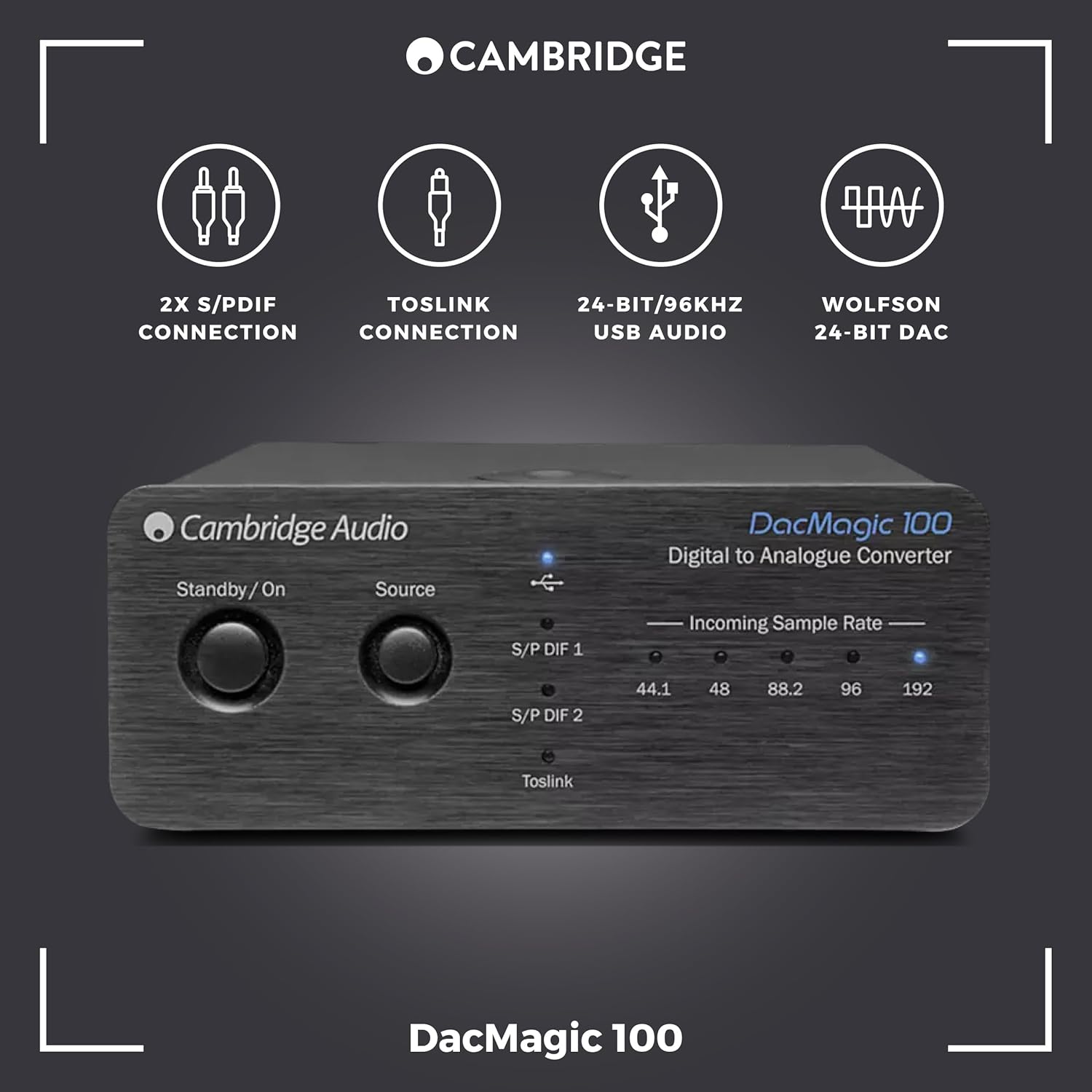
This image highlights the front controls of the DacMagic 100, including the Standby/On button, Source selection button, and LED indicators for incoming sample rates (44.1, 48, 88.2, 96, 192 kHz).
6. USB Audio Driver Installation (for High-Resolution Playback)
For optimal performance and high-resolution audio playback (above 96kHz) via the USB input on Windows PCs, a dedicated driver may be required. Mac OS X typically supports USB Audio Class 1.0 and 2.0 natively without additional drivers.
- Check Cambridge Audio Webсајт: Visit the official Cambridge Audio support website for the latest USB audio drivers specific to the DacMagic 100.
- Преузмите и инсталирајте: Download the appropriate driver for your operating system and follow the on-screen installation instructions.
- Поново покрените рачунар: Након инсталације, поново покрените рачунар.
- Select DacMagic 100: In your computer's sound settings or audio playback software, select the Cambridge Audio DacMagic 100 as the default audio output device.
Напомена: If you experience issues with ASIO high-resolution playback, ensure your drivers and firmware are up to date. Consult Cambridge Audio technical support for assistance with firmware updates.
КСНУМКС. Решавање проблема
| Проблем | Могући узрок | Решење |
|---|---|---|
| Нема излаза звука | Incorrect source selected Лабаве кабловске везе AmpУлаз за спасавање није изабран DacMagic 100 not powered on | Press 'Source' to select correct input Check all audio and power cables Select correct input on your ampлифиер Press Standby/On button |
| Изобличен или испрекидан звук | Poor quality cables Ground loop hum Нетачно сampле рате сеттингс USB driver issues | Use high-quality shielded cables Toggle Ground Lift switch Verify source device output settings Install/update USB drivers (see Section 6) |
| USB input not recognized by computer | Missing or outdated USB drivers Incorrect computer sound settings | Install/update USB drivers (see Section 6) Select DacMagic 100 as default audio device in computer settings |
| Зујање | Сметње уземљивачке петље | Toggle the Ground Lift switch on the rear panel to 'Lift'. Ensure all components are properly grounded. |
8. Спецификације
- D-A Converters: Волфсон ВМ8742 24-битни ДАЦ
- Фреквенцијски одзив: 20Хз до 20кХз (+/-0.1дБ)
- Дигитални улази: 1 x USB, 2 x Coaxial Digital (S/P DIF), 1 x Optical (Toslink)
- Аналогни излази: РЦА Л/Р
- УСБ аудио подршка: До 24-бита/96kHz
- Coaxial/Optical Audio Support: До 24-бита/192kHz
- Број канала: 1 (Stereo output)
- Интерфејс: УСБ
- Тежина артикла: 0.5 килограма
- Произвођач: Цамбридге Аудио
- Модел: ДацМагиц 100
- УПЦ: 813371024205
9. Нега и одржавање
- Чишћење: Use a soft, dry, lint-free cloth to clean the unit. Do not use abrasive cleaning agents, waxes, or solvents.
- Окружење: Избегавајте постављање уређаја на директно сунчево светло, близу извора топлоте или у подручјима са високом влажношћу или прекомерном прашином.
- вентилација: Обезбедите одговарајућу вентилацију око уређаја како бисте спречили прегревање. Не блокирајте вентилационе отворе.
- Снага: Disconnect the unit from the power outlet if it will be unused for extended periods.
10. Гаранција и подршка
Your Cambridge Audio DacMagic 100 is covered by a manufacturer's warranty. Please refer to the warranty card included with your product or visit the official Cambridge Audio webсајт за детаљне услове гаранције специфичне за ваш регион.
For technical support, troubleshooting assistance, or service inquiries, please contact Cambridge Audio customer support through their official webсајт или овлашћени сервисни центри. Сачувајте доказ о куповини за потребе гаранције.