
1. Увод
Хвала вам на куповиниasing the Zebronics ZEB-A18 Plus 17.3-inch LED Monitor. This manual provides essential information for setting up, operating, and maintaining your monitor. Please read it thoroughly before use and retain it for future reference.
1.1 Шта је у кутији
- Монитор
- Повер Адаптер
- Постоље за монитор
- Упутство за употребу
- ВГА кабел
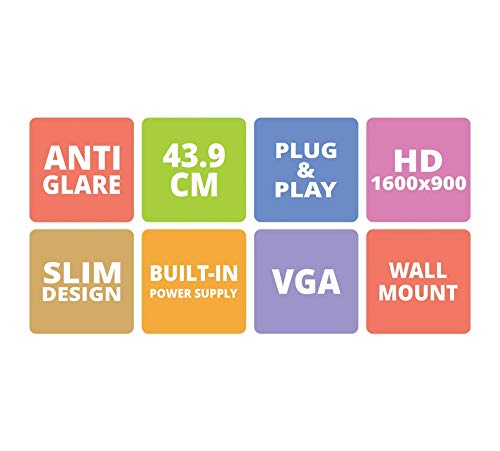
Figure 1: Key features of the Zebronics ZEB-A18 Plus monitor, including Anti Glare, 43.9 CM screen size, Plug & Play functionality, HD 1600x900 resolution, Slim Design, Built-in Power Supply, VGA connectivity, and Wall Mount compatibility.
2. Безбедносне информације
Да бисте осигурали безбедан рад и спречили оштећења, молимо вас да се придржавате следећих мера безбедности:
- Не излажите монитор киши или влази.
- Не отварајте монитор цasinг; све сервисирање препустите квалификованом особљу.
- Поставите монитор на стабилну, равну површину.
- Осигурајте одговарајућу вентилацију око монитора.
- Користите само испоручени адаптер за напајање.
- Искључите кабл за напајање током грмљавине или када се не користи дуже време.
3. Подешавање
3.1 Састављање постоља
- Пажљиво извадите компоненте монитора и постоља из паковања.
- Причврстите постоље на врат постоља.
- Secure the assembled stand to the back of the monitor using the provided screws. Ensure it is firmly attached.
3.2 Повезивање монитора
- Прикључак за напајање: Connect the power adapter to the monitor's power input and then plug the adapter into a power outlet.
- Видео веза: Connect one end of the VGA cable to the VGA port on your computer's graphics card and the other end to the VGA input port on the monitor.
- Аудио веза (ако је применљиво): The monitor has built-in speakers. No separate audio cable is typically needed for VGA connections as audio is not transmitted via VGA. Ensure your computer's audio output is configured correctly.
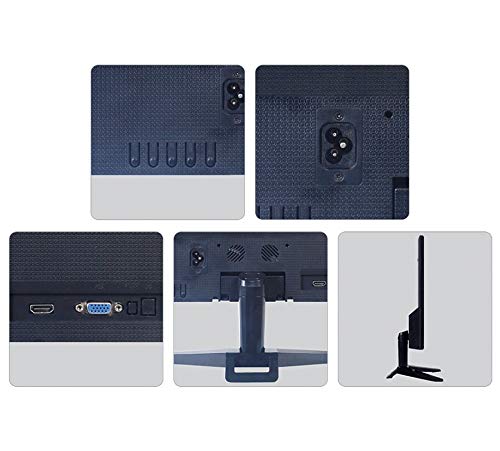
Слика 2: Задња страна view of the Zebronics ZEB-A18 Plus monitor showing the power input, VGA port, and side profile. This image illustrates the available connection points for power and video input.
4. Упутство за употребу
4.1 Укључивање/искључивање
Притисните дугме за напајање које се налази на монитору да бисте га укључили или искључили. Индикаторска лампица напајања ће светлети када је монитор активан.
4.2 Basic Display Adjustments
The monitor features an On-Screen Display (OSD) menu for adjusting various settings. Use the control buttons (usually located on the bottom or back of the monitor) to navigate the OSD menu. Common adjustments include:
- Осветљеност: Подешава укупну осветљеност екрана.
- Контраст: Подешава разлику између светлих и тамних области.
- Подешавања боја: Fine-tune color temperature or individual RGB levels.
- Изаберите улаз: Manually select the video input source (e.g., VGA).
4.3 Уграђени звучници
The ZEB-A18 Plus monitor includes built-in speakers. Ensure your computer's audio output is directed to the monitor if you wish to use them. Volume can typically be controlled via your computer's operating system.
5. Одржавање
5.1 Чишћење монитора
- Увек искључите монитор из утичнице пре чишћења.
- Лагано користите меку крпу која не оставља длачице дampиспрати водом или неабразивним средством за чишћење екрана.
- Не прскајте средство за чишћење директно на екран.
- Избегавајте употребу јаких хемикалија, растварача или абразивних материјала.
- Обришите цasinг меком, сувом крпом.
КСНУМКС. Решавање проблема
Ако наиђете на проблеме са монитором, погледајте следеће уобичајене проблеме и решења:
- No Display / "No Signal" Message:
- Ensure the monitor is powered on and the power indicator is lit.
- Check that the VGA cable is securely connected to both the monitor and the computer.
- Verify that your computer is powered on and not in sleep mode.
- Покушајте да поново покренете рачунар.
- If using multiple monitors, ensure the correct display output is selected on your computer.
- Лош квалитет слике (замућена, изобличена, погрешне боје):
- Check the VGA cable for damage or loose connections.
- Подесите резолуцију на рачунару тако да одговара матичној резолуцији монитора (1600 x 900).
- Use the OSD menu to adjust brightness, contrast, and color settings.
- No Sound from Built-in Speakers:
- Ensure the monitor's volume is not muted or set too low via the OSD (if available) or your computer's audio settings.
- Verify that your computer's audio output is correctly configured to send sound to the monitor.
7. Спецификације
| Бранд | ЗЕБРОНИЦС |
| Назив модела | ZEB A18 Plus |
| Број модела | ZEB-A18 |
| Величина екрана | 17.2 инча |
| Дисплаи Типе | ЛЕД |
| Максимална резолуција екрана | 1600 x 900 (HD+) |
| Аспецт Ратио | 16:9 |
| Рефресх Рате | 60 Хз |
| Време одговора | 8 милисекунди |
| Осветљеност слике | 220 цд/м² |
| Однос контраста | 400:1 |
| Viewинг Англе | 178 степени |
| Повезивање | ВГА |
| Уграђени звучници | Да |
| Тип монтаже | Валл Моунт |
| Боја | Црно |
| Потрошња енергије | 15В |
| Тежина | 1.1 кг |
| Dimensions with Stand (W x D x H) | 415 к 13 к 340 мм |
8. Гаранција и подршка
8.1 Информације о гаранцији
Your Zebronics ZEB-A18 Plus monitor is covered by a limited warranty. Please refer to the warranty card included with your product for specific terms and conditions. Keep your purchase receipt as proof of purchase for warranty claims.
8.2 Корисничка подршка
For technical assistance, troubleshooting, or warranty inquiries, please contact Zebronics customer support. Contact details can typically be found on the official Zebronics webсајту или на паковању производа.