
1. Увод
This manual provides essential information for the safe and efficient use of your Alienware AW3418DW 34.1-inch Curved Gaming Monitor. This monitor features a WQHD (3440x1440) resolution, a 120Hz refresh rate (overclocked), and NVIDIA G-SYNC technology for an immersive gaming experience. Please read this manual thoroughly before operating the device.
2. Безбедносне информације
- Always disconnect the power cable from the wall outlet before cleaning the monitor.
- Не излажите монитор киши или влази како бисте избегли опасност од пожара или струјног удара.
- Не отварајте монитор цasinг. Унутра нема делова које корисник може сам да поправи. Сво сервисирање препустите квалификованом сервисном особљу.
- Поставите монитор на стабилну, равну површину како бисте спречили његов пад.
- Обезбедите одговарајућу вентилацију око монитора. Не блокирајте вентилационе отворе.
- Користите само адаптер за напајање и каблове који се испоручују са монитором.
3. Садржај пакета
Проверите да ли су све компоненте присутне у пакету:
- Alienware AW3418DW Monitor
- Постоље за монитор (постоље и подизач)
- Повер Цабле
- ДисплаиПорт Цабле
- ХДМИ кабл
- УСБ 3.0 упстреам кабл
- Documentation (Quick Setup Guide, Safety Information)
4. Подешавање
4.1 Физичко подешавање
Carefully remove the monitor and its components from the packaging. Place the monitor face down on a soft cloth or cushion to prevent scratches.
Причвршћивање постоља
- Attach the stand riser to the monitor panel until it clicks into place.
- Attach the stand base to the stand riser and tighten the captive screw.

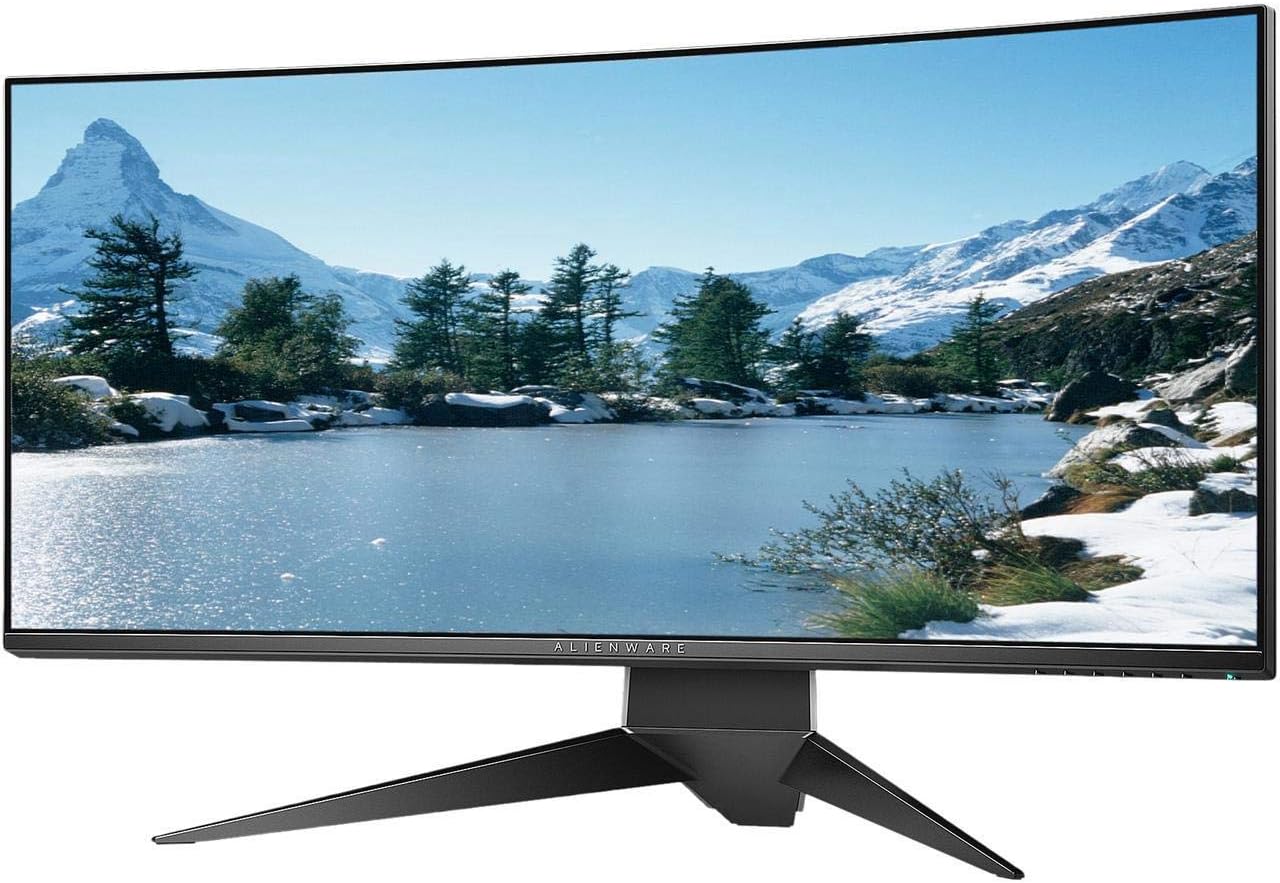
Слика 4.1: Предња страна view of the Alienware AW3418DW monitor with its stand attached.

Слика 4.2: Страна view of the Alienware AW3418DW monitor with its stand.
Слика 4.3: Задња страна view of the Alienware AW3418DW monitor showing the stand and AlienFX lighting.
ВЕСА Монтажа
The monitor supports VESA mounting (100 x 100 mm). Remove the stand riser by pressing the release button and then attach the VESA-compatible mount to the monitor using appropriate screws. Ensure the mount can support the monitor's weight of 26.1 pounds (without stand).

Figure 4.4: Monitor dimensions for VESA mount compatibility.
4.2 Каблови за повезивање
Повежите потребне каблове са монитором и рачунаром.
- Кабл за напајање: Connect the power cable to the monitor's power port and then to a wall outlet.
- Видео кабл: Connect either the DisplayPort cable or the HDMI cable from your computer's graphics card to the corresponding port on the monitor. For optimal performance, especially for 120Hz refresh rate and G-SYNC, use the DisplayPort connection.
- USB узлазни кабл: Connect the USB 3.0 upstream cable from your computer to the monitor's upstream USB port to enable the monitor's USB hub functionality.
- УСБ довнстреам портови: Connect your USB devices (e.g., keyboard, mouse, webcam) to the four USB 3.0 downstream ports on the monitor.
5. Упутство за употребу
5.1 Укључивање/искључивање
Притисните дугме за напајање које се налази на монитору да бисте га укључили или искључили. ЛЕД диода за напајање ће приказивати статус монитора.
5.2 Навигација кроз екрански (OSD) приказ
The On-Screen Display (OSD) menu allows you to adjust various monitor settings. Use the control buttons, typically located on the bottom right or rear of the monitor, to navigate the OSD.
- Притисните контролно дугме да бисте активирали OSD мени.
- Користите дугмад за навигацију (горе/доле/лево/десно) да бисте се кретали кроз опције менија.
- Притисните дугме за избор да бисте потврдили избор или ушли у подмени.
- Користите дугме за назад/излаз да бисте се вратили на претходни мени или изашли из OSD-а.
5.3 Подешавања екрана
Подесите подешавања екрана за оптимално viewing and gaming performance.
- Резолуција: Set your computer's display resolution to 3440x1440 for the native WQHD experience.
- Брзина освежавања: The monitor supports up to 120Hz refresh rate (overclocked). Ensure your graphics card drivers are updated and the refresh rate is set in your operating system's display settings or graphics control panel.
- НВИДИА Г-СИНЦ: For tear-free and smooth gameplay, enable G-SYNC in your NVIDIA Control Panel. This feature synchronizes the monitor's refresh rate with your GPU's frame rate.
- Осветљеност/контраст: Adjust these settings in the OSD menu to suit your environment and preference.
5.4 AlienFX Lighting
Customize the AlienFX lighting zones on your monitor through the OSD menu or Alienware Command Center software (if installed on your PC). You can select colors, effects, and synchronize lighting with other Alienware devices.
5.5 Употреба USB чворишта
The monitor acts as a USB 3.0 hub, providing convenient access to four downstream USB ports for connecting peripherals. Ensure the USB upstream cable is connected to your computer for this feature to function.
6. Одржавање
6.1 Чишћење монитора
- Always unplug the monitor from the electrical outlet before cleaning.
- Лагано користите меку крпу која не оставља длачице дampиспрати водом или неабразивним средством за чишћење екрана.
- Не прскајте средство за чишћење директно на екран.
- Нежно обришите екран да бисте уклонили прашину и мрље.
- Очистите спољашњост цasinг меком, сувом крпом.
6.2 Складиштење
If storing the monitor for an extended period, disconnect all cables, carefully disassemble the stand (if applicable), and store it in its original packaging in a cool, dry place.
КСНУМКС. Решавање проблема
Ако наиђете на проблеме са монитором, погледајте следеће уобичајене кораке за решавање проблема:
- Без приказа: Ensure all power and video cables are securely connected. Check if the monitor is powered on and the correct input source is selected in the OSD.
- Треперење/муцање: Verify that your graphics drivers are up to date. Ensure G-SYNC is properly configured in the NVIDIA Control Panel. Check for interference from other electronic devices.
- Нетачна резолуција/брзина освежавања: Adjust the display settings in your operating system or graphics control panel to the native resolution (3440x1440) and desired refresh rate (up to 120Hz).
- Мртви пиксели: The Alienware AW3418DW comes with a Premium Panel Guarantee. Refer to the warranty information for details on pixel policy.
- УСБ портови не раде: Уверите се да је USB 3.0 узлазни кабл повезан са монитора на рачунар.
8. Спецификације
| Феатуре | Спецификација |
|---|---|
| Бранд | Алиенваре |
| Број модела | АВ3418ДВ |
| Величина екрана | 34.1 инча |
| Резолуција | WQHD (3440 x 1440 Pixels) |
| Аспецт Ратио | 21:9 |
| Рефресх Рате | 120 Hz (Overclocked) |
| Време одговора | 4 милисекунди |
| Адаптиве Синц Тецхнологи | НВИДИА Г-СИНЦ |
| Дисплаи Типе | LED IPS |
| Закривљеност | 1900Р |
| Осветљеност | 300 цд/м² |
| Однос контраста | 1000:1 |
| Viewинг Англе | 178 степени |
| Повезивање | 1x DisplayPort (1.2), 1x HDMI (1.4), 4x USB 3.0 Downstream, 1x USB 3.0 Upstream |
| Тежина артикла | 26.1 фунти (без постоља) |
| Тип монтаже | VESA Compatible (100 x 100 mm) |
9. Гаранција и подршка
Your Alienware AW3418DW monitor is covered by a 3 Years Limited Hardware Warranty и 3 Years Advance Exchange Service, укључујући а Premium Panel Guarantee. The Premium Panel Guarantee ensures a free panel replacement during the limited hardware warranty period even if only one bright pixel is found.
For technical support, warranty claims, or additional information, please visit the official Alienware or Dell support website. You may also find updated drivers and firmware there.
Подршка на мрежи: ввв.делл.цом/суппорт