
Увод
This manual provides detailed instructions for the installation, operation, and maintenance of the ECS Elitegroup B350AM4-M2 Micro ATX Motherboard. This motherboard is designed to support AMD AM4 socket processors, including AMD Ryzen and 7th Gen Athlon processors. It features a 4+2 phase thermal design, 100% solid capacitor design, and dual-channel DDR4 memory architecture supporting up to 64 GB across four DIMM sockets.
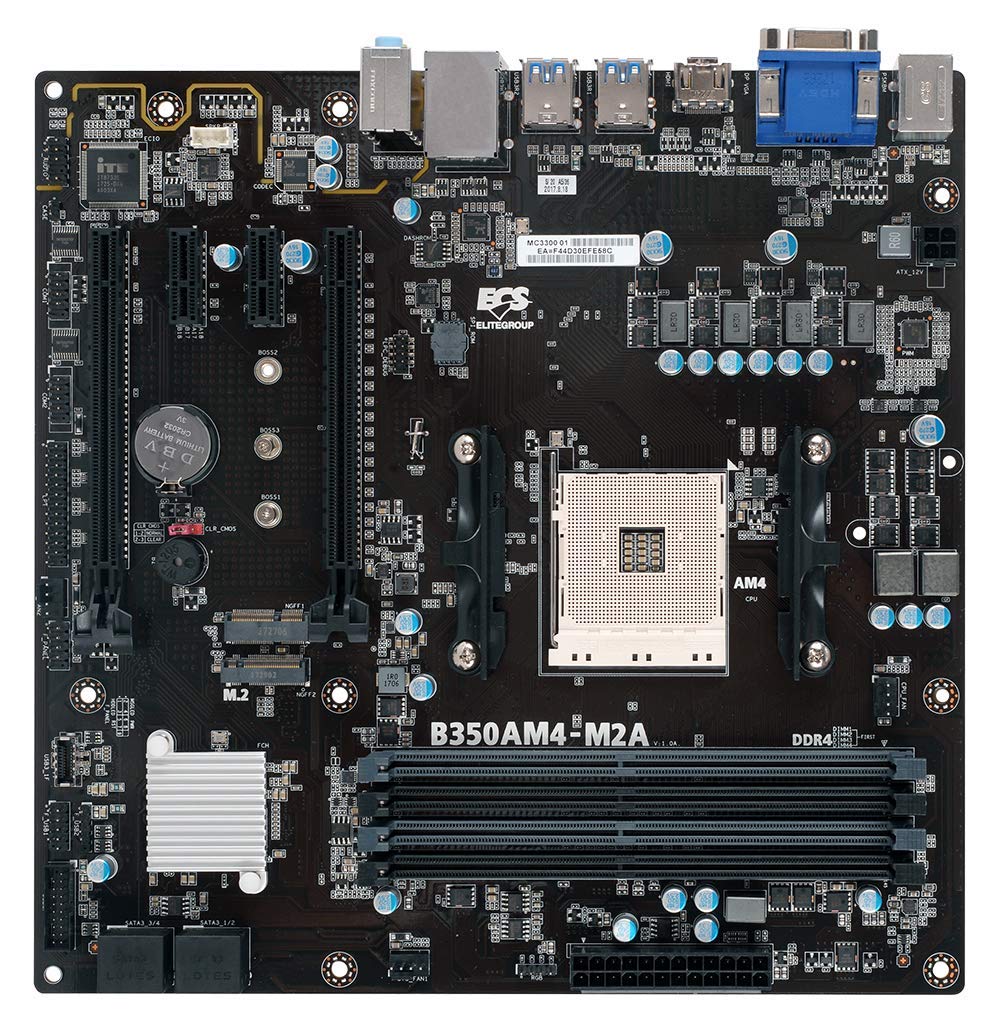
Слика 1: Завршеноview of the ECS B350AM4-M2 Motherboard, showing its general layout and components.
Садржај пакета
Verify that all items listed below are present in the package. If any item is missing or damaged, contact your retailer.
- ECS B350AM4-M2 Motherboard
- ЦД са драјвером
- Кориснички приручник (овај документ)
- САТА каблови
Подешавање и инсталација
Before beginning installation, ensure your system is powered off and disconnected from the power outlet. Wear an anti-static wrist strap to prevent electrostatic discharge (ESD) damage to components.
1. Инсталација процесора
- Пронађите АМ4 процесорски сокет на матичној плочи.
- Подигните полугу за оптерећење са стране утичнице.
- Пажљиво поравнајте троугласту ознаку на процесору са одговарајућом ознаком на утичници.
- Пажљиво поставите процесор у утичницу без присиљавања.
- Lower the load lever back into its locked position to secure the CPU.
- Apply thermal paste to the CPU surface and install the CPU cooler according to its manufacturer's instructions.
Figure 2: The AM4 CPU socket and surrounding area on the motherboard, where the processor is installed.
2. Инсталација меморије (RAM)
The B350AM4-M2 motherboard has four 288-pin DDR4 DIMM sockets. For optimal performance, install memory modules in pairs for dual-channel operation. Refer to the motherboard's silkscreen for recommended slot population order.
- Отворите копче на оба краја DIMM прикључка.
- Align the notch on the DDR4 memory module with the key in the DIMM socket.
- Insert the module firmly into the socket until the clips snap into place.
- Repeat for additional memory modules.
Figure 3: Location of the four DDR4 DIMM slots for memory installation.
3. Инсталација уређаја за складиштење података (SATA и M.2)
Connect SATA storage devices (HDDs/SSDs) to the SATA 6Gb/s ports. For M.2 SSDs, locate the M.2 slot.
- For SATA devices: Connect one end of the SATA data cable to the storage device and the other end to a SATA port on the motherboard. Connect the SATA power cable from your power supply to the device.
- For M.2 SSDs: Insert the M.2 SSD into the M.2 slot at an angle. Push it down and secure it with the provided screw.
4. Инсталација картице за проширење (PCIe)
Install graphics cards or other expansion cards into the appropriate PCI Express slots.
- Поравнајте картицу за проширење са изабраним PCIe слотом.
- Press down firmly until the card is seated correctly and the retention clip (if present) locks into place.
- Причврстите картицу за кућиште помоћу завртња.
5. Прикључци за напајање
Повежите каблове за напајање на матичну плочу.
- 24-пински ATX конектор за напајање: Connect the main 24-pin power cable from your power supply to the corresponding connector on the motherboard.
- 4-пински конектор за напајање процесора: Connect the 4-pin CPU power cable (often labeled P4 or ATX12V) from your power supply to the connector near the CPU socket.
6. Предња плоча и USB конекције
Connect your chassis's front panel connectors (power button, reset button, HDD LED, power LED, front USB ports, front audio) to the corresponding headers on the motherboard. Refer to the motherboard layout diagram in the full manual for exact header locations.
Упутство за употребу
1. Подешавање BIOS-а/UEFI-ја
The BIOS (Basic Input/Output System) or UEFI (Unified Extensible Firmware Interface) is the firmware that initializes hardware during startup. To access the BIOS/UEFI setup utility:
- Укључите рачунар.
- Притисните тастер ДЕЛ key repeatedly during the initial boot screen. The exact key may vary; consult the on-screen prompts.
Within the BIOS/UEFI, you can configure system settings such as boot order, date/time, CPU/memory frequencies, and enable/disable integrated peripherals. Save changes before exiting.
2. Инсталација оперативног система
After assembling your system, you will need to install an operating system (e.g., Windows 10, Windows Vista, Linux).
- Insert your operating system installation media (USB drive or DVD) into the computer.
- Access the BIOS/UEFI setup and set the boot order to prioritize your installation media.
- Save changes and exit. The system will boot from the installation media.
- Следите упутства на екрану да бисте инсталирали оперативни систем.
- After installation, install the necessary drivers from the provided driver CD or the ECS Elitegroup webсајту.
Одржавање
Правилно одржавање осигурава дуготрајност и стабилан рад ваше матичне плоче.
- Уклањање прашине: Regularly clean dust from inside your computer case using compressed air. Ensure fans and heatsinks are free from obstructions.
- Ажурирања BIOS-а: Periodically check the ECS Elitegroup website for updated BIOS versions. BIOS updates can improve compatibility, stability, and performance. Follow the update instructions carefully to avoid system damage.
- Управљање кабловима: Уверите се да су унутрашњи каблови уредно постављени како би се побољшао проток ваздуха и спречиле сметње.
Решавање проблема
Овај одељак се бави уобичајеним проблемима на које можете наићи.
Нема напајања / Систем се не укључује
- Check all power connections: 24-pin ATX, 4-pin CPU, and power cables to peripherals.
- Уверите се да је прекидач за напајање у положају „УКЉУЧЕНО“.
- Verify the front panel power button connector is correctly attached to the motherboard header.
- Тестирајте напајање помоћу другог система или тестера напајања ако је доступан.
No Display / No POST (Power-On Self-Test)
- Уверите се да је монитор повезан на исправан излаз за приказ (интегрисана графичка картица матичне плоче или дискретна графичка картица).
- Поново инсталирајте графичку картицу и меморијске модуле.
- Check if the CPU cooler is properly installed and connected.
- Listen for beep codes. A series of 9 short beeps often indicates a BIOS ROM error, suggesting a potential issue with the motherboard's firmware.
- Try booting with only essential components (CPU, one RAM stick, graphics card if no integrated graphics) to isolate the problem.
Нестабилност система / Падови система
- Уверите се да су сви драјвери ажурирани.
- Check CPU and GPU temperatures to prevent overheating.
- Покрените алате за дијагностику меморије да бисте проверили да ли постоји неисправна РАМ меморија.
- Verify that the power supply provides sufficient wattagе за све компоненте.
Спецификације
| Феатуре | Детаљ |
|---|---|
| Бранд | ECS Elitegroup |
| Број модела | B350AM4-M2 |
| ЦПУ Соцкет | Соцкет АМ4 |
| Компатибилни процесори | AMD Ryzen Processors, AMD 7th Gen Athlon Processors |
| Тип чипсета | АМД Б350 |
| Технологија РАМ меморије | ДДР4 |
| Доступни меморијски слотови | 4 x 288-pin DDR4 DIMM sockets |
| Максимална величина РАМ меморије | 64 ГБ |
| Брзина меморије | 2667/2400 MHz (non-ECC, Un-buffered SDRAM) |
| Интерфејс графичке картице | ПЦИ Екпресс |
| Total Number of HDMI Ports | 1 (ХДМИ 1.4а) |
| ДисплаиПорт | Integrated DP with up to 2560x1600 resolution |
| УСБ 2.0 портови | 1 (internal header, total ports may vary) |
| S/PDIF Connector Type | Оптицал |
| Подржан стандард системске магистрале | САТА 3 |
| Платформа | Windows 10, Windows Vista |
| Тежина артикла | 1.15 фунти |
Гаранција и подршка
The ECS Elitegroup B350AM4-M2 Motherboard comes with a 2 година гаранције from the date of purchase. This warranty covers defects in materials and workmanship under normal use. For warranty claims or technical support, please contact your retailer or visit the official ECS Elitegroup webсајт за ресурсе подршке и контакт информације.
Подршка на мрежи: For the latest drivers, BIOS updates, and additional support, please visit the ECS Elitegroup official webсајту.