
IP-COM G3224P
IP-COM G3224P 24-Port Managed PoE Switch
Упутство за употребу
Model: G3224P | Brand: IP-COM
1. Увод
This user manual provides comprehensive instructions for the installation, operation, maintenance, and troubleshooting of the IP-COM G3224P 24-Port Managed PoE Switch. Please read this manual thoroughly before using the device to ensure proper and safe operation.
The IP-COM G3224P is a high-performance managed Power over Ethernet (PoE) switch designed for small to medium-sized businesses and enterprise networks. It offers 24 Gigabit Ethernet ports with PoE+ capabilities and additional SFP ports for fiber uplinks, providing flexible and scalable network solutions.
2. Производ је готовview
2.1 Садржај пакета
- IP-COM G3224P 24-Port Managed PoE Switch
- Повер Цорд
- Комплет за монтажу у рек (носачи и завртњи)
- Гумене ножице (за постављање на радну површину)
- Водич за брзу инсталацију
2.2 Опис предње плоче
The front panel of the IP-COM G3224P switch features various ports and LED indicators for status monitoring.
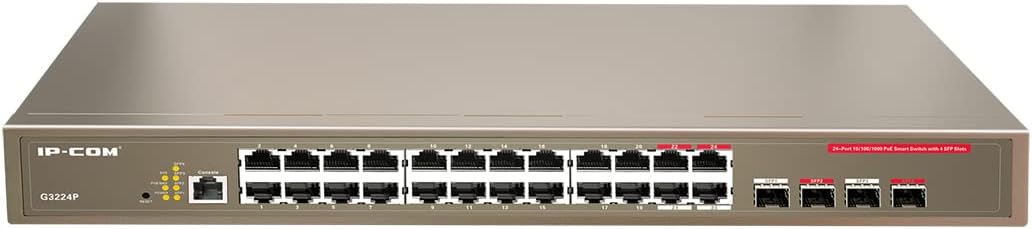
Figure 2.1: IP-COM G3224P Front Panel Layout
This image displays the front panel of the IP-COM G3224P switch. On the left, the IP-COM logo and model number G3224P are visible. To the right, there are LED indicators for SYS, PoE MAX, and individual port status. A console port is also present. The main section features 24 Gigabit Ethernet RJ45 ports, arranged in two rows, with port numbers 1 through 24. On the far right, there are four SFP ports labeled SFP1, SFP2, SFP3, and SFP4, which are used for fiber optic uplinks.
2.3 ЛЕД индикатори
| ЛЕД индикатор | Статус | Опис |
|---|---|---|
| СИС | Зелена (чврста) | Систем ради нормално. |
| СИС | Зелена (трепери) | System is booting up or firmware is being upgraded. |
| ПоЕ МАКС | Црвена (пуна) | PoE power budget is nearing or exceeding its limit. |
| Link/Act (Per Port) | Зелена (чврста) | Порт је повезан. |
| Link/Act (Per Port) | Зелена (трепери) | Port is transmitting or receiving data. |
| PoE (по порту) | жута (пуна) | Повезани уређај добија напајање путем PoE-а. |
3. Подешавање и инсталација
3.1 Мере предострожности
- Уверите се да је напајање волtage matches the switch's requirements (240V as per specifications).
- Не блокирајте отворе за вентилацију.
- Држите уређај даље од воде, ватре и високих температура.
- Не покушавајте сами да отворите или поправите уређај.
3.2 Инсталација у рацкмоунт
- Attach the provided rackmount brackets to the sides of the switch using the included screws.
- Причврстите прекидач у стандардни сталак за опрему од 19 инча користећи одговарајуће шрафове за сталак (нису укључени).
- Ensure adequate airflow around the switch for proper cooling.
3.3 Инсталација на радној површини
- Причврстите приложене гумене ножице на дно прекидача.
- Place the switch on a flat, stable surface with sufficient ventilation.
3.4 Повезивање прекидача
- Прикључак за напајање: Connect the power cord to the power inlet on the rear panel of the switch and then to a grounded power outlet.
- Мрежни уређаји: Connect network devices (e.g., computers, servers, IP cameras, VoIP phones) to the RJ45 ports (1-24) on the front panel using standard Ethernet cables.
- ПоЕ уређаји: For PoE-powered devices, simply connect them to any of the RJ45 ports. The switch will automatically detect and provide power if the device is PoE compliant.
- Уплинк везе: Use the SFP ports (SFP1-SFP4) for fiber optic uplinks to other network devices or the core network. Insert compatible SFP transceivers into the SFP slots before connecting fiber optic cables.
- Конзолна веза (опционо): For initial configuration or advanced management, connect a console cable from your computer to the console port on the switch.
4. Упутство за употребу
4.1 Почетно укључивање
After connecting the power cord, the switch will automatically power on. Observe the SYS LED indicator. It will blink during boot-up and turn solid green once the system is ready.
4.2 Основна мрежна повезаност
Once powered on, the switch will automatically detect connected devices. The Link/Act LED for each connected port will illuminate solid green, indicating a successful link. It will blink when data is being transmitted or received.
4.3 PoE Operation
When a PoE-compatible device is connected to a port, the switch will negotiate power delivery. The PoE LED for that port will turn yellow, indicating that power is being supplied. Monitor the PoE MAX LED; if it turns red, the total PoE power budget is being approached or exceeded, and you may need to reduce the number of PoE devices or use a higher-capacity power source.
4.4 Приступ за управљање
The IP-COM G3224P is a managed switch, offering various configuration options via a web-based GUI, CLI (Command Line Interface) via the console port, or SNMP. Refer to the detailed management guide (usually available on the manufacturer's website) for advanced configuration, including VLANs, QoS, port mirroring, and security settings.
- Web ГУИ: Приступите прекидачу web interface by typing its default IP address (check the Quick Installation Guide or manufacturer's documentation) into a web претраживач.
- ЦЛИ: Connect via the console port using a terminal emulator (e.g., PuTTY) with appropriate serial port settings.
5. Одржавање
5.1 Чишћење
- Regularly clean the exterior of the switch with a soft, dry cloth.
- Немојте користити течна или аеросолна средства за чишћење.
- Уверите се да су вентилациони отвори без прашине и зачепљења.
5.2 Ажурирања фирмвера
Periodically check the IP-COM official webсајт за ажурирања фирмвера. Одржавање фирмвера ажурираним обезбеђује оптималне перформансе, безбедност и приступ новим функцијама. Пажљиво пратите упутства која сте добили уз пакет за ажурирање фирмвера.
5.3 Разматрања животне средине
Ensure the switch operates within its specified environmental conditions (temperature, humidity) to prevent damage and ensure longevity.
КСНУМКС. Решавање проблема
| Проблем | Могући узрок | Решење |
|---|---|---|
| No power / SYS LED off | Кабл за напајање није повезан или је утичница неисправна. | Проверите везу кабла за напајање. Покушајте са другом утичницом. |
| No link on a port (Link/Act LED off) | Cable issue, device off, or incorrect port. | Check Ethernet cable. Ensure connected device is powered on. Try a different port or cable. |
| PoE device not powering on (PoE LED off) | Device not PoE compliant, cable issue, or power budget exceeded. | Verify device is PoE compliant. Check cable. Check PoE MAX LED; if red, reduce PoE load. |
| Network performance issues | Cable quality, network congestion, or incorrect configuration. | Use high-quality Ethernet cables. Check for network loops. Review switch configuration (VLANs, QoS). |
| Није могуће приступити web интерфејс за управљање | Incorrect IP address, network settings, or firewall. | Verify the switch's IP address. Ensure your computer is on the same subnet. Disable temporary firewalls. |
If problems persist, consult the full product documentation or contact IP-COM technical support.
7. Спецификације
| Феатуре | Детаљ |
|---|---|
| Модел | ГКСНУМКСП |
| Портс | 24 x 10/100/1000Base-T (RJ45) with PoE+, 4 x 1000Base-X (SFP) |
| Преклопни капацитет | 56 Гбпс |
| Форвардинг Рате | 41.66 Мппс |
| ПоЕ стандард | ИЕЕЕ 802.3аф / ат |
| Улазни волtage | 240 Волт |
| Димензије (Д к Ш к В) | 29 к 44 к 44 цм |
| Тежина | 15 килограма |
| Рацкмоунт | Да |
| Менаџмент | Управљано (Web GUI, CLI, SNMP) |
Напомена: Спецификације су подложне променама без претходне најаве.
8. Гаранција и техничка подршка
8.1 Информације о гаранцији
IP-COM products typically come with a limited warranty. Please refer to the warranty card included with your product or visit the official IP-COM webсајт за детаљне услове гаранције специфичне за ваш регион и датум куповине.
8.2 Техничка подршка
For technical assistance, product inquiries, or troubleshooting beyond the scope of this manual, please contact IP-COM technical support. Support contact information can usually be found on the official IP-COM webсајту или у паковању производа.
IP-COM Official Webсајт: ввв.ип-цом.цом.цн
Ask a question about this manual
Ask about setup, troubleshooting, compatibility, parts, safety, or missing instructions. Manuals+ will review the question and use this page’s manual context to help answer it.