
Увод
Thank you for choosing the MeeTion K9310 Gaming Keyboard. This manual provides detailed instructions for setting up, operating, and maintaining your new keyboard. The K9310 is designed for an enhanced gaming experience with features such as multicolor backlighting, anti-ghosting, and dedicated shortcut keys.
Садржај пакета
- MeeTion K9310 Gaming Keyboard
- Кориснички приручник (овај документ)
Сетуп
Follow these steps to connect your MeeTion K9310 Gaming Keyboard to your computer:
- Распакујте тастатуру из паковања.
- Пронађите слободан УСБ порт на рачунару.
- Укључите УСБ конектор тастатуре у УСБ порт.
- Your operating system (Windows XP/Vista/7/8/10) will automatically detect and install the necessary drivers. No additional software installation is typically required.
- The keyboard is ready for use once the drivers are installed.

Слика: Врх view of the MeeTion K9310 Gaming Keyboard with its USB cable, ready for connection.
Упутство за употребу
Кључне карактеристике
- Multicolor Key Backlit: The keyboard features vibrant multicolor backlighting for enhanced visibility and aesthetic appeal, especially in low-light conditions.
- Comfortable and Soft Keys: Designed with membrane keys offering tactile feedback, providing a comfortable typing and gaming experience.
- 19 тастера, Анти-гостинг: This feature ensures that up to 19 keys can be pressed simultaneously without any input loss, crucial for complex gaming commands.
- Win Lock Function with LED Indication: Prevents accidental presses of the Windows key during gameplay, which can interrupt your game. An LED indicator shows when this function is active.
- 12 FN Shortcut Buttons: Access various multimedia and system functions quickly using the Function (FN) key in combination with the F1-F12 keys.
Контрола позадинског осветљења
The K9310 keyboard features a multicolor backlight. Specific key combinations may be used to adjust brightness or switch lighting modes. Refer to the keyboard's markings for dedicated backlight control keys, often indicated by a sun or light bulb icon, or through FN key combinations.
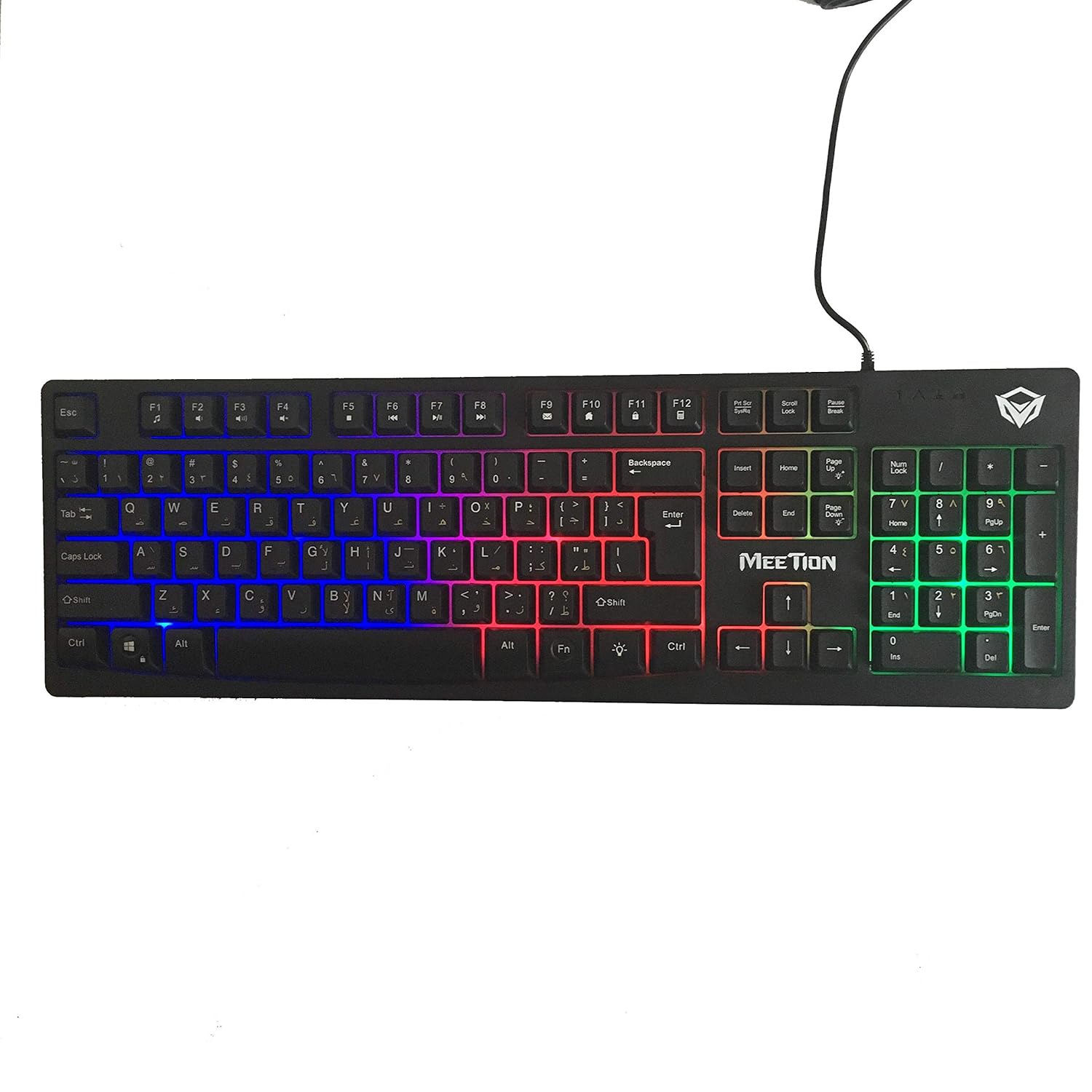
Слика: Врх view of the MeeTion K9310 Gaming Keyboard with its multicolor backlighting illuminated.
FN Shortcut Functions
The keyboard includes 12 FN (Function) shortcut buttons. To activate these functions, press and hold the FN key, then press the desired F-key (F1-F12).
| Комбинација тастера | Функција |
|---|---|
| ФН + Ф1 | Медиа Плаиер |
| ФН + Ф2 | Утишавање звука |
| ФН + Ф3 | Волуме Уп |
| ФН + Ф4 | Муте |
| ФН + Ф5 | Стани |
| ФН + Ф6 | Превиоус Трацк |
| ФН + Ф7 | Пусти/Паузирај |
| ФН + Ф8 | Нект Трацк |
| ФН + Ф9 | Емаил |
| ФН + Ф10 | Web Бровсер |
| ФН + Ф11 | Мој рачунар |
| ФН + Ф12 | Калкулатор |
Win Lock Function
To activate or deactivate the Windows key lock function, press ФН + тастер Вин. When active, the Windows key will be disabled, preventing accidental presses during gaming. An LED indicator on the keyboard will typically illuminate to show the Win Lock status.
Одржавање
Правилно одржавање осигурава дуготрајност и оптималне перформансе ваше тастатуре.
- Чишћење: Користите меку, суву крпу да обришете површину тастатуре. За темељније чишћење, благо дamp Може се користити крпа са благим сапуном, водећи рачуна да течност не уђе у прекидаче или унутрашње компоненте.
- Уклањање прашине: Користите компримовани ваздух да уклоните прашину и остатке између тастера.
- Избегавајте течности: Do not spill liquids on the keyboard. If a spill occurs, immediately disconnect the keyboard from the computer and allow it to dry completely before reconnecting.
- Складиштење: Чувајте тастатуру на хладном и сувом месту, даље од директне сунчеве светлости и екстремних температура када се не користи дуже време.

Слика: Доња страна view of the MeeTion K9310 Gaming Keyboard, showing the product label and rubber feet.
Решавање проблема
If you encounter issues with your MeeTion K9310 Gaming Keyboard, refer to the following troubleshooting steps:
- Тастатура не реагује:
- Уверите се да је USB кабл безбедно прикључен у исправан USB порт на рачунару.
- Покушајте да прикључите тастатуру на други УСБ порт.
- Поново покрените рачунар.
- Тестирајте тастатуру на другом рачунару да бисте утврдили да ли је проблем са тастатуром или са рачунаром.
- Keys Not Working (e.g., 'W' key):
- Check for any debris or foreign objects lodged under the affected key. Use compressed air to clear it.
- If only specific keys are not responding, and the keyboard is otherwise functional, it might indicate a hardware issue.
- Позадинско осветљење не ради или трепери:
- Уверите се да је тастатура правилно повезана.
- Check if the backlight brightness is set to minimum or turned off via FN key combinations.
- Ако проблем и даље постоји, то може указивати на квар хардвера.
- Win Lock Function Not Working:
- Ensure you are using the correct key combination (FN + Win Key) to toggle the function.
- Check the LED indicator for Win Lock status.
Спецификације
| Феатуре | Детаљ |
|---|---|
| Бранд | САСТАНАК |
| Модел | К9310 |
| Тип тастатуре | Тастатура за игре |
| Кључни контакт | Membrane with tactile feedback |
| Лаиоут | Cyrillic alphabet layout (Windows Keys) |
| Анти-Гхостинг | 19 кључа |
| Позадинско осветљење | Вишебојни тастер са позадинским осветљењем |
| Win Lock Function | Да, са ЛЕД индикацијом |
| FN Shortcut Buttons | 12 |
| Error-Free Running Time | More than 10 million strokes |
| Компатибилност ОС | Виндовс КСП/Виста/7/8/10 |
| Димензије | 17.5 × 5.5 x 1.5 inches (approximate) |
| Тежина | 1.2 фунте (приближно) |
| Компатибилни уређаји | Лаптоп (и десктоп рачунари) |
Гаранција и подршка
For warranty information or technical support, please refer to the documentation provided at the time of purchase or visit the official MEETION webсајт. Сачувајте доказ о куповини за евентуалне рекламације по гаранцији.