
Lekvey 7L-01
Lekvey Ergonomic Vertical Wireless Mouse User Manual
Модел: 7L-01
1. Увод
Thank you for choosing the Lekvey Ergonomic Vertical Wireless Mouse. This manual provides essential information for setting up, operating, and maintaining your new mouse. Designed with a scientific ergonomic shape, this mouse promotes a healthy neutral "handshake" wrist and arm position, aiming to reduce strain and discomfort often associated with traditional mice.
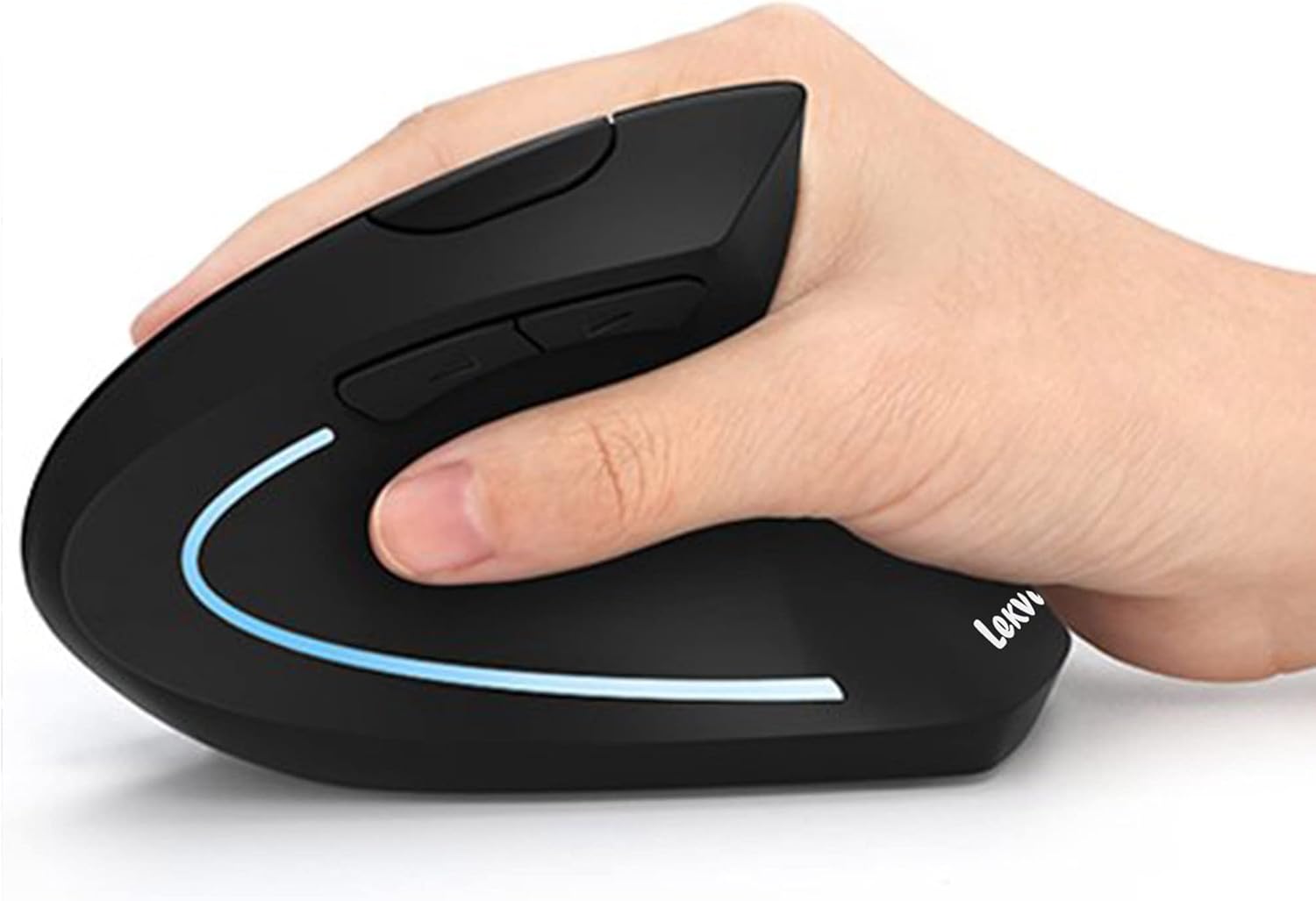
The ergonomic design allows for a natural, comfortable grip, reducing wrist strain.

Visual comparison highlighting the benefits of the vertical ergonomic design over traditional mice for wrist health.
2. Садржај пакета
- 1 x Lekvey Rechargeable Wireless Ergonomic Mouse
- 1 к 2.4Г УСБ рисивер
- 1 x USB A to USB C Charging Cable (150cm)
- 1 к Упутство за употребу
3. Водич за подешавање
3.1 Повезивање USB пријемника
- Пронађите УСБ пријемник који се налази у одељку на дну миша.
- Извадите УСБ пријемник из његовог слота за складиштење.
- Plug the USB receiver into an available USB port on your computer (Laptop, PC, Desktop).
- Укључите миш помоћу прекидача за укључивање/искључивање који се налази на дну миша.
- Your computer should automatically detect and install the necessary drivers. The mouse is plug-and-play.

The USB receiver is conveniently stored at the bottom of the mouse for easy access and portability.
3.2 Пуњење миша
The Lekvey Ergonomic Mouse features a built-in rechargeable battery, eliminating the need for disposable batteries.
- Connect the provided USB A to USB C charging cable to the charging port on the front of the mouse.
- Укључите други крај кабла у УСБ извор напајања (нпр. УСБ порт рачунара, УСБ адаптер за зид).
- The mouse will begin charging. A full charge provides approximately 150 hours of use.

Rechargeable battery for convenience and environmental friendliness.
4. Упутство за употребу
4.1 Функције дугмета
Your Lekvey Ergonomic Mouse is equipped with 6 buttons for enhanced functionality:
- Леви клик: Стандардна функција левог клика.
- Десни клик: Стандардна функција десног клика.
- Точак за померање: За вертикално скроловање.
- Дугме за прекидач DPI-ја: Located on top, allows adjustment of cursor sensitivity.
- Page Back Button: Located on the side, navigates back in web претраживачи или file истраживачи.
- Page Forward Button: Located on the side, navigates forward in web претраживачи или file истраживачи.

Easily switch DPI levels and navigate web pages with dedicated buttons.
4.2 Подешавање осетљивости DPI
The mouse offers three adjustable DPI (Dots Per Inch) levels: 800, 1200, and 1600. DPI determines the sensitivity of the mouse cursor. To change the DPI, press the DPI Switch Button located on the top of the mouse. Each press will cycle through the available DPI settings.
4.3 Компатибилност
The Lekvey Ergonomic Mouse is widely compatible with operating systems including Windows 2000, XP, Vista, 7, 8, 10, and Linux. Note: This mouse is not compatible with Mac OS or Apple Products for the side buttons functionality.
5. Одржавање
5.1 Чишћење
Да бисте одржали оптималне перформансе, редовно чистите миш. Користите меку, суву крпу за брисање површине. За тврдокорну прљавштину, благо дamp cloth can be used, but ensure no moisture enters the internal components. Avoid using harsh chemicals or abrasive cleaners.
5.2 Одржавање батерије
To prolong the life of the built-in rechargeable battery:
- Избегавајте често потпуно пражњење батерије.
- Пуните миш када индикатор батерије (ако постоји) показује да је батерија ниска.
- If storing the mouse for an extended period, charge it to about 50% before storage and recharge every few months.
КСНУМКС. Решавање проблема
If you encounter issues with your Lekvey Ergonomic Mouse, please refer to the following common solutions:
- Миш не реагује: Ensure the mouse is turned on using the On/Off switch at the bottom. Check if the USB receiver is securely plugged into a working USB port. Try plugging the receiver into a different USB port.
- Курсор је неправилан или се не креће глатко: Ensure the mouse is on a clean, flat surface. Check for any obstructions on the optical sensor at the bottom of the mouse. Try adjusting the DPI sensitivity.
- Lag or delayed response: Ensure the mouse is within the effective wireless range (up to 10 meters). Minimize interference from other 2.4GHz wireless devices.
- Проблеми са пуњењем: Ensure the charging cable is properly connected to both the mouse and the power source. Try a different USB port or power adapter.
- Side buttons not working (Mac OS): As noted in compatibility, the side buttons (Page Back/Forward) are not supported on Mac OS. This is expected behavior.
If these steps do not resolve your issue, please contact Lekvey customer support.
7. Спецификације
| Феатуре | Детаљ |
|---|---|
| Бранд | Леквеи |
| Број модела | 7Л-01 |
| Технологија повезивања | Wireless, 2.4 GHz USB |
| Технологија детекције покрета | Оптицал |
| ДПИ Левелс | 800 / 1200 / 1600 |
| Број дугмади | 6 |
| Извор напајања | Напаја се батеријама (1 литијум-полимерска батерија укључена) |
| Просечно трајање батерије | 150 сата |
| Тежина артикла | 3.36 унци |
| Димензије производа (ДкШкВ) | 4.6 к 2.7 к 3.9 инча |
| Боја | Црно |
| Хардверска платформа | Laptop, PC, Desktop |
| Компатибилност оперативног система | Windows 2000 / XP / 95 / 98 / Vista / 7 / 8 / 10 / 11 / Linux |
8. Гаранција и подршка
Lekvey provides a 24-месечна гаранција for this product (Replacement or Refund). For any inquiries, technical support, or warranty claims, please contact Lekvey customer service via email: Суппорт.Леквеи@фокмаил.цом.
Your satisfaction is our priority. We are committed to providing high-quality products and excellent customer service.
Ask a question about this manual
Ask about setup, troubleshooting, compatibility, parts, safety, or missing instructions. Manuals+ will review the question and use this page’s manual context to help answer it.