
Увод
The Plugable UD-3900H USB 3.0 Universal Docking Station offers flexible expandability for both modern and legacy laptops. This DisplayLink-powered docking station provides 12 port expansion, including dual video outputs, Gigabit Ethernet, audio, and six USB ports. It is designed for broad compatibility across Windows, macOS, and ChromeOS environments, making it ideal for mixed laptop setups in home offices, corporate environments, and educational settings.
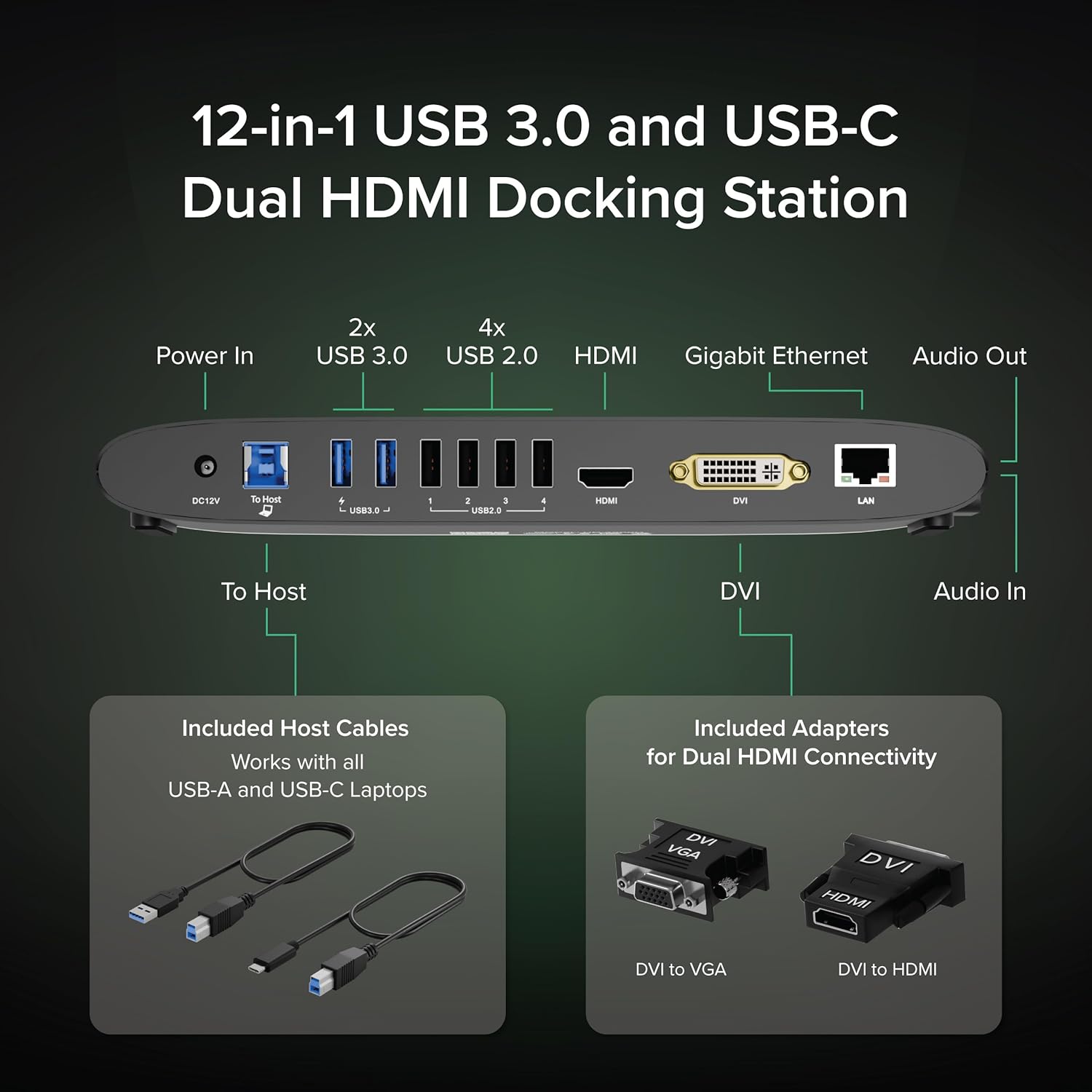
Image: The Plugable UD-3900H docking station, showcasinг његов компактан дизајн и вишеструке могућности повезивања.
Сетуп
1. Шта је у кутији
Your Plugable UD-3900H package includes the following items:
- Plugable UD-3900H Docking Station
- Power Adapter (UL Listed)
- USB-B to USB-C Cable
- USB-B на USB-A кабл
- DVI to HDMI Adapter
- DVI to VGA Adapter
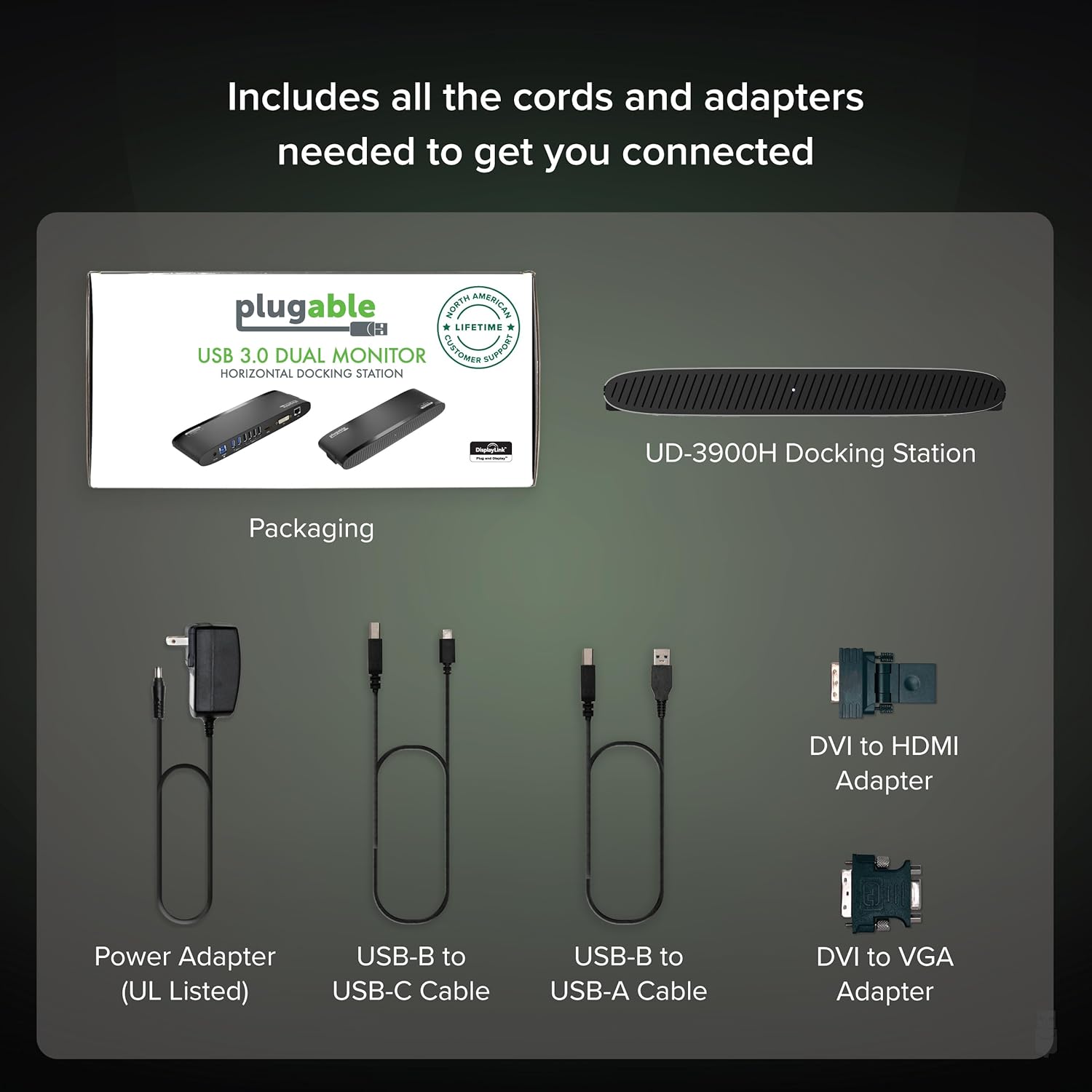
Image: All included components of the Plugable UD-3900H docking station: the unit, power adapter, USB cables, and DVI adapters.
2. Connecting the Dock
- Прикључите напајање: Plug the included power adapter into the DC 12V port on the back of the docking station, then plug it into a wall outlet.
- Повежите се са хост лаптопом: Use either the USB-B to USB-C cable or the USB-B to USB-A cable to connect the docking station to your laptop's available USB port.
- Повежите екране:
- For the first display, use an HDMI cable to connect your monitor to the HDMI port on the docking station.
- For the second display, use the DVI port. You can connect a DVI monitor directly, or use the included DVI to HDMI adapter for an HDMI monitor, or the DVI to VGA adapter for a VGA monitor.
- Повежите периферне уређаје: Plug your USB devices (keyboard, mouse, printer, etc.) into the available USB 3.0 or USB 2.0 ports. Connect your Ethernet cable to the LAN port for a wired network connection. Connect headphones/speakers to the audio out port and a microphone to the audio in port.
Слика: Детаљна view of the rear ports on the UD-3900H, including power, host connection, USB 3.0, USB 2.0, HDMI, DVI, and LAN.
3. Инсталација драјвера
The Plugable UD-3900H utilizes DisplayLink technology for video output. Drivers are essential for proper functionality.
- Виндовс: Drivers are typically installed automatically via Windows Update when the dock is first connected to an internet-enabled system. If not, or for corporate deployments, manual installation is available.
- мацОС: Manual driver installation is required. Download the DisplayLink Manager App from the Plugable website. Follow the on-screen instructions, including granting 'Screen Recording' permission in System Settings for display functionality.
- Цһроме ОС: No driver installation is typically needed.

Image: Step-by-step guide for installing the DisplayLink driver on macOS, highlighting the necessary security permissions.
Video: A Plugable Technologies video demonstrating how to install the DisplayLink Manager App, particularly useful if displays are not working.
Упутство за употребу
1. Конфигурација екрана
The UD-3900H supports dual external displays up to 1920x1200 @ 60Hz. This includes systems like Apple M1, M2, M3, M4, or M5, which natively support only one external display.
- Примарни екран: Connects via the HDMI port.
- Секундарни екран: Connects via the DVI port, which can be adapted to HDMI or VGA using the included adapters.
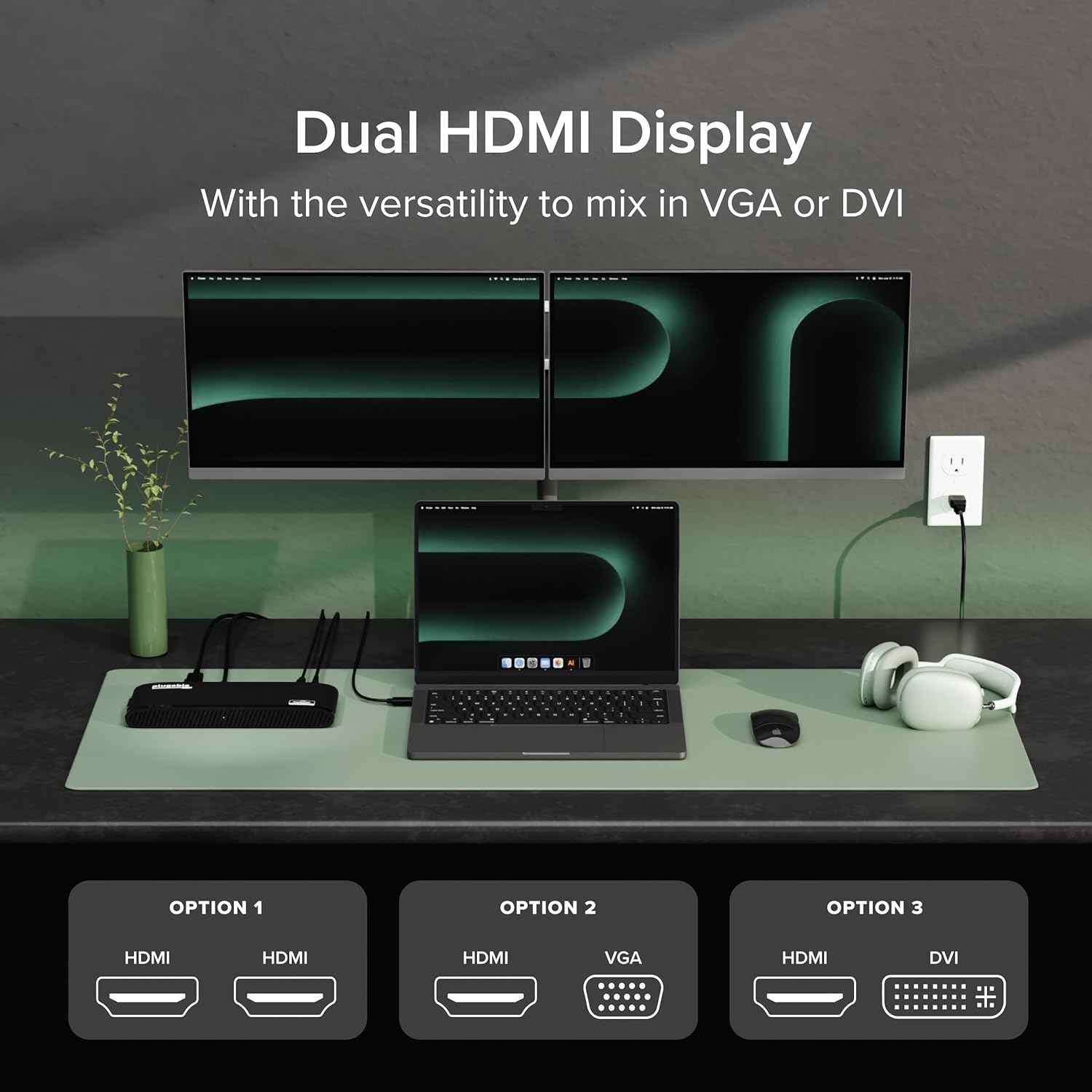
Image: A laptop connected to two external monitors, demonstrating the dual display capability of the docking station.

Image: Visual representation of the flexible dual display options, including HDMI, DVI, and VGA connections with adapters.
2. УСБ портови
The docking station provides a total of six USB ports:
- 2x USB 3.0 порта: For high-speed data transfer and charging compatible devices.
- 4x USB 2.0 порта: Ideal for connecting keyboards, mice, and other standard peripherals.
3. Network and Audio
- Гигабит Етхернет: Provides a stable and fast wired network connection, superior to Wi-Fi for critical tasks.
- Аудио улаз/излаз: Dedicated 3.5mm jacks for connecting headphones/speakers and a microphone.
4. Универзална компатибилност
The UD-3900H is compatible with a wide range of operating systems and laptop types:
- Виндовс: 7 до 11.
- мацОС: 10.14+ (Mojave and later), including Apple Silicon M1, M2, M3, M4, and M5 systems.
- Цһроме ОС: 100.к или новији.

Image: Icons representing Windows, macOS, and ChromeOS, indicating the broad operating system compatibility of the docking station.
Одржавање
To ensure the longevity and optimal performance of your Plugable UD-3900H docking station, follow these maintenance guidelines:
- Чишћење: Use a soft, dry, lint-free cloth to gently wipe the exterior of the docking station. Avoid using liquid cleaners, aerosols, or solvents.
- вентилација: Ensure the docking station is placed in a well-ventilated area to prevent overheating. Do not block the ventilation grilles.
- Складиштење: Када се не користи дуже време, чувајте докинг станицу на хладном и сувом месту, даље од директне сунчеве светлости и екстремних температура.
- Управљање кабловима: Avoid excessive bending or tugging on connected cables to prevent damage to the ports and cables themselves.
Решавање проблема
Ево решења за уобичајене проблеме на које можете наићи:
- Displays Not Working:
- Ensure all display cables are securely connected to both the docking station and your monitors.
- Verify that the DisplayLink drivers are correctly installed. For macOS, this often requires manual installation and granting 'Screen Recording' permissions. Refer to the 'Driver Installation' section.
- Try restarting your computer and the docking station.
Video: A Plugable Technologies video demonstrating how to install the DisplayLink Manager App, particularly useful if displays are not working.
- No Laptop Charging: This docking station does not provide power delivery to charge your laptop. Your laptop will require its own power adapter connected directly.
- Intermittent USB Device Connection: Ensure the USB cable connecting the dock to your laptop is secure. Try connecting the device to a different USB port on the dock.
- Проблеми са мрежном повезивањем: Check the Ethernet cable connection. Ensure your router/modem is functioning correctly.
- Проблеми са звуком: Verify that your audio devices are correctly plugged into the audio jacks. Check your computer's sound settings to ensure the DisplayLink audio output is selected.

Image: A visual reminder that the Plugable UD-3900H docking station does not provide laptop charging.
Спецификације
| Бранд | Плугабле |
| Број модела | UD-3900H |
| Компатибилност оперативног система | Chrome OS, Windows 10, Windows 11, Windows 8.1, macOS 10.14 Mojave+ |
| Тежина артикла | 11.4 унци |
| Димензије производа (ДкШкВ) | 9.4" x 3.1" x 1.2" (23.88 x 7.87 x 3.05 цм) |
| Боја | Црно |
| Хардверски интерфејс | УСБ тип Ц, УСБ 3.0 |
| Укупно УСБ портова | 6 (2x USB 3.0, 4x USB 2.0) |
| Видео Оутпут | Dual HDMI (up to 1920x1200 @ 60Hz), DVI (with HDMI/VGA adapters) |
| Етхернет | Gigabit Ethernet (LAN) |
| Аудио | 3.5mm Audio In (Microphone), 3.5mm Audio Out (Headphones/Speakers) |
| Ватtage | 24В |
Гаранција и подршка
The Plugable UD-3900H is designed for reliability and comes with comprehensive support:
- Доживотна подршка: Includes lifetime support from Plugable's North American team of connectivity experts.
- Двогодишње покриће: Backed by a 2-year warranty, certified to exceed industry standards.
For further assistance, please visit the official Plugable webсајт или директно контактирајте њихов тим за подршку.