
1. Производ је готовview
The Maxwest Nitro 5N is an Android 7.0 smartphone designed for reliable communication and multimedia use. It features a 5-inch display, a Quad Core processor, and dual SIM capability, making it suitable for various global GSM networks.

Слика 1.1: Предња и задња страна view of the Maxwest Nitro 5N smartphone, showcasing its sleek black design and display.
2. Шта је у кутији
Upon opening your Maxwest Nitro 5N package, please ensure all the following items are present:
- Maxwest Nitro 5N Smartphone
- Батерија (2000 mAh)
- Адаптер за пуњач
- УСБ кабл
- Protective Case Cover
3. Почетно подешавање
3.1. Уметање SIM картице(а) и батерије
- Искључивање: Ensure your Maxwest Nitro 5N is powered off before proceeding.
- Уклоните задњи поклопац: Пажљиво уклоните задњу маску телефона.
- Уметните SIM картицу(е): Locate the SIM card slots. This device supports dual SIM cards. Insert your GSM SIM card(s) into the designated slots with the gold contacts facing down. Ensure they are securely seated.
- Уметните батерију: Place the 2000 mAh battery into its compartment, aligning the gold contacts on the battery with those in the phone.
- Замена задњег поклопца: Carefully reattach the back cover until it clicks into place.
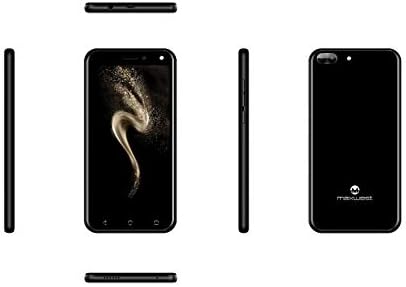
Слика 3.1: Бочна страна views of the Maxwest Nitro 5N, illustrating the location of buttons and ports for SIM/battery access.
3.2. Укључивање и почетна конфигурација
- Укључено: Press and hold the Power button (usually on the side) until the Maxwest logo appears.
- Избор језика: Пратите упутства на екрану да бисте изабрали жељени језик.
- Ви-Фи веза: Повежите се на Wi-Fi мрежу да бисте завршили процес подешавања и преузели потребна ажурирања.
- Гоогле налог: Пријавите се помоћу свог Google налога или креирајте нови. Ово је неопходно за приступ Google Play продавници и другим Google услугама.
- Датум и време: Подесите тачан датум и време или дозволите мрежи да их аутоматски подеси.
- безбедност: Configure screen lock options such as PIN, pattern, or password for device security.
Важна напомена: This device is designed to work with GSM carriers such as AT&T, T-Mobile, and Metro PCS. It will NOT work with CDMA carriers like Verizon, Sprint, or Boost Mobile.
4. Operating Your Maxwest Nitro 5N
4.1. Основна навигација
- екран осетљив на додир: Interact with the device by tapping, swiping, pinching, and spreading on the 5-inch LCD display.
- Почетни екран: Централно место за ваше апликације и виџете. Превуците прстом лево или десно да бисте приступили додатним екранима.
- Табла са обавештењима: Превуците прстом надоле од врха екрана да бисте приступили обавештењима и брзим подешавањима.
- Дугмад за навигацију: Use the on-screen navigation buttons (Back, Home, Recent Apps) at the bottom of the display.
4.2. Обављање позива и слање порука
- Телефонска апликација: Tap the Phone icon to access the dialer, call logs, and contacts.
- Апликација за поруке: Tap the Messages icon to send and receive SMS/MMS messages.
4.3. Употреба камере
Your Nitro 5N is equipped with 5MP front and rear cameras.
- Отвори камеру: Додирните икону камере на почетном екрану или у фиоци апликација.
- Замени камере: Додирните икону прекидача камере да бисте пребацивали између предње и задње камере.
- Снимите фотографију/видео: Додирните дугме затварача да бисте снимили фотографију или покренули/зауставили снимање видеа.
4.4. Screen Pinning Feature
Screen Pinning allows you to lock your phone to a single application, preventing others from accessing other apps or settings. This is useful when sharing your phone temporarily.
- Enable Screen Pinning: Иди на Settings > Security > Screen pinning и укључите га.
- Pin an App: Open the app you wish to pin. Tap the Recent Apps button (square icon). Swipe up on the app's preview and tap the pin icon.
- Unpin an App: To unpin, simultaneously press and hold the Back and Recent Apps buttons. You may need to enter your PIN/pattern/password if required by your security settings.
5. Одржавање и њега
5.1. Брига о батерији
- Пуњење: Use only the provided charger and USB cable. Avoid overcharging by disconnecting the charger once the battery is full.
- температура: Avoid exposing the phone to extreme temperatures, as this can degrade battery life.
- Складиштење: If storing the phone for an extended period, ensure the battery is partially charged (around 50%).
5.2. Чишћење уређаја
- Екран: Користите меку крпу која не оставља влакна, благо навлаженуampened with water or a screen cleaner, to gently wipe the display.
- Тело: Use a soft, dry cloth to clean the phone's body. Avoid harsh chemicals or abrasive materials.
5.3. Ажурирања софтвера
Periodically check for system updates to ensure optimal performance and security. Go to Подешавања > О телефону > Ажурирања система да провери и инсталира доступна ажурирања.
6. Решавање уобичајених проблема
| Проблем | Могуће решење |
|---|---|
| Телефон се не укључује. | Уверите се да је батерија правилно уметнута и напуњена. Прикључите пуњач и покушајте поново. |
| Нема мрежног сигнала. | Verify SIM card insertion. Check if you are within network coverage. Ensure your carrier is GSM compatible (e.g., AT&T, T-Mobile). Restart the phone. |
| Апликације су споре или се руше. | Затворите апликације у позадини. Обришите кеш апликације (Подешавања > Апликације > [Назив апликације] > Меморија > Обриши кеш). Restart the phone. Ensure sufficient storage space. |
| Батерија се брзо празни. | Reduce screen brightness. Disable Wi-Fi, Bluetooth, and GPS when not in use. Close unnecessary background apps. Check battery usage in settings to identify power-hungry apps. |
| Повезивање на Ви-Фи није могуће. | Уверите се да је Wi-Fi омогућен. Рестартујте рутер и телефон. Заборавите мрежу и поново се повежите. |
7. Спецификације производа
| Феатуре | Детаљ |
|---|---|
| Назив модела | Nitro 5N |
| Оперативни систем | Андроид 7.0 |
| Процесор | Quad Core 1.2 GHz (1.2GHz Cortex A9 Processor) |
| РАМ | 1 ГБ |
| Интерна меморија | 8 GB (approximately 5.6 GB user available) |
| Дисплаи | 5.0 inch LCD, 480 x 854 pixels, 2.5D TP |
| Задња камера | 5 МП |
| Предња камера | 5 МП |
| Капацитет батерије | 2000 мАх литијум-јонски |
| Компатибилност са мрежом | 3G H+ 850/1900/2100 MHz, 2G: 850/900/1800/1900 MHz (GSM Carriers only) |
| Повезивање | USB, Cellular, GPS, Wi-Fi, Bluetooth (Wireless) |
| Аудио Јацк | 3.5 мм |
| Димензије (Д к Ш к В) | 5.73 к 2.83 к 0.38 инча |
| Тежина | 5.4 унце (153 грама) |
| Боја | Црно |
8. Информације о гаранцији
The Maxwest Nitro 5N comes with a one-year parts and labor warranty from the date of purchase. This warranty covers manufacturing defects and workmanship under normal use. It does not cover damage caused by misuse, accidents, unauthorized repairs, or normal wear and tear.
Сачувајте доказ о куповини за гаранцијске захтеве.
9. Корисничка подршка
For technical assistance, troubleshooting beyond this manual, or warranty inquiries, please contact Maxwest customer support. Refer to the contact information provided with your product packaging or visit the official Maxwest webсајт за најновије информације о подршци.
When contacting support, please have your product model (Nitro 5N) and proof of purchase readily available.