
1. Увод
This manual provides essential instructions for the proper setup, operation, and maintenance of your QGeeM HDMI to DisplayPort Converter Adapter. Please read this manual thoroughly before using the product to ensure optimal performance and to prevent damage.
2. Производ је готовview
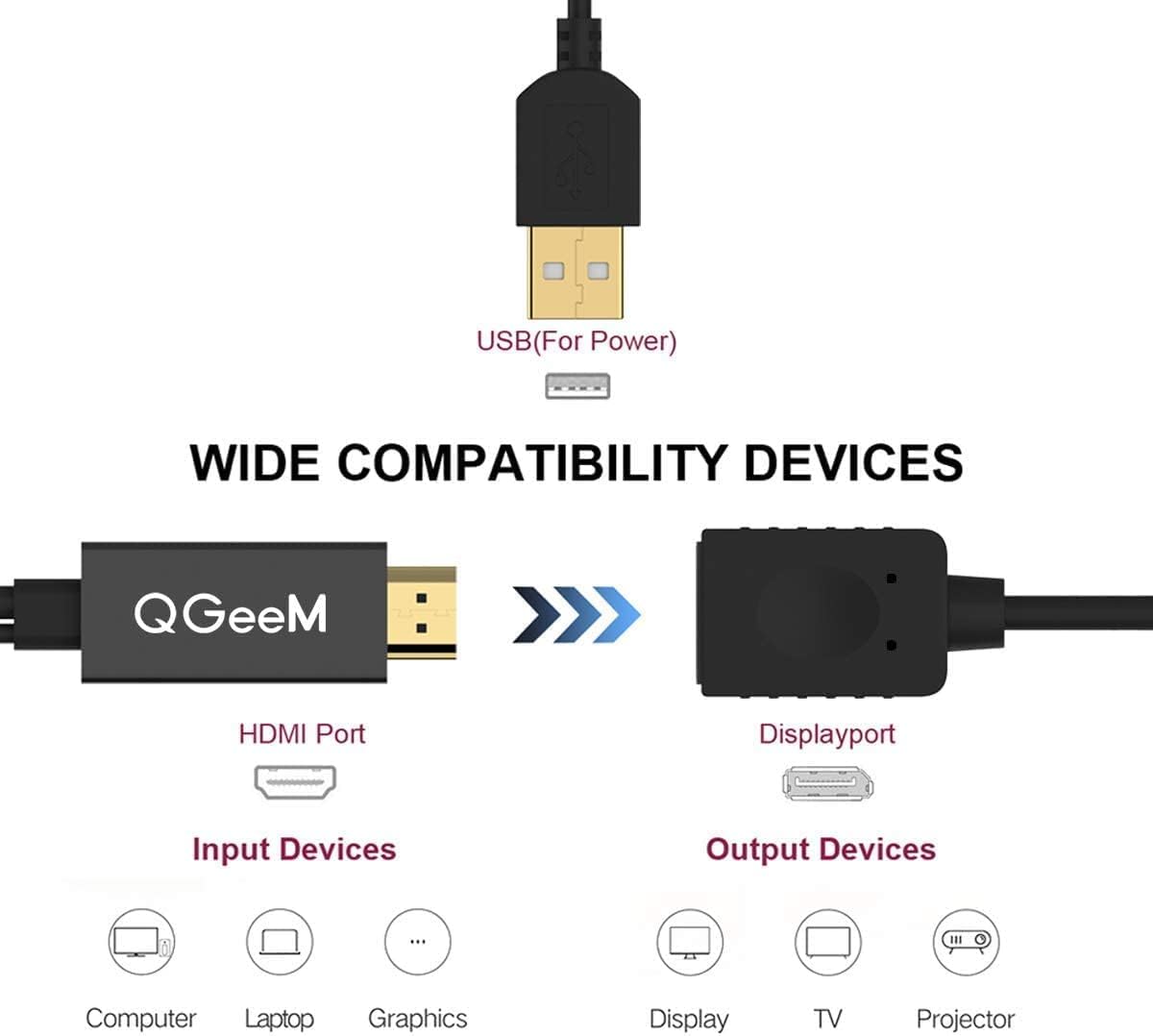
The QGeeM HDMI to DisplayPort Converter Adapter allows you to connect an HDMI-enabled source device to a DisplayPort monitor or display. It supports resolutions up to 4K x 2K and requires USB power for operation.
Кључне карактеристике:
- Високе перформансе: Connects HDMI-enabled devices (ultrabooks, laptops, desktops, Raspberry Pi 3 Model B) to DisplayPort monitors/displays.
- Плуг & Плаи: No driver or software installation required.
- УСБ напаја: Requires connection to a USB port for optimal performance and compatibility.
- Поуздана веза: Features quad-shielded cable with PVC jacket for maximum video performance and signal loss prevention. Supports HDCP (High-bandwidth Digital Content Protection).
- Једносмерно: This adapter converts HDMI to DisplayPort only. It is не bi-directional and cannot convert DisplayPort to HDMI.
Садржај пакета:
- 1 x QGeeM HDMI to DisplayPort Converter Adapter with USB Power

3. Упутства за подешавање
Follow these steps to connect your QGeeM HDMI to DisplayPort Converter Adapter:
- Идентификујте портове: Locate an available HDMI output port on your source device (e.g., laptop, desktop) and an available DisplayPort input on your monitor or display. Also, identify an available USB port on your source device or a USB power adapter.
- Повежите ХДМИ: Plug the HDMI connector of the QGeeM adapter into the HDMI output port of your source device.
- Повежите DisplayPort: Connect a DisplayPort cable (not included) from your monitor's DisplayPort input to the DisplayPort receptacle on the QGeeM adapter.
- Повежите УСБ напајање: Plug the USB connector of the QGeeM adapter into an available USB port on your source device or a USB power adapter. This step is crucial for the adapter's functionality and stable signal transmission.
- Уређаји за укључење: Ensure both your source device and monitor are powered on.
- Изаберите унос: On your monitor, select the correct DisplayPort input source.
Важна напомена: This adapter is designed for HDMI to DisplayPort conversion only. It will NOT work for DisplayPort to HDMI conversion.


4. Упутство за употребу
Once connected, your system should automatically detect the external display. You can configure the display settings through your operating system.
Режими приказа:
- Режим огледала (дупликат): The external display shows the same content as your primary screen. This is useful for presentations or sharing content on a larger screen.
- Проширени режим: The external display acts as an extension of your primary screen, providing more desktop space. This allows you to multitask by having different applications open on each screen.
To switch between display modes, access your operating system's display settings (e.g., Windows Display Settings, macOS System Preferences > Displays).

КСНУМКС. Решавање проблема
If you encounter issues, please refer to the following common solutions:
- Нема сигнала на екрану:
- Ensure the USB power cable is securely connected to a functioning USB port. The adapter requires external power.
- Verify that all HDMI and DisplayPort connections are firm and correctly seated.
- Confirm your monitor is set to the correct DisplayPort input source.
- Test with a different HDMI cable or DisplayPort cable if available.
- Restart your source device and monitor.
- Треперење или нестабилна слика:
- Ensure the USB power cable is providing sufficient power. Try a different USB port or power adapter.
- Проверите да ли су каблови лабави.
- Reduce the display resolution or refresh rate in your operating system's display settings to see if stability improves.
- Адаптер не ради:
- Confirm that you are converting from HDMI to DisplayPort, not the other way around. This adapter is unidirectional.
- Ensure your source device's HDMI output is active.
- Test the adapter with another compatible source device and display if possible.

6. Спецификације
| Бранд | КГееМ |
| Број модела | 4336291398 |
| Тип конектора | HDMI Input, DisplayPort Output, USB Power |
| Компатибилни уређаји | Monitor, PC, Laptop, Raspberry Pi 3 Model B |
| Боја | Црно |
| Извор напајања | УСБ Поверед |
| Усклађеност | VESA Dual-Mode DisplayPort 1.2, HDMI 1.4, HDCP, FCC, CE, RoHS |
7. Информације о гаранцији
This QGeeM product comes with a 3-месечна гаранција from the date of purchase. This warranty covers manufacturing defects under normal use. Please retain your proof of purchase for warranty claims. The warranty does not cover damage caused by misuse, accidents, unauthorized modifications, or improper installation.
8. Подршка
For further assistance or if you encounter issues not covered in this manual, please refer to the QGeeM official website or contact their customer support. Ensure you have your product model number (4336291398) and purchase details ready when seeking support.