
brennan B22TB2018
Упутство за употребу HiFi система Brennan B2
Model: B22TB2018
Марка: Бренан
Увод
The Brennan B2 is a versatile HiFi system designed for ripping, storing, and playing your music collection. It features a built-in CD ripper, a large hard disk for storage, and a stereo power amplifier. The B2 supports various audio formats including WAV, Lossless (FLAC), and MP3, and offers connectivity options such as Sonos, Bluetooth, Spotify, YouTube, and Internet Radio.
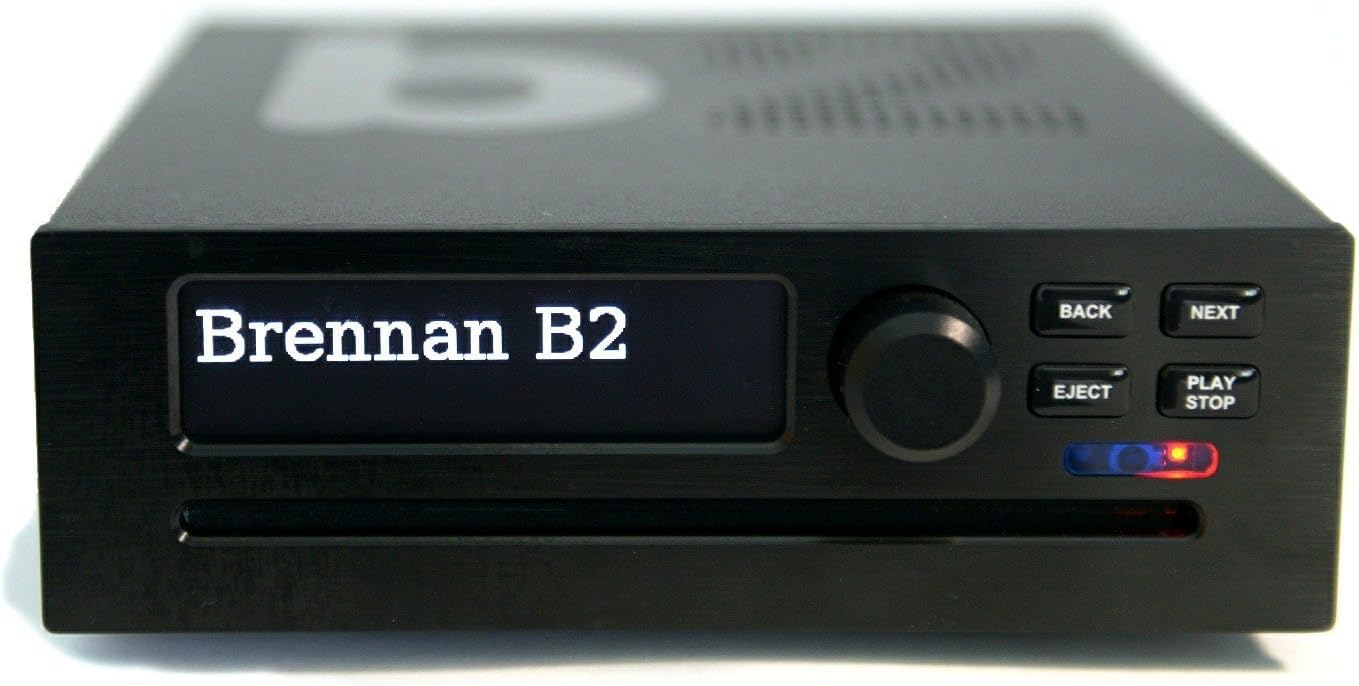
Слика: Фронт view of the Brennan B2, showing the display, control knob, and buttons.
Водич за подешавање
1. Распакивање и садржај пакета
Carefully unpack your Brennan B2 system. Ensure all components are present:
- Brennan B2 Unit (with integrated CD Player and Hard Disk)
- Повер Цорд
- Кориснички приручник (овај документ)
- Wi-Fi USB Dongle (typically pre-installed or included)
2. Физичке везе
Before powering on, connect the necessary cables to the rear panel of the B2. Refer to the diagram below for port identification.

Image: Rear panel of the Brennan B2, detailing the power switch, 24V DC input, Micro USB, USB A, HDMI, Right/Left audio outputs, USB C, Line Out + SPDIF, AUX In, and Ethernet cable port.
- Прикључак за напајање: Connect the supplied power cord to the 24V DC input port. Ensure the power switch is in the 'Off' position before connecting.
- Аудио излаз:
- Analog Audio (RCA): Connect the Right (Red) and Left (White) RCA outputs to your ampлифиер или активни звучници.
- Digital Audio (SPDIF/Optical): Use the 'Line Out + SPDIF' port for digital audio output to a compatible receiver or DAC.
- USB Ports (USB A & USB C): These ports can be used for external storage, Wi-Fi dongles, or other USB accessories. The Wi-Fi dongle is typically connected to one of these.
- ДВИ: For connecting to a display for visual interface (optional).
- Етхернет: For a wired network connection, which can provide a more stable connection than Wi-Fi.
- АУКС улаз: For connecting external audio sources to the B2.
3. Почетно укључивање и подешавање мреже
After making all physical connections:
- Flip the 'Power On/Off' switch on the rear panel to 'On'.
- The B2 display will power on. Follow the on-screen prompts for initial setup.
- Ви-Фи веза: If using Wi-Fi, navigate to the network settings. The B2's Wi-Fi dongle primarily supports 2.4 GHz networks. If you encounter "NO NETWORK" issues, temporarily disable the 5.0 GHz band on your router during the initial connection process, then re-enable it once the B2 is connected.
- Once connected to the network, the B2 will display its IP address. This IP address is crucial for accessing the web user interface from a computer or mobile device.
Упутство за употребу
1. Основне контроле
The front panel features a display, a rotary knob, and several buttons:
- Окретно дугме: Used for navigating menus and adjusting volume.
- Назад дугме: Враћа се на претходни мени или екран.
- Дугме НЕКСТ: Advances to the next item or confirms selection.
- EJECT Button: Ejects a CD from the drive.
- ПЛАИ/СТОП дугме: Starts or stops playback.
2. CD Ripping
The B2 allows you to rip your CD collection directly to its internal hard drive.

Image: Brennan B2 with a CD on top, illustrating the CD ripping function.
- Insert a CD into the slot-loading drive.
- The B2 will attempt to identify the CD using its internal database.
- You will be prompted to select ripping options (e.g., FLAC, MP3, or both). FLAC offers lossless quality, while MP3 provides smaller file величине.
- The ripping process will begin automatically. Once complete, the CD will eject.
- For CDs not found in the database, the B2 will assign a numerical ID. You can later edit metadata (artist, album, track names) via the web интерфејс.
Note: Ripping multiple CDs consecutively is possible, but compression (especially for MP3) can take time. The B2 pauses compression during playback and resumes when idle.
3. Music Playback and Navigation
You can browse and play music stored on the B2's hard drive or from connected USB devices.

Image: The Brennan B2 display showing the "Browse Albums" menu, indicating music library navigation.
- Use the rotary knob to scroll through artists, albums, or tracks on the B2's display.
- Press the knob or NEXT button to select an item.
- Press PLAY/STOP to begin playback.
- The B2 supports creating playlists for customized listening experiences.
4. Internet Radio and Streaming Services
The B2 provides access to a vast array of Internet Radio stations and integrates with popular streaming services.

Image: The Brennan B2 displaying "BBC Radio Two", indicating active internet radio playback.
- Navigate to the 'Internet Radio' menu to browse and select stations.
- The B2 supports integration with services like Spotify and YouTube for expanded music and video content.
- Sonos Integration: The B2 can stream its stored music library to Sonos speakers, allowing you to enjoy your ripped CDs throughout your Sonos system.
5. Блуетоотх повезивање
Connect Bluetooth-enabled devices to the B2 for wireless audio playback.
- Омогућите Блуетоотх на свом спољном уређају (нпр. паметном телефону, таблету).
- On the B2, navigate to the Bluetooth settings and initiate pairing.
- Select the B2 from your device's Bluetooth list to establish a connection.
6. Коришћењем Web Interface and Mobile App
For comprehensive control and library management, access the B2 via its web интерфејс или наменска мобилна апликација.
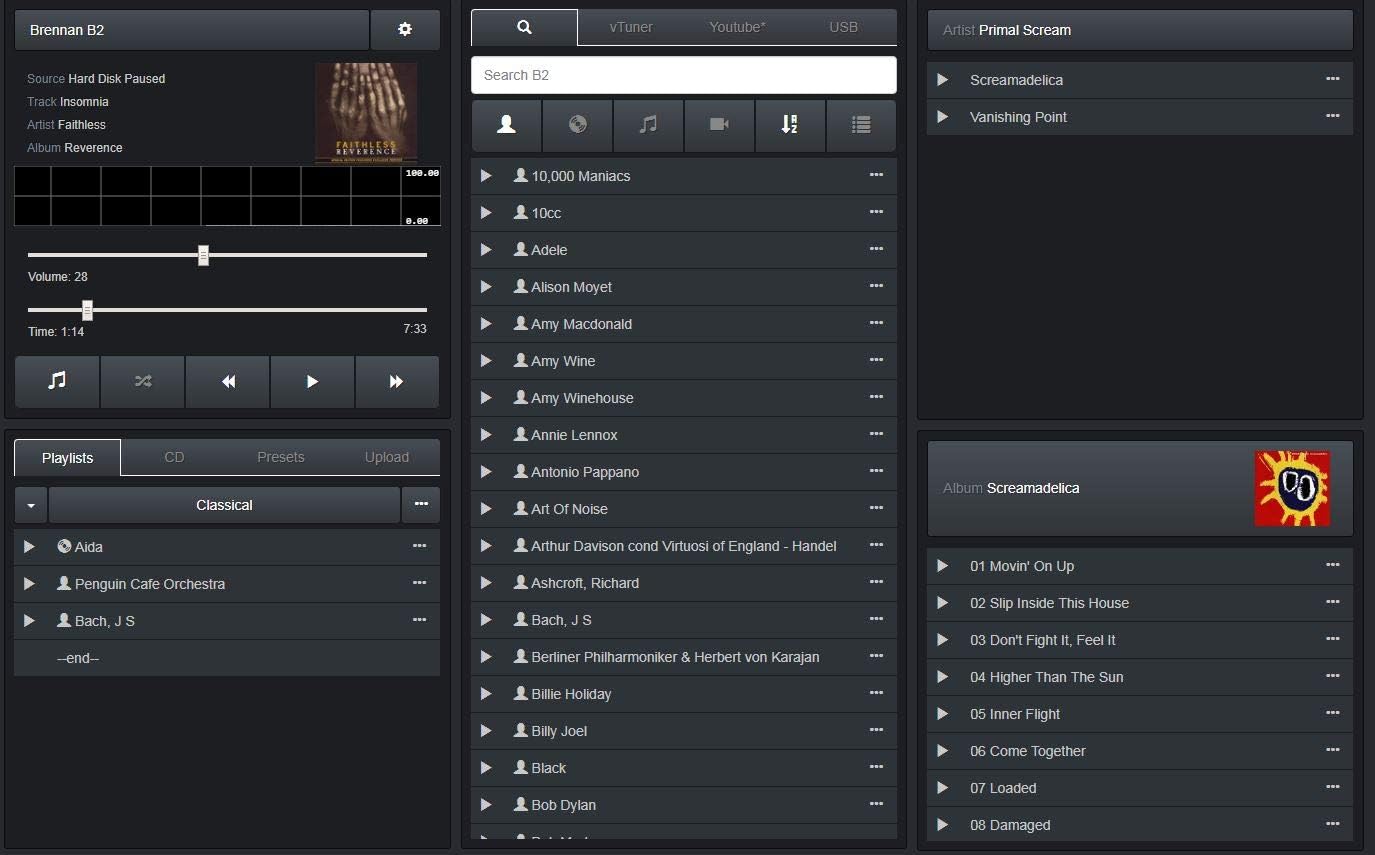
Image: Screenshot of the Brennan B2 web user interface, showing music library, playlists, and playback controls.
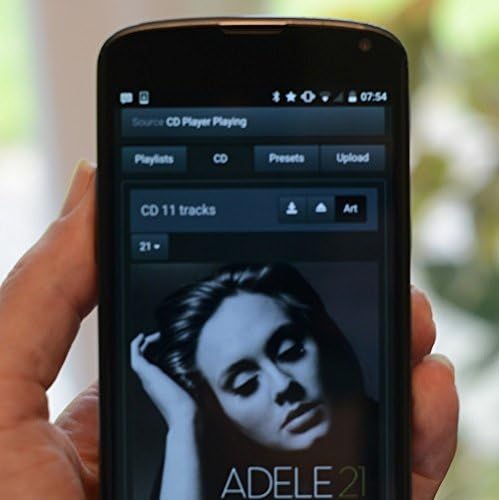
Image: A smartphone displaying the Brennan B2 mobile application, used for remote control and music selection.
- Web Интерфејс: Отвори а web browser on a computer or tablet and enter the B2's IP address (displayed on the B2's screen after network connection). This interface offers full control, including editing metadata for ripped CDs, managing playlists, and accessing advanced settings.
- Мобилна апликација: Download the official Brennan app from your device's app store. The app provides convenient remote control and browsing capabilities. If the app's direct album selection is clunky, try using the "Web UI" option within the app for a more consistent experience.
Одржавање
1. Ажурирања софтвера
Brennan regularly releases software updates to improve functionality and add new features. It is recommended to keep your B2's software up to date.
- Access the update function through the B2's menu or the web интерфејс.
- Обезбедите стабилну интернет везу током процеса ажурирања.
2. Резервна копија података
Regularly back up your music library to an external hard drive to prevent data loss.
- Connect an external USB hard drive to one of the B2's USB ports.
- Navigate to the backup options in the B2's menu or web интерфејс.
- You can back up your entire FLAC library. For MP3 backups, you may need to create a playlist containing all desired MP3s and then export that playlist to a USB drive.
3. Чишћење
To maintain the appearance and functionality of your B2:
- Користите меку, суву крпу за брисање спољашњости.
- Избегавајте употребу течних средстава за чишћење или абразивних материјала.
- Пре чишћења уверите се да је уређај искључен из струје и да је искључен из струје.
Решавање проблема
| Проблем | Могући узрок | Решење |
|---|---|---|
| "NO NETWORK" error during Wi-Fi setup | Router broadcasting on 5.0 GHz band, which the B2's Wi-Fi dongle may not support during initial connection. | Temporarily disable the 5.0 GHz band on your router. Connect the B2 to the 2.4 GHz network. Once connected, you can re-enable the 5.0 GHz band. |
| CD not identified / Metadata missing | CD not in the B2's internal database or online lookup failed. | Rip the CD, then use the web interface to manually edit the album, artist, and track information. |
| Unit freezes or becomes unresponsive (especially when touched) | Static electricity discharge. | Ensure proper grounding of your audio setup. Ground yourself before touching the unit, especially in dry environments. |
| Споро file transfer via Wi-Fi | Limitations of the Wi-Fi dongle or network congestion. | Use a wired Ethernet connection for faster and more reliable data transfer, especially for large backups or library management. |
| Mobile app issues / Clunky interface | App-specific bugs or user preference. | Try using the "Web UI" option within the mobile app, or access the B2's web interface directly from a browser on your mobile device or computer for a more robust experience. |
Спецификације
| Назив модела | B2 |
| Број модела ставке | B22TB2018 |
| Бранд | brennan |
| Боја | Црно |
| Технологија повезивања | Блуетоотх, ВиФи, Етхернет |
| Капацитет складиштења | 2TB Hard Disk Drive |
| Подржани аудио формати | WAV, Lossless (FLAC), MP3 |
| Укључене компоненте | CD Player, Power Cord, User Manual |
| Тежина артикла | 4.6 фунти |
| Димензије пакета | 10.79 к 8.7 к 7.24 инча |
| Датум првог доступног | 31. маја 2018. године |
Гаранција и подршка
For warranty information, technical support, or further assistance, please refer to the official Brennan website or contact Brennan customer service directly. Details regarding specific warranty periods and service procedures are typically provided with your purchase documentation or on the manufacturer's webсајту.
You can often find additional resources, FAQs, and community forums on the Brennan website to help with common queries and advanced usage.
Note: The manual provided with the unit may contain specific contact information.