
TOTU TT-HB001C
TOTU USB C Hub 9-in-1 Instruction Manual
Model: TT-HB001C
Увод
This manual provides detailed instructions for the setup, operation, maintenance, and troubleshooting of your TOTU 9-in-1 USB C Hub. Please read this manual thoroughly before using the product to ensure optimal performance and longevity.
Карактеристике производа
The TOTU 9-in-1 USB C Hub is designed to expand the connectivity of your USB-C enabled devices, offering a versatile solution for various peripherals.
- Multiport Connectivity: Includes 1 Ethernet/RJ-45 Port, 1 USB Type-C Female PD charging port, 1 HDMI port, 1 Card Reader for SD, 1 Card Reader for TF, 1 USB 2.0 Type-A port, and 2 USB 3.0 Type-A ports.
- Effortless Data Transfer: Connect smartphones, tablets, hard drives, or other USB peripherals via USB 3.0 Ports for high-speed data transfer (up to 5Gbps). The USB 2.0 port is ideal for low-rate devices like mice and keyboards.
- Dual Card Reading: Built-in SD/TF card reader allows simultaneous access to files from universal memory cards.
- Гигабит Етхернет: 1000Mbps Ethernet port ensures a stable and faster-wired network connection.
- Испорука енергије (ПД): Supports PD charging at a maximum of 87W, allowing you to securely charge your connected MacBook or other Type-C laptops through the hub.
- 4К ХДМИ излаз: Provides high-definition video output up to 4K resolution, perfect for connecting to external monitors, projectors, or HDTVs.
- Компактан и преносив: Lightweight and compact design makes it easy to carry for business travel and on-the-go use.

Слика 1: Завршеноview of the TOTU 9-in-1 USB C Hub and its various connectivity options.

Слика 2: Детаљно view of the hub's ports, including USB-C charging, HDMI, TF/SD card readers, Ethernet, USB 2.0, and USB 3.0 ports.

Figure 3: Illustration of the hub providing fast charging and 5Gbps data transfer to connected devices.

Figure 4: The hub enabling 4K HD video output from a laptop to a larger display, such as a monitor, projector, or HDTV.

Figure 5: The hub's USB 3.0 and USB 2.0 ports supporting various high-speed and low-speed devices like thumb drives, keyboards, mice, and phones.

Figure 6: The hub providing instant and stable wired internet access up to 1 Gbps via its Ethernet port.

Figure 7: The non-slip, compact design of the hub, making it an ideal accessory for MacBook Pro and similar devices.
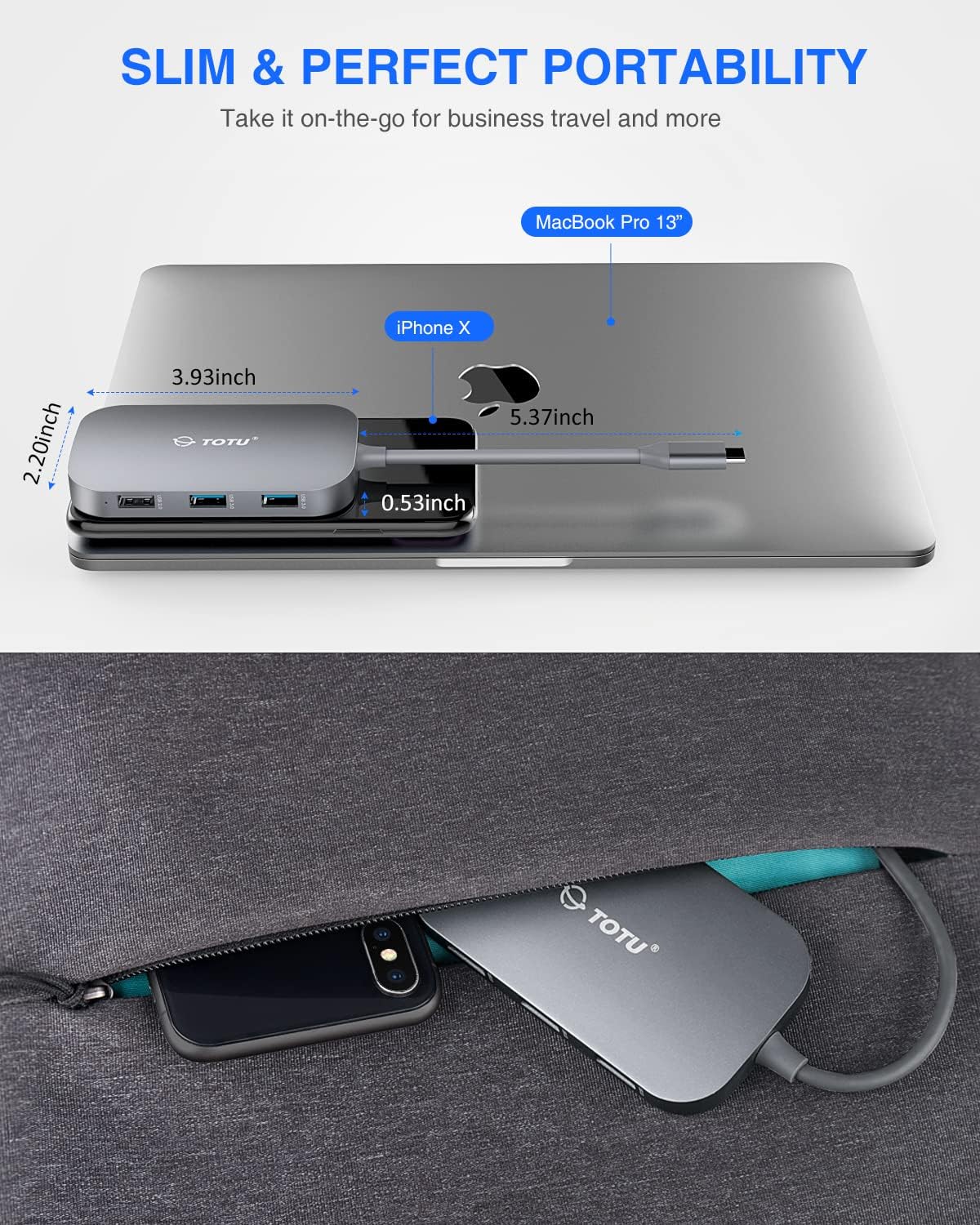
Figure 8: The slim and portable nature of the hub, demonstrating its ease of transport for business or travel.
Садржај пакета
Молимо вас да проверите да ли су све ставке присутне у вашем пакету:
- 1 x TOTU USB C Hub
- 1 к Упутство за употребу
Сетуп
- Провера компатибилности: Ensure your device's USB-C port supports DisplayPort Alt Mode and Power Delivery. Refer to your device's specifications for compatibility.
- Повежите чвориште: Plug the USB-C connector of the TOTU hub into the USB-C port on your laptop or compatible device.
- Прикључак за напајање (опционо): If your laptop requires charging or if you are connecting power-intensive peripherals, connect your laptop's original USB-C power adapter to the USB Type-C Female PD charging port on the hub.
- Повежите периферне уређаје: Connect your desired peripherals (e.g., HDMI monitor, Ethernet cable, USB drives, SD/TF cards, keyboard, mouse) to the corresponding ports on the hub.
- Инсталација драјвера: The hub is generally plug-and-play. For certain operating systems (e.g., Windows) or specific functions (e.g., Ethernet, SD card reader), manual driver installation might be required if not automatically recognized. Refer to the troubleshooting section if issues arise.
Упутство за употребу
Once the hub is connected, you can utilize its various ports:
- ХДМИ порт: Connect an HDMI cable from the hub to your external monitor, projector, or HDTV. Your device should automatically detect the external display. Adjust display settings (resolution, mirroring/extending) through your operating system's display preferences. Supports up to 4K resolution.
- Етернет порт (RJ-45): Connect an Ethernet cable from your router or modem to the RJ-45 port on the hub for a stable wired network connection. Ensure your device's network settings are configured for wired connection.
- USB 3.0 портови (2x): Use these ports for high-speed data transfer with USB 3.0 compatible devices such as external hard drives, SSDs, or high-speed flash drives. They are also backward compatible with USB 2.0/1.1 devices.
- USB 2.0 порт (1x): Ideal for connecting low-bandwidth devices like keyboards, mice, or printers to avoid interference with high-speed USB 3.0 devices.
- USB Type-C PD Charging Port: This port is for power input only. Connect your laptop's USB-C power adapter here to charge your laptop while using the hub. It supports up to 87W power delivery. This port does not support data transfer.
- Читачи SD/TF картица: Insert your SD or TF (microSD) cards into the respective slots. Both card slots can be used simultaneously for data access. Your device will recognize them as removable storage.
Одржавање
- Чишћење: Use a soft, dry cloth to clean the hub. Avoid using liquid cleaners or aerosols.
- Складиштење: Чвориште чувајте на хладном и сувом месту, даље од директне сунчеве светлости и екстремних температура.
- Руковање: Избегавајте испуштање чворишта или његово излагање јаким ударцима. Не покушавајте да растављате или модификујете уређај.
- Брига о лукама: Ensure connectors are inserted gently and correctly into the ports to prevent damage.
Решавање проблема
- Нема излаза за екран преко HDMI-ја:
- Ensure your device's USB-C port supports DisplayPort Alt Mode.
- Check the HDMI cable connection between the hub and the display.
- Verify the input source on your monitor is set to the correct HDMI port.
- Try a different HDMI cable or monitor.
- Поново покрените рачунар.
- Проблеми са етернет везом:
- Ensure the Ethernet cable is securely connected to both the hub and your router/modem.
- Check your computer's network settings to ensure the wired connection is enabled and configured correctly.
- If using Windows, and the Ethernet port is not recognized, you may need to manually install a generic Broadcom NetXtreme driver.
- Пробајте други Етернет кабл.
- USB уређаји нису препознати:
- Ensure the USB device is properly inserted into the hub's port.
- Try connecting the USB device to a different port on the hub or directly to your computer to rule out device issues.
- Some high-power USB devices may require external power if the hub's PD port is not connected to a power source.
- SD/TF Card Reader Not Working:
- Ensure the card is fully inserted into the correct slot.
- Try a different SD/TF card.
- On Windows, if the card reader is not recognized, try reinstalling the generic Microsoft driver and manually assigning a drive letter in Disk Management.
- Charging Issues (PD Port):
- Ensure your laptop's original USB-C power adapter is connected to the hub's PD port.
- Verify that your laptop supports USB-C Power Delivery.
- Note that the HDMI output may briefly interrupt (2-3 seconds) if external USB-C power is removed from the hub. This is normal behavior.
Спецификације
| Димензије производа | 3.93 к 2.2 к 0.53 инча |
| Тежина артикла | 2.4 унци |
| Број модела | ТТ-ХБ001Ц |
| Бранд | ТОТУ |
| Боја | Греи |
| Хардверски интерфејс | Ethernet, HDMI, USB, USB 2.0, USB 3.0 |
| Посебна карактеристика | Портабле |
| Повер Деливери | До 87В |
| Етхернет Спеед | 10/100/1000Мбпс |
| ХДМИ резолуција | До 4К |
Гаранција и подршка
For warranty information and technical support, please refer to the official TOTU webсајт или контактирајте њихову корисничку службу. Сачувајте рачун за куповину за потребе гаранције.
You can visit the TOTU Store for more information: TOTU Store on Amazon