
1. Производ је готовview
The CMTECK USB Conference Microphone (Model 7545900577) is a versatile desktop speakerphone designed for clear and efficient communication in various settings, including streaming, VoIP calls, Skype, interviews, and general chatting. It features 360° omnidirectional voice pickup and a built-in speaker, connecting to your computer via a single USB cable for plug-and-play convenience.
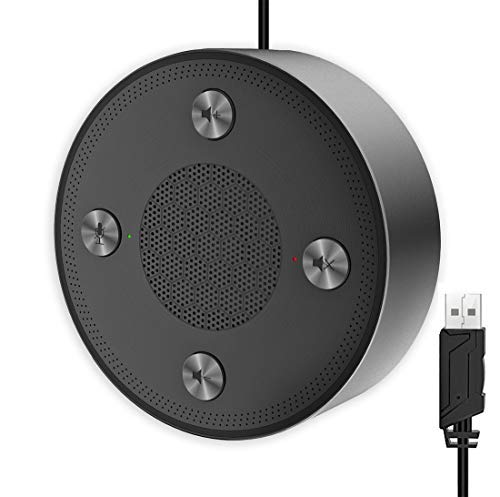
Figure 1: CMTECK USB Conference Microphone
2. Кључне карактеристике
- Врхунски квалитет звука: Incorporates CCS3.0 Sound Card noise-canceling technology to effectively block noise and eliminate echo, ensuring crystal clear sound pickup.
- 360° Omnidirectional Voice Pickup: Equipped with 4 high-sensitivity microphones, allowing for 360° voice pickup within a 4-meter (13-foot) range.
- One-Button Mute Function: Features an all-in-one control panel with quick mute buttons for both the microphone and speaker, and volume adjustment.
- ЛЕД индикатори: Built-in LED lights indicate the working status (green for active, red for mute).
- Повезивање „укључи и користи“: Connects to a computer via a USB cable without requiring driver installation. Compatible with Windows (7, 8, 10) and Mac OS. Note: Not compatible with Raspberry Pi/Android.
- Дизајн против клизања: Constructed with high-quality metal matte material for durability and resistance to abrasions and corrosion. Three anti-slip mats on the base provide stability.
- Преносиви дизајн: Compact and lightweight for effortless portability.
3. Водич за подешавање
- Повежите се са рачунаром: Plug the USB cable from the CMTECK Conference Microphone into an available USB port on your Windows or Mac computer.
- Аутоматска инсталација драјвера: The device is plug-and-play; your operating system should automatically detect and install the necessary drivers. No manual driver installation is required.
- Потврдите везу: Once connected, the LED indicator on the device should light up, typically green, indicating it is powered on and ready for use.
- Select as Audio Device: In your computer's sound settings or your conferencing software (e.g., Skype, Zoom), select the "CMTECK USB Microphone" as your input (microphone) device and "CMTECK USB Speaker" as your output (speaker) device.
- Оптимално постављање: For best 360° voice pickup during meetings, place the microphone in the center of your meeting area or table.
4. Упутство за употребу
The CMTECK USB Conference Microphone features intuitive controls located on its top surface.
- Искључивање микрофона: Press the dedicated microphone mute button (often indicated by a microphone icon) to toggle the microphone on or off. The LED indicator will change to red when muted and green when active.
- Искључивање звучника: Press the dedicated speaker mute button (often indicated by a speaker icon) to toggle the speaker on or off. The LED indicator will change to red when muted and green when active.
- Контрола јачине звука: Use the volume up (+) and volume down (-) buttons to adjust the speaker's output volume.
- Конференцијски позиви: Ensure the microphone and speaker are unmuted and the volume is set to an audible level. The omnidirectional pickup will capture voices from all directions around the device.
5. Одржавање
- Чишћење: Use a soft, dry cloth to clean the exterior of the device. Avoid using liquid cleaners or abrasive materials, which may damage the finish or internal components.
- Складиштење: Када није у употреби, чувајте микрофон на хладном и сувом месту даље од директне сунчеве светлости и екстремних температура.
- Нега каблова: Избегавајте прекомерно савијање или увијање USB кабла како бисте спречили унутрашња оштећења.
КСНУМКС. Решавање проблема
- Нема звука/микрофон не ради:
- Уверите се да је УСБ кабл безбедно повезан и са микрофоном и са рачунаром.
- Check your computer's sound settings to confirm the CMTECK device is selected as the default input and output.
- Verify that the microphone and speaker are not muted using the device's control buttons or your software settings.
- Покушајте да повежете уређај са другим УСБ портом на рачунару.
- Poor Audio Quality (Speaker):
- While the speaker is optimized for vocals, it may not provide the best range for music or complex audio. Adjust volume levels and consider its primary use for voice.
- Ensure the device is placed on a stable, flat surface to prevent vibrations.
- Poor Audio Quality (Microphone):
- Ensure the microphone is placed centrally in the meeting area.
- Минимизирајте позадинску буку у окружењу.
- Avoid placing the microphone too close to noisy computer fans or keyboards, as this can be picked up.
- ЛЕД индикатори не раде:
- Check the USB connection to ensure the device is receiving power.
- The LED indicators are small and may be difficult to see from certain angles. View them directly from above.
- Некомпатибилност: The device is not compatible with Raspberry Pi or Android operating systems.
7. Спецификације
| Феатуре | Спецификација |
|---|---|
| Бранд | ЦМТЕЦК |
| Назив модела | 7545900577 |
| Технологија повезивања | УСБ |
| Тип конектора | УСБ |
| Посебна карактеристика | Муте Фунцтион |
| Компатибилни уређаји | Personal Computer, Speaker |
| Боја | Сливер |
| Укључене компоненте | Јединица микрофона |
| Полар Паттерн | Омнидирецтионал |
| Аудио Осетљивост | 10 децибела |
| Тежина артикла | 6.6 унци |
| Фактор форме микрофона | Граница |
| Димензије артикла (Д к Ш к В) | 4.72 к 4.72 к 1.26 инча |
| Извор напајања | УСБ микрофон |
| Материјал | Метал |
| Однос сигнала и шума | 120 дБ |
| Хардверска платформа | ПЦ, Мац |
8. Гаранција и подршка
For specific warranty information and technical support, please refer to the documentation included with your product or contact CMTECK customer service directly. You may also visit the official CMTECK webсајт за најновије ресурсе за подршку и контакт информације.
CMTECK Official Store: Visit CMTECK Store on Amazon