
1. Увод
Thank you for choosing the Rapoo M300G Multi-Device Wireless Mouse. This manual provides detailed instructions on how to set up, operate, maintain, and troubleshoot your new mouse. Please read this manual carefully before use to ensure optimal performance and longevity of your device.
2. Производ је готовview
Кључне карактеристике:
- Вишемодална повезаност: Supports Bluetooth 3.0, Bluetooth 4.0, and 2.4GHz wireless connections, allowing connection to up to three devices simultaneously.
- Тихи кликови: Designed with 90% noise reduction for quiet operation.
- Подесиви ДПИ: Four adjustable DPI levels (600/1000/1300/1600) for precise control.
- Ергономски дизајн: Comfortable design for right-hand users, suitable for extended use.
- Дуг век трајања батерије: Built-in 1 AA battery provides up to 9 months of battery life under normal conditions.
- Високопрецизни оптички мотор: Works reliably on various surfaces without a mouse pad.
Садржај пакета:
- Rapoo M300G Multi-Device Wireless Mouse
- УСБ пријемник (чува се унутар миша)
- 1 AA Alkaline Battery (pre-installed or included)
- Водич за брзи почетак (ово упутство)
Компоненте миша:

Figure 2.1: Labeled diagram of the Rapoo M300G mouse showing the scroll wheel, DPI switch button, multi-device conversion indicator, right click button, left click button, forward button, and backward button.
- Леви клик: Стандардна функција примарног клика.
- Десни клик: Стандардна функција секундарног клика.
- Точак за померање: For vertical scrolling and middle-click function.
- Дугме за прекидач DPI-ја: Cycles through DPI settings (600/1000/1300/1600).
- Multi-device Conversion Indicator: Shows current connection mode (Bluetooth A, Bluetooth B, or 2.4GHz).
- Дугме за напред: Навигација напред у web претраживачи или file истраживачи.
- Дугме за назад: Навигација уназад web претраживачи или file истраживачи.
3. Подешавање
3.1 Инсталација батерије:
The Rapoo M300G mouse uses one AA battery. The battery is typically pre-installed. If not, open the battery compartment on the bottom of the mouse, insert the AA battery with the correct polarity, and close the compartment.

Слика 3.1: Дно view of the Rapoo M300G mouse, illustrating the battery compartment, power switch, and Bluetooth pairing button.
3.2 Укључивање/искључивање:
Locate the power switch on the bottom of the mouse. Slide it to the 'ON' position to power on the mouse. Slide it to 'OFF' when not in use to conserve battery life.
3.3 Connecting to Devices:
The M300G mouse supports three connection modes: 2.4GHz wireless via USB receiver, Bluetooth 3.0, and Bluetooth 4.0. You can switch between connected devices using the mode switch button on the bottom of the mouse.
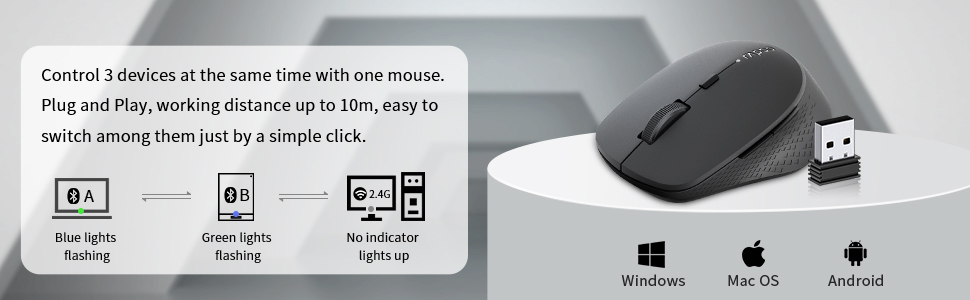
Figure 3.2: The Rapoo M300G mouse can control three devices, with easy switching. It is compatible with Windows, Mac OS, and Android operating systems.
2.4ГХз бежична веза:
- Take out the USB receiver from the battery compartment of the mouse.
- Укључите УСБ пријемник у слободан УСБ порт на рачунару.
- Turn on the mouse. The mouse will automatically connect to the receiver. No indicator light will illuminate for 2.4GHz mode.
Bluetooth Connection (Device A & B):
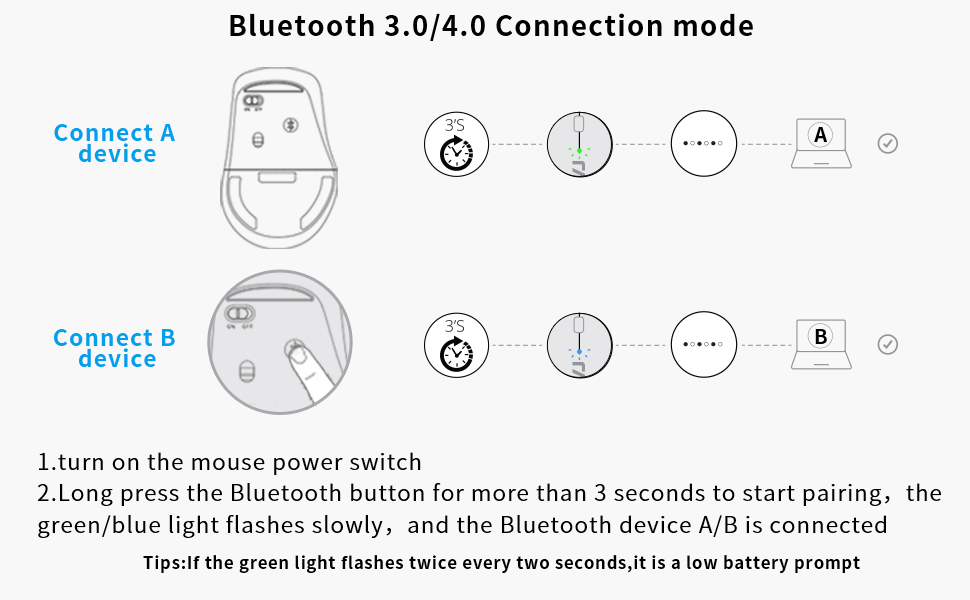
Figure 3.3: Detailed steps for connecting the mouse via Bluetooth 3.0/4.0 to Device A and Device B.
- Turn on the mouse power switch.
- Press the Bluetooth button on the bottom of the mouse to switch to Bluetooth Channel A (blue light flashing) or Bluetooth Channel B (green light flashing).
- Long press the Bluetooth button for more than 3 seconds until the blue or green light flashes slowly. This indicates the mouse is in pairing mode.
- On your device (computer, laptop, tablet), go to Bluetooth settings and search for new devices.
- Select 'Rapoo BT3.0 Mouse' or 'Rapoo BT4.0 Mouse' from the list of found devices to complete the pairing.
- Once connected, the corresponding indicator light will stop flashing and remain solid for a few seconds before turning off.
Савет: If the green light flashes twice every two seconds, it indicates a low battery.
3.4 Switching Between Devices:
Briefly press the Bluetooth button on the bottom of the mouse to cycle through the connected devices (Bluetooth A, Bluetooth B, 2.4GHz). The indicator light will briefly show the active channel.
4. Упутство за употребу
4.1 DPI Adjustment:
Press the DPI switch button located behind the scroll wheel to cycle through the four DPI settings: 600, 1000, 1300, and 1600 DPI. Adjust the DPI to match your preference for cursor speed and precision.
4.2 Basic Mouse Functions:
- Леви клик: Користи се за одабир предмета, отварање fileс и активирајуће функције.
- Десни клик: Use for accessing context menus and additional options.
- Точак за померање: Rotate to scroll vertically through documents and web pages. Press down for middle-click functionality (e.g., opening links in new tabs).
- Дугмад за напред/назад: Located on the side of the mouse, these buttons allow for quick navigation in web претраживачи и file истраживачи.
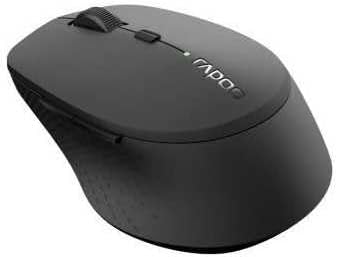
Слика 4.1: Под углом view of the Rapoo M300G mouse, highlighting its ergonomic shape and button placement.
5. Одржавање
5.1 Чишћење:
To clean your mouse, gently wipe the surface with a soft, damp cloth. Do not use harsh chemicals or abrasive cleaners. Ensure no liquid enters the mouse's internal components.
5.2 Замена батерије:
When the low battery indicator flashes, it's time to replace the AA battery. Open the battery compartment on the bottom of the mouse, remove the old battery, insert a new AA battery with the correct polarity, and close the compartment.
5.3 Складиштење:
When not in use for an extended period, turn off the mouse to conserve battery life. Store the USB receiver inside the mouse's dedicated slot to prevent loss. Keep the mouse in a dry, cool place away from direct sunlight and extreme temperatures.
КСНУМКС. Решавање проблема
If you encounter issues with your Rapoo M300G mouse, please refer to the following common problems and solutions:
| Проблем | Могући узрок | Решење |
|---|---|---|
| Миш не реагује | Low battery; Mouse is off; Incorrect connection mode; USB receiver not plugged in (for 2.4GHz); Bluetooth not paired. | Replace battery; Turn on mouse; Switch to correct connection mode (2.4G, BT A, BT B); Plug in USB receiver; Re-pair Bluetooth. |
| Cursor erratic or not smooth | Прљав оптички сензор; Неодговарајућа површина; Слаба батерија. | Clean optical sensor; Use on a flat, non-reflective surface; Replace battery. |
| Повезивање преко Блуетоотх-а није могуће | Миш није у режиму упаривања; Блутут уређаја је искључен; Сметње. | Long press Bluetooth button to enter pairing mode; Ensure device Bluetooth is on; Move closer to device; Try re-pairing. |
| Бочна дугмад не раде | Application does not support forward/backward functions; Driver issue. | Test in a different application (e.g., web browser); Check for updated drivers for your operating system. |
7. Спецификације
| Феатуре | Спецификација |
|---|---|
| Број модела | 18048 |
| Технологија повезивања | Bluetooth 3.0, Bluetooth 4.0, 2.4GHz Wireless |
| Технологија детекције покрета | Оптицал |
| ДПИ Левелс | 600, 1000, 1300, 1600 |
| Дугмад | 6 (лево, десно, точкић за скроловање, DPI прекидач, напред, назад) |
| Тип батерије | 1 к АА батерија |
| Процењени век трајања батерије | До 9 месеци |
| Димензије производа | 4.09 к 2.6 к 0.04 инча |
| Тежина артикла | 2.08 унци |
| Боја | БЛАЦК |
| Први доступан датум | 30. новембар 2018 |
8. Гаранција и подршка
8.1 Информације о гаранцији:
The Rapoo M300G Multi-Device Wireless Mouse comes with a Једна година гаранције од датума куповине. Поред тога, 30 Days Return and Refund or Replacement policy is offered. This warranty covers manufacturing defects and issues arising from normal use.
8.2 Корисничка подршка:
For technical support, warranty claims, or any questions regarding your Rapoo M300G mouse, please contact Rapoo customer service. Refer to the official Rapoo webсајт или паковање вашег производа за најновије контакт информације.
Подршка на мрежи: Посетите званични Рапоо webсајт за често постављана питања, преузимање драјвера и ресурсе за подршку.
Подршка путем е-поште: [Refer to Rapoo's official website for email contact]
Телефонска подршка: [Refer to Rapoo's official website for phone contact]


