1. Увод
The Modecom Oberon Pro Midi Tower is a computer case designed for users seeking a functional and spacious interior with a modern aesthetic. This manual provides essential information for the proper installation, operation, and maintenance of your computer case, ensuring optimal performance and longevity of your components.
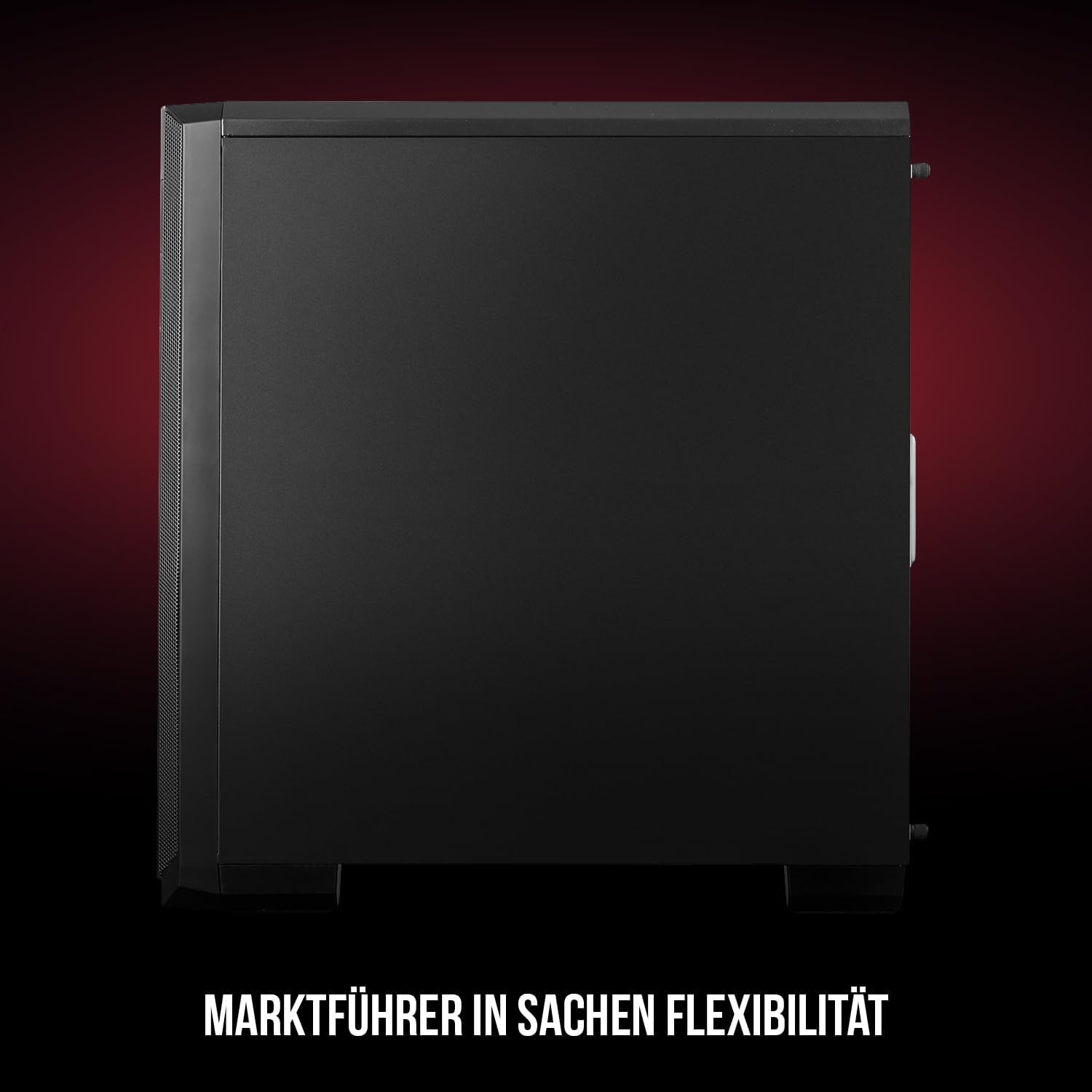
Слика 1: Предња и бочна страна view of the Modecom Oberon Pro Midi Tower computer case.
2. Безбедносне информације
- Увек искључите напајање из зидне утичнице пре инсталирања или уклањања било којих компоненти.
- Пажљиво рукујте компонентама како бисте избегли електростатичко пражњење. Размислите о употреби антистатичке наруквице.
- Држите мале делове и алате даље од деце.
- Обезбедите одговарајућу вентилацију око кућишта како бисте спречили прегревање.
- Do not attempt to modify the case structure, as this may void your warranty and pose safety risks.
3. Садржај пакета
Проверите да ли се у вашем пакету налазе све следеће ставке:
- Modecom Oberon Pro Midi Tower Computer Case
- Кутија са додатном опремом (шрафови, одстојници, кабловске везице)
- Кориснички приручник (овај документ)
4. Кључне карактеристике
- Простран ентеријер: Designed to accommodate high-end components and facilitate good airflow.
- Ефикасно хлађење: Includes two pre-mounted 120mm fans (front and rear) to prevent component overheating.
- Инсталација без алата: Supports tool-free mounting for SSD/HDD drives and expansion cards.
- Филтрација прашине: Features easily dismountable magnetic filters on the top, front, and bottom (under the power supply unit) to keep the interior clean.
- Optimized Cable Management: Provides a system for convenient wiring organization.
- Long PSU Tunnel: Offers a 240mm space for power supplies, simplifying installation and cable arrangement.
5. Подешавање и инсталација
5.1. Припрема случаја
Before installation, remove the side panels of the case. The Oberon Pro features sound-dampening mats on the side panels to reduce noise.

Слика 2: Унутрашњост view showing sound-dampening mats on the side panel.
5.2. Инсталација матичне плоче
Install the necessary standoffs for your motherboard form factor (ATX, Micro ATX, ITX). Carefully place your motherboard into the case, aligning it with the standoffs, and secure it with screws.

Figure 3: Interior layout with pre-installed rear fan and motherboard tray.
5.3. Drive Installation (SSD/HDD)
The Oberon Pro supports tool-free installation for three 2.5" SSDs and two 3.5" HDDs. The 3.5" HDD bays are located in the power supply tunnel at the bottom of the case. 2.5" SSDs can be mounted on both sides of the motherboard tray.

Figure 4: Dedicated bays for HDD and SSD storage devices.
5.4. Инсталација напајања
The case features a long PSU tunnel (240mm) at the bottom. Install your power supply unit into this tunnel and secure it. This design aids in cable management and airflow.
5.5. Expansion Card Installation (PCI/PCIe)
Install your graphics card or other expansion cards into the PCI/PCIe slots. The case supports tool-free mounting for these cards, allowing for easy installation and removal.
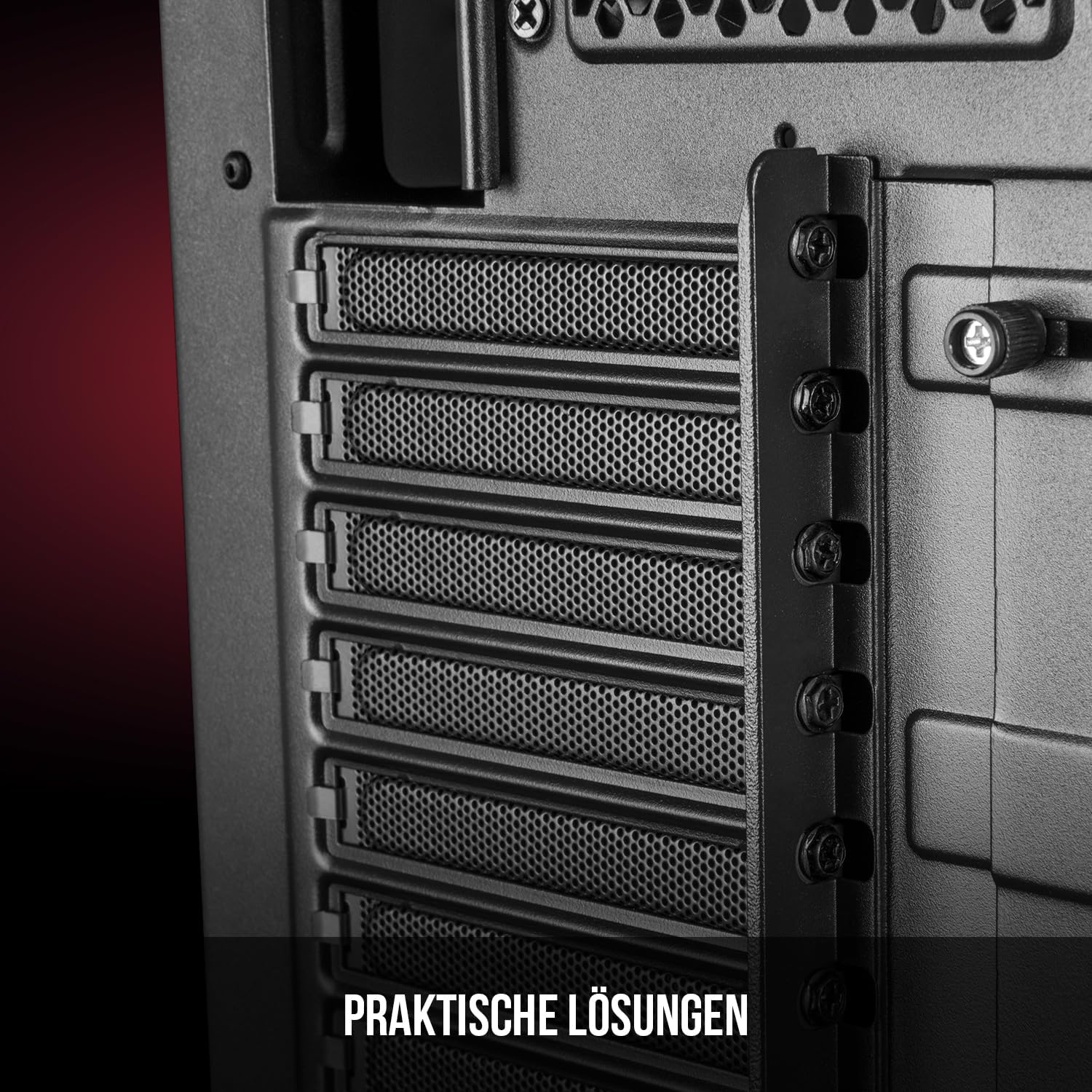
Слика 5: Задњи ентеријер view highlighting the expansion card slots.
5.6. Менаџмент каблова
Utilize the provided cable routing options and tie-down points behind the motherboard tray to organize cables. This improves airflow and maintains a tidy interior.
6. Систем за хлађење
The Oberon Pro comes with two pre-installed 120mm fans, one at the front and one at the rear, to ensure adequate airflow. The maximum height for a CPU cooler is 163mm, and the maximum length for a video card is 395mm, allowing for compatibility with a wide range of components.
7. Одржавање
To maintain optimal performance and prevent dust buildup, regularly clean the dust filters. The magnetic filters on the top, front, and bottom of the case are easily dismountable for cleaning. Use compressed air or a soft brush to remove accumulated dust.
КСНУМКС. Решавање проблема
- Нема напајања: Ensure all power cables are securely connected to the motherboard, power supply, and wall outlet. Check the power button connection to the motherboard.
- прегревање: Verify that all fans are spinning correctly and that dust filters are clean. Ensure proper cable management to avoid obstructing airflow.
- Портови на предњој плочи не раде: Check that the front panel connectors (USB, audio) are correctly plugged into the motherboard headers.
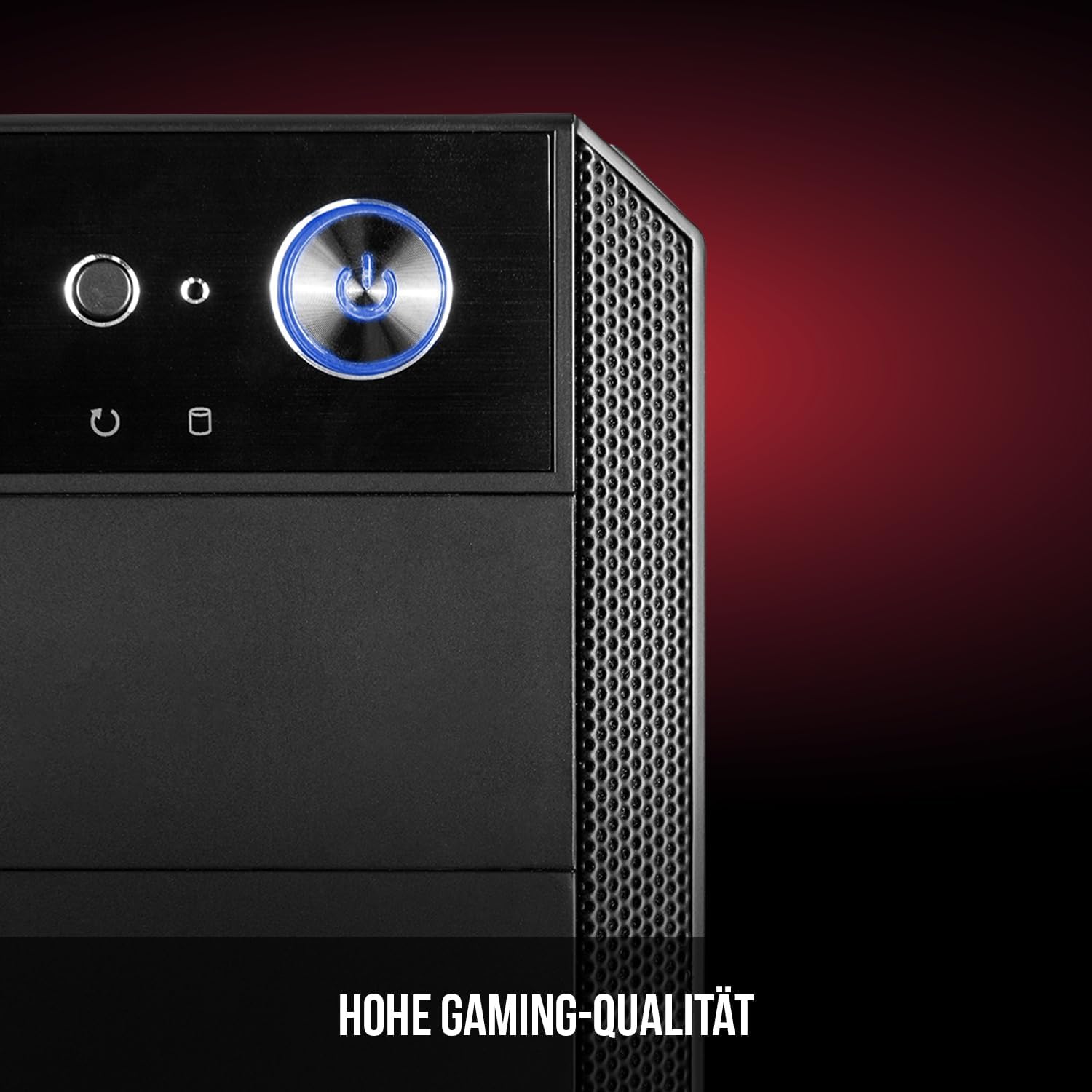
Figure 6: Front panel I/O ports for connectivity.
9. Спецификације
| Феатуре | Спецификација |
|---|---|
| Бранд | Модеком |
| Назив модела | Oberon Pro |
| Број модела | AT-OBERON-PS-10-000000-0002 |
| Боја | Црно |
| Тип случаја | Миди Товер |
| Компатибилност матичне плоче | ATX, Micro ATX, ITX |
| Материјал | легирани челик |
| Метод хлађења | Ваздух |
| Унапред инсталирани вентилатори | 2 x 120mm (Front, Rear) |
| Максимална висина ЦПУ хладњака | 163 мм |
| Максимална дужина ГПУ-а | 395 мм |
| Дриве Баис | 3 x 2.5" SSD, 2 x 3.5" HDD |
| Укупно УСБ портова | 4 |
| Посебне карактеристике | Reset Button, Dust Filter, LED Indicators, Side Window |
| Тежина артикла | 5270 грама |

Figure 7: Rear exterior view of the computer case.
10. Гаранција и подршка
For warranty information and technical support, please refer to the official Modecom webсајт или контактирајте продавца. Сачувајте доказ о куповини за евентуалне рекламације.