
1. Увод
Welcome to the user manual for your RugGear RG910 Rugged 8-inch Tablet. This document provides essential information for setting up, operating, maintaining, and troubleshooting your device. The RG910 is engineered for demanding environments, offering superior durability and connectivity for outdoor work and extreme conditions.
Please read this manual carefully to ensure proper use and to maximize the lifespan of your tablet.
2. Производ је готовview
The RugGear RG910 is a robust tablet featuring an 8-inch WUXGA touchscreen, designed to withstand harsh conditions. It incorporates advanced sealing technology for high water and dust resistance, and is built to endure drops and impacts.

Слика 2.1: Предња страна view of the RugGear RG910 rugged tablet, showcasing its durable design and display.
Key features include Push-to-Talk (PTT) functionality, a long-lasting 6000 mAh battery, and an Android 8 (Oreo) operating system optimized for performance and power efficiency. The device is IP68 certified, allowing submersion in water up to 1.2 meters for 60 minutes, and is drop-resistant up to 1.5 meters.

Figure 2.2: Infographic highlighting the RG910's reliable performance, PTT capability, long battery life, Android 8 optimization, IP68 rating, and dual stereo speakers.
Connectivity options include 4G LTE, Wi-Fi 802.11b/g/n, and Bluetooth 4.0. It also features 8MP and 2MP cameras, GPS, A-GPS, GLONASS, and Beidou for navigation. The display is protected by Corning Gorilla Glass for enhanced durability and readability in sunlight.
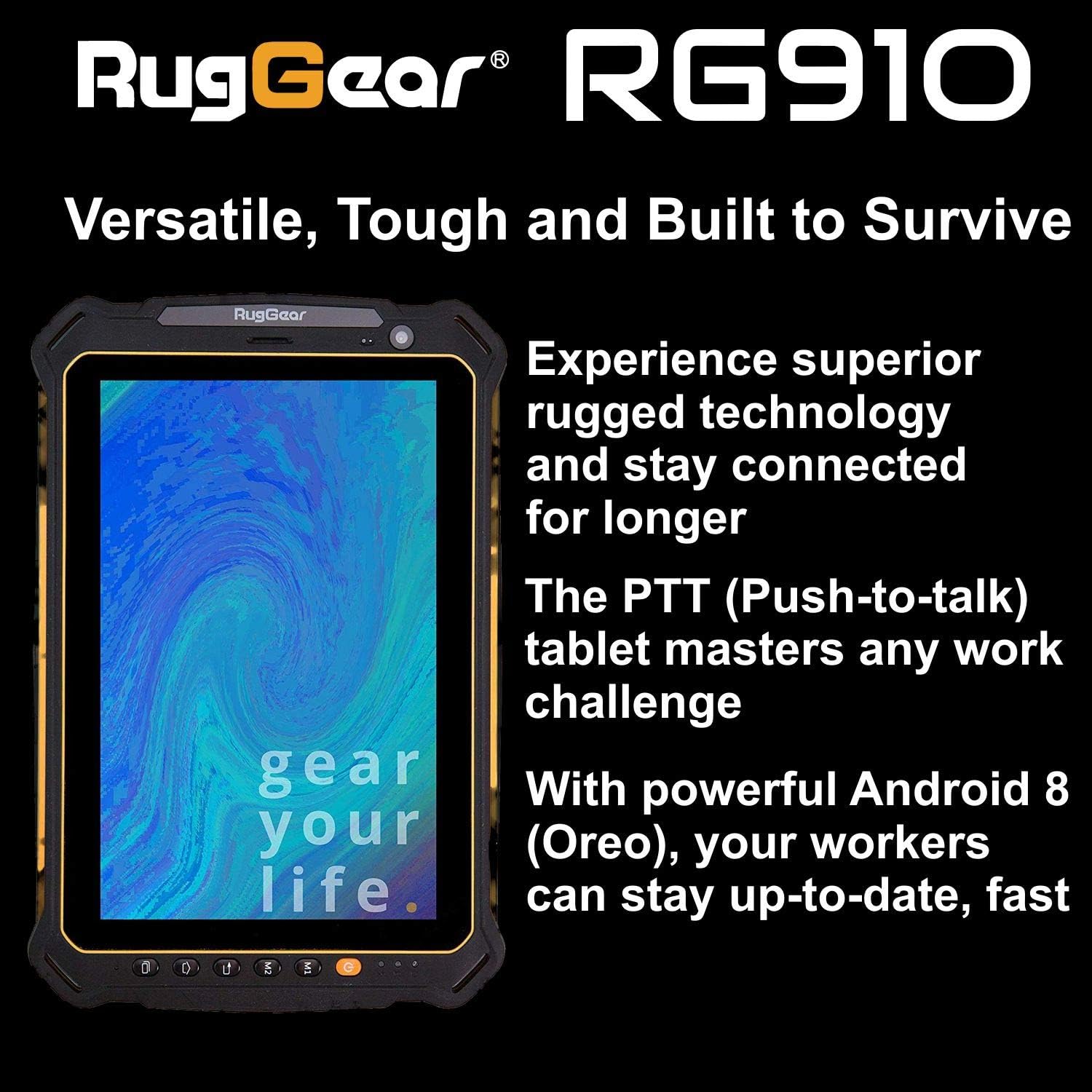
Figure 2.3: The RugGear RG910 tablet being used, illustrating its robust construction and suitability for various tasks.
3. Подешавање
3.1 Пуњење уређаја
Before initial use, fully charge the tablet using the provided charger and USB cable. Connect the charger to a power outlet and the USB cable to the tablet's charging port. The charging indicator will show the charging status.
3.2 Inserting SIM and Micro-SD Cards
- Locate the SIM/Micro-SD card slot cover on the side of the tablet.
- Carefully open the cover.
- Insert the Nano-SIM card into the designated slot with the gold contacts facing down, ensuring it is correctly oriented.
- If using, insert a Micro-SD card (up to 64GB) into its dedicated slot.
- Close the cover securely to maintain the device's water and dust resistance.
3.3 Почетно укључивање и подешавање
Press and hold the Power button until the RugGear logo appears. Follow the on-screen instructions to complete the initial setup, which includes selecting your language, connecting to a Wi-Fi network, and setting up your Google account.
4. Упутство за употребу
4.1 Укључивање/искључивање
- За укључивање: Притисните и држите дугме за напајање док се екран не осветли.
- За искључивање: Press and hold the Power button until the power options appear, then select 'Power off'.
- Рестартовати: Press and hold the Power button until the power options appear, then select 'Restart'.
4.2 Основна навигација
The RG910 uses a capacitive touchscreen. Use standard Android gestures:
- Додирните: Изаберите ставку или отворите апликацију.
- Превуците: Листајте кроз листе или прелазите између почетних екрана.
- Прстохват: Увећајте или умањите слике и web странице.
- Дуго притисните: Приступите контекстуалним менијима или померите иконе.
4.3 Push-to-Talk (PTT) Functionality
The RG910 supports Push-to-Talk (PTT) communication. A dedicated PTT button may be present on the device. Consult your service provider or PTT application instructions for specific setup and usage details.
4.4 Рад камере
To use the cameras:
- Отворите апликацију Камера са почетног екрана или из фиоке апликација.
- Додирните екран да бисте фокусирали.
- Tap the Shutter button to take a photo or start/stop video recording.
- Пребацујте се између предње и задње камере помоћу иконе за пребацивање камере.
4.5 Повезивање
- Ви-Фи: Иди на Подешавања > Мрежа и интернет > Wi-Fi да бисте се повезали са доступним мрежама.
- 4Г ЛТЕ: Ensure your SIM card is inserted and mobile data is enabled in Подешавања > Мрежа и интернет > Мобилна мрежа.
- Блуетоотх: Омогући Bluetooth у Подешавања > Повезани уређаји > Блутут да бисте се упарили са другим уређајима.
5. Одржавање
5.1 Чишћење уређаја
To clean your tablet, use a soft, damp cloth. Avoid using harsh chemicals, abrasive cleaners, or solvents, as these can damage the device's ruggedized coating and seals. Ensure all port covers are securely closed before cleaning with moisture.
5.2 Отпорност на воду и прашину (IP68)
The RG910 is IP68 certified, meaning it is protected against dust ingress and can withstand submersion in fresh water up to 1.2 meters for 60 minutes. To maintain this rating:
- Ensure all port covers (USB, SIM/Micro-SD slot) are firmly closed before exposure to water or dust.
- Do not expose the device to salt water, chlorinated water, or other liquids.
- If the device gets wet, dry it thoroughly with a clean cloth before opening any covers or charging.
5.3 Одржавање батерије
- Избегавајте екстремне температуре, које могу смањити перформансе батерије.
- Користите само оригинални или сертификовани компатибилни пуњач и кабл.
- Не бушите, не растављајте и не модификујте батерију.
5.4 Ажурирања софтвера
Редовно проверавајте и инсталирајте ажурирања софтвера како бисте осигурали оптималне перформансе, безбедност и приступ новим функцијама. Идите на Подешавања > Систем > Ажурирање система.
КСНУМКС. Решавање проблема
This section addresses common issues you might encounter with your RugGear RG910 tablet.
| Иссуе | Могуће решење |
|---|---|
| Уређај се не укључује | Уверите се да је батерија напуњена. Прикључите пуњач и сачекајте неколико минута пре него што поново покушате да укључите уређај. Ако не реагује, извршите принудно поновно покретање тако што ћете држати дугме за напајање 10-15 секунди. |
| Екран не реагује | Поново покрените уређај. Ако проблем и даље постоји, уверите се да је екран чист и сув. |
| Не могу да се повежем на Wi-Fi/4G | Check Wi-Fi settings and ensure the network password is correct. For 4G, verify SIM card insertion, mobile data is enabled, and you have network coverage. Restart the tablet. |
| Батерија се брзо празни | Reduce screen brightness, close unused applications, disable unnecessary connectivity features (Bluetooth, GPS), and check for background app activity in settings. |
| Device is slow or freezes | Close background applications. Clear cache for problematic apps. Restart the device. Consider a factory reset if the issue is persistent (back up data first). |
7. Спецификације
Detailed technical specifications for the RugGear RG910 tablet:
| Феатуре | Опис |
|---|---|
| Бранд | РугГеар |
| Број модела | 98300000 |
| Оперативни систем | Андроид 8 (Орео) |
| Дисплаи | 8-inch WUXGA (1920 x 1200 pixels) with Corning Gorilla Glass |
| Процесор | Куалцомм Снапдрагон 625 |
| РАМ | 3 ГБ |
| Интерна меморија | 32 GB (expandable up to 64 GB via Micro-SD) |
| Батерија | КСНУМКС мАх литијум-јонска |
| Повезивање | 4G LTE, Wi-Fi 802.11b/g/n, Bluetooth 4.0, GPRS |
| камере | Задња: 8 МП, Предња: 2 МП |
| Навигација | ГПС, А-ГПС, ГЛОНАСС, Беидоу |
| Трајност | IP68 certified (water/dust resistant), Drop-resistant up to 1.5 meters |
| Димензије (Д к Ш к В) | 21.3 к 14.1 к 2 цм |
| Тежина | 906 грама |
| Посебне карактеристике | Ruggedized Construction, Push-to-Talk (PTT) functionality, Adjustable back strap |
| Модел Иеар | 2018 |
8. Гаранција и подршка
Your RugGear RG910 tablet is covered by a manufacturer's warranty. Please refer to the warranty card included with your product packaging for specific terms and conditions, including warranty duration and coverage details. For technical support, service, or further assistance, please contact RugGear customer service or your authorized dealer.