
Увод
Хвала вам на куповиниasing the AmazonBasics Vertical Ergonomic 2.4G Wireless Optical Mouse. This manual provides essential information for setting up, operating, and maintaining your new mouse. Please read these instructions carefully before use and retain them for future reference.

Image: The AmazonBasics Vertical Ergonomic Wireless Optical Mouse positioned on a white desk alongside a laptop, demonstrating a typical usage scenario.
Садржај пакета
Молимо вас да проверите пакет за следеће ставке:
- AmazonBasics Vertical Ergonomic 2.4G Wireless Optical Mouse
- УСБ пријемник
Напомена: Батерије нису укључене и морају се купити засебно.
Карактеристике
- Ергономски вертикални дизајн: Promotes a natural hand and wrist posture, reducing strain.
- 2.4G бежична веза: Provides a reliable connection for use with PCs and laptops.
- Оптичко праћење: Ensures precise and smooth cursor control.
- Подесиви ДПИ: Allows customization of cursor sensitivity for different tasks.
- Multiple Buttons: Includes left/right click, scroll wheel, DPI button, and forward/back buttons for enhanced productivity.
- Напаја се батеријама: Operates on AAA batteries for portability.

Слика: Страна А view of the AmazonBasics Vertical Ergonomic Wireless Optical Mouse, highlighting its contoured shape, thumb rest, and the forward/back buttons along with the DPI button.
Сетуп
1. Инсталирајте батерије
- Пронађите одељак за батерију на доњој страни миша.
- Пажљиво отворите поклопац одељка за батерије.
- Уметните две ААА батерије, водећи рачуна о исправном поларитету (+/-).
- Вратите поклопац одељка за батерију док не кликне чврсто на своје место.
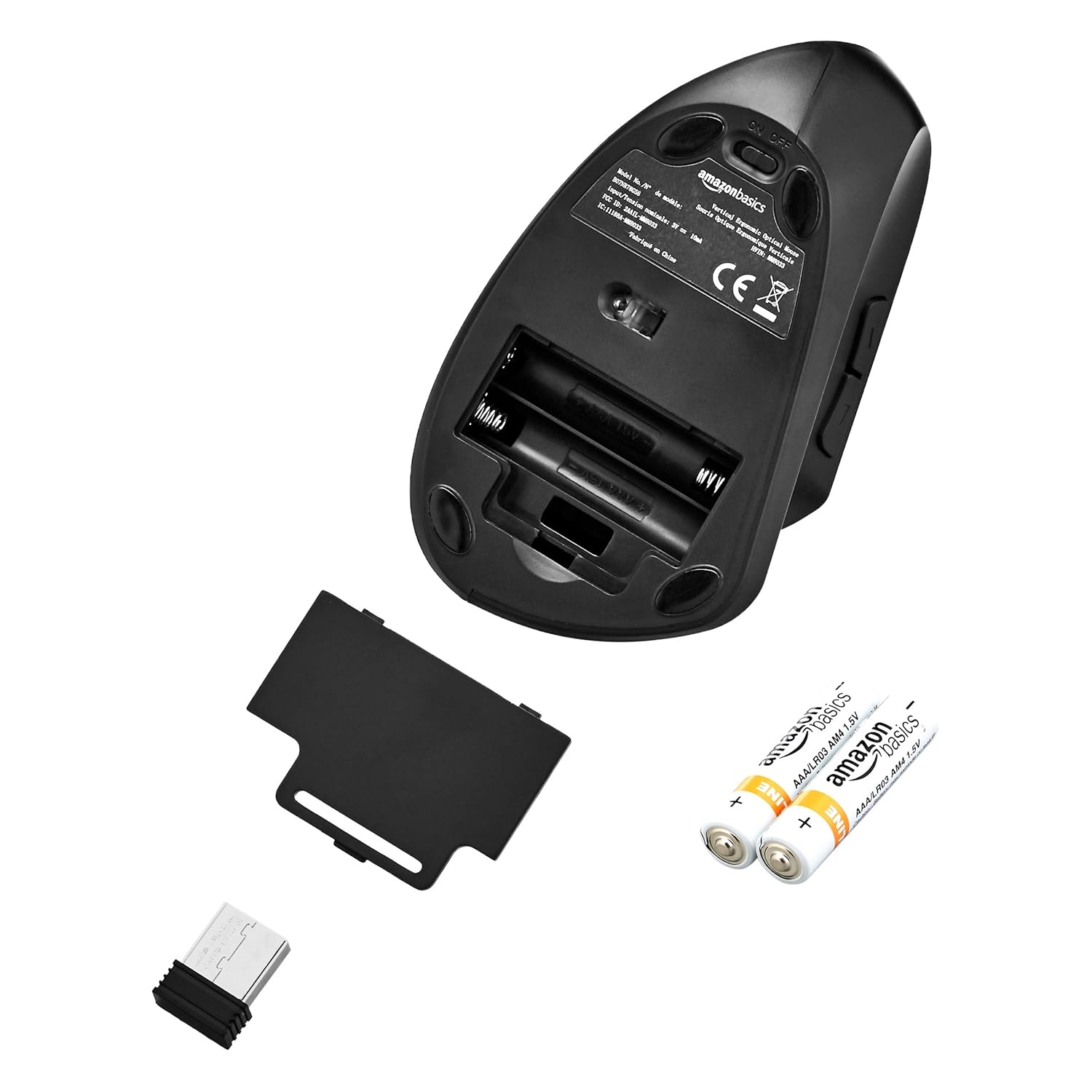
Image: The underside of the mouse with the battery compartment cover removed, showing the slots for two AAA batteries and the storage slot for the USB receiver.
2. Повежите УСБ пријемник
- Remove the USB receiver from its storage slot within the battery compartment.
- Plug the USB receiver into an available USB port on your computer (PC or laptop).
- Ваш рачунар би требало аутоматски да детектује и инсталира потребне драјвере. Ово може потрајати неколико тренутака.
3. Укључивање миша
- Locate the ON/OFF switch on the underside of the mouse.
- Померите прекидач у положај „УКЉУЧЕНО“.
- Миш је сада спреман за употребу.

Image: The bottom of the AmazonBasics Vertical Ergonomic Wireless Optical Mouse, displaying the ON/OFF switch, the optical sensor, and the product label with model information.
Упутство за употребу
Основне функције
- Леви клик: Примарни избор и активација.
- Десни клик: Отвара контекстуалне меније.
- Точак за померање: Скролује документе и web странице вертикално. Може се притиснути и за функцију клика средњим тастером миша.

Слика: Одозго надоле view of the AmazonBasics Vertical Ergonomic Wireless Optical Mouse, clearly showing the left and right click buttons separated by the scroll wheel.
Напредне функције
- Дугме ДПИ: Located near the top of the mouse. Press this button to cycle through different DPI (Dots Per Inch) settings, adjusting cursor sensitivity. This allows you to switch between faster and slower cursor speeds as needed.
- Дугмад за напред/назад: Located on the side of the mouse, accessible by your thumb. These buttons typically function as 'Forward' and 'Back' in web претраживачи и file истраживачи.
Одржавање
Чишћење
За чишћење миша користите меку, суву крпу. За тврдокорну прљавштину, благо обришитеampen the cloth with water or a mild cleaning solution. Avoid using harsh chemicals or abrasive materials, as these can damage the mouse's surface.
Замена батерије
When the mouse's performance degrades or it stops responding, it may be time to replace the batteries. Follow the steps in the "Install Batteries" section under Setup to replace the two AAA batteries.
Решавање проблема
- Миш не реагује:
- Ensure the mouse is switched to the "ON" position.
- Проверите да ли су батерије правилно постављене и да ли су довољно напуњене. Замените их ако је потребно.
- Уверите се да је USB пријемник безбедно прикључен на исправан USB порт на рачунару. Покушајте са другим USB портом.
- Поново покрените рачунар.
- Неправилно кретање курсора:
- Очистите оптички сензор на доњој страни миша меком, сувом крпом.
- Ensure you are using the mouse on a suitable surface. Highly reflective or transparent surfaces may affect tracking. A mouse pad is recommended.
- Проверите да ли има сметњи од других бежичних уређаја.
- Проблеми са везом:
- Померите миш ближе УСБ пријемнику.
- Избегавајте постављање пријемника у близини великих металних предмета или других електронских уређаја који могу изазвати сметње.
Спецификације
| Број модела | ММ-8033 |
| Технологија повезивања | 2.4Г Вирелесс |
| Откривање покрета | Оптицал |
| Број дугмади | 5 (лево, десно, точкић за скроловање, DPI, напред, назад) |
| Извор напајања | 2 к ААА батерије (нису укључене) |
| Просечно трајање батерије | До 12 месеци |
| Компатибилни оперативни системи | Линукс, Виндоус 7, Виндоус XP (и новије верзије) |
| Компатибилне хардверске платформе | Лаптоп, ПЦ |
| Димензије производа (ДкШкВ) | КСНУМКС к КСНУМКС к КСНУМКС цм (КСНУМКС к КСНУМКС к КСНУМКС инча) |
| Тежина артикла | 122 г |
Гаранција и подршка
For warranty information or technical support, please refer to the AmazonBasics product page or contact Amazon customer service directly. Keep your purchase receipt for warranty claims.