
1. Увод
This manual provides detailed instructions for the installation, operation, and maintenance of your Zmodo 8-Channel 720p sPoE Network Video Recorder (NVR) system. This all-in-one NVR is designed to connect and configure up to eight 720p sPoE cameras, offering a comprehensive surveillance solution with a pre-installed 1TB hard disk drive (HDD) for local storage. The system supports remote viewing via smartphone applications and web clients, ensuring convenient access to your security footage.
2. Садржај пакета
Please verify that all items listed below are included in your package. If any items are missing or damaged, please contact Zmodo customer support.
- 1 x Zmodo 8-Channel 720p sPoE NVR with 1TB HDD
- 1 x Power Adapter (DC19V)
- 1 x Quick Start Cable (Ethernet cable for initial setup)
- 1 к УСБ миш
3. Производ је готовview
3.1. NVR Unit
The Zmodo NVR unit is the central component of your surveillance system, managing camera connections, video recording, and data storage.

Слика 3.1: Фронт view of the Zmodo 8-Channel 720p sPoE NVR. The front panel features LED indicators for HDD activity and Power status, providing quick visual feedback on the system's operational state.
3.2. Прикључци задње плоче
The rear panel of the NVR provides all necessary ports for power, camera connections, network access, and display outputs.
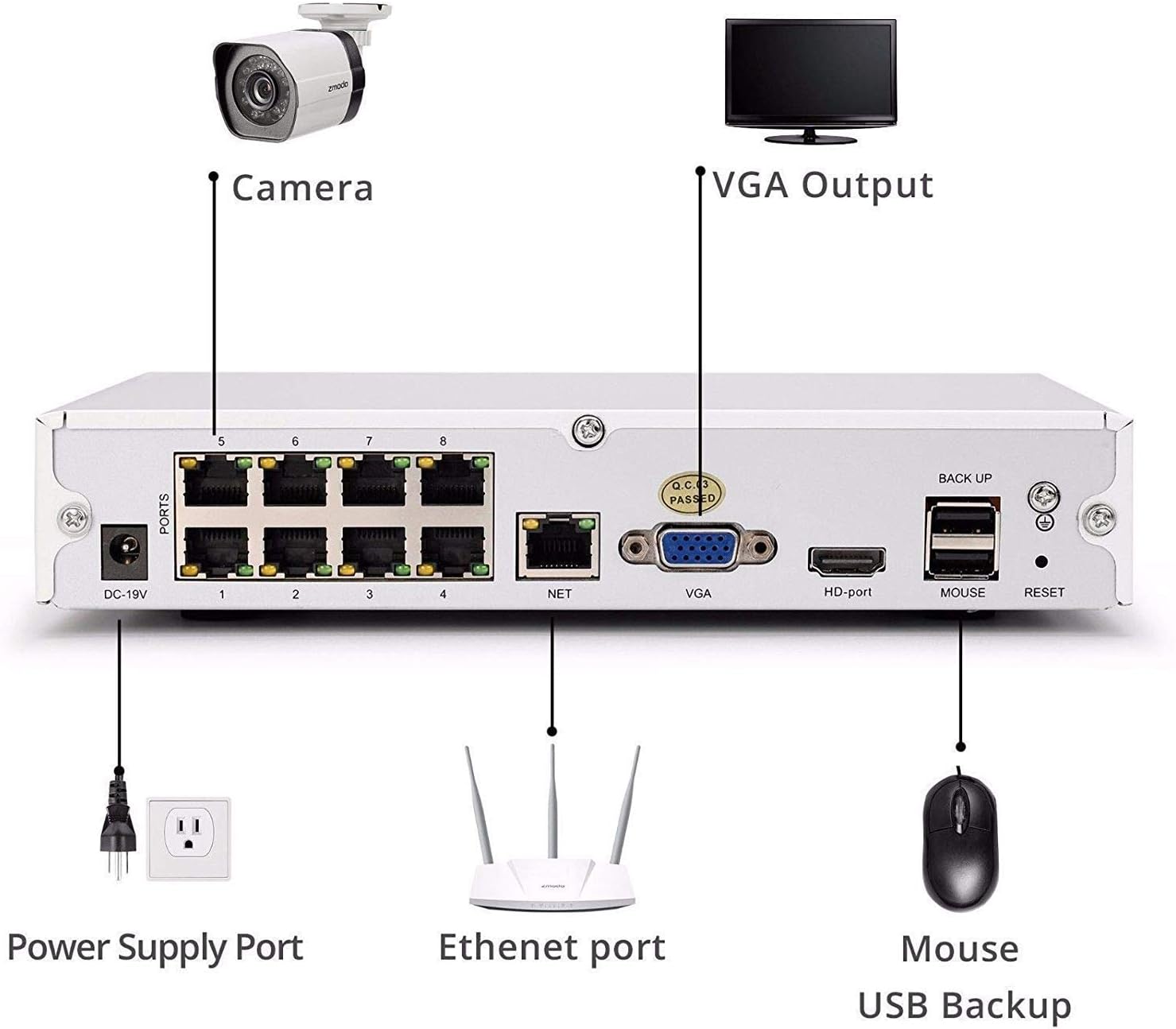
Слика 3.2: Rear panel connections of the Zmodo NVR. From left to right, the ports include: DC-19V power input, 8 sPoE ports for cameras (labeled 1-8), NET (Ethernet) port for network connection, VGA output for monitors, HD-port (HDMI) output for monitors, MOUSE port for USB mouse, RESET button, and BACK UP port for USB backup devices.
- ДЦ-19В: Улазни порт за напајање.
- PORTS 1-8: sPoE (simplified Power over Ethernet) ports for connecting Zmodo 720p cameras. These ports provide both power and video signal.
- НЕТ: Ethernet port for connecting the NVR to your local network or router.
- ВГА: Излаз за видео графички низ за повезивање са монитором.
- HD-port: High-Definition Multimedia Interface (HDMI) output for connecting to a monitor or TV.
- МИШ: USB port for connecting the included USB mouse for local control.
- РЕСЕТОВАТИ: Button to restore factory default settings (use with caution).
- BACK UP: USB port for connecting external storage devices for video backup.
4. Водич за подешавање
4.1. Повезивање хардвера
- Повежите камере: Connect your Zmodo 720p sPoE cameras to the NVR's PORTS 1-8 using Ethernet cables. The sPoE ports will provide power to the cameras.
- Повежи монитор: Connect a monitor or TV to the NVR using either the VGA or HD-port (HDMI) cable.
- Повежите миш: Plug the USB mouse into the MOUSE port on the NVR's rear panel.
- Повежите се на мрежу: Connect an Ethernet cable from the NVR's NET port to your router or network switch. This is essential for remote access and online features.
- Прикључите напајање: Plug the power adapter into the DC-19V port on the NVR, then plug the adapter into a power outlet. The NVR will power on automatically.
4.2. Почетна конфигурација
Upon first power-up, the NVR will guide you through an initial setup wizard on the connected monitor. Follow the on-screen prompts to set up basic parameters such as language, time zone, and password. For remote access and advanced features, download the Zsight app on your smartphone or tablet, or access the MeShare web client (user.meshare.com) on a computer. The app/web client will guide you through adding your NVR to your account.
5. Упутство за употребу
5.1. Ливе View
Можеш view live camera feeds through several methods:
- Локални монитор: Use the connected monitor and USB mouse to navigate the NVR's interface and view преноси уживо са свих повезаних камера.
- Zsight App: Open the Zsight application on your smartphone or tablet. After logging into your account, select your NVR to view преноси уживо.
- MeShare Web Клијент: Access user.meshare.com in a web browser (Internet Explorer, Chrome, Firefox) on your computer, log in, and select your NVR for live viewинг.
5.2. Снимање
The NVR records video footage to its internal 1TB HDD. Recording settings can be configured via the local NVR interface or the Zsight/MeShare platform. The system supports H.264 compression for efficient storage and features motion detection, allowing you to record only when activity is detected, conserving disk space.
5.3. Репродукција
То реview снимљено фооtage:
- Локална репродукција: On the NVR's local interface, navigate to the playback section. You can search for recordings by date, time, and event type (e.g., motion detection).
- Даљинска репродукција: Use the Zsight app or MeShare web client to access and play back recorded videos remotely.
5.4. Remote Access and Alerts
The Zmodo NVR system allows for convenient remote monitoring and alert reception.

Слика 5.4.1: Example of security alerts and live view on a smartphone. The Zsight app provides real-time notifications for events like motion detection and allows immediate access to live camera feeds.
Receive alerts from your cameras and sensors directly on your smartphone or tablet. The Zsight app provides push notifications for detected events, such as motion, allowing you to quickly check your property. You can view live video streams over 3G/4G networks or Wi-Fi on compatible smartphones (iPhone, iPad, Android devices) and tablets.

Слика 5.4.2: Diagram illustrating cloud connectivity for remote access. The Zmodo system utilizes cloud services to enable seamless remote viewing and management of your NVR and cameras from various devices, including tablets, laptops, smartphones, and desktop computers.
6. Одржавање
- Одржавати уредним одржавати чистим: Regularly clean the NVR unit and cameras with a soft, dry cloth. Avoid using liquid or aerosol cleaners.
- вентилација: Уверите се да је NVR постављен у добро проветреном простору како бисте спречили прегревање. Не блокирајте вентилационе отворе.
- Резервна копија података: Периодично правите резервне копије важних видео записаtage to an external USB storage device connected to the BACK UP port.
- Ажурирања фирмвера: Check the Zmodo website or Zsight app for available firmware updates to ensure optimal performance and security.
КСНУМКС. Решавање проблема
- Нема напајања: Ensure the power adapter is securely connected to the NVR and a working power outlet. Check the power LED on the front panel.
- Нема видео излаза: Verify that the monitor cable (VGA or HDMI) is securely connected to both the NVR and the monitor. Ensure the monitor is powered on and set to the correct input source.
- Камере се не приказују: Check that cameras are properly connected to the sPoE ports. Ensure the cameras are compatible with the NVR.
- Без удаљеног приступа: Confirm the NVR is connected to your router via the Ethernet cable and has an active internet connection. Check your router's internet status. Ensure the NVR is correctly added to your Zsight/MeShare account.
- Заборавили сте лозинку: Use the password recovery option within the NVR's local interface or contact Zmodo support for assistance.
8. Спецификације
| Феатуре | Спецификација |
|---|---|
| Модел Нумберс | ZP-NJ18-S, ZM-SS7009D8-S |
| Видео улаз | 8 Channels IP Camera |
| ХДМИ излаз | 1 Цханнел |
| Резолуција снимања | 720п |
| Видео Цомпрессион | Х.264 |
| Recording Rate | 200 фпс |
| Детекција покрета | Да |
| Капацитет складиштења | 1TB HDD (Pre-installed) |
| Повер Суппли | ДЦ19В, 4А |
| Димензије (Д к Ш к В) | 220 к 205 к 42 мм (8.6 к 8.1 к 1.7 инча) |
| Тежина | 1.88 кг (4.14 лбс) |
| Компатибилни оперативни системи | Windows XP, Windows Vista, 7, 8, 10 |
| Компатибилни прегледачи | Internet Explorer, Chrome, Firefox |
| Компатибилни мобилни уређаји | iPhone, iPad, Android devices |
9. Гаранција и подршка
For specific warranty information regarding your Zmodo NVR, please refer to the warranty card included with your product or visit the official Zmodo website. If you encounter any issues or require technical assistance, please contact Zmodo customer support through their official channels. Support contact details are typically available on the Zmodo website or within the Zsight application.