
1. Производ је готовview
The Eyoyo COMFAST CF-E130N is a high-power 2.4GHz WiFi Outdoor CPE (Customer Premises Equipment) designed for stable, long-range wireless transmission. It functions as a versatile networking device, capable of operating as a wireless bridge, access point, repeater, or a simple router. Its robust design and IP65 outdoor waterproof rating make it suitable for various outdoor networking applications, extending network coverage over significant distances.
2. Садржај пакета
Молимо вас да проверите да ли су све ставке наведене у наставку укључене у ваш пакет. Ако неке ставке недостају или су оштећене, обратите се продавцу.
- 2x Eyoyo COMFAST CF-E130N CPE Bridges
- 2x PoE Power Supply Units
- 2x Stainless Steel Mounting Rings
- 2x упутства за употребу
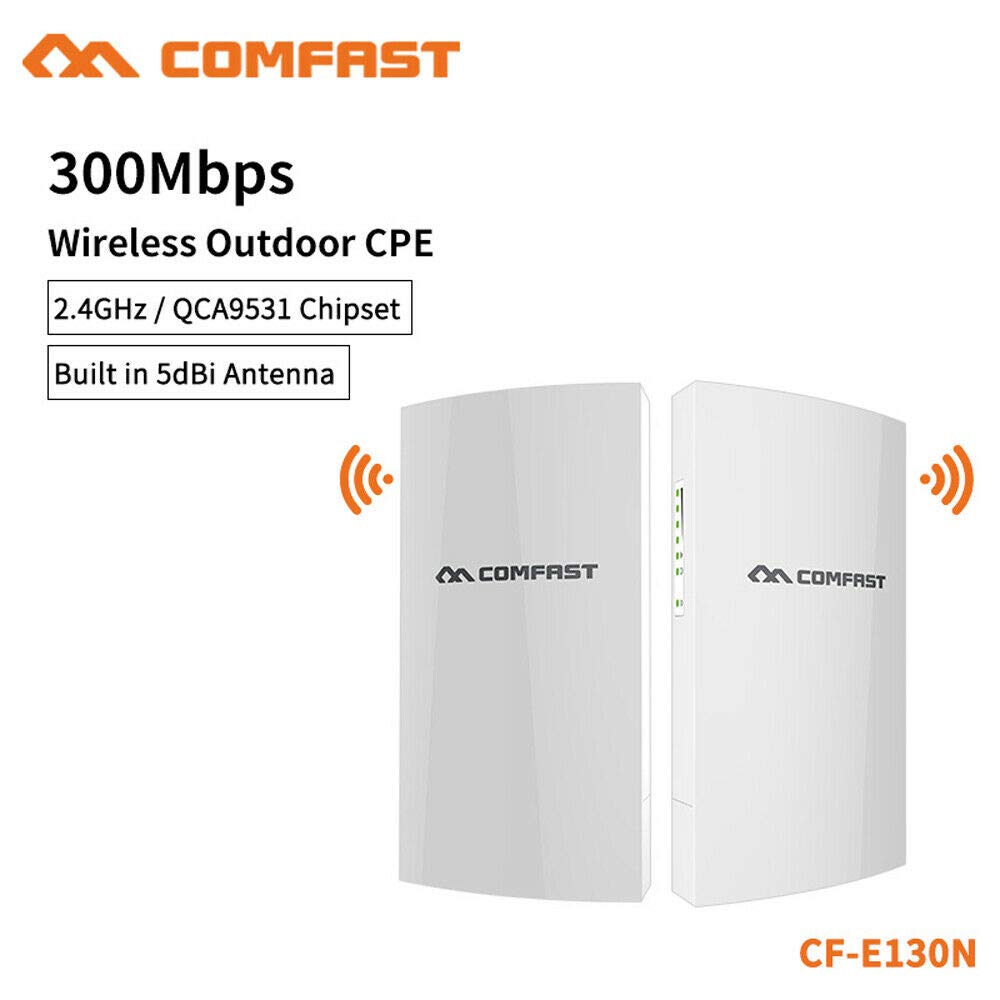
Image 1: Contents of the Eyoyo COMFAST CF-E130N package, showing two CPE units, two PoE adapters, and mounting rings.
3. Кључне карактеристике
- High-Speed Wireless: Supports 300Mbps data transfer rates on the 2.4GHz frequency band.
- Long-Range Transmission: Capable of stable wireless transmission up to 1 kilometer.
- Издржљивост на отвореном: Features an IP65 outdoor waterproof rating, protecting against dust and water ingress.
- Вишеструки режими рада: Functions as a wireless bridge, access point, repeater, or simple router.
- Свестране апликације: Ideal for extending network coverage in homes, schools, communities, elevators, parking lots, warehouses, and driving schools.
4. Водич за подешавање
4.1. Физичка инсталација
- Монтажа: Use the provided stainless steel rings to securely mount the CPE unit to a pole or suitable outdoor structure. Ensure the device is positioned for optimal line-of-sight with the other CPE unit or target area.
- Прикључак за напајање: Connect an Ethernet cable from the LAN port of the CPE unit to the PoE port on the PoE power supply. Then, connect another Ethernet cable from the LAN port of the PoE power supply to your network device (e.g., router, switch, or computer). Plug the PoE power supply into an electrical outlet.
Image 2: Illustration of the Eyoyo COMFAST CF-E130N CPE unit mounted outdoors, showing cable connections to the PoE injector.
4.2. Initial Configuration (Bridge Mode Exampле)
For CPE functionality and optimal signal effect, it is recommended to use two units. One unit will be configured as an Access Point (AP) and the other as a Client (Station).
- Повежите се са рачунаром: Connect your computer directly to the LAN port of the PoE power supply for one CPE unit.
- Set PC IP: Configure your computer's IP address to be in the same subnet as the CPE's default IP (e.g., if CPE is 192.168.1.1, set PC to 192.168.1.100).
- Приступ Web Интерфејс: Отвори а web browser and enter the default IP address of the CPE (refer to the included mini-manual for the exact default IP, commonly 192.168.1.1 or 192.168.10.1). Enter the default username and password (e.g., admin/admin).
- Configure AP Unit: Navigate to the 'Wireless' or 'Network' settings. Set the operating mode to 'Access Point'. Configure the SSID (network name), channel, and security settings (WPA2-PSK recommended).
- Configure Client Unit: Repeat steps 1-3 for the second CPE unit. Set its operating mode to 'Client' or 'Station'. Scan for the SSID broadcasted by the AP unit and connect to it using the configured security key.
- Мрежна интеграција: Once both units are configured and linked, connect the AP unit's PoE LAN port to your main network router/switch. The Client unit will then provide network access to devices connected to its PoE LAN port or wirelessly if configured as a repeater.
5. Упутство за употребу
5.1. Приступ Web Управљачки интерфејс
To manage your CF-E130N device, connect a computer to the CPE's network (either directly via Ethernet through the PoE injector or wirelessly if configured as an AP). Open a web browser and enter the device's IP address. Log in with your credentials.
5.2. Changing Operating Modes
У оквиру web interface, navigate to the 'Operation Mode' or 'Wireless Mode' section. Here you can select between:
- Access Point (AP): Broadcasts a Wi-Fi signal for devices to connect to.
- Client (Station): Connects to an existing Wi-Fi network.
- Понављач: Проширује опсег постојеће Ви-Фи мреже.
- рутер: Provides basic routing functions, including NAT and DHCP.
After selecting a mode, follow the on-screen prompts to configure the specific settings for that mode and save your changes. The device will typically reboot after applying new settings.
6. Одржавање
- Редовна инспекција: Periodically check the physical condition of the CPE unit and cables for any signs of wear, damage, or corrosion, especially in harsh outdoor environments.
- Ажурирања фирмвера: Проверите произвођача website for firmware updates. Keeping the firmware updated ensures optimal performance, security, and access to new features. Follow the instructions provided with the firmware update carefully.
- Чишћење: Gently clean the exterior of the device with a soft, dry cloth. Do not use liquid cleaners or solvents.
- Ресетовање: If the device becomes unresponsive or you forget the login credentials, you can perform a factory reset by pressing and holding the reset button (usually located near the Ethernet ports) for approximately 10-15 seconds while the device is powered on. This will restore all settings to their factory defaults.
КСНУМКС. Решавање проблема
7.1. Нема напајања/Уређај се не укључује
- Ensure the PoE power supply is correctly connected to a working electrical outlet.
- Verify that the Ethernet cable from the CPE to the PoE injector's PoE port is securely connected.
- Check the power LED on the PoE injector and the CPE unit.
7.2. Не могу приступити Web Управљачки интерфејс
- Confirm your computer's IP address is in the same subnet as the CPE's IP address.
- Verify the Ethernet cable connection between your computer and the PoE injector's LAN port.
- Try pinging the CPE's IP address from your computer's command prompt.
- Обришите кеш меморију прегледача или покушајте са другим прегледачем.
- If you suspect the IP address has changed or you forgot the password, perform a factory reset.
7.3. Poor Signal or Connection Issues
- Ensure there is a clear line-of-sight between the two CPE units (if in bridge mode) or between the CPE and the client device. Obstacles like trees or buildings can significantly degrade performance.
- Check for sources of interference (e.g., other 2.4GHz devices, microwaves).
- Adjust the alignment of the CPE units for optimal signal strength.
- Verify that the wireless channel is not congested. You may need to change the channel in the web интерфејс.
8. Спецификације
| Феатуре | Спецификација |
|---|---|
| Бранд | Еиоио |
| Модел | CF-E130N |
| Фрекуенци Банд | 2.4GHz (Single-Band) |
| Бежична брзина | До 300 Мбпс |
| Распон преноса | Up to 1 kilometer |
| Водоотпорна оцена | ИП65 |
| Повер Суппли | ПоЕ (напајање преко етернета) |
| Оперативни режими | AP, Client, Repeater, Router |
9. Гаранција и подршка
For warranty information and technical support, please refer to the documentation provided with your purchase or visit the official Eyoyo webсајт. Сачувајте рачун као доказ о куповини за потребе гаранције.