
Увод
This manual provides comprehensive instructions for the setup, operation, maintenance, and troubleshooting of your Zyxel AC750 Dual-band Wireless Router, model EMG1702-T10A. Please read this manual thoroughly before using the device to ensure proper installation and optimal performance.
Безбедносне информације
- Упозорење: Не излажите уређај води или влази.
- Обезбедите одговарајућу вентилацију око рутера како бисте спречили прегревање.
- Користите само адаптер за напајање који сте добили уз уређај.
- Држите уређај даље од директне сунчеве светлости и извора топлоте.
- Не покушавајте сами да отворите или поправите уређај. Све сервисирање препустите квалификованом особљу.
Садржај пакета
Проверите да ли ваш пакет садржи следеће ставке:
- Zyxel AC750 Dual-band Wireless Router (EMG1702-T10A)
- Повер Адаптер
- Етхернет Цабле
- Водич за брзи почетак
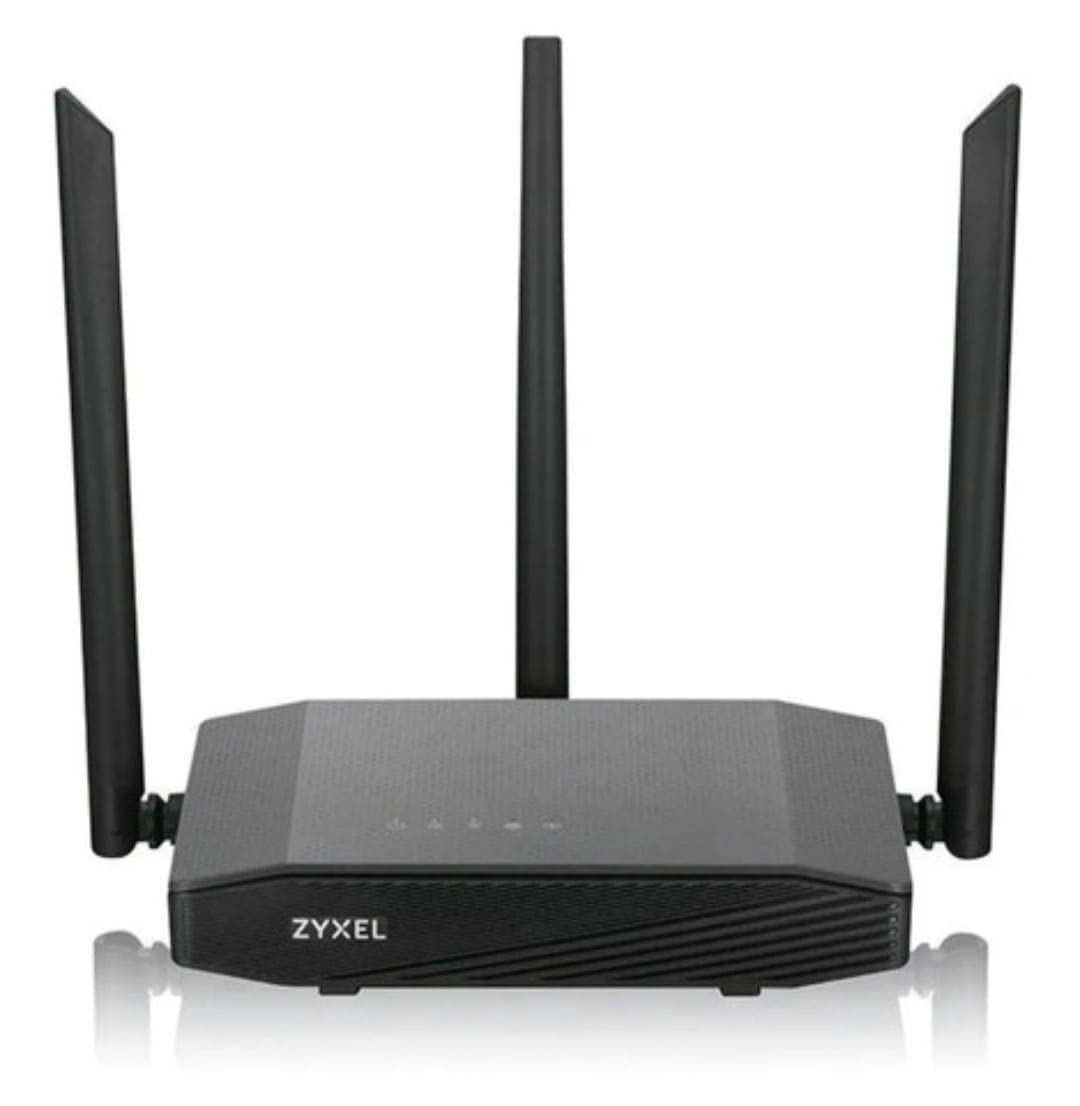
Image: Zyxel AC750 Dual-band Wireless Router with its power adapter and Ethernet cable.
Водич за подешавање
1. Повезивање хардвера
- Позиционирање рутера: Place the router in a central location in your home or office, away from obstructions and potential sources of interference (e.g., microwaves, cordless phones).
- Connect the Internet Cable: Connect one end of an Ethernet cable from your modem's LAN port to the WAN port (usually blue) on the Zyxel router.
- Прикључите напајање: Plug the power adapter into the router's power jack and then into a wall outlet.
- Укључено: Press the power button on the router. Wait for the power LED to turn solid green, indicating the device is ready.
Image: Rear panel of the Zyxel AC750 router, highlighting the WAN port, LAN ports, and power input.
2. Почетна конфигурација
- Повежите се са рутером:
- Виред: Повежите рачунар са једним од ЛАН портова рутера (жути) помоћу Етернет кабла.
- бежични: On your computer or mobile device, search for the Wi-Fi network name (SSID) printed on the label at the bottom of the router. Connect using the provided Wi-Fi password.
- Приступни интерфејс рутера: Отвори а web претраживач и тип http://192.168.1.1 (or the address specified on the router label) into the address bar and press Enter.
- Пријава: Унесите подразумевано корисничко име и лозинку (обично админ/1234 or админ/лозинка, check the router label).
- Покрените чаробњака за подешавање: Follow the on-screen instructions of the setup wizard to configure your internet connection and wireless settings. It is highly recommended to change the default Wi-Fi name (SSID) and password for security.
Упутство за употребу
Управљање бежичном мрежом
Your Zyxel AC750 router supports dual-band Wi-Fi (2.4 GHz and 5 GHz). You can manage these networks through the web интерфејс.
- Промена SSID-а и лозинке: Navigate to the "Wireless" or "Wi-Fi Settings" section in the router's web interface. Here you can modify the network names (SSIDs) and passwords for both 2.4 GHz and 5 GHz bands.
- Мрежа гостију: Enable a guest network for visitors to provide internet access without sharing your main network's password. This feature is typically found under "Guest Network" settings.
- Контрола приступа: Manage which devices can connect to your network by setting up MAC address filtering in the "Security" or "Access Control" section.
Напредне функције
- Прослеђивање портова: Configure port forwarding to allow external devices to access services on your local network, such as gaming servers or security cameras.
- Подешавања заштитног зида: Прилагодите правила заштитног зида да бисте побољшали безбедност мреже.
- родитељска контрола: Set up parental controls to restrict internet access for specific devices or during certain times.
Одржавање
- Ажурирања фирмвера: Regularly check the Zyxel support webсајт за ажурирања фирмвера. Ажурирање фирмвера може побољшати перформансе, додати нове функције и поправити безбедносне рањивости.
- Чишћење: Gently wipe the router's exterior with a soft, dry cloth. Do not use liquid cleaners or aerosols. Ensure ventilation holes are free from dust.
- Поновно покретање рутера: Ако имате проблема са мрежом, покушајте да поново покренете рутер тако што ћете искључити адаптер за напајање на 10 секунди, а затим га поново укључити.
- Фацтори Ресет: To restore the router to its factory default settings, press and hold the reset button (usually a small pinhole button) for about 10 seconds while the router is powered on. Use a paperclip or similar object. Напомена: Овим ћете обрисати сва ваша прилагођена подешавања.
Решавање проблема
| Проблем | Могући узрок | Решење |
|---|---|---|
| Нема приступа Интернету | Modem issue, incorrect router settings, cable disconnected. |
|
| Слаб Wi-Fi сигнал | Router placement, interference, outdated firmware. |
|
| Не могу приступити рутеру Web Интерфејс | Incorrect IP address, network connection issue, browser cache. |
|
Спецификације
| Феатуре | Детаљ |
|---|---|
| Модел | ЕМГ1702-Т10А |
| Бранд | Зикел |
| Ви-фи стандард | IEEE 802.11ac/n/a 5 GHz, IEEE 802.11n/g/b 2.4 GHz |
| Ви-Фи брзина | AC750 (300 Mbps 2.4 GHz + 433 Mbps 5 GHz) |
| Антене | 3 спољне антене |
| Етхернет портови | 1x WAN, 4x LAN (10/100 Mbps) |
| Фрекуенци Банд | Двопојасни (2.4 GHz и 5 GHz) |
| Компатибилни уређаји | Gaming Consoles, Tablets, Smart TVs |
Информације о гаранцији
Zyxel products are covered by a limited warranty. The specific terms and duration of the warranty may vary by region and product. Please refer to the warranty card included with your product or visit the official Zyxel webсајт за детаљне информације о гаранцији и регистрацији.
Сачувајте рачун као доказ о куповини за потребе гаранције.
Техничка подршка
If you encounter any issues that cannot be resolved using the troubleshooting guide, please contact Zyxel technical support.
- Webсајт: Visit the official Zyxel support website for FAQs, drivers, firmware, and contact information.
- Телефон: Refer to the support contact numbers provided in your product packaging or on the Zyxel webсајт за ваш регион.
When contacting support, please have your product model (EMG1702-T10A) and serial number ready.