
1. Увод
The Supermicro SYS-1019C-FHTN8 is a 1U rackmount server designed for demanding applications such as network security, uCPE network appliances, and virtualization. It supports Intel Xeon E-2100 Series Processors and features a front I/O design, accommodating two hot-swappable 2.5-inch drives and an additional two internal 2.5-inch drives. This server is equipped with eight Gigabit Ethernet LAN ports and a dedicated IPMI port for comprehensive remote management.
2. Подешавање и инсталација
2.1 Распакивање и преглед
Carefully remove the server from its packaging. Inspect the server for any signs of damage that may have occurred during shipping. Retain all packaging materials for future use or return if necessary.
2.2 Монтажа у сталак
The SYS-1019C-FHTN8 is a 1U rackmount server. Install the server into a standard 19-inch server rack using appropriate rack rails (sold separately or included). Ensure proper ventilation and cable management within the rack.
2.3 Инсталација компоненти
Before powering on the server, ensure all necessary components are installed. Refer to the following for guidance:
2.3.1 Инсталација погона
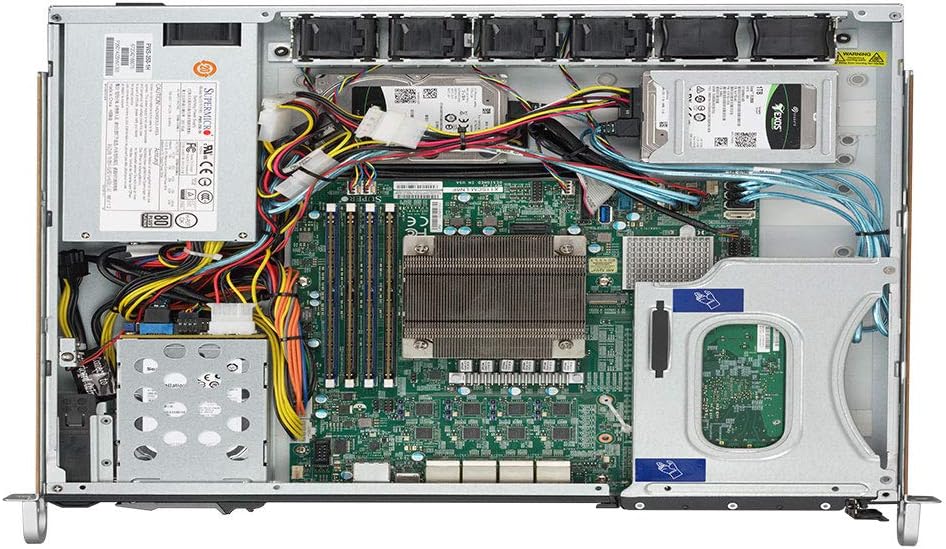
The server supports two hot-swappable 2.5-inch drives accessible from the front panel and two additional internal 2.5-inch drives. For hot-swappable drives, slide the drive into the bay until it clicks into place. For internal drives, secure them within the chassis using the provided mounting hardware.

Слика 1: Предња страна view of the SYS-1019C-FHTN8 server, highlighting the two hot-swappable 2.5-inch drive bays.
2.3.2 Инсталација меморије
The server features four DDR4 DIMM slots, supporting up to 128GB ECC UDIMM. Align the memory module with the slot key and press firmly until the retaining clips snap into place on both sides.
2.3.3 М.2 Инсталација
The server includes two M.2 22110 slots. Install M.2 storage devices by inserting them into the slot and securing them with the provided screw.
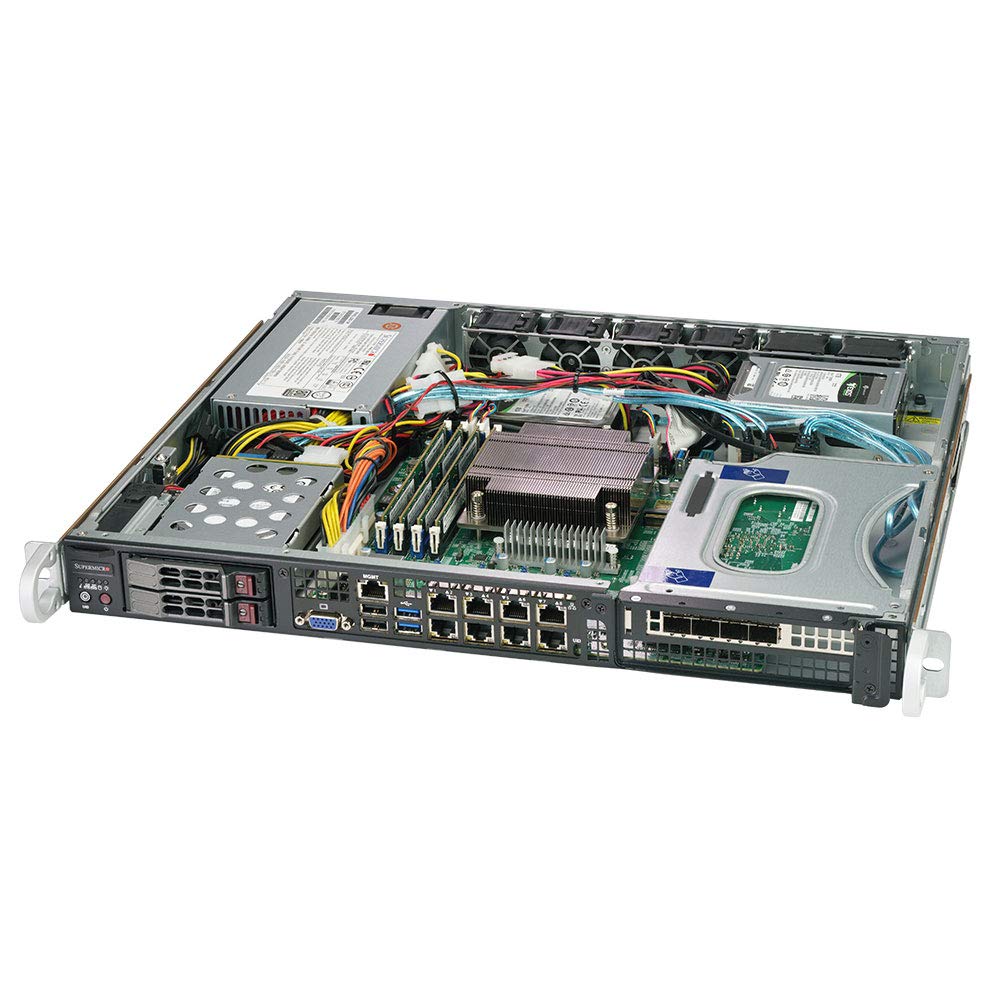
Слика 2: Унутрашњи view of the SYS-1019C-FHTN8 server, showing the motherboard layout, DIMM slots, and internal drive mounting points.
2.4 Повезивање периферних уређаја
Connect the power cable to the server's power supply unit and a suitable power source. Connect network cables to the desired Gigabit Ethernet LAN ports. If local access is required, connect a display, keyboard, and mouse to the appropriate ports.
Слика 3: Задња страна view of the SYS-1019C-FHTN8 server, illustrating the eight Intel i210-AT GbE LAN ports, USB ports, VGA port, and the dedicated IPMI port.
2.5 Почетно укључивање
Press the power button on the front panel. Observe the system's boot process. Access the BIOS/UEFI setup utility by pressing the designated key (usually DEL or F2) during startup to configure boot options or other system settings.
3. Упутство за употребу
3.1 Инсталација оперативног система
Install your preferred operating system (e.g., Windows Server, Linux distribution, VMware ESXi) using a bootable USB drive, optical drive (if connected), or network installation via PXE boot.
3.2 Конфигурација мреже
Configure the eight Intel i210-AT GbE LAN ports according to your network requirements. This may involve setting static IP addresses, configuring VLANs, or bonding interfaces for redundancy and increased throughput.
3.3 Remote Management (IPMI)
The dedicated IPMI port allows for out-of-band management of the server. Connect the IPMI port to your management network. Access the IPMI web интерфејс преко а web browser using the assigned IP address to monitor system health, manage power, and perform remote KVM functions.
4. Одржавање
4.1 Редовно чишћење
Periodically clean the server's exterior and internal components to prevent dust buildup, which can impede airflow and lead to overheating. Use compressed air to clear dust from fans and heatsinks. Ensure the server is powered off and disconnected from the power source before cleaning.
4.2 Ажурирања фирмвера
Regularly check the Supermicro website for updated BIOS, IPMI, and driver firmware. Keeping firmware up-to-date ensures optimal performance, stability, and security. Follow the manufacturer's instructions carefully when performing firmware updates.
4.3 Замена компоненти
When replacing components such as drives, memory, or fans, ensure the server is powered off and properly grounded. Refer to the specific component's installation guide for detailed instructions. For hot-swappable drives, follow the operating system's procedure for safe removal and insertion.
4.4 Разматрања животне средине
Operate the server within its specified environmental limits (temperature, humidity). Ensure adequate airflow around and through the server to prevent thermal issues. Avoid placing the server in direct sunlight or near heat sources.
КСНУМКС. Решавање проблема
5.1 Нема напајања
- Verify the power cable is securely connected to both the server and the power outlet.
- Check the power supply unit (PSU) status LEDs.
- Тестирајте утичницу са другим уређајем.
5.2 No Boot/Display
- Уверите се да је монитор повезан и укључен.
- Check memory modules are properly seated.
- Listen for POST (Power-On Self-Test) beep codes, which can indicate specific hardware issues.
- If using IPMI, check the remote console for boot messages.
5.3 Проблеми са мрежном повезивањем
- Verify network cables are securely connected to the correct LAN ports.
- Check network adapter status LEDs on the server and the switch.
- Confirm network configuration (IP address, subnet mask, gateway) in the operating system.
- Ping other devices on the network to isolate the issue.
5.4 IPMI Access Problems
- Ensure the dedicated IPMI port is connected to the network.
- Verify the IPMI IP address and network settings are correctly configured.
- Check for firewall rules that might be blocking access to the IPMI port.
6. Спецификације
| Феатуре | Спецификација |
|---|---|
| Подршка процесора | Intel Xeon E-2100 Series Processor, LGA 1151 |
| Чипсет | Интел Ц246 |
| Меморија | 4 x DDR4 DIMM slots; Up to 128GB ECC UDIMM |
| Дриве Баис | 2 x Hot-swap 2.5" Drive Bays (front), 2 x Internal 2.5" Drive Bays |
| М.2 Слотс | 2 x M.2 22110 slots |
| ЛАН портови | 8 x Intel i210-AT GbE LAN Ports |
| Порт за управљање | 1 x Dedicated IPMI LAN Port |
| УСБ портови | 2 x USB 2.0 Ports (rear) |
| Форм Фацтор | 1У Рацкмоунт |
| Димензије (В к Ш к Д) | 43 x 437 x 381 мм (1.7" x 17.2" x 15.0") |
| Тежина | Отприлике 25 фунти |
| Хардверска платформа | PC |
| Материјал | Метал |
7. Гаранција и подршка
7.1 Гаранција произвођача
This Supermicro server is covered by a manufacturer's warranty. Please refer to the warranty documentation provided with your purchase or visit the official Supermicro webсајт за детаљне услове и одредбе у вези са гаранцијом, трајањем и процедурама сервисирања.
7.2 Техничка подршка
For technical assistance, troubleshooting beyond this manual, or warranty claims, please contact Supermicro technical support. Have your server's model number (SYS-1019C-FHTN8) and serial number ready when contacting support to expedite service.
- Supermicro Support Webсајт: www.supermicro.com/support
- Контакт информације: Обратите се подршци webсајт за регионалне контакт бројеве и имејл адресе.