
Увод
This manual provides essential information for the proper setup, operation, and maintenance of your Philips 346B1C Curved Monitor. This 34-inch WQHD (3440 x 1440) display features a 100 Hz refresh rate, 5ms response time, and a curved VA panel for an immersive viewing experience. Key features include USB-C docking, MultiView functionality, FreeSync technology, LowBlue Mode, and FlickerFree technology for enhanced user comfort and productivity.

Слика: Фронт view of the Philips 346B1C curved monitor, showcasing its ultrawide display and key features like WQHD, USB-C Docking, and MultiView.
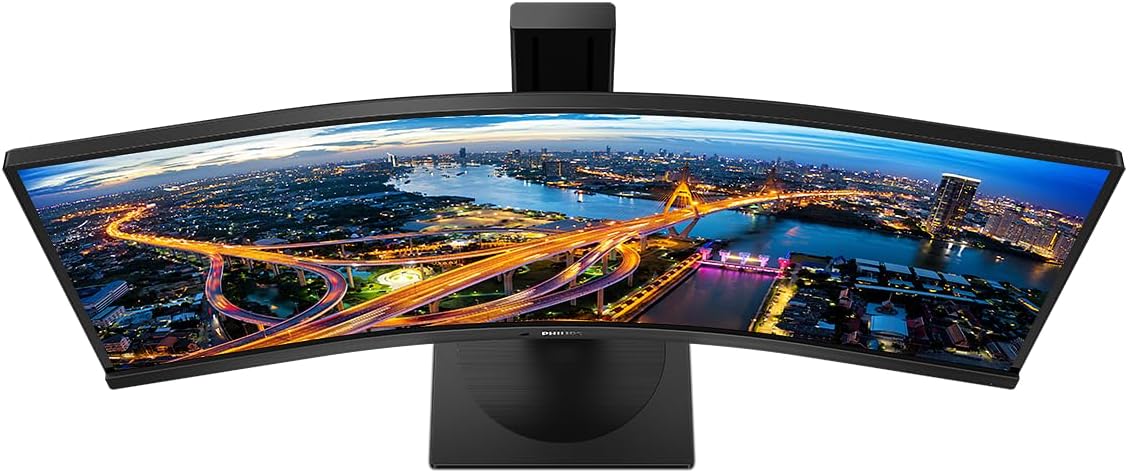
Слика: Одозго надоле view of the Philips 346B1C curved monitor, emphasizing the curvature of the screen.
Шта је у кутији
Проверите да ли су све компоненте присутне пре него што наставите са подешавањем.
- Philips 346B1C Curved Monitor
- Постоље за монитор (база и врат)
- Повер Цабле
- ХДМИ кабл
- ДисплаиПорт Цабле
- УСБ-Ц на УСБ-Ц кабл
- USB-A to USB-B Cable (Upstream)
- Documentation (Quick Start Guide, User Manual CD)
Упутства за подешавање
1. Састављање постоља
- Поставите монитор лицем надоле на меку, чисту површину да бисте спречили огреботине.
- Причврстите врат постоља на панел монитора. Уверите се да је безбедно закачено на своје место или да је причвршћено завртњима ако су приложени.
- Причврстите основу постоља на врат постоља. Затегните палчати завртањ или завртње са дна основе.

Слика: Позади view of the Philips 346B1C monitor, showing the stand attachment point and VESA mounting holes.
2. Повезивање са рачунаром
Повежите монитор са рачунаром користећи једну од следећих метода:
- ХДМИ веза: Повежите један крај HDMI кабла са HDMI портом монитора, а други крај са HDMI излазом рачунара.
- ДисплаиПорт веза: Connect one end of the DisplayPort cable to the monitor's DisplayPort and the other end to your computer's DisplayPort output.
- УСБ-Ц веза: Connect one end of the USB-C cable to the monitor's USB-C port and the other end to your computer's USB-C port. This connection supports video, data, and power delivery (up to 90W) to your laptop.
For USB hub functionality, connect the USB-A to USB-B upstream cable from your computer to the monitor's USB-B upstream port.
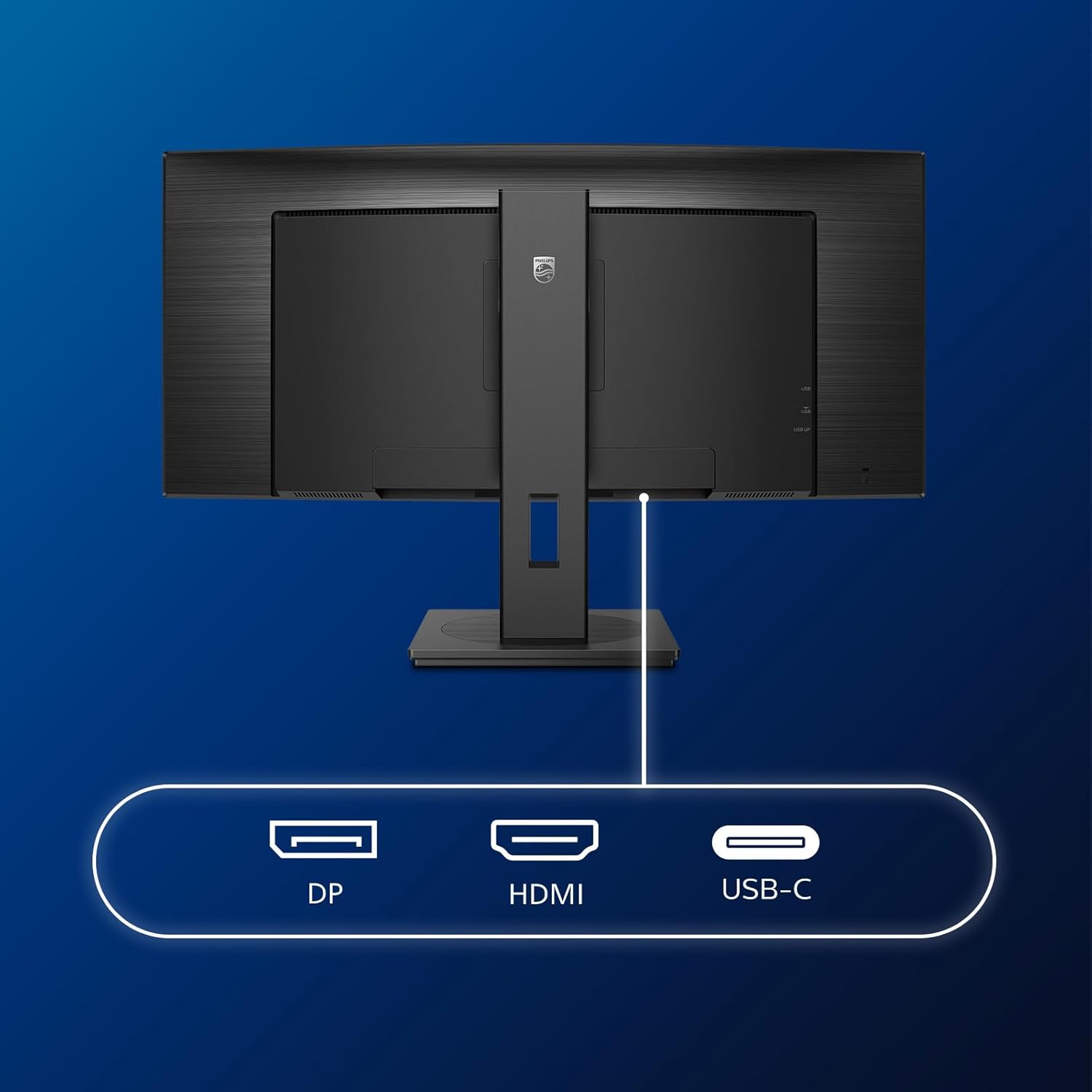
Слика: Детаљна view of the monitor's input ports, including DisplayPort (DP), HDMI, and USB-C, for connecting to various devices.
3. Прикључак за напајање
Повежите кабл за напајање са улазом за напајање монитора, а затим са уземљеном електричном утичницом.
4. Прво укључивање
Press the power button located on the monitor to turn it on. The monitor should automatically detect the input signal. If not, use the On-Screen Display (OSD) menu to select the correct input source.
Упутство за употребу
Он-Сцреен Дисплаи (ОСД) мени
The OSD menu allows you to adjust various monitor settings. Use the joystick control located on the back or bottom of the monitor to navigate the menu.
- Осветљеност/контраст: Подесите укупну осветљеност и контраст екрана.
- Подешавања боја: Фино подешавање температуре боје, гаме и простора боја.
- Изаберите улаз: Manually switch between HDMI, DisplayPort, and USB-C inputs.
- аудио: Adjust volume or mute the built-in speakers.
- Режим слике: Select from preset picture modes (e.g., Standard, Gaming, Text).
МултиView Функционалност
Тхе МултиView feature allows you to connect and view content from two different sources simultaneously on the screen. Access this feature through the OSD menu to select Picture-by-Picture (PbP) or Picture-in-Picture (PiP) modes and configure input sources.
УСБ-Ц прикључна станица
When connected via USB-C, the monitor acts as a docking station, providing video, data transfer through its integrated USB hub, and power delivery to charge your connected laptop (up to 90W).
SmartErgoBase and Adjustability
The monitor's SmartErgoBase allows for ergonomic adjustments including height, swivel, and tilt to optimize your viewин удобност.

Image: Illustrations demonstrating the monitor's adjustable features, including height adjustment, tilt, and swivel capabilities for ergonomic positioning.
Карактеристике удобности за очи
- Нископлави режим: Reduces harmful shortwave blue light emissions to prevent eye strain. Activate this mode via the OSD menu.
- FlickerFree Technology: Regulates brightness and reduces flicker for more comfortable viewing. This feature is always active.
- PowerSensor & LightSensor: These sensors automatically adjust monitor brightness based on ambient light conditions and user presence, saving energy and reducing eye strain.
Одржавање
Чишћење монитора
- Увек искључите монитор пре чишћења.
- Лагано користите меку крпу која не оставља длачице дampводом или благим, неабразивним средством за чишћење екрана.
- Не користите алкохол, раствараче или средства за чишћење на бази амонијака, јер могу оштетити површину екрана.
- Нежно обришите екран да бисте уклонили прашину и мрље.
- Очистите монитор цasinг меком, сувом крпом.
Општа нега
- Избегавајте стављање тешких предмета на монитор или његове каблове.
- Не излажите монитор директној сунчевој светлости, прекомерној топлоти или екстремној хладноћи.
- Осигурајте одговарајућу вентилацију око монитора.
Решавање проблема
Ако наиђете на проблеме са монитором, погледајте следеће уобичајене кораке за решавање проблема:
| Проблем | Могући узрок | Решење |
|---|---|---|
| Нема слике на екрану | Кабл за напајање је искључен; видео кабл је искључен; изабран је погрешан улазни извор. | Ensure power cable is securely connected; Check video cable connections (HDMI, DP, USB-C); Select correct input source via OSD menu. |
| Слика је мутна или искривљена | Нетачна резолуција; Проблем са графичким драјвером. | Подесите резолуцију екрана на 3440 x 1440; Ажурирајте драјвере графичке картице. |
| Нема звука из звучника | Volume muted or too low; Incorrect audio output selected on computer. | Adjust monitor volume via OSD; Check computer's audio output settings. |
| УСБ портови не раде | USB узлазни кабл није повезан. | Ensure the USB-A to USB-B upstream cable is connected from the monitor to your computer. |
For further assistance, please refer to the support section or contact Philips customer service.
Спецификације
| Феатуре | Детаљ |
|---|---|
| Бранд | Пхилипс |
| Број модела | 346Б1Ц |
| Величина екрана | 34 инча (86 цм) |
| Резолуција | 3440к1440 (ВКХД) |
| Аспецт Ратио | 21:9 |
| Површина екрана | Curved VA Panel |
| Рефресх Рате | 100 Хз |
| Време одговора | 5 Milliseconds (GtG) |
| Однос контраста | 3000:1 (типично) |
| Осветљеност | 300 цд/м² |
| Viewинг Англе | 178° (В) / 178° (В) |
| Повезивање | 1x HDMI 2.0, 1x DisplayPort 1.2, 1x USB-C 3.2 Gen 1 (upstream, power up to 90W), 1x USB-B (upstream), 4x USB 3.2 (downstream), RJ45 (Ethernet) |
| Адаптиве Синц | ФрееСинц |
| Уграђени звучници | 2к 5В |
| Потрошња енергије | 5 Watts (Eco mode) |
| Тежина | 7.8 килограма (са постољем) |
Гаранција и подршка
Информације о гаранцији
This Philips monitor comes with a Двогодишња гаранција произвођача. The specific terms and conditions of the warranty can be found in the detailed documentation provided with your product or on the official Philips support website. Your statutory rights as a consumer are not affected by this warranty.
Корисничка подршка
For technical assistance, product inquiries, or warranty claims, please visit the official Philips support website or contact their customer service department. You may need your monitor's model number (346B1C) and serial number (found on the back of the monitor) when contacting support.
Филипсова подршка Webсајт: ввв.пхилипс.цом/суппорт