
1. Производ је готовview
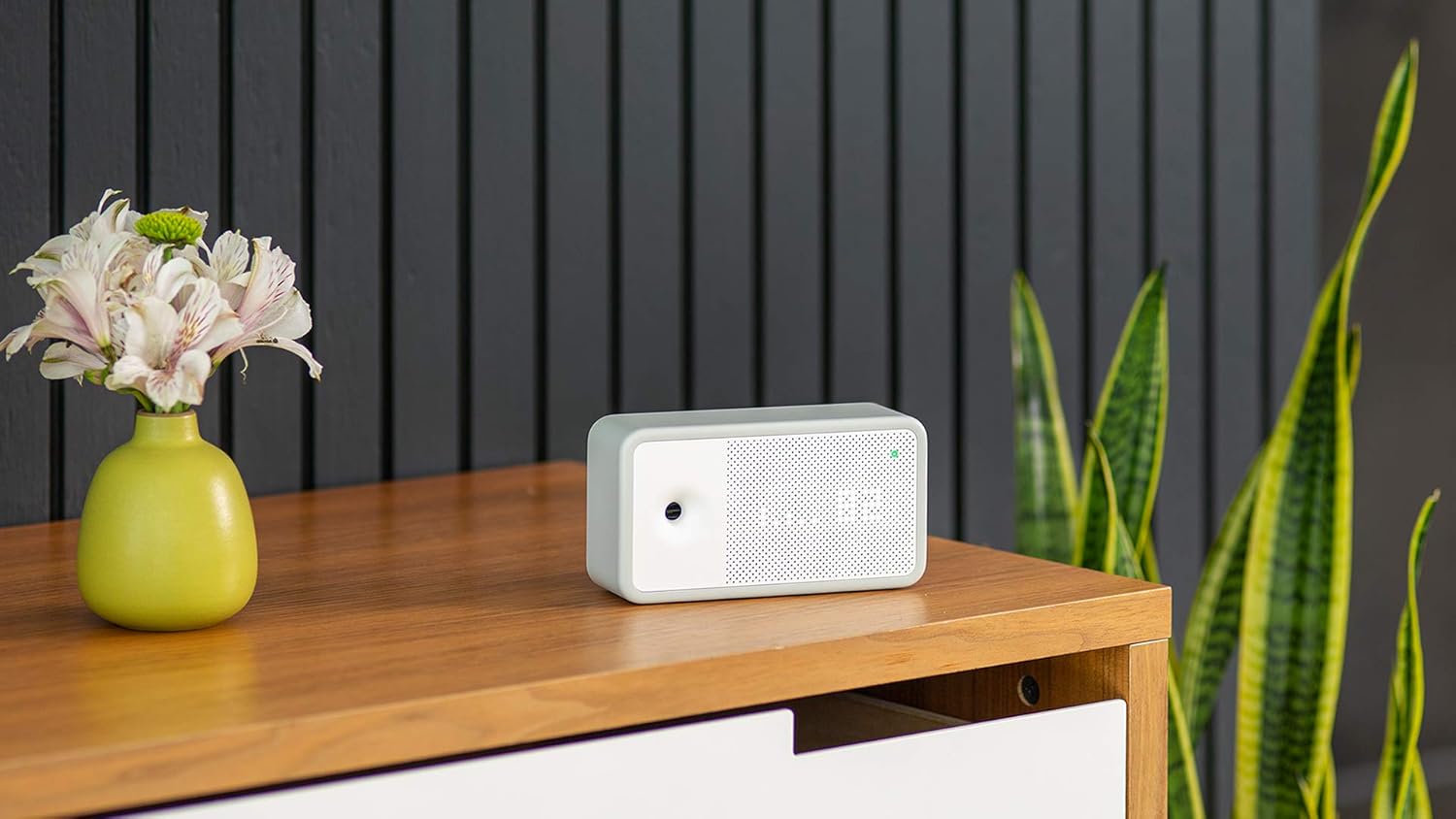
The Awair Element is an advanced indoor air quality monitor designed to provide real-time insights into your home or office environment. It accurately tracks five key air quality factors: temperature, humidity, carbon dioxide (CO2), volatile organic compounds (VOCs), and particulate matter (PM2.5).

Understanding these factors helps you identify potential issues and take steps to improve your indoor air quality, contributing to a healthier living or working space.
2. Водич за подешавање
2.1 Распакивање и постављање
Carefully remove the Awair Element from its packaging. The device is designed for indoor use only. Place the monitor on a flat, stable surface in the area where you wish to monitor air quality. Avoid placing it near windows, vents, or direct heat sources, as this can affect sensor accuracy.
2.2 Прикључак за напајање
Connect the provided USB-C power cable to the port on the back of the Awair Element and plug the power adapter into a standard electrical outlet. The device will power on automatically.

2.3 Преузимање и упаривање апликације
- Download the 'Awair Home' app from your smartphone's app store (available on iOS and Android).
- Отворите апликацију и креирајте налог или се пријавите.
- Follow the in-app instructions to pair your Awair Element. This process typically involves enabling Bluetooth on your phone and connecting to the device via Wi-Fi (2.4 GHz network required).
3. Руковање уређајем
3.1 Understanding the Device Display
The Awair Element features a minimalist LED display that shows your overall air quality score or individual sensor readings. A small button on the back allows you to cycle through different display modes, including temperature, humidity, CO2, chemicals (VOCs), PM2.5, and time.

3.2 Using the Awair Home App
The Awair Home app provides a comprehensive view of your air quality data, historical trends, and personalized recommendations. You can view real-time readings for all five factors, track daily and weekly averages, and receive alerts when air quality levels change.

The app also offers integration with smart home systems like Amazon Alexa and Google Assistant, allowing for voice control and automated actions based on air quality data.

4. Одржавање
4.1 Упутства за чишћење
To ensure optimal performance, keep your Awair Element clean. Gently wipe the exterior with a soft, dry cloth. Do not use liquid cleaners or abrasive materials, as these can damage the sensors or finish. Ensure the air intake and exhaust vents are free from dust and obstructions.
КСНУМКС. Решавање проблема
5.1 Проблеми са повезивањем
- Уређај се не повезује на Wi-Fi: Ensure your Wi-Fi network is 2.4 GHz. Check that the device is within range of your router. Try restarting your router and the Awair Element.
- Апликација не приказује податке: Verify that your smartphone has an active internet connection and that the Awair Element is powered on and connected to Wi-Fi. Close and reopen the app.
5.2 Нетачна очитавања
- Sudden spikes in VOCs or PM2.5: This can be normal during activities like cooking, cleaning with chemicals, or burning candles. Observe if readings return to normal after the activity ceases.
- Consistent unusual readings: Ensure the device is not placed near strong air currents, direct sunlight, or sources of heat/cold. Allow the device to operate for at least 24 hours after initial setup for sensors to stabilize.
5.3 Ресетовање уређаја
If you experience persistent issues, a factory reset may be necessary. Locate the reset button on the back of the device (often a small pinhole). Use a paperclip to press and hold the button for approximately 5-10 seconds until the display changes or the device restarts. You will then need to re-pair the device with the Awair Home app.
6. Спецификације
| Феатуре | Детаљ |
|---|---|
| Бранд | АВАИР |
| Број модела | Елемент |
| Димензије | 1.8"Д к 6.06"Ш к 3.33"В |
| Тежина | 8.5 унци |
| Извор напајања | Electric (Power Adapter, USB-C Power Cable included) |
| Повезивање | Bluetooth (for setup), 2.4 GHz Wi-Fi |
| Monitored Factors | Temperature, Humidity, Carbon Dioxide (CO2), Chemicals (VOCs), Particulate Matter (PM2.5) |
| Тип контролера | Амазон Алекса, Гугл асистент, Вера |
| Ниво буке | 50 децибела |
7. Гаранција и подршка
7.1 Информације о гаранцији
The Awair Element Indoor Air Quality Monitor comes with a 1-годишња ограничена гаранција од датума куповине. Ова гаранција покрива недостатке у материјалу и изради при нормалној употреби. Молимо вас да сачувате доказ о куповини за потребе подношења захтева за гаранцију.
7.2 Корисничка подршка
For further assistance, technical support, or to inquire about warranty services, please visit the official AWAIR website or contact their customer service department. Detailed contact information can typically be found on the manufacturer's webсајту или у паковању производа.