
1. Увод
This manual provides detailed instructions for the NETUM C750 QR Code Reader. The C750 is a compact, versatile barcode scanner designed for efficient data collection. It supports various 1D, 2D, and QR codes from both digital screens and printed materials. With multiple connection options, it integrates seamlessly into diverse environments such as retail, inventory management, and office settings.
2. Производ је готовview
Кључне карактеристике
- Advanced CMOS Sensor: Capable of reading 1D, 2D, and QR codes from both digital displays and printed labels.
- Компактан и преносив дизајн: Miniature size for easy handling and mobility.
- Dual Data Upload Modes: Supports instant upload for real-time data transfer and storage mode for offline scanning (up to 50,000 barcodes).
- Троструки режими повезивања: Offers flexible connectivity via Bluetooth, 2.4GHz wireless, and USB 2.0 wired connections.
- Широка компатибилност: Works with POS systems, iOS, Android, Windows, Mac OS, and Linux devices, including smartphones and tablets.
- Multiple Scanning Modes: Features Trigger Mode, Continuous Scan Mode, and Auto-sensing Mode for various operational needs.
Садржај пакета
- НЕТУМ Ц750 баркод скенер
- УСБ кабл за пуњење/дата
- 2.4G Wireless USB Dongle
- Ланиард
- Кориснички приручник (овај документ)
3. Подешавање
Пуњење скенера
Before initial use, fully charge the scanner. Connect the scanner to a USB power source using the provided USB cable. The charging indicator light will show the charging status. A full charge typically takes a few hours.
Режими везе
The NETUM C750 offers three ways to connect to your host device:
3.1. Блуетоотх веза
To connect via Bluetooth, ensure your host device (smartphone, tablet, computer) has Bluetooth enabled. Scan the Bluetooth pairing barcode in the quick setup guide (usually provided with the product) or refer to the scanner's internal settings for Bluetooth mode. Тражи available devices on your host device; the scanner may appear as "C barcode scanner" or "Netum Bluetooth". Select it to pair.

Image: Bluetooth connection range. The scanner can transmit data up to 10 meters (33 feet) in environments with obstacles and up to 50 meters (164 feet) in clear environments.
3.2. Бежична веза од 2.4 GHz
For 2.4GHz wireless connection, plug the provided USB dongle into an available USB port on your computer. The scanner should automatically connect to the dongle. If not, scan the pairing barcode for 2.4G wireless mode (refer to the quick setup guide).

Image: 2.4GHz wireless connection setup with USB dongle. The scanner can transmit data up to 30 meters (99 feet) in environments with obstacles and up to 100 meters (330 feet) in clear environments.
3.3. Жична USB веза
Connect the scanner directly to your computer using the USB cable. This mode is plug-and-play and allows the scanner to operate while charging. It is compatible with various operating systems without requiring additional drivers.

Image: USB wired connection for the NETUM C750 scanner.
4. Упутство за употребу
4.1. Скенирање бар кодова
To scan a barcode, point the scanner's window at the barcode and press the trigger button. A successful scan will be indicated by a vibration and/or an audible beep (if enabled). Ensure the barcode is within the scanner's field of view and properly illuminated.

Image: Demonstrates scanning a QR code with the NETUM C750, highlighting the vibration notification upon successful read.
4.2. Режими скенирања
The scanner supports three distinct scanning modes, configurable by scanning specific setup barcodes (refer to your quick setup guide):
- Режим окидача: Скенер чита баркод само када се притисне дугме за окидање.
- Режим непрекидног скенирања: The scanner continuously emits a scan beam and reads any barcode it detects.
- Режим аутоматског откривања: The scanner automatically activates its scan beam and reads a barcode when it detects an object in its field of view.

Image: Visual representation of the three scanning modes: Trigger, Sensor (Auto-sensing), and Continuous.
4.3. Режими отпремања података
The C750 offers two methods for uploading scanned data:
- Режим тренутног отпремања: Scanned data is immediately transmitted to the connected host device. This is ideal for real-time inventory updates or POS transactions.
- Режим складиштења: The scanner stores up to 50,000 barcodes internally. Data can be uploaded to the host device in a batch when needed. This mode is useful for mobile operations where a continuous connection is not feasible.
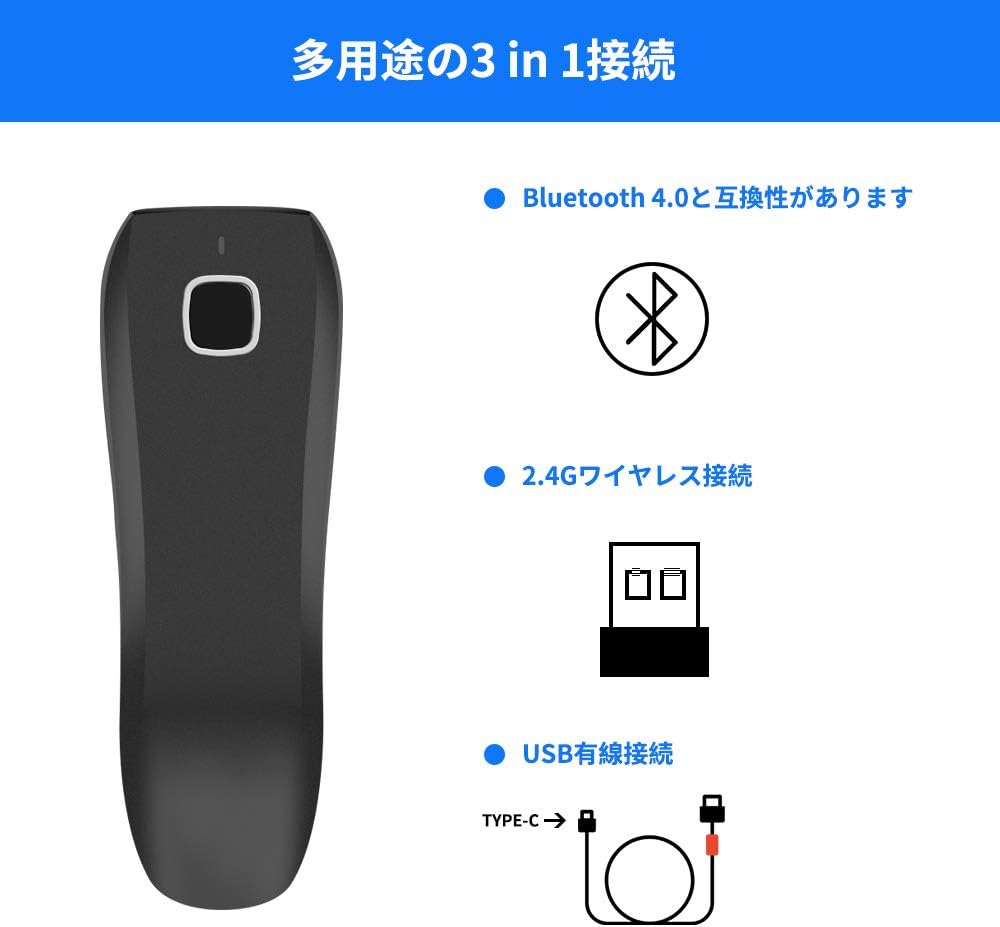
Image: Explanation of the two data upload modes: Storage Upload Mode (saving up to 50,000 barcodes internally) and Instant Upload Mode (real-time data transfer).
4.4. Supported Barcode Types
The NETUM C750 is designed to read a wide range of barcode symbologies:
- 1Д бар кодови: Codabar, Code 11, Code 93, MSI, Code 128, UCC / EAN-128, Code 39, EAN-8, EAN-13, UPC-A, ISBN, Industrial 25, Interleaved 25, Standard 25, 2/5 Matrix.
- 2Д бар кодови: QR Code, PDF417, Data Matrix, Aztec Code, Maxi Code.

Image: The scanner is compatible with PC, smartphones, tablets, and POS systems, supporting Windows XP/7/8/10, Mac OS, Linux, iOS, and Android.
5. Одржавање
To ensure optimal performance and longevity of your NETUM C750 scanner, follow these maintenance guidelines:
- Чишћење: Use a soft, dry, lint-free cloth to clean the scanner's exterior and scan window. Avoid abrasive cleaners, solvents, or excessive moisture.
- Одржавање батерије: For the best battery life, avoid fully discharging the battery frequently. Charge the scanner regularly, even if not in constant use. Store the scanner in a cool, dry place away from extreme temperatures.
- Складиштење: When not in use for extended periods, store the scanner in its original packaging or a protective case to prevent damage.
КСНУМКС. Решавање проблема
If you encounter issues with your NETUM C750 scanner, refer to the following common problems and solutions:
| Проблем | Могући узрок | Решење |
|---|---|---|
| Скенер се не укључује. | Слаба или испражњена батерија. | Connect the scanner to a power source using the USB cable and allow it to charge for at least 30 minutes before attempting to turn it on. |
| Скенер не чита баркодове. | Incorrect scanning mode, dirty scan window, or unsupported barcode type. | Ensure the scanner is in the correct scanning mode. Clean the scan window with a soft cloth. Verify the barcode symbology is supported by the C750. |
| No data transmission to host device. | Connection issue (Bluetooth, 2.4G, USB), incorrect data upload mode. | For Bluetooth/2.4G, ensure the scanner is paired and within range. For USB, check cable connection. Verify the scanner is in Instant Upload Mode if real-time data is expected. Re-pair if necessary. |
| No charging notification light. | This model may not have a dedicated charging indicator light. | Refer to the quick start guide for specific indicator behavior. If the scanner powers on after charging, it is likely charging correctly. |
| Cannot scan Japanese characters wirelessly. | Keyboard layout mismatch or limitation in wireless mode. | Ensure the host device's keyboard layout matches the scanner's output settings. Some advanced character sets may require USB wired connection or specific software configuration. |
7. Спецификације
| Феатуре | Детаљ |
|---|---|
| Бранд | НЕТУМ |
| Модел | Ц750 |
| Технологија повезивања | Bluetooth, 2.4GHz Wireless, USB 2.0 Wired |
| Тип сензора | ЦМОС |
| Подржани 1Д баркодови | Codabar, Code 11, Code 93, MSI, Code 128, UCC / EAN-128, Code 39, EAN-8, EAN-13, UPC-A, ISBN, Industrial 25, Interleaved 25, Standard 25, 2/5 Matrix |
| Подржани 2Д баркодови | QR Code, PDF417, Data Matrix, Aztec Code, Maxi Code |
| Тип батерије | 1 литијум-полимерска батерија (укључена) |
| Оператинг Волtage | 5 Волтс |
| Компатибилност | Smartphones, Tablets, POS, iOS, Android, Windows, Mac OS, Linux |
| ГТИН | 649615769027 |
| Цертификати | CE |
| Порекло | Кина |
8. Гаранција и подршка
The NETUM C750 QR Code Reader comes with a 1 година гаранције од датума куповине. Ова гаранција покрива производне недостатке и кварове при нормалној употреби.
For technical support, warranty claims, or any questions regarding the product, please contact your retailer or the manufacturer directly. Refer to the contact information provided with your purchase documentation or visit the official NETUM webсајт за ресурсе подршке.


