
1. Увод
This user manual provides detailed instructions for the IPEVO VZ-R HDMI/USB Dual Mode Document Camera. It covers product features, setup procedures, operational guidelines, maintenance tips, and troubleshooting information to help you effectively use your device for real-time projection, remote work, distance learning, web conferencing, video recording, and live demonstrations.
2. Производ је готовview
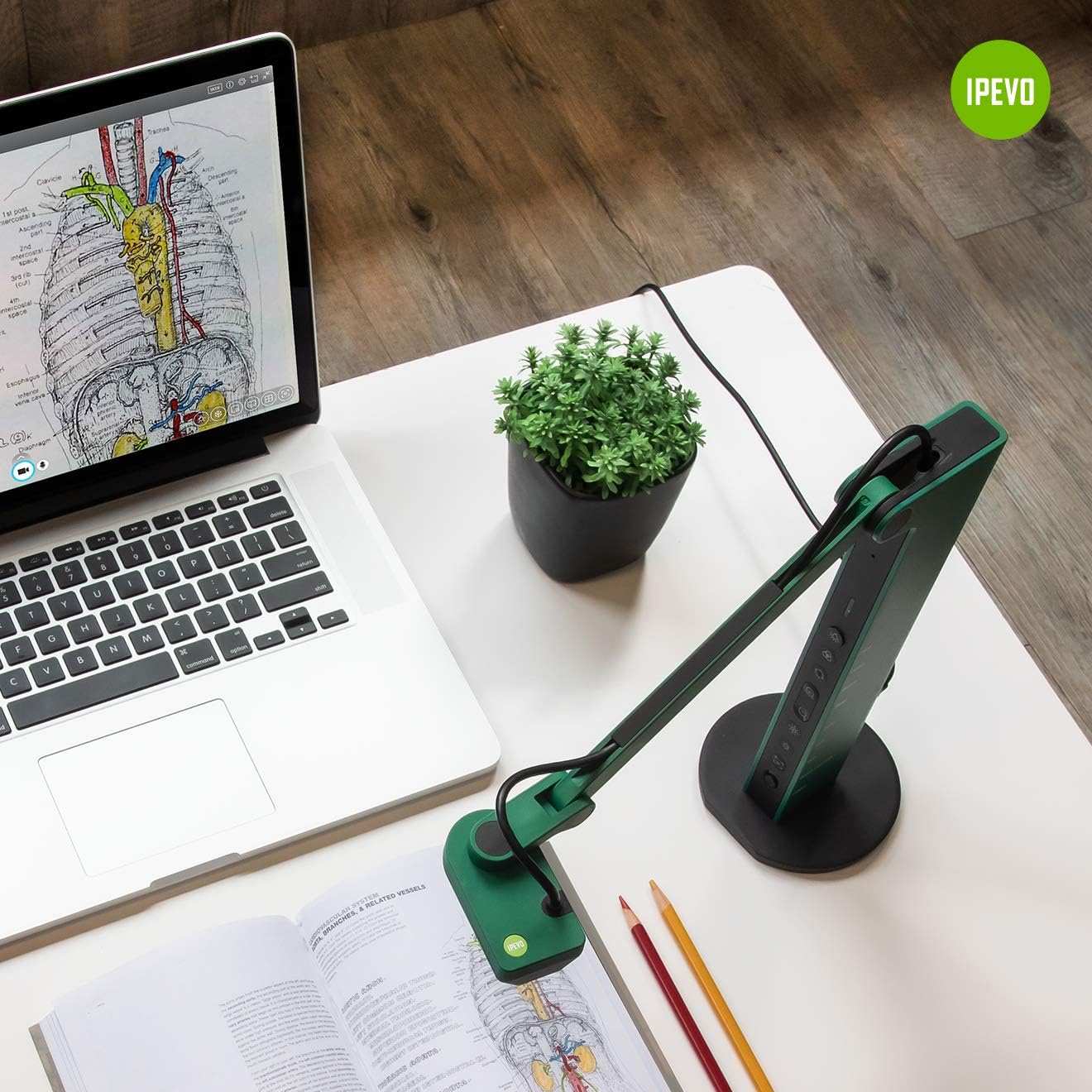
The IPEVO VZ-R is an 8-megapixel document camera designed for versatile visual communication. It offers both HDMI and USB connectivity, allowing direct connection to displays or computers. Its robust design and advanced imaging capabilities make it suitable for various educational and professional environments.
Кључне карактеристике:
- Двоструки режим повезивања: Seamlessly switch between HDMI for direct display output and USB for computer-based applications.
- Сликање високе резолуције: Captures up to 3264 x 2448 pixels in USB mode and 1920 x 1080 pixels in HDMI mode, ensuring clear and detailed visuals.
- Large Capture Area: Maximum capture area of 10.6” x 18.9” (16:9) or 13.5” x 18.1” (4:3).
- Побољшане перформансе: Features a Sony CMOS image sensor and Ambarella SoC for fast focus, noise reduction, and accurate color reproduction.
- Интегрисано ЛЕД светло: Provides additional illumination for optimal image quality in low-light conditions.
- WebФункционалност камере: Functions as a high-quality webcam, compatible with various third-party video conferencing software.
- Флексибилан дизајн: Swiveling head and multi-jointed stand allow for capturing objects at different heights, angles, and orientations.
- Издржљив и преносив: Constructed with a glass fiber reinforced stand (GVX-5H) for increased durability and ease of transport.
- Интуитивне контроле: Tactile built-in buttons on the device body for instant image adjustments.

3. Садржај пакета
Проверите да ли су све ставке присутне у пакету:
- Camera head and stand
- База
- USB Type-C to Type-A cable (4.90ft/150cm)
- Шрафцигер
- Вијци к 4
Напомена: An HDMI cable and a wall power adapter are not included in the package and must be acquired separately if needed.
4. Изглед уређаја
The IPEVO VZ-R features an intuitive button layout for easy control. Familiarize yourself with the functions of each button:

- СВЕТЛО: Toggles the LED light on/off.
- ФИЛТЕР: Cycles through various image filters (e.g., grayscale, negative).
- РОТИРАЈ: Ротира слику за 90 степени у смеру казаљке на сату.
- ZOOM + / ZOOM -: Adjusts the digital zoom level.
- EXP + / EXP -: Adjusts the exposure level (brightness).
- FOCUS / AF-LOCK: Initiates auto-focus or locks the current focus.
- СНАГА: Укључује или искључује уређај.
5. Подешавање
5.1 Физичка монтажа
- Attach the camera head and stand assembly to the base using the provided screws and screwdriver. Ensure it is securely fastened.
- Position the VZ-R on a stable, flat surface.
5.2 Connecting to a Computer (USB Mode)
- Connect the USB Type-C end of the provided cable to the VZ-R.
- Connect the USB Type-A end of the cable to an available USB port on your computer (Mac, Windows PC, or Chromebook).
- The VZ-R will be recognized as a standard webcam. You may need to download and install the IPEVO Visualizer software from the official IPEVO website for full functionality and advanced controls.
5.3 Connecting to a Display (HDMI Mode)
- Connect an HDMI cable (not included) from the VZ-R's HDMI output port to the HDMI input port on your TV, monitor, or projector.
- Ensure the display device is set to the correct HDMI input source.
- The VZ-R will automatically project its live feed to the connected display.

5.4 Напајање уређаја
The VZ-R is powered via its USB connection. When connected to a computer, it draws power from the USB port. For HDMI-only operation, connect the USB cable to a USB wall adapter (not included) for power.
6. Упутство за употребу
6.1 Using the IPEVO Visualizer Software
For advanced control and features when connected to a computer, download and install the IPEVO Visualizer software. This software allows you to:
- Adjust image settings (resolution, exposure, white balance).
- Annotate live images.
- Record video and capture snapshots.
- Utilize various presentation tools.
6.2 Using On-Device Buttons
Refer to Section 4, "Device Layout," for the location and function of each button. These buttons allow for quick adjustments without software interaction, especially useful in HDMI mode.
6.3 Adjusting the Camera Arm
The VZ-R's multi-jointed stand allows for flexible positioning. Gently adjust the arm and camera head to capture your desired object or document. The swiveling head provides additional flexibility for different angles and orientations.
6.4 Коришћење као Webцам
When connected to a computer via USB, the VZ-R can function as a webcam. Select the VZ-R as your camera source in your preferred video conferencing application (e.g., Zoom, Google Meet, Microsoft Teams). Its flexible arm allows you to easily switch between showing your face and displaying physical documents or objects during a call.


7. Одржавање
To ensure the longevity and optimal performance of your IPEVO VZ-R, follow these maintenance guidelines:
- Чишћење: Use a soft, dry cloth to clean the exterior of the device. For the camera lens, use a lens cleaning cloth and solution specifically designed for optics. Avoid abrasive cleaners or solvents.
- Складиштење: When not in use, store the VZ-R in a clean, dry place away from direct sunlight and extreme temperatures. The flexible arm can be folded for compact storage.
- Руковање: Пажљиво рукујте уређајем. Избегавајте да га испустите или изложите јаким ударцима.

КСНУМКС. Решавање проблема
If you encounter issues with your IPEVO VZ-R, refer to the following common problems and solutions:
- No Image Displayed (USB Mode):
- Ensure the USB cable is securely connected to both the VZ-R and your computer.
- Verify that the VZ-R is selected as the camera source in your software (e.g., IPEVO Visualizer, video conferencing app).
- Покушајте да се повежете на други УСБ порт на рачунару.
- Поново покрените рачунар.
- No Image Displayed (HDMI Mode):
- Ensure the HDMI cable is securely connected to both the VZ-R and your display device.
- Уверите се да је ваш уређај за приказ подешен на исправан HDMI улазни извор.
- Ensure the VZ-R is receiving power via its USB connection to a wall adapter.
- Пробајте други HDMI кабл.
- Слика је мутна или ван фокуса:
- Притисните тастер FOCUS / AF-LOCK button to initiate auto-focus.
- Ensure the object is within the camera's optimal focal range.
- Check for any obstructions on the camera lens.
- Image is Too Dark or Too Bright:
- Adjust the exposure using the EXP + / EXP - дугмад.
- Ensure the LED light is on if operating in a dimly lit environment.
- Check ambient lighting conditions.
- Треперећа слика:
- Ensure all cables (USB, HDMI) are securely connected and not damaged.
- Пробајте други кабл.
- Ensure adequate power supply.
9. Спецификације
| Феатуре | Детаљ |
|---|---|
| Димензије производа | 4.56 к 4.25 к 11.85 инча |
| Тежина артикла | 2.2 фунти |
| Број модела ставке | 5-898-4-01-00 |
| Резолуција снимања видео записа | 2448p (USB Mode), 1080p (HDMI Mode) |
| Тип контроле експозиције | Мануал |
| Боја | Зелена |
| Тип зумирања | Digital (smooth zoom) |
| Први доступан датум | 14. маја 2020. године |
| Произвођач | ИПЕВО |
10. Гаранција и подршка
For warranty information and technical support, please refer to the official IPEVO website or contact IPEVO customer service directly. You can typically find support resources, FAQs, and contact details at ввв.ипево.цом. For direct customer service inquiries, you may also reach out to цс@ипево.цом.
Напомена: No official product videos were available in the provided data for embedding in this manual.