
Увод
Thank you for choosing the WisFox 2.4G Wireless Mouse. This manual provides detailed instructions for setting up, operating, and maintaining your new wireless mouse. Please read this manual thoroughly before use to ensure optimal performance and longevity of your device.
Садржај пакета
- 1 x WisFox 2.4G Wireless Mouse
- 1 x USB Receiver (stored in the battery compartment)
- 1 x адаптер типа C
- 1 к Упутство за употребу
Кључне карактеристике
- Удобан ергономски дизајн: Well-built, lightweight, contoured shape with sweat-resistant coating for enhanced comfort.
- Подесиви нивои DPI-ја: Three adjustable DPI settings (800, 1200, 1600) for precise tracking on various surfaces.
- Six-Button Design: Includes standard left/right click, scroll wheel, DPI button, and two side buttons for improved functionality in work and gaming.
- High Durability & Stable Signal: Tested for 5 million keystrokes, utilizing advanced 2.4GHz wireless technology for strong, accurate connection up to 33 feet.
- Ауто Слееп Моде: Energy-efficient design with auto power-saving mode after 1 minute of idling and sleep mode after 8 minutes of idling. Double-click to wake.
- Symmetric Design: Погодно и за десноруке и за леворуке кориснике.
- Широка компатибилност: Compatible with Windows 7/8/10/XP, Vista 7/8, Linux, Mac OS (V10.4 or higher), and works with laptops, desktops, PCs, and MacBooks.
Водич за подешавање
1. Инсталирајте батерију
Open the battery compartment cover located on the underside of the mouse. Insert one AA battery (not included) ensuring correct polarity. The USB receiver is also stored in this compartment.

Image: Underside of the mouse with the battery compartment open, showing the slot for the USB receiver.
2. Повежите УСБ пријемник
Remove the USB receiver from the battery compartment. Plug the USB receiver into an available USB port on your computer. If your computer only has Type-C ports, use the included Type-C adapter by plugging the USB receiver into it, then plugging the adapter into your computer's Type-C port.
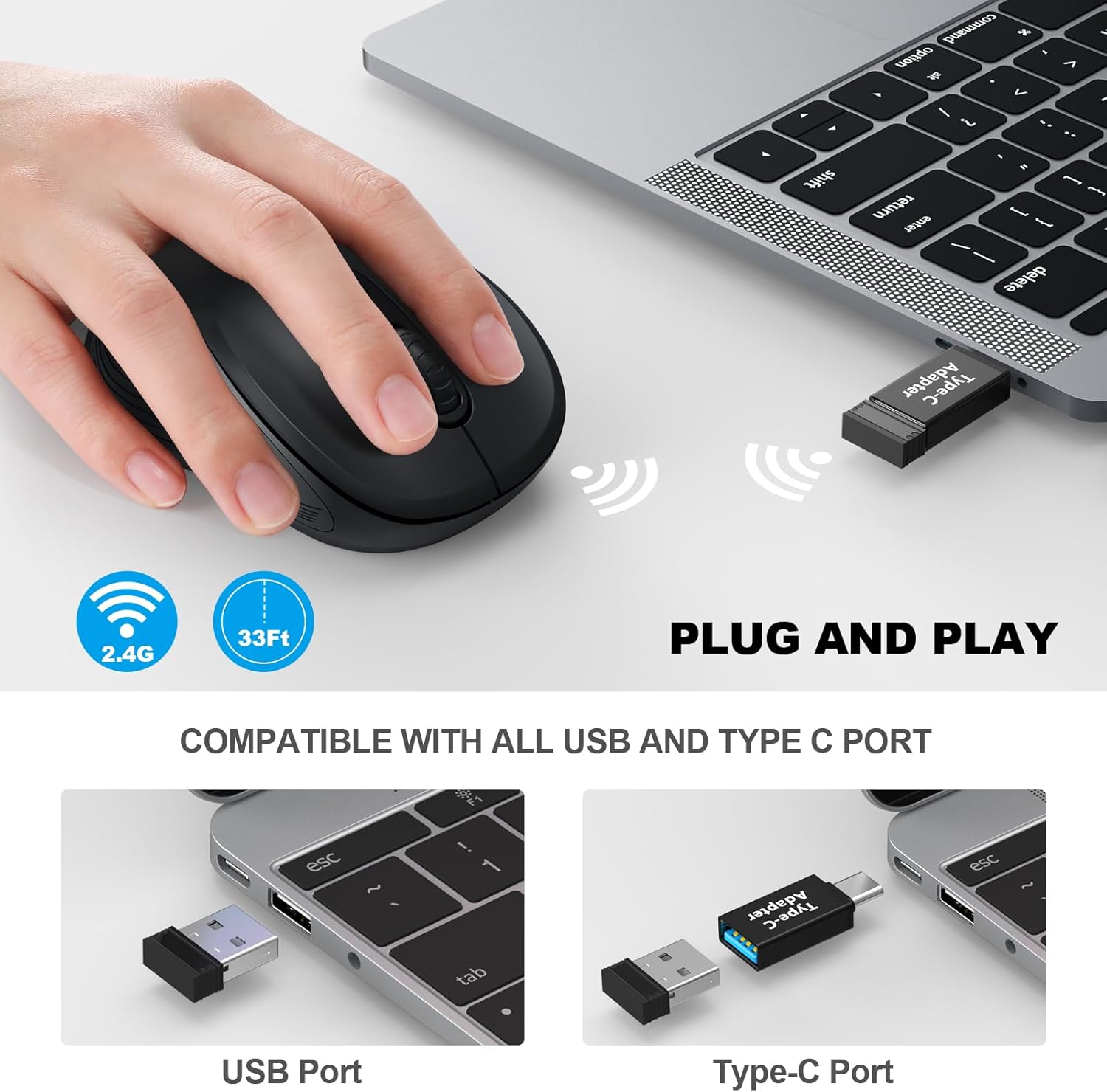
Image: Illustration demonstrating connection of the USB receiver to both standard USB and Type-C ports using the adapter.
3. Укључите миш
Locate the On/Off switch on the underside of the mouse and slide it to the "On" position. The mouse is plug-and-play, so no additional drivers are required. Your computer should automatically detect the mouse.
Упутство за употребу
Функције дугмета
The WisFox Wireless Mouse features six functional buttons:
- Леви клик: Стандардни избор и активација.
- Десни клик: Отвара контекстуалне меније.
- Точак за померање: Помера садржај вертикално. Може се притиснути и за функцију клика средњим тастером миша.
- Дугме за прекидач DPI-ја: Подешава осетљивост курсора.
- Side Buttons (Page Up/Page Down): Typically used for navigating forward and backward in web претраживачи или file истраживачи.
Слика: Детаљна view of the mouse highlighting the DPI switch button, Page Up, Page Down, Turn On/Off switch, Battery Slot, and USB Receiver.
Подешавање осетљивости DPI-ја
Press the DPI switch button located behind the scroll wheel to cycle through the three available sensitivity levels: 800 DPI, 1200 DPI, and 1600 DPI. Select the DPI setting that best suits your preference and task.

Image: The mouse shown with indicators for noiseless click and adjustable DPI settings (800-1200-1600).
Режим уштеде енергије
To conserve battery life, the mouse will automatically enter power-saving mode after 1 minute of inactivity. After 8 minutes of idling, it will enter a deeper sleep mode. To wake the mouse, simply double-click any button.

Image: Visual representation of the mouse's smart power management, showing 1 minute for power saving mode and 8 minutes for auto sleep mode.
Одржавање
- Чишћење: Користите меку, суву крпу за чишћење површине миша. За тврдокорну прљавштину, благо дamp Може се користити крпа, али водите рачуна да влага не уђе у уређај.
- Замена батерије: When the mouse performance degrades or it stops responding, replace the AA battery. Always dispose of used batteries responsibly.
- Складиштење: When not in use for extended periods, turn off the mouse to conserve battery life. Store the USB receiver in its dedicated slot within the battery compartment to prevent loss.
Решавање проблема
| Проблем | Решење |
|---|---|
| Миш не реагује. |
|
| Cursor movement is erratic or laggy. |
|
| Side buttons (Page Up/Page Down) do not work. |
|
Спецификације
| Феатуре | Детаљ |
|---|---|
| Број модела | КСНУМКСВМ |
| Повезивање | 2.4 GHz бежични (USB пријемник) |
| ДПИ Левелс | 800 / 1200 / 1600 |
| Дугмад | 6 (Left, Right, Scroll Wheel, DPI, Page Up, Page Down) |
| Извор напајања | 1 к АА батерија (није укључена) |
| Оперативна удаљеност | До 33 стопе (10 метара) |
| Димензије | 4.09 к 2.4 к 1.57 инча (105 к 60 к 40 мм) |
| Тежина | 2.4 унце (68 грама) |
| Компатибилност | Windows 7/8/10/XP, Vista 7/8, Linux, Mac OS (V10.4 or higher) |

Image: Side and top views of the mouse with its dimensions indicated.
Гаранција и подршка
WisFox provides a Гаранција 24 месеци за овај производ. Поред тога, Политика враћања без питања у року од 90 дана is offered. For any questions or assistance, please contact our 24/7 корисничка служба. Refer to the product packaging or the official WisFox webсајт за конкретне контакт податке.