
1. Увод
Welcome to the user manual for your Orbic Journey V Verizon Postpaid 4G LTE Flip Phone. This guide provides essential information on setting up, operating, maintaining, and troubleshooting your device. The Orbic Journey V is a compact and reliable flip phone designed for clear communication and essential smart features, running on the KaiOS operating system and supporting 4G LTE connectivity.
Please read this manual thoroughly to ensure proper use and to maximize the performance and longevity of your phone.
2. Подешавање
2.1. Распакивање и садржај пакета
Upon opening your Orbic Journey V package, verify that all components are present:
- Орбиц Јоурнеи В преклопни телефон
- Пуњива литијум-јонска батерија
- пуњач
2.2. Инсталација батерије
- Locate the battery cover on the back of the phone.
- Gently pry open the battery cover using the designated notch.
- Align the battery's gold contacts with the terminals inside the battery compartment.
- Чврсто притисните батерију док не кликне на своје место.
- Replace the battery cover, ensuring it is securely latched.
2.3. Инсталација СИМ картице
Your Orbic Journey V requires a Nano-SIM card for cellular service. Ensure the phone is powered off before inserting or removing the SIM card.
- Remove the battery cover and the battery as described in Section 2.2.
- Locate the SIM card slot, typically near the battery compartment.
- Insert the Nano-SIM card into the slot with the gold contacts facing down and the notched corner aligned with the slot's guide.
- Пажљиво гурните СИМ картицу док се не закључа на своје место.
- Поново инсталирајте батерију и поклопац батерије.
2.4. Прво укључивање и пуњење
To power on your phone for the first time, press and hold the Power/End Call button until the screen illuminates. It is recommended to fully charge the phone before first use.
- Прикључите пуњач на порт за пуњење телефона.
- Укључите пуњач у стандардну електричну утичницу.
- Индикатор пуњења ће се појавити на екрану.
- Када се потпуно напуни, искључите пуњач.
3. Управљање телефоном
3.1. Phone Layout and Keys
Familiarize yourself with the physical components and buttons of your Orbic Journey V.
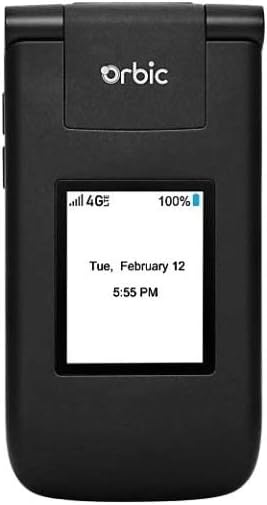
Слика 3.1: Предња страна view of the Orbic Journey V, closed. The external display shows signal strength, battery level, and the current time and date.

Figure 3.2: Orbic Journey V in open position, revealing the main screen and the full alphanumeric keypad with navigation buttons.

Слика 3.3: Задња страна view of the Orbic Journey V, highlighting the main camera lens and the Verizon branding.
- Спољашњи екран: Shows time, date, notifications, and caller ID when the phone is closed.
- Internal Display: Main screen for navigating menus, viewing content, and interacting with applications.
- Navigation Key (D-Pad): Користи се за кретање кроз меније и избор опција.
- Center Select Key: Потврђује изборе.
- Call/Send Key: Initiates calls and answers incoming calls.
- End Call/Power Key: Ends calls, returns to the home screen, and powers the phone on/off.
- Тастер Назад/Обриши: Returns to the previous screen or deletes characters.
- Тастери за јачину звука: Adjusts call volume, media volume, and ringer volume.
- Camera Key: Quick access to the camera function.
3.2. Основна навигација
The Orbic Journey V operates on KaiOS. Use the Navigation Key to scroll through menu options and the Center Select Key to open applications or confirm actions.
- From the home screen, press the Navigation Key (up, down, left, right) to access shortcuts or navigate the main menu.
- Press the Center Select Key to open the main application menu.
- Press the Back/Clear key to go back to the previous screen.
3.3. Упућивање и примање позива
- Да бисте упутили позив: Enter the phone number using the keypad and press the Call/Send key. Alternatively, navigate to Contacts, select a contact, and press the Call/Send key.
- Да одговорите на позив: When the phone rings, press the Call/Send key.
- Да бисте прекинули позив: Press the End Call/Power key.
3.4. Слање и примање порука
- To Send a Message: From the main menu, select 'Messages'. Choose 'New Message', enter the recipient's number or select from contacts, type your message using the keypad, and press 'Send'.
- To Receive a Message: New messages will typically display a notification on the screen. Navigate to the 'Messages' application to view ваше пријемно сандуче.
3.5. Употреба камере
The Orbic Journey V is equipped with front and rear cameras. The rear camera is located on the upper-right back of the phone.
- To Open Camera: Press the dedicated Camera key or navigate to the 'Camera' application from the main menu.
- Да снимите фотографију: Frame your shot on the screen and press the Center Select key to capture the image.
- Viewинг Пхотос: Access your photos through the 'Gallery' application.
3.6. Connectivity (Bluetooth, Wi-Fi)
Your phone supports Bluetooth and Wi-Fi for wireless connectivity.
- Блуетоотх: Go to 'Settings' > 'Network & Connectivity' > 'Bluetooth'. Turn Bluetooth on, and the phone will search for available devices. Select a device to pair.
- Ви-Фи: Go to 'Settings' > 'Network & Connectivity' > 'Wi-Fi'. Turn Wi-Fi on, select an available network, and enter the password if required.
4. Одржавање
4.1. Чишћење телефона
To keep your phone in optimal condition, clean it regularly:
- Користите меку крпу која не оставља влакна да обришете екран и кућиште.
- Избегавајте употребу јаких хемикалија, абразивних средстава за чишћење или аеросолних спрејева.
- Ensure the phone is powered off and unplugged before cleaning.
4.2. Брига о батерији
Proper battery care can extend its lifespan:
- Избегавајте екстремне температуре.
- Не остављајте телефон да се пуни предуго након што се потпуно напуни.
- If the phone will not be used for an extended period, store it with a partial charge (around 50%).
4.3. Ажурирања софтвера
Редовна ажурирања софтвера пружају нове функције, безбедносна побољшања и исправке грешака.
- Повежите телефон на Ви-Фи.
- Go to 'Settings' > 'Device' > 'Software Update'.
- Follow the on-screen prompts to check for and install any available updates.
КСНУМКС. Решавање проблема
This section addresses common issues you might encounter with your Orbic Journey V.
5.1. Телефон се не укључује
- Ensure the battery is correctly installed and charged. Connect the charger and wait a few minutes before attempting to power on.
- Try removing and reinserting the battery, then attempt to power on again.
5.2. Лош квалитет позива или недостатак сигнала
- Check your location for network coverage. Move to an area with better signal.
- Уверите се да је ваша СИМ картица правилно уметнута.
- Поново покрените телефон.
- Verify that your account with Verizon is active and in good standing.
5.3. Брзо пражњење батерије
- Затворите неискоришћене апликације које раде у позадини.
- Смањите осветљеност екрана.
- Turn off Wi-Fi, Bluetooth, or GPS when not in use.
- Check for and install any available software updates, as these often include battery optimizations.
5.4. Software or Navigation Issues
- If the phone is unresponsive, try a soft reset by removing and reinserting the battery.
- Ensure the phone's software is up to date.
- Ако проблеми и даље постоје, размислите о враћању на фабричка подешавања (Note: This will erase all data on the phone. Back up important information first.). Navigate to 'Settings' > 'Device' > 'Reset Phone'.
6. Спецификације
| Феатуре | Детаљ |
|---|---|
| Назив модела | Орбичко путовање В |
| Бранд | Орбиц |
| ASIN | B08971YYM1 |
| Оперативни систем | КаиОС |
| Вирелесс Царриер | Веризон |
| Целлулар Тецхнологи | ЛТЕ |
| Цоннецтивити Тецхнологиес | Блуетоотх, Ви-Фи |
| Форм Фацтор | Флип |
| Боја | Црно |
| Величина екрана | 5.8 inches (Standing screen display size) |
| Резолуција | 1520 к 720 |
| Карактеристике камере | Напред Позади |
| Аудио Јацк | Нема прикључка за слушалице |
| Батерије | 1 литијум-јонска батерија (укључена) |
| Тежина артикла | 12.8 унци |
| Димензије пакета | 5 к 3 к 3 инча |
| Датум првог доступног | 26. маја 2020. године |
7. Гаранција и подршка
For warranty information and technical support regarding your Orbic Journey V phone, please refer to the documentation provided with your purchase or contact Orbic directly. You can also visit the official Orbic webсајт за ресурсе подршке.
For service-related inquiries, please contact your wireless carrier, Verizon.
- Произвођач: Орбиц
- Бежични оператер: Веризон