
Surfans T57
Surfans Kids Tablet T57 User Manual
Модел: Т57
1. Увод
Welcome to the Surfans Kids Tablet T57 user manual. This guide provides detailed instructions on how to set up, operate, maintain, and troubleshoot your new 7-inch Android tablet. Designed specifically for children, this tablet features a durable kid-proof case, parental control functions, and pre-installed educational and entertainment applications.
2. Шта је у кутији
Молимо вас да проверите садржај вашег пакета како бисте били сигурни да су сви предмети присутни:
- 1x Surfans Kids Tablet
- 1x Tablet Stand
- 1к УСБ кабл
- 1x Kids Tablet User Manual (this document)
3. Производ је готовview и карактеристике
The Surfans Kids Tablet T57 is built with a robust design and features tailored for young users. Below is an overview of its components and key functionalities.
3.1 Компоненте таблета
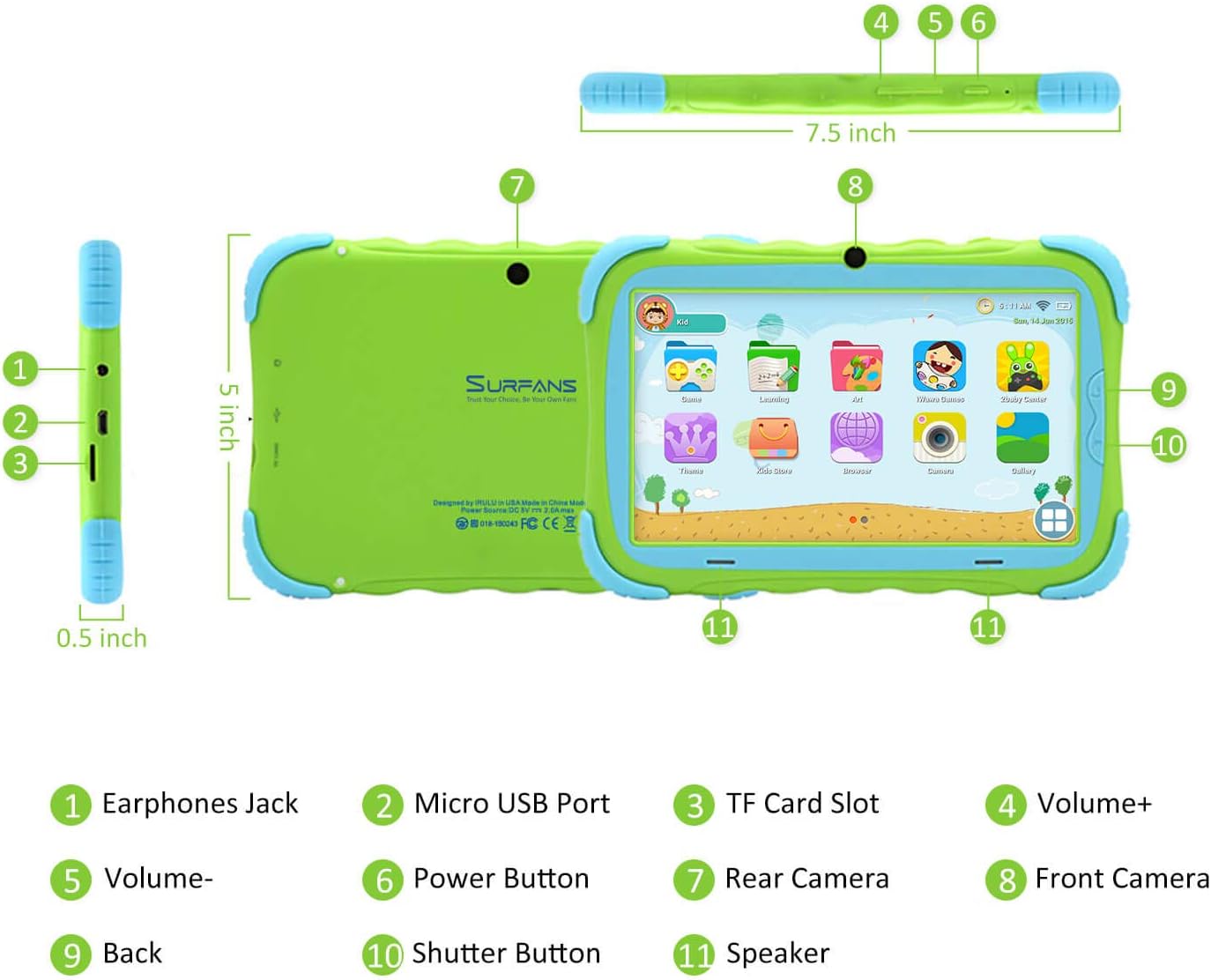
- Утичница за слушалице: За повезивање слушалица или екстерних аудио уређаја.
- Микро УСБ порт: Користи се за пуњење таблета и повезивање са рачунаром ради преноса података.
- Слот за ТФ картицу: For inserting a Micro SD card to expand storage capacity (up to 32GB).
- Волуме+: Increases the tablet's audio volume.
- Волуме-: Decreases the tablet's audio volume.
- Дугме за напајање: Press and hold to turn the tablet on/off or restart. Press briefly to turn the screen on/off.
- Задња камера: The primary camera located on the back of the tablet.
- Предња камера: The camera located on the front, typically used for video calls or selfies.
- Дугме за назад: Navigates back to the previous screen or closes the current application.
- Окидач: Used to capture photos or start/stop video recording in the camera application.
- говорник: Provides audio output from the tablet.
3.2 Кључне карактеристике
- Дизајн отпоран на децу: Comes with a durable, lightweight, and skin-friendly case designed to protect against drops and bumps.
- 7-inch IPS HD Eye Protection Display: Provides clear visuals while minimizing eye strain.
- Андроид 9.0 ОС: Runs on the latest Google Android 9.0 Pie operating system for smooth performance.
- Четворојезгарни процесор: Ensures responsive performance for apps, games, and videos.
- 1GB RAM & 16GB ROM: Sufficient memory for basic operations and storage, expandable up to 32GB via Micro SD card.
- Parental Control Mode: Allows parents to manage content, set time limits, and configure user settings for a safe digital environment.
- Pre-installed Kids Apps: Includes a variety of educational and entertaining apps, with access to the Google Play Store for more content.
- Ви-Фи повезивање: Supports 802.11g for fast browsing, streaming, and video calls.
- Дуг век трајања батерије: 3000mAh Li-ion Battery provides 3-5 hours of working time, or up to 8 hours of mixed use on a single charge.


4. Водич за подешавање
Follow these steps to set up your Surfans Kids Tablet for the first time.
4.1 Почетна наплата
Before first use, fully charge the tablet. Connect the included USB cable to the Micro USB Port (2) on the tablet and plug the other end into a compatible USB power adapter (not included) or a computer USB port. The charging indicator will show the charging status.
4.2 Укључивање/искључивање
- За укључивање: Притисните и држите дугме за напајање (6) док се екран не упали.
- За искључивање: Press and hold the Power Button (6) until a power-off menu appears. Select "Power off" and confirm.
- Рестартовати: Press and hold the Power Button (6) until the power-off menu appears. Select "Restart" and confirm.
- Екран укључен/искључен: Briefly press the Power Button (6) to turn the screen on or off without powering down the tablet.
4.3 Ви-Фи веза
Да бисте приступили садржају на мрежи и преузели апликације, повежите таблет са Wi-Fi мрежом:
- На почетном екрану превуците прстом надоле од врха да бисте отворили панел Брза подешавања.
- Tap and hold the Wi-Fi icon to go to Wi-Fi settings.
- Toggle Wi-Fi ON if it's off.
- Изаберите жељену Wi-Fi мрежу са листе.
- Унесите лозинку за мрежу ако се то затражи, а затим додирните „Повежи се“.
4.4 Setting Up Parental Control
The Parental Control mode is a key feature for managing your child's tablet usage. This allows you to filter website content, set time limits, and control app access.

Specific steps for setting up parental controls will be available within the tablet's pre-installed Kids app or settings menu. Look for an icon or section labeled "Parental Control" or "Kids Mode" to configure user profiles, allowed applications, and usage schedules.
5. Управљање таблетом
This section covers basic operations and how to use the tablet's features.
5.1 Основна навигација
- Touch and Tap: To open apps, select items, or type.
- Превуците: To scroll through screens, menus, or web странице.
- Зумирање штипкањем прстију: Да бисте увећали или умањили слике или web странице.
- Почетни екран: Главни екран где можете приступити апликацијама и виџетима.
- Трака за навигацију: Налази се на дну екрана и обично садржи дугмад Назад, Почетна и Недавне апликације.
5.2 Using Kids Mode and Apps
The tablet comes with a dedicated Kids Mode interface, providing a safe and engaging environment for children. This mode typically features a simplified layout and access to pre-approved content.

- Accessing Kids Mode: Usually, there's a specific app icon or a setting to switch to Kids Mode.
- Унапред инсталиране апликације: Explore the various educational games, books, music, and art learning applications.
- Гоогле Плаи продавница: For additional apps, exit Kids Mode (if applicable) and access the Google Play Store. Ensure parental supervision for downloads.


5.3 Media Playback and Camera
- Videos and Music: Use pre-installed media players or download others from the Play Store to enjoy videos and music.
- камера: Open the Camera app to use the Front (8) or Rear (7) cameras. Tap the Shutter Button (10) to take photos or record videos.
5.4 Проширива меморија
To expand the tablet's storage, insert a Micro SD card (up to 32GB, not included) into the TF Card Slot (3). This allows for more space for photos, music, movies, and apps.
6. Одржавање
Proper maintenance ensures the longevity and optimal performance of your tablet.
- Чишћење: Користите меку крпу која не оставља влакна за чишћење екрана и кућишта таблета. Избегавајте абразивна средства за чишћење или раствараче.
- Одржавање батерије:
- Избегавајте често потпуно пражњење батерије.
- Не излажите таблет екстремним температурама.
- За пуњење користите само приложени УСБ кабл.
- Ажурирања софтвера: Периодично проверавајте системска ажурирања у подешавањима таблета како бисте били сигурни да имате најновије функције и безбедносне закрпе.
- Управљање складиштем: Редовно чистите непотребно fileи деинсталирајте некоришћене апликације да бисте ослободили простор за складиштење и одржали перформансе.
КСНУМКС. Решавање проблема
If you encounter issues with your tablet, refer to the following common problems and solutions.
| Проблем | Могуће решење |
|---|---|
| Таблет се не укључује. | Ensure the battery is charged. Connect the charger and wait a few minutes before attempting to power on again. If unresponsive, press and hold the Power Button for 10-15 seconds to force a restart. |
| Проблеми са Wi-Fi везом. | Проверите да ли је Wi-Fi омогућен у подешавањима. Рестартујте Wi-Fi рутер. Заборавите мрежу и поново се повежите. Уверите се да сте у домету Wi-Fi сигнала. |
| Споре перформансе или падови апликација. | Close unused apps. Clear app caches. Free up storage space by deleting unnecessary files or uninstalling unused apps. Restart the tablet. |
| Екран не реагује. | Restart the tablet by holding the Power Button. Ensure the screen is clean and dry. |
| Cannot download apps from Google Play Store. | Check your Wi-Fi connection. Ensure sufficient storage space. Verify parental control settings are not blocking downloads. Clear cache and data for Google Play Store app. |
| Таблет се не пуни. | Check the USB cable and charger for damage. Try a different USB port or power adapter. Ensure the Micro USB Port is clean and free of debris. |
If the problem persists after trying these solutions, please contact Surfans customer support for further assistance.
8. Спецификације
Detailed technical specifications for the Surfans Kids Tablet T57:
| Феатуре | Детаљ |
|---|---|
| Назив модела | Т57 |
| Оперативни систем | Андроид 9 Пие |
| Величина екрана | 7 инча |
| Резолуција екрана | 1024x600 IPS HD |
| Процесор | 1.5 GHz Quad-core Cortex-X7 (ARM) |
| РАМ | 1ГБ |
| Интерна меморија (РОМ) | 16ГБ |
| Екпандабле Стораге | Подржава Мицро СД картицу до КСНУМКСГБ |
| Вирелесс Типе | 802.11g Wi-Fi |
| камере | Front Camera, Rear Camera (2 MP) |
| Батерија | Ли-јонска батерија од 3000 мАх |
| Просечно трајање батерије | 3-5 hours (working time), 8 hours (mixed use) |
| Димензије (ДкШкВ) | 7.5 к 5 к 0.5 инча |
| Тежина артикла | 1.22 фунти |
| Боја | Зелена |
9. Гаранција и подршка
For warranty information, technical support, or any inquiries regarding your Surfans Kids Tablet T57, please refer to the contact details provided on the product packaging or the official Surfans website. Surfans is committed to providing fast response and technical assistance for any issues encountered during use.
Ask a question about this manual
Ask about setup, troubleshooting, compatibility, parts, safety, or missing instructions. Manuals+ will review the question and use this page’s manual context to help answer it.