
1. Увод
This manual provides instructions for the setup, operation, maintenance, and troubleshooting of your JUQITECH Backlit Keyboard Case. Please read this manual thoroughly before using the product to ensure proper function and longevity.

Image 1.1: JUQITECH Backlit Keyboard Case with a tablet in an upright position, showcasing the backlit keyboard.
2. Садржај пакета
Проверите да ли су све ставке присутне у вашем пакету:
- 1 x Smart Case for Galaxy Tab S8/S7 11"
- 1 x Wireless Backlit Keyboard
- УСБ кабл (за пуњење)
- 1 к Упутство за употребу
3. Компатибилност
This keyboard case is designed for the following Samsung Galaxy Tab models:
- Samsung Galaxy Tab S8 11-inch (2022 models: SM-X700, SM-X706)
- Samsung Galaxy Tab S7 11-inch (2020 models: SM-T870, SM-T875, SM-T876)
Please verify your tablet's model number in the tablet's 'Settings' before use. This product is not compatible with other tablet models, including Samsung Galaxy Tab S7+, S7 FE, S8+, or 12.4-inch models.

Image 3.1: Visual guide to compatible Samsung Galaxy Tab models and their model numbers.
4. Подешавање
4.1 Installing the Tablet
- Align your Samsung Galaxy Tab with the case's inner shell.
- Gently press the tablet into the flexible TPU inner shell until it is securely seated. Ensure all edges are protected and cutouts align with ports and buttons.
4.2 Пуњење тастатуре
Before initial use, fully charge the wireless keyboard.
- Connect the provided USB cable to the keyboard's charging port.
- Повежите други крај USB кабла са USB адаптером за напајање (није укључен) или USB портом рачунара.
- Индикаторска лампица пуњења ће се упалити. Када се потпуно напуни, лампица ће се променити или искључити.

Image 4.1: Keyboard charging port with USB cable connection.
4.3 Блуетоотх упаривање
To connect the wireless keyboard to your tablet:
- Ensure the keyboard is charged and powered on using the ON/OFF switch.
- Press the 'Connect' button on the keyboard. The Bluetooth indicator light will flash, indicating it is in pairing mode.
- On your Samsung Galaxy Tab, go to 'Settings' > 'Connected devices' > 'Bluetooth'.
- Укључите Блутут и потражите доступне уређаје.
- Select 'Bluetooth Keyboard' (or similar name) from the list of devices.
- Follow any on-screen prompts to complete the pairing process. The Bluetooth indicator light on the keyboard will stop flashing once connected.
4.4 Switching Operating Systems
The keyboard supports iOS, Android, and Windows operating systems. To switch between systems:
- Притисните тастер Fn key simultaneously with the corresponding system key:
- Фн + К за Андроид
- Фн + В за Виндовс
- Фн + Е за иОС

Image 4.2: Keyboard layout showing system switching keys (Fn + Q/W/E).
5. Operating the Keyboard Case
5.1 Контрола позадинског осветљења
The keyboard features 7-color backlighting with stable and breathing modes.
- Притисните тастер bulb key to cycle through stable backlight mode, breathing backlight mode, or turn the backlight off.
- Притисните тастер RGB key to change the backlight color in stable mode (Blue, Green, Red, Light Blue, Purple, Yellow, White).
5.2 Тастери пречица
The keyboard includes a row of dedicated shortcut keys for enhanced productivity:
- Есц: Есцапе
- Pretraga: Access search function
- Изаберите Све
- Копирај
- Залепите
- Цут
- Претходни (media control)
- Пусти/Паузирај (media control)
- Следеће (media control)
- Волуме -
- Волуме +
- Screen Lightness -
- Screen Lightness +
- Закључавање екрана

Слика 5.1: Готовоview of dedicated shortcut keys.
5.3 Подешавање Viewинг Англес
Случај омогућава вишеструке viewing angles. The keyboard is magnetically attached and can be detached to adjust the tablet's position for optimal viewing, reading, working, or gaming.
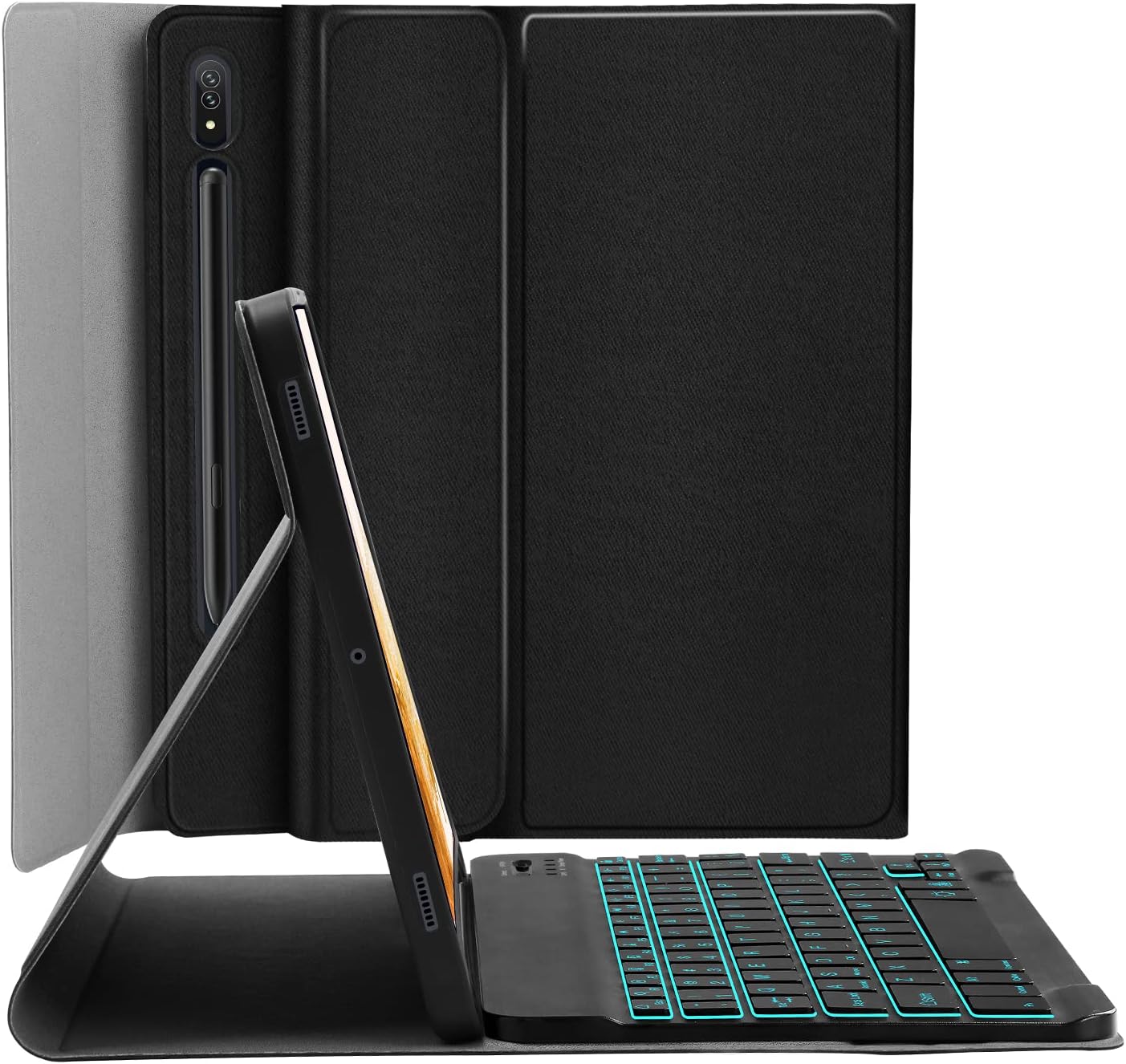
Image 5.2: Tablet case in a propped-up position with the keyboard, illustrating a common viewугао уласка.

Image 5.3: Illustration of various adjustable viewинг углова.
5.4 S Pen Integration
The case includes a built-in slot for the S Pen, ensuring it is stored securely and is readily available. The design also supports magnetic attachment and wireless charging of the S Pen on the tablet's side without removing the case.

Image 5.4: S Pen holder and magnetic charging area.

Слика 5.5: Детаљно view of the S Pen slot and magnetic attachment.
5.5 Функција аутоматског спавања/буђења
The magnetic auto sleep/wake feature helps conserve battery life. The tablet will automatically wake up when the lid is opened and go to sleep when the lid is closed.

Image 5.6: Features including auto sleep/wake, soft TPU, and precise cutouts.
6. Одржавање
6.1 Чишћење
- Wipe the case exterior with a soft, damp тканина. Избегавајте јаке хемикалије.
- For the keyboard, use a dry, soft cloth. Do not immerse the keyboard in water.
6.2 Одржавање батерије
- Редовно пуните тастатуру да бисте одржали здравље батерије.
- Избегавајте екстремне температуре, које могу утицати на перформансе батерије.
КСНУМКС. Решавање проблема
7.1 Тастатура се не повезује
- Уверите се да је тастатура укључена и потпуно напуњена.
- Verify Bluetooth is enabled on your tablet.
- Press the 'Connect' button on the keyboard to enter pairing mode.
- Forget the device in your tablet's Bluetooth settings and attempt to re-pair.
7.2 Тастери не реагују
- Проверите да ли је тастатура повезана преко Блутут-а.
- Ensure the correct operating system mode is selected (Fn + Q/W/E).
- Напуните батерију тастатуре.
7.3 Позадинско осветљење не ради
- Press the bulb key to cycle through backlight modes.
- Уверите се да је батерија тастатуре довољно напуњена.
8. Спецификације
| Број модела | JU2011BTB |
| Димензије производа | 10.2 к 7.37 к 0.78 инча |
| Тежина артикла | 1.28 фунти |
| Технологија повезивања | Блуетоотх |
| Тип тастатуре | Wireless, Detachable, 7 Colors Backlit |
| Боје позадинског осветљења | RGB (Blue, Green, Red, Light Blue, Purple, Yellow, White) |
| Батерија | 1 литијум-јонска батерија (укључена) |
| Посебне карактеристике | Backlit, Built-in S Pen Holder, Multi-Angle Adjustable, Rechargeable, Auto Sleep/Wake |
9. Гаранција и подршка
JUQITECH offers a 24-hour after-sales service guarantee for any issues with your purchase. Please contact JUQITECH customer support for assistance.